Quick Start: Create a Flow Using Anthropic Node
This page demonstrates how to use Claude 3 Sonnet to perform fault classification and generate corrective recommendations based on incoming telemetry. It simulates a real-world scenario where IoT systems, such as smart factories or buildings, receive status messages from devices and require automated, intelligent interpretation of those issues.
Scenario Description
In many industrial or smart building scenarios, IoT devices report multiple metrics in a single MQTT message. For example, a power monitoring device may send power consumption across different circuits in one payload.
Each message is published to the topic devices/power_report and includes:
device_id: Identifier of the device- Multiple numeric metrics, such as
circuit_1,circuit_2,circuit_3, etc. - Additional non-numeric fields like
statusortimestamp
Your goal is to sum all numeric values in the message (i.e., total power consumption across circuits) using an LLM (Claude 3 Sonnet), and republish only the numeric result for downstream processing or billing.
Sample Message
{
  "device_id": "pmu-1008",
  "circuit_1": 120.5,
  "circuit_2": 98.7,
  "circuit_3": 103.2,
  "status": "nominal",
  "timestamp": "2025-06-06T10:00:00Z"
}
Expected Output (from Claude)
322.4This value is the total of all numeric circuit readings.
Create the Flow
Prerequisite
Make sure you have a valid Anthropic API Key and set the correct API version (e.g., 2023-06-01).
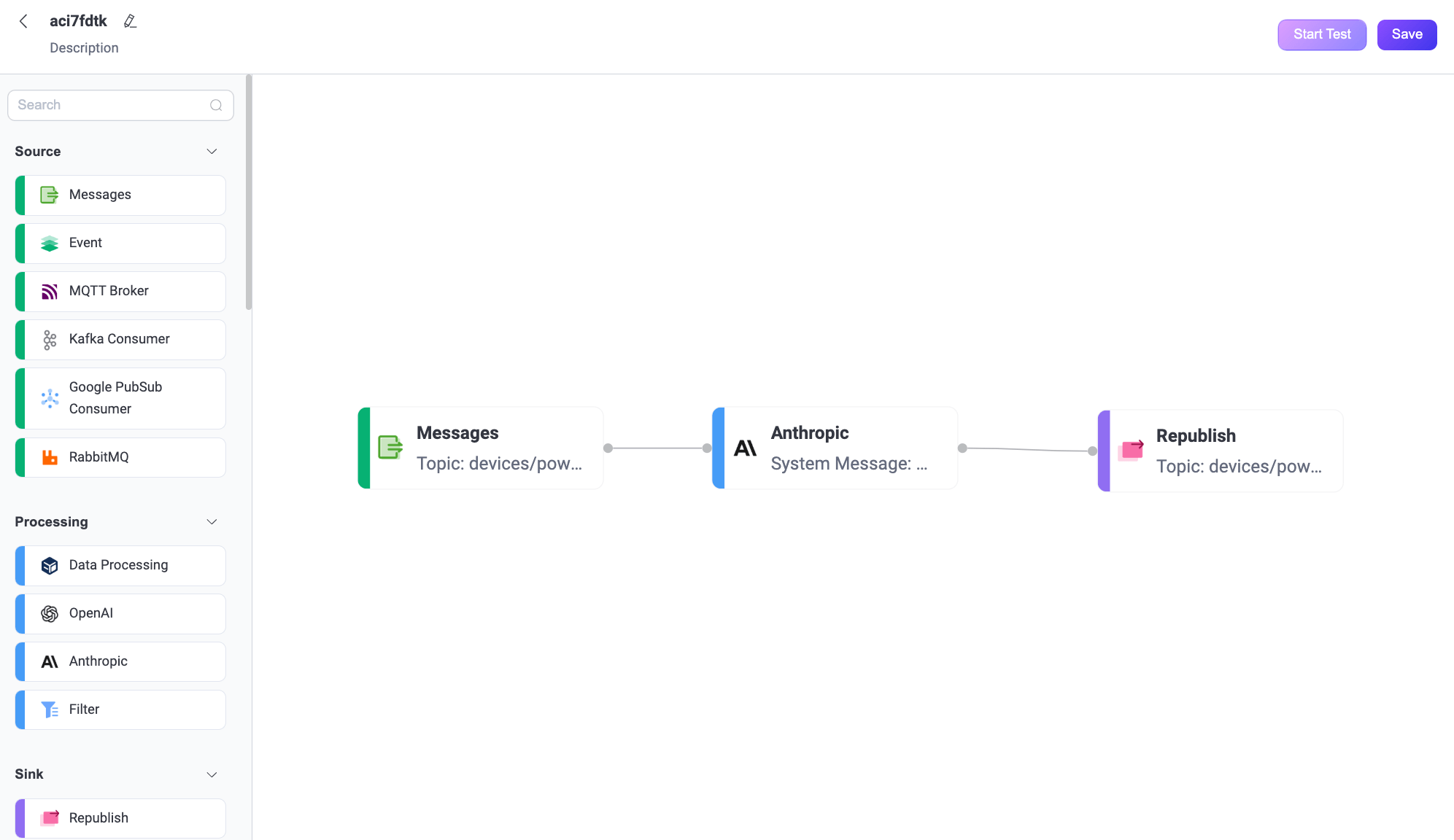
Click the Create Flow button on the Flows page.
Add a Messages node.
- Drag a Messages node from the Source panel.
- Set the topic to
devices/power_report. - Click Save.
Add an Anthropic node.
- Drag an Anthropic node from the Processing section and connect it to the Data Processing node.
- Configure the node:
Input: Enter
payload.System Message: You can enter a dynamic prompt like the following:
You are a power consumption calculator. Given an input JSON object with various keys, sum all numeric values (e.g., circuit readings) and return only the total.Model: Select
claude-3-sonnet-20240620.Max Tokens: Enter
50.Anthropic Version: Enter
2023-06-01.API Key: Enter your Anthropic API key.
Base URL: Leave empty.
Output Result Alias: Enter
total_power.
- Click Save.
Add a Republish node.
- Drag a Republish node from the Sink section and connect it to the Anthropic node.
- Set the topic to
devices/power_total. - Set the payload to
${total_power}. - Click Save.
Click Save in the upper-right corner to save the Flow.
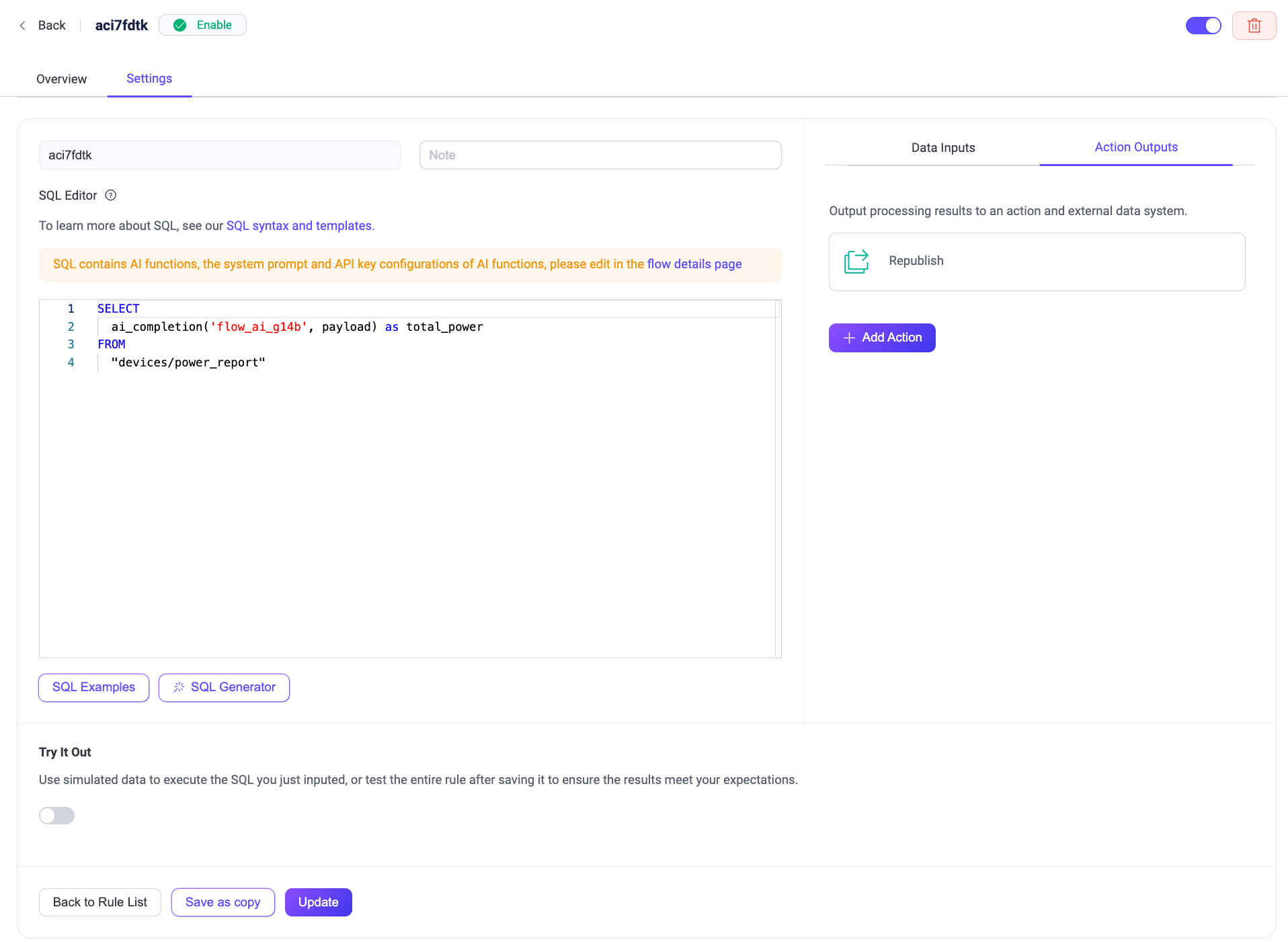
Flows and form rules are interoperable. You can also view the SQL and related rule configurations on the Rule page.
Test the Flow
Connect an MQTT client to EMQX.
To quickly test the flow, you can use the Diagnostic Tools -> WebSocket Client on the Dashboard to simulate an MQTT client. Alternatively, you can also use the MQTTX tool or a real MQTT client:
- Connect to your EMQX server.
- Subscribe to the topic
devices/power_total.
Start Testing.
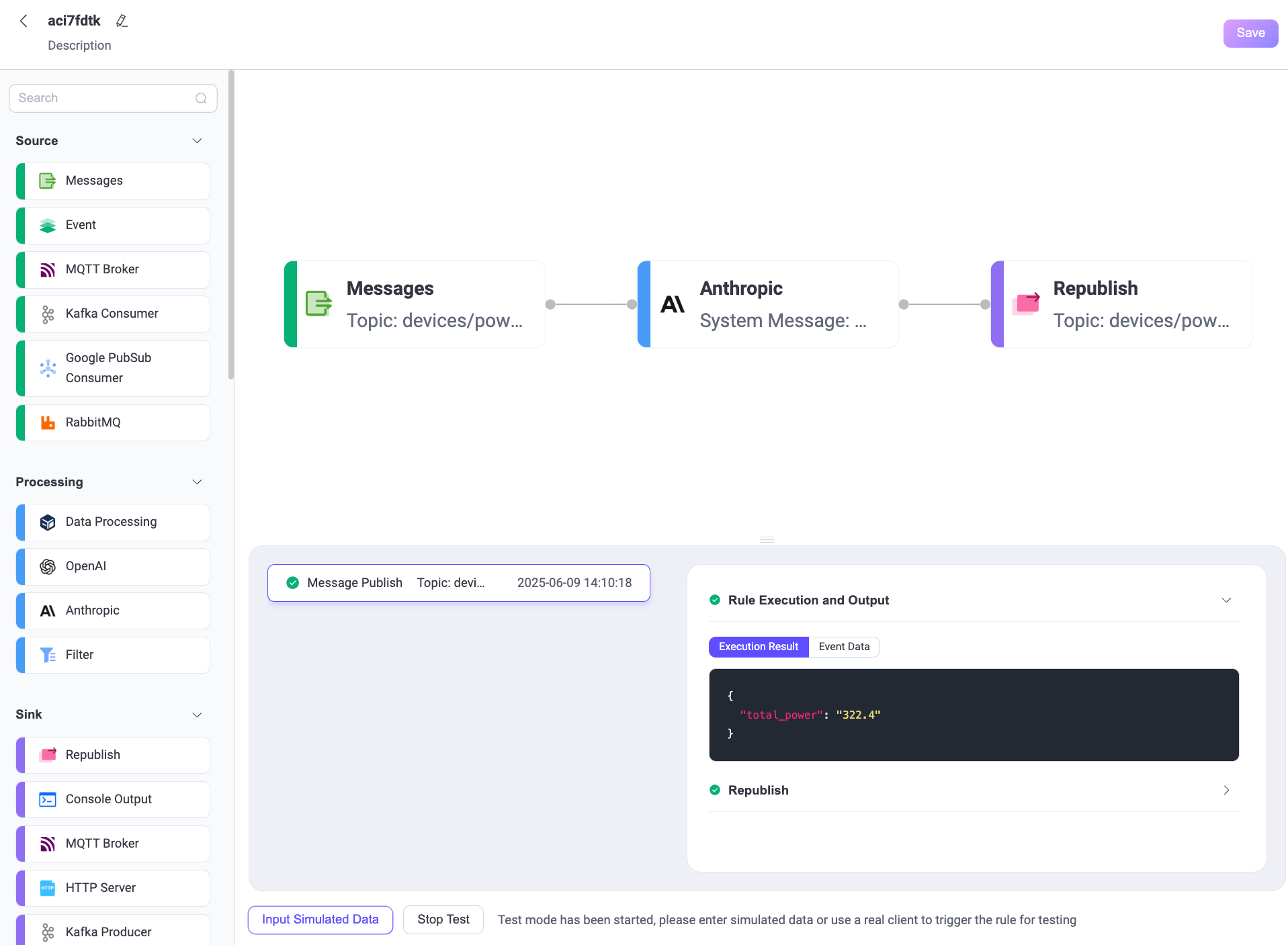
In the Flow Designer, click any node to open the Edit panel.
Click Edit, then click Start Test to open the test panel at the bottom.
Click Input Simulated Data and publish this message to topic
devices/power_reportby clicking Submit Test:json{ "device_id": "pmu-1008", "circuit_1": 120.5, "circuit_2": 98.7, "circuit_3": 103.2, "status": "nominal", "timestamp": "2025-06-06T10:00:00Z" }
Review results and node processing metrics.
You can see the successful execution result of the flow.
Return to the WebSocket Client page and you should receive an AI-generated summary like:
322.4
If the test results are unsuccessful, error messages will be displayed accordingly.
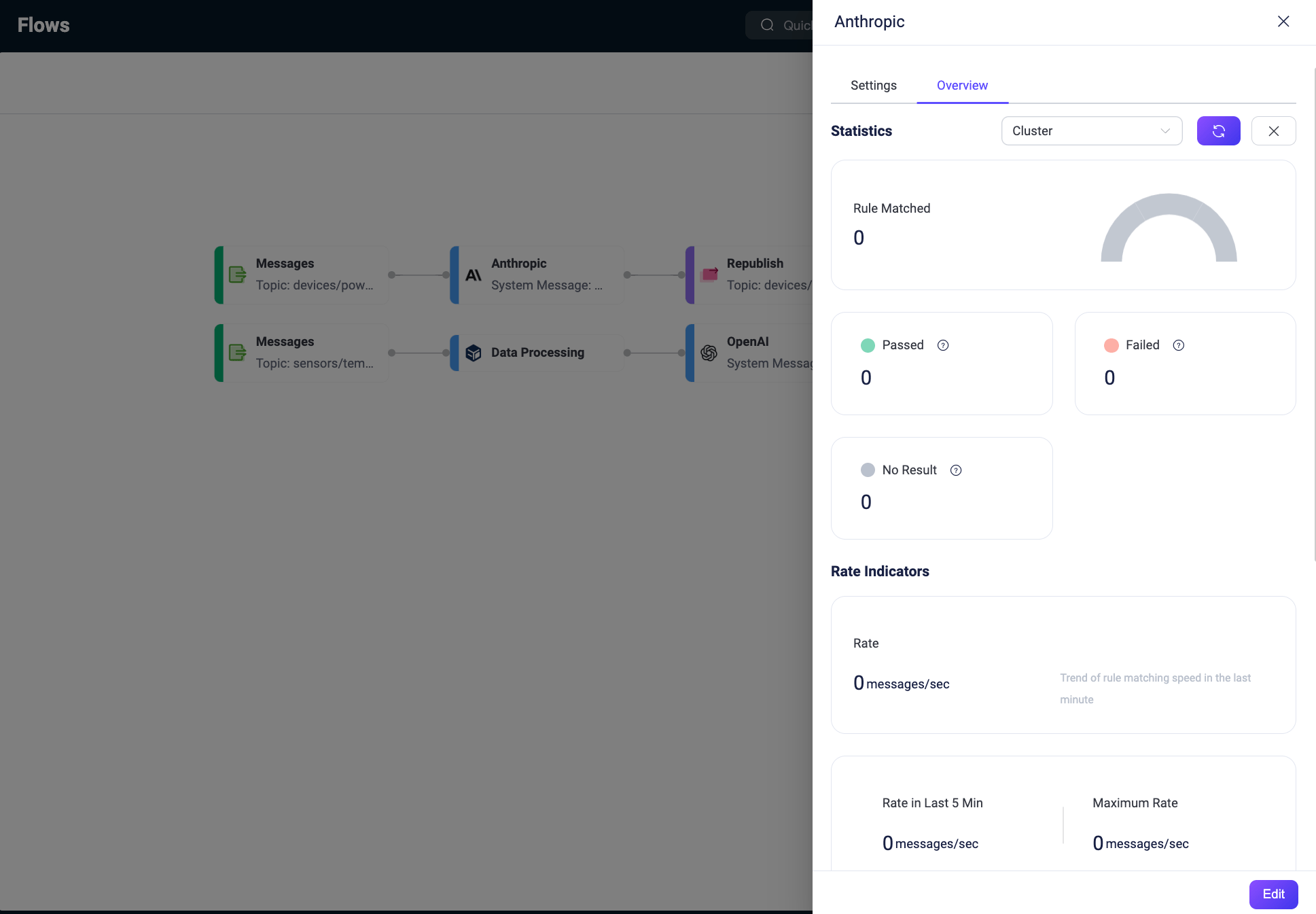
To view the running statistics and metrics of the Anthropic node, exit the editing page, click the node to open the Edit panel and click the Overview tab.