Quick Start: Create an MQTT over QUIC Bridge
This guide demonstrates how to create an MQTT over QUIC (Quick UDP Internet Connections) bridge using a free public MQTT broker. The bridge forwards MQTT messages between EMQX Edge and a remote broker over QUIC, providing built-in TLS 1.3 encryption, faster connection establishment, and improved performance on unreliable networks.
You can configure the bridge via the Dashboard or using the configuration file.
Create an MQTT over QUIC Bridge via the Dashboard
Follow the steps below to configure an MQTT over QUIC bridge using the EMQX Edge Dashboard.
Step 1: Open the Bridge Creation Wizard
- In the Dashboard, navigate to Bridges.
- On the Bridges page, click Add in the upper-right corner.
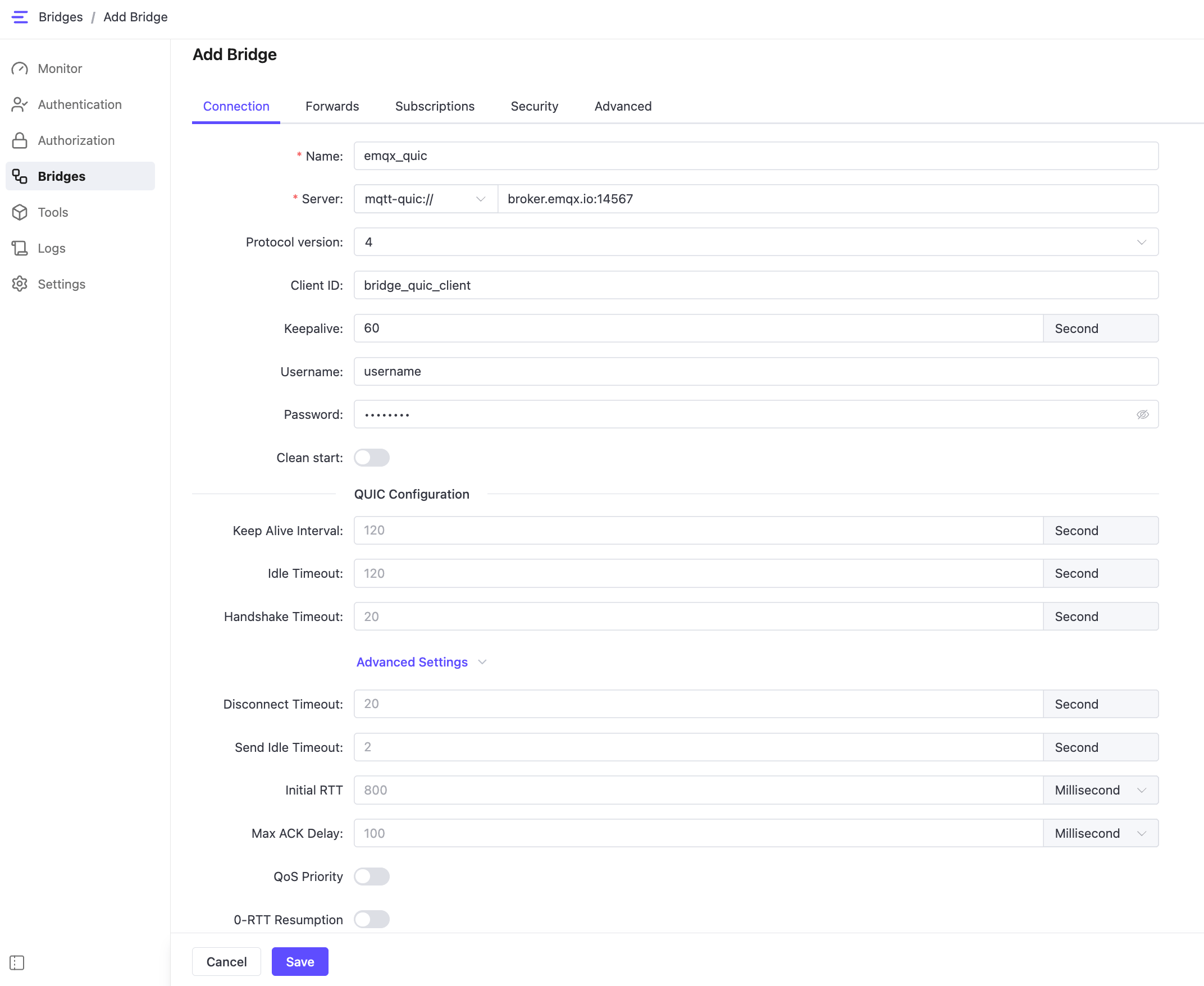
- The bridge configuration form appears with the following tabs:
- Connection
- Forwards
- Subscriptions
- Security
- Advanced
Step 2: Set Up the Connection
The Connection tab defines how EMQX Edge connects to the remote MQTT broker over QUIC.
Configure the following fields:
Name: Specify a unique name for the bridge, for example,
emqx_quic.Server: The remote broker address. EMQX Edge uses a decoupled protocol and transport design, where the URL prefix specifies the transport layer.
Supported transport prefixes include:
mqtt-tcptls+mqtt-tcpmqtt-quic
For this example, use:
mqtt-quic://broker.emqx.io:14567.Protocol version: MQTT protocol version:
5for MQTT 5.04for MQTT 3.1.1
Example:
4Client ID: Unique identifier for the bridge connection, for example,
bridge_quic_client. If left empty, EMQX Edge automatically generates one.Keepalive: MQTT protocol-level keepalive interval in seconds. Default is `60's.
Username / Password: Credentials for authenticating with the remote broker. In this example, set to
username/password.Clean start: When enabled, the bridge always starts a new session. When disabled, it attempts to resume a previous session if supported by the broker. Default is
false.
QUIC Configuration (Optional)
The QUIC Configuration section exposes QUIC transport-level parameters such as:
- Keep Alive Interval
- Idle Timeout
- Handshake Timeout
- Advanced Settings:
- Disconnect Timeout
- Send Idle Timeout
- Initial RTT
- Max ACK Delay
- QoS Priority
- 0-RTT Resumption
These options are optional. Default values are suitable for most use cases.
For detailed explanations of each QUIC option and tuning guidance, see MQTT over QUIC Bridge Configuration Reference.
Step 3: Define Forwarding Rules
The Forwards tab defines how messages published locally in EMQX Edge are forwarded to the remote MQTT broker.
To create a rule for message forwarding:
- Click Add.
- Configure the following fields:
- Local topic: Topic on your local EMQX Edge instance
- Remote topic: Target topic on the remote broker
- QoS: Select
0,1, or2
Example Forward Rule:
| Local Topic | Remote Topic | QoS |
|---|---|---|
| topic1 | fwd/topic1 | 1 |
You can edit or delete rules later using the action buttons.
Step 4: Define Subscription Rules
The Subscriptions tab defines how EMQX Edge subscribes to topics from the remote broker and republishes incoming messages locally.
To create a subscription rule:
- Click Add.
- Configure the following fields:
- Remote topic: Topic on the remote broker
- Local topic: The corresponding topic on EMQX Edge
- QoS: Select
0,1, or2
Example Subscription Rule:
| Remote Topic | Local Topic | QoS |
|---|---|---|
| cmd/topic3 | topic3 | 1 |
You can edit or delete each rule later using the action buttons.
Step 5: Security and Advanced Settings
Security
For MQTT over QUIC, unlike MQTT over TLS/TCP, where TLS operates as a separate layer above TCP, QUIC incorporates TLS 1.3 natively and encrypts nearly all packet contents, including control frames.
The Security tab allows you to set TLS configurations to establish a secure, encrypted QUIC connection to your self-signed remote broker:
- Key Password: Password used to unlock your private key file.
- Key: Path to your private key file (e.g.,
/etc/certs/key.pem). - Cert: Path to your certificate file (e.g.,
/etc/certs/cert.pem). - Cacert: Path to the certificate authority file (e.g.,
/etc/certs/cacert.pem). - Verify Peer: When enabled, the client will verify the server’s certificate for authenticity.
- Fail if No Peer Cert: When enabled, the connection fails if the server doesn't provide a certificate.
In this example, mqtt-quic://broker.emqx.io:14567 doesn't require custom certificates. So left it empty.
Advanced
The Advanced tab provides general bridge-level options:
- Max parallel processes: Number of concurrent bridge processes. Default:
2. Increase this value to improve throughput if needed.
Step 6: Save and Apply the Bridge Configuration
- Click Save to persist the bridge configuration.
- After clicking Save, a prompt is displayed indicating that the bridge configuration will take effect after restarting EMQX Edge. Click Confirm to close the prompt.
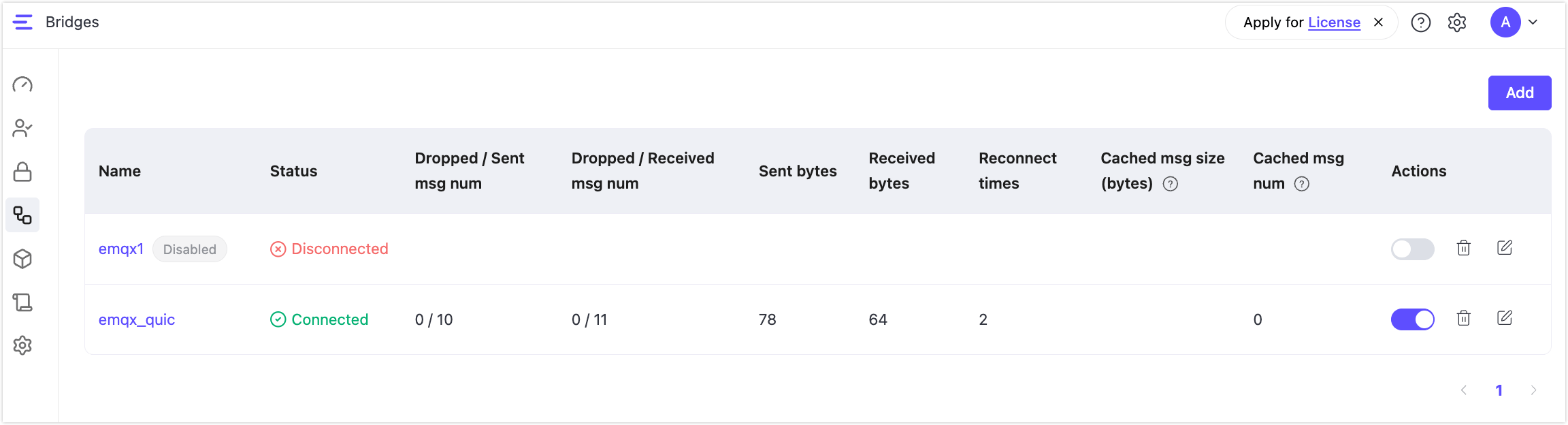
Once EMQX Edge restarts, the new bridge will appear in the Bridges list. You can toggle the switch in the Action column to enable or disable the bridge. When disabled, the bridge will not connect or exchange data, and no metrics will be shown on the Bridges page.
Create an MQTT over QUIC Bridge via Configuration File
If you prefer file-based configuration, you can define the bridge in nanomq.conf or via Settings -> All configurations in the Dashboard.
Option 1: Add Configuration via the Dashboard (All configurations)
Navigate to Settings in the left-hand menu.
Click the All configurations tab.
Define the bridge configuration settings by adding the following configuration snippet into the editor:
hoconbridges.mqtt.emqx_quic { server = "mqtt-quic://broker.emqx.io:14567" proto_ver = 4 clientid = "bridge_quic_client" username = "username" password = "password" keepalive = 60s clean_start = false forwards = [ { remote_topic = "fwd/topic1" local_topic = "topic1" qos = 1 } ] subscription = [ { remote_topic = "cmd/topic3" local_topic = "topic3" qos = 1 } ] max_parallel_processes = 2 max_send_queue_len = 32 max_recv_queue_len = 128 }After saving the configuration, restart EMQX Edge.
For a complete list of available options (including QUIC-specific tuning and hybrid bridging), see MQTT over QUIC Bridge Configuration Reference.
Option 2: Edit the nanomq.conf File
Open the configuration file
nanomq.conf.Define the bridge configuration settings by adding the following HOCON snippet to the configuration file:
bridges.mqtt.emqx_quic {
  server    = "mqtt-quic://broker.emqx.io:14567"
  proto_ver = 4
  clientid  = "bridge_quic_client"
  username  = "username"
  password  = "password"
  keepalive = 60s
  clean_start = false

  forwards = [
    {
      remote_topic = "fwd/topic1"
      local_topic  = "topic1"
      qos = 1
    }
  ]

  subscription = [
    {
      remote_topic = "cmd/topic3"
      local_topic  = "topic3"
      qos = 1
    }
  ]

  max_parallel_processes = 2
  max_send_queue_len     = 32
  max_recv_queue_len     = 128
}
Start EMQX Edge with the Bridge Configuration
Run the following command to start EMQX Edge with your local configuration file:
emqx-edge start --conf /path/to/your/nanomq.conf --license /path/to/your/nanomq.licReplace /path/to/your/nanomq.conf with the actual path to your nanomq.conf file on your local machine.
For a complete list of configuration options, refer to the MQTT over QUIC Bridge Configuration Reference. The settings will take effect after EMQX Edge is restarted.
TIP
To view more log data during runtime, you can set the log level log.level in the configuration file.
Test the MQTT over QUIC Bridge
This section demonstrates how to use MQTTX to simulate clients and test the data bridge between EMQX Edge and the public MQTT broker. You will create two connections, one to EMQX Edge and another to the remote MQTT broker, to verify the bidirectional message forwarding.
Connect a Client to EMQX Edge
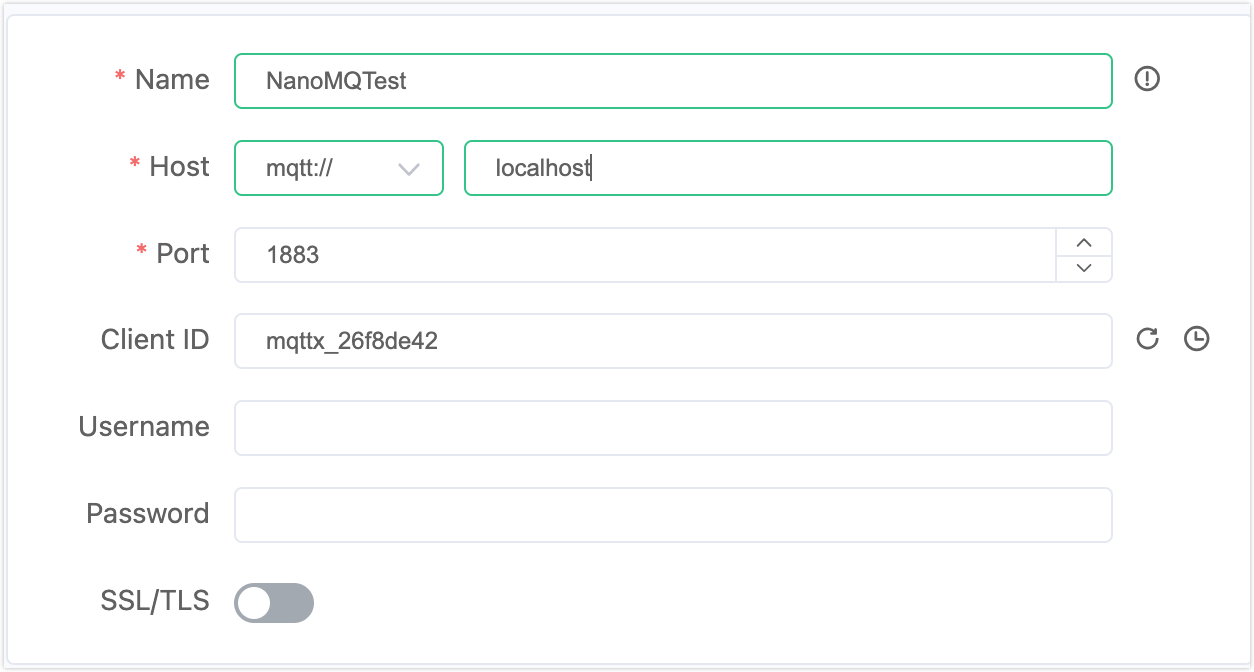
Create a client named NanoMQTest, connecting to localhost:1883.
Connect a Client to the Remote MQTT Broker
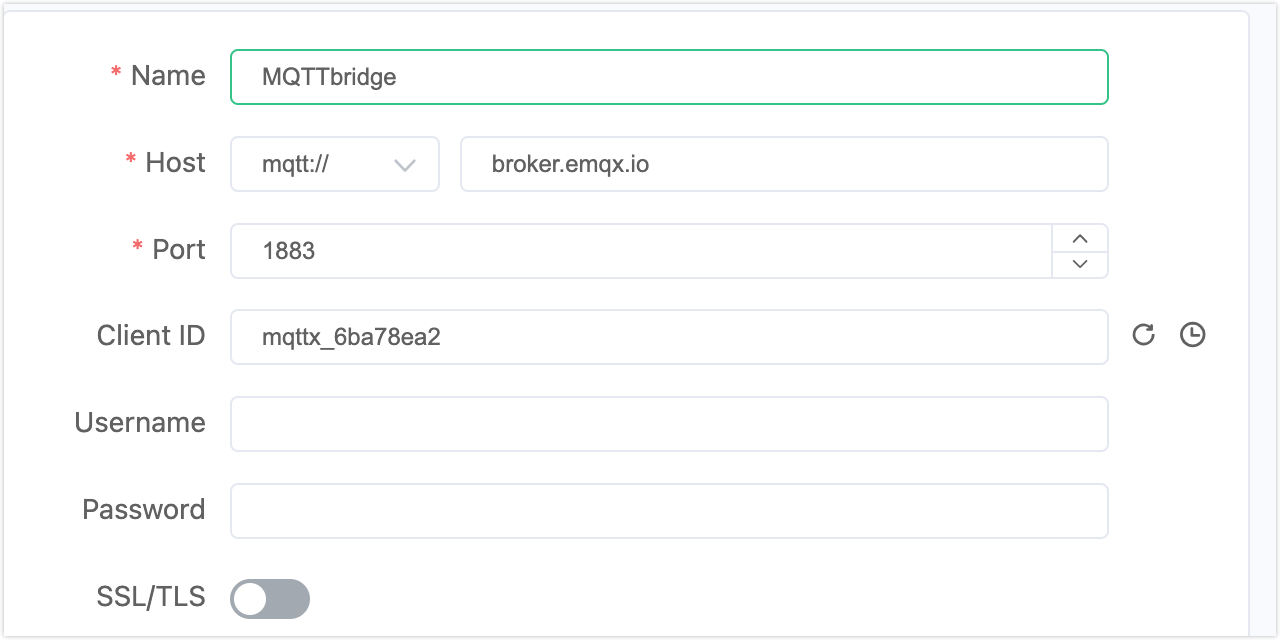
Create another client named MQTTbridge, connecting to broker.emqx.io:1883.
Test Message Forwarding from EMQX Edge to Remote Broker
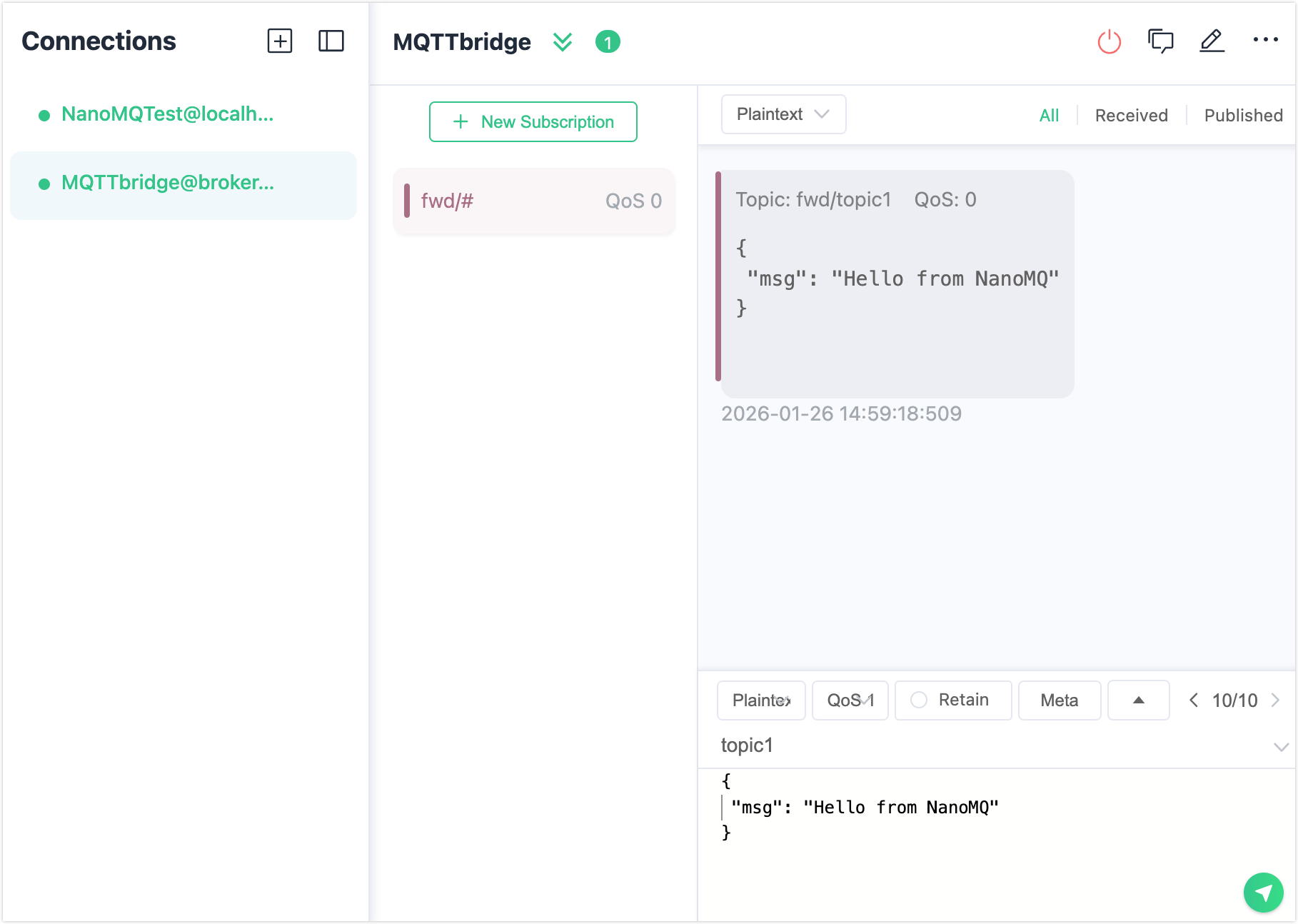
On the
MQTTbridgeclient, subscribe to the topicfwd/#.On the
NanoMQTestclient, publish a message totopic1, such asHello from NanoMQ.Confirm that the message appears on the
MQTTbridgeclient, indicating successful forwarding.
Test Message Subscription from Remote Broker to EMQX Edge
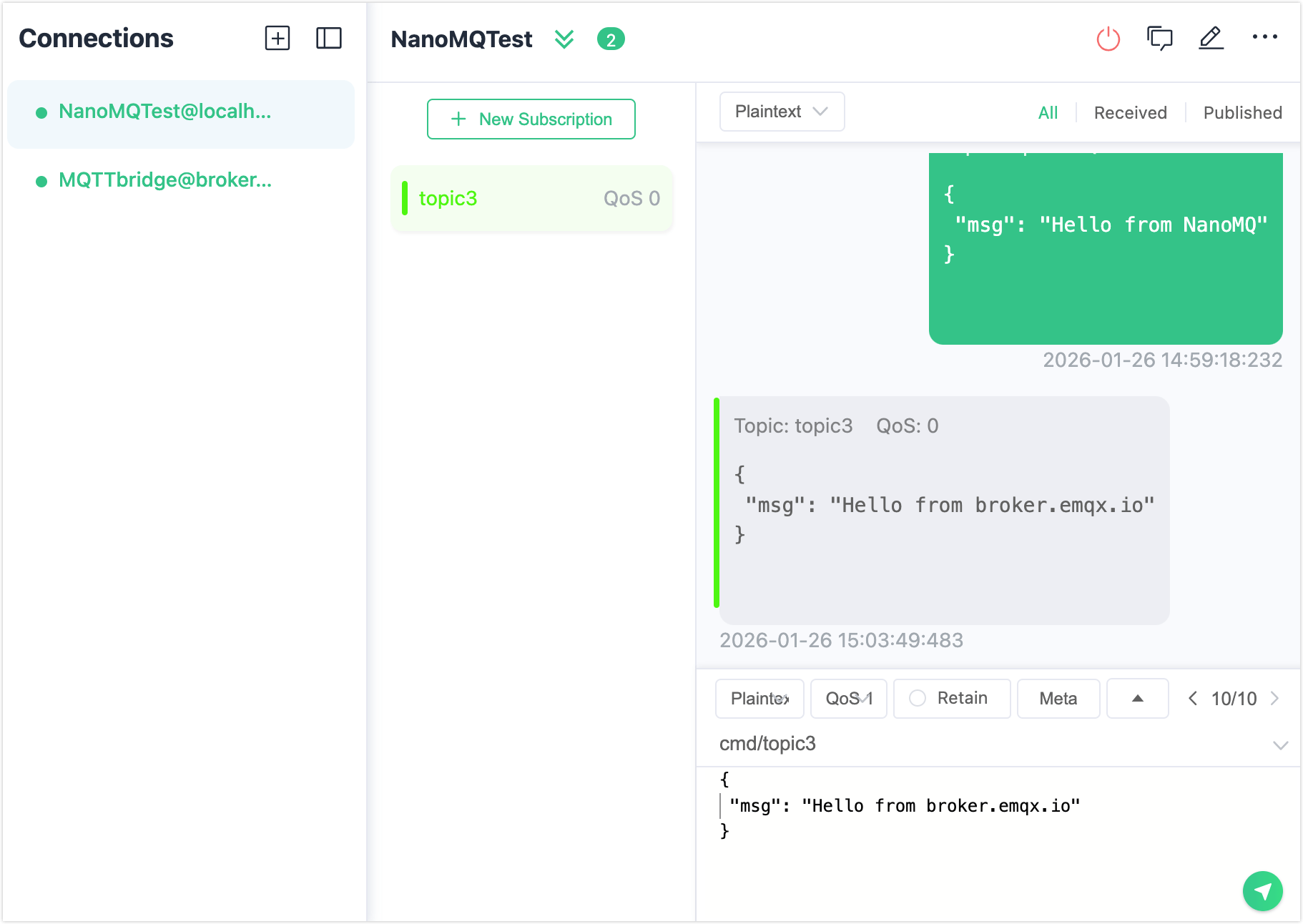
- On the
NanoMQTestclient, subscribe to the topictopic3. - On the
MQTTbridgeclient, publish a message tocmd/topic3, such asHello from broker.emqx.io. - Verify that the message is received by the
NanoMQTestclient, confirming successful subscription.
View Bridge Status and Metrics
After testing, you can monitor the bridge connection status and message metrics on the Bridges page in the Dashboard.