Subscription Topic Tree
The Subscriptions Topic Tree is a visualization feature on the Monitor page of the EMQX Edge Dashboard. It displays all MQTT topic subscriptions in a hierarchical tree, allowing you to clearly see topic relationships, subscription counts, and detailed client subscription information.
Features
- Tree-Structured View: Displays all subscribed topics according to their MQTT hierarchical structure.
- Subscription Statistics: Shows the number of clients subscribed to each topic node.
- Expandable Nodes: Supports expanding and collapsing topic branches for convenient navigation of multi-level topic structures.
- Detailed Topic Information: Clicking a topic node opens a details panel showing the full topic path and subscribed client list.
- Keyword Filtering: Allows quick search and filtering of topics by keywords.
Use Cases
The Subscriptions Topic Tree feature can assist in the following scenarios:
- Topic Planning Verification: Verify that the topic hierarchy design in the system meets expectations.
- Subscription Monitoring: Monitor the number of subscribing clients for each topic in real-time.
- Troubleshooting: Quickly locate subscription details for specific topics to assist in problem diagnosis.
- System Auditing: Understand the distribution of topic subscriptions across the entire MQTT broker.
Use Subscriptions Topic Tree
This section demonstrates how to view and verify subscriptions using the Topic Tree after clients subscribe to MQTT topics.
Subscribe to Topics
For demonstration, you can use the built-in Tools page in the EMQX Edge Dashboard to simulate MQTT clients.
Open the Edge Dashboard.
Navigate to Tools.
Click Connect to establish the default connection.
Under the Subscription section, subscribe to the following topics in sequence:
tt/1t/1/2t/1/2/test
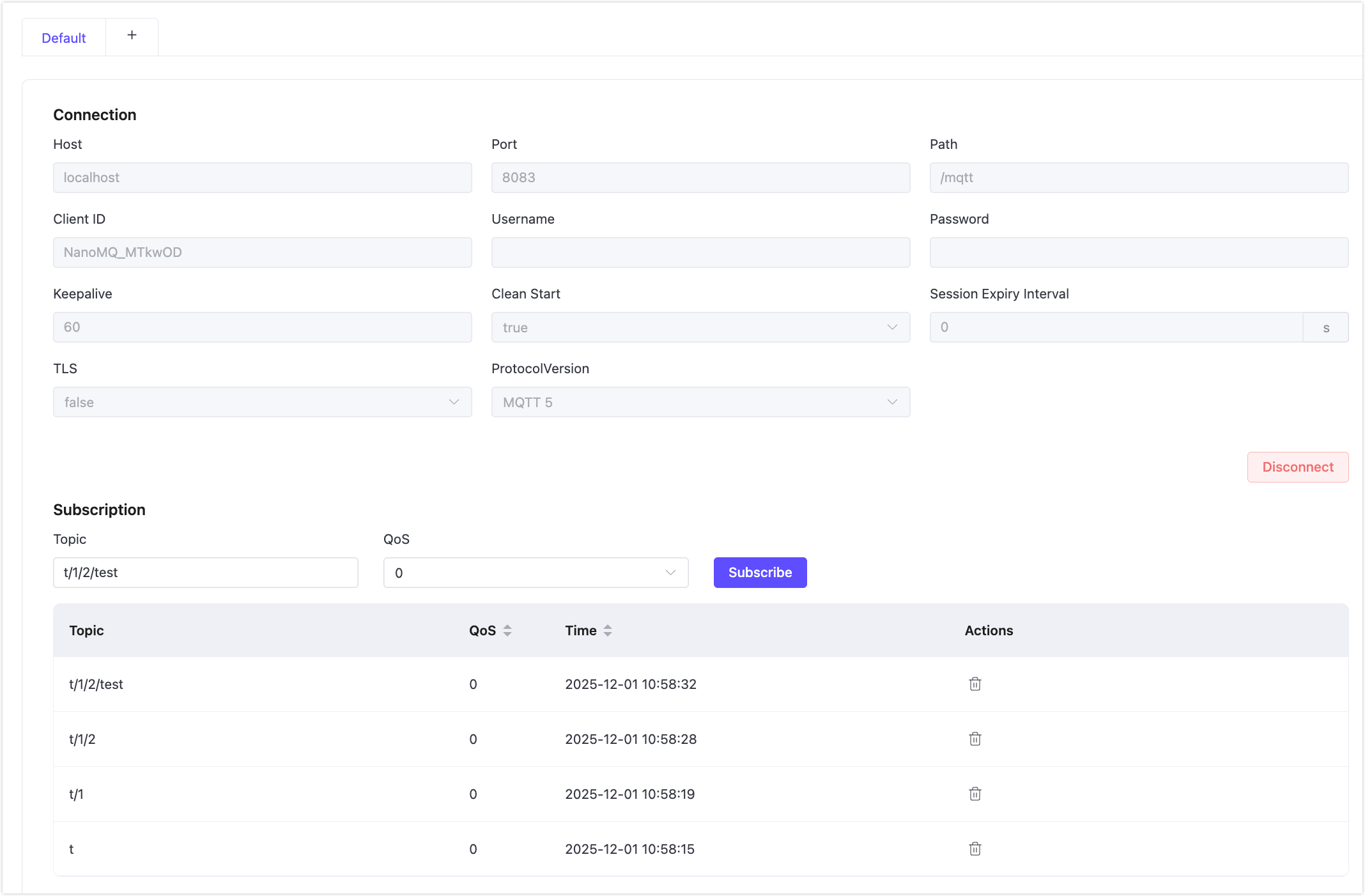
Click + next to the Default tab to establish two new client connections, and subscribe both of them to the topic
t/1.
View Topic Tree Structure
Navigate to Monitor -> Subscriptions Topic Tree.
Locate the root topic node
t, representing the top-level topic.Click the expand icon beside the topic to view its hierarchical structure. You will see all related topics arranged in a nested format:
t 1 client subscribed └─ 1 3 clients subscribed └─ 2 1 client subscribed └─ test 1 client subscribedExplanation:
Topic Nodes: Each line represents one topic level.
Indentation Levels: Reflects parent-child relationships between topics.
Subscription Count: Displayed on the right side, indicating how many clients subscribed to the topic.
View Topic Details
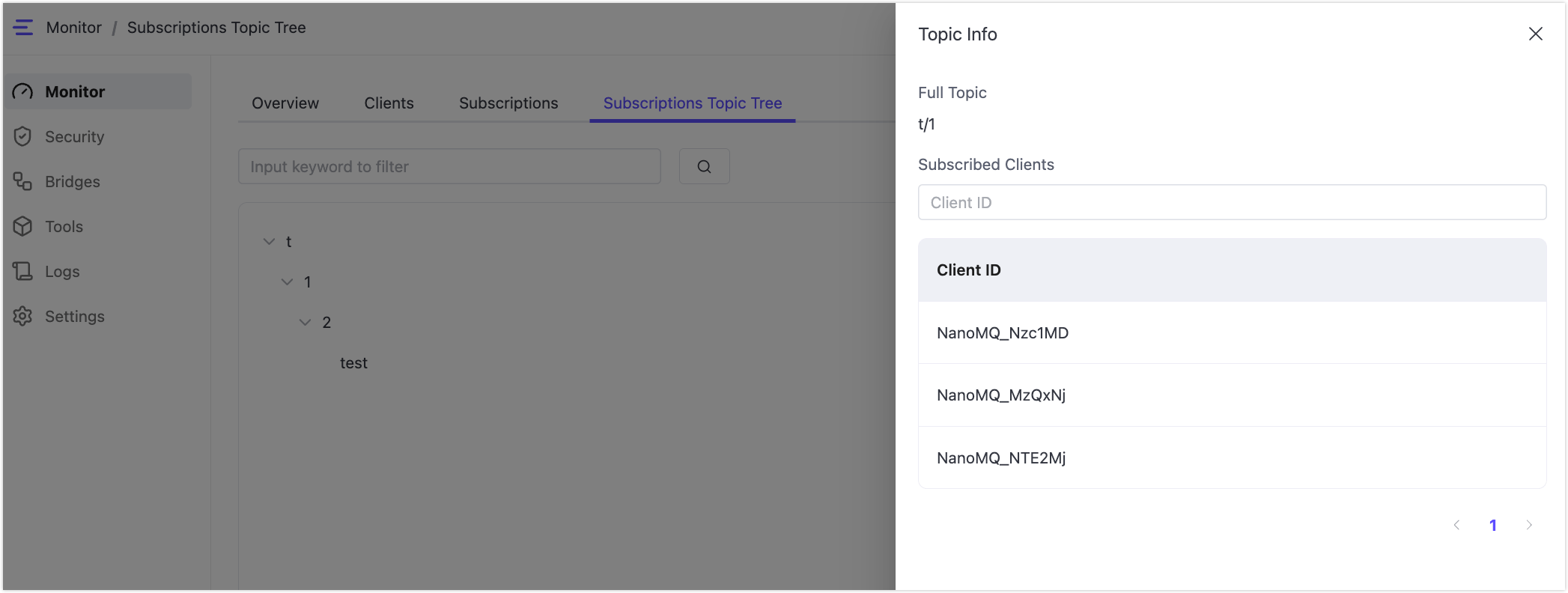
Click any topic node to open a details panel on the right. The panel displays:
- Full Topic: The complete topic path
- Subscribed Clients: A list of client IDs subscribed to this topic.
If many clients are subscribed, pagination controls allow navigation through the full list.
Filter Topics
To quickly locate specific topics:
- Enter a keyword in the search bar at the top of the page.
- Click the search icon or press "Enter".
- The tree view will only display topics matching the keyword and their parent paths.
Refresh Data
Click the refresh button in the upper-right corner of the page to reload and display the latest topic subscription data.