MQTT Stream User Guide
This page describes how to configure and operate MQTT Stream, including flow setup, data persistence, and historical queries.
For internal architecture and Stream plugin development, refer to MQTT Stream Design and Implementation.
How MQTT Stream Works
Once MQTT Stream is configured, eligible MQTT messages are collected via a side channel without affecting normal message forwarding and are routed into a local data pipeline.
From a user’s perspective, the workflow is as follows:
- MQTT messages are ingested and forwarded normally by EMQX Edge.
- Messages matching configured topics are copied to the internal Exchange.
- Messages are first buffered in memory using a Ring Queue.
- When the buffer reaches a configured threshold, batch processing is triggered. The batch is encoded by a Stream plugin and written to local storage.
- Historical data can later be queried and replayed by time range.
The design goals of this workflow are:
- High performance: avoid per-message disk writes and reduce I/O overhead
- High reliability: preserve data even during network failures
- Queryability: enable time-range-based retrieval of historical data
Configure MQTT Stream
Each configured stream is called a Flow and defines a complete data pipeline: which MQTT topic to capture, how to buffer the data, and where to persist it. You can configure a Flow through the Dashboard or by editing the configuration file directly.
Configure via Dashboard
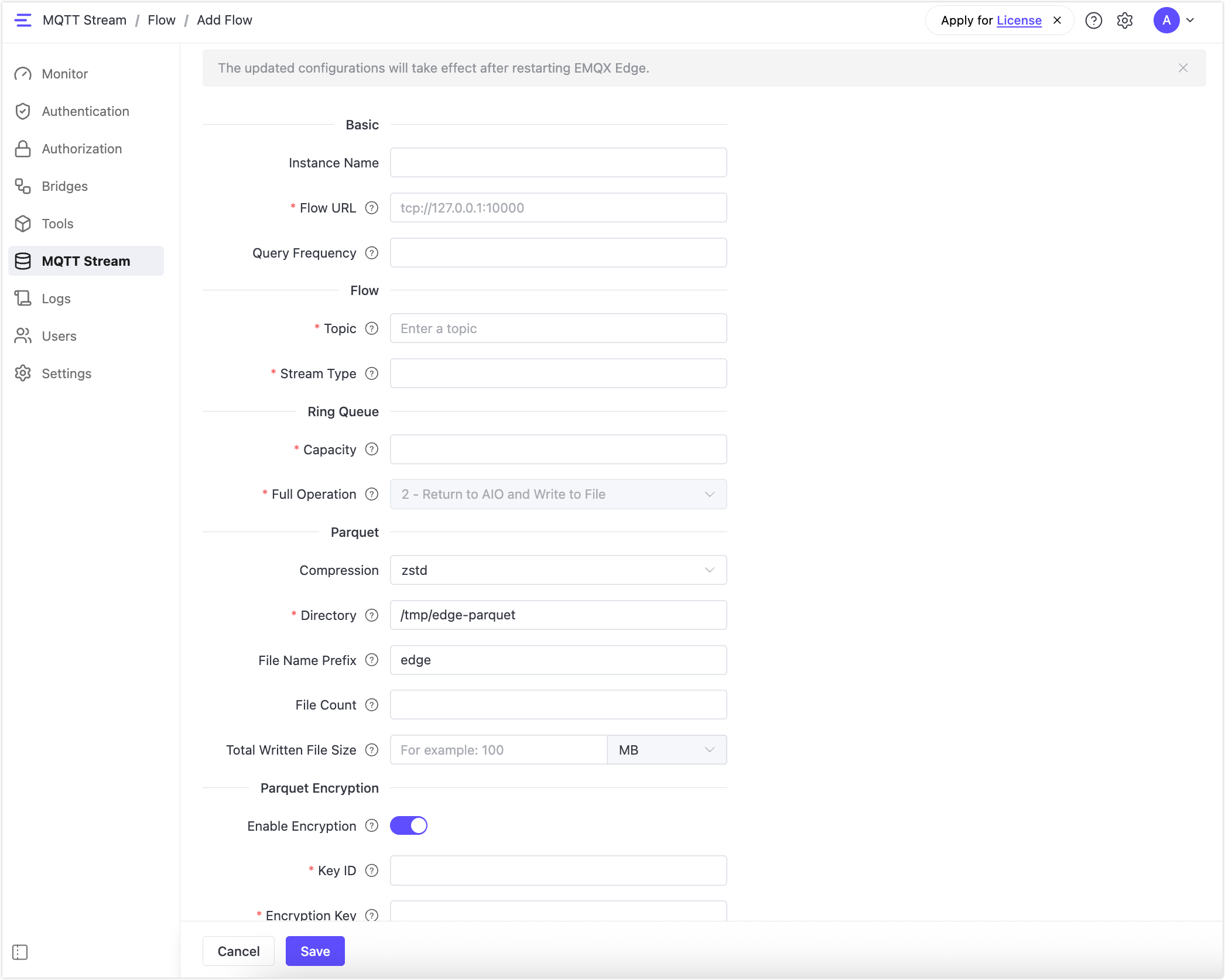
In the Dashboard, navigate to MQTT Stream and click the Flow tab. Click Add to open the Add Flow form.
Note
Configuration changes take effect only after restarting EMQX Edge.
Fill in the form fields as described below.
Basic
| Field | Description |
|---|---|
| Instance Name | Optional display name for this flow instance. |
| Flow URL | Internal communication address for the flow. This is not the broker address used by MQTT clients. Keep the default (tcp://127.0.0.1:10000) unless instructed otherwise. |
| Query Frequency | Limits the query frequency for this flow. The value N means up to N queries every 5 seconds. For example, 5 allows up to 5 queries every 5 seconds. Leave empty to use the system default. |
Flow
| Field | Description |
|---|---|
| Topic | The MQTT topic to capture. Only messages published to this topic enter the MQTT Stream pipeline. The / character is not supported. |
| Stream Type | The Stream plugin used for data encoding and decoding. 0 = RAW Stream; 1 = SPI Stream; 2 = CANP Stream. If a custom plugin is registered on the backend, enter its plugin ID. |
Ring Queue
| Field | Description |
|---|---|
| Capacity | Maximum number of messages the ring queue can hold. When this threshold is reached, the Full Operation behavior is triggered. |
| Full Operation | Defines what happens when the ring queue reaches capacity. Currently only 2 - Return to AIO and Write to File is supported and cannot be changed. |
Parquet
| Field | Description |
|---|---|
| Compression | Compression algorithm for Parquet files. zstd is the default and recommended for a good balance of speed and compression ratio. Other options: uncompressed, snappy, gzip, brotli, lz4. |
| Directory | Directory where Parquet files are stored. Required. Defaults to /tmp/edge-parquet. The directory is created automatically if it does not exist. |
| File Name Prefix | Optional prefix for generated Parquet file names. Use normal filename characters and avoid path separators. |
| File Count | Maximum number of Parquet files to retain. Once the limit is reached, file rotation applies. |
| Total Written File Size | Total size limit for all written Parquet files. Select the unit (MB, GB, etc.) from the dropdown. |
Parquet Encryption
When Enable Encryption is toggled on, an encryption block is generated for the Parquet configuration to control file encryption. The following fields become available:
| Field | Description |
|---|---|
| Key ID | Key retrieval metadata used to identify the encryption key in use. |
| Encryption Key | Encryption key for Parquet files. Raw AES keys and backend-supported Base64/wrapped keys are accepted. |
| Encryption Type | The encryption algorithm. Supported values: AES_GCM_CTR_V1 and AES_GCM_V1. Defaults to AES_GCM_V1 semantics. |
Save and Restart
Click Save to save the Flow configuration, then restart EMQX Edge for the changes to take effect. Once restarted:
- The MQTT broker begins listening for client connections.
- The Exchange, Ring Queue, and persistence components are initialized automatically.
- The MQTT Stream data pipeline becomes active.
Configure via Config File
As an alternative to the Dashboard, you can configure MQTT Stream directly in the NanoMQ configuration file. This is the typical approach for production deployments or containerized environments where configuration is managed as code.
The following example configures an Exchange with a Ring Queue and Parquet persistence for the canudp topic:
exchange_client.mq1 {
    exchange_url = "tcp://127.0.0.1:10000"
    limit_frequency = 5

    exchange {
        topic = "canudp"
        name = "canudp"
        streamType = 0

        ringbus {
            name = "ringbus"
            cap = 1000
            fullOp = 2  # Only supported value: 2 = RB_FULL_RETURN (return all messages to upper layer)
        }

        parquet {
            compress = zstd
            dir = "/tmp/edge-parquet"
            file_name_prefix = "edge"
            file_count = 1500
            file_size = 100MB
        }
    }
}
Key configuration parameters are summarized below.
| Parameter | Description |
|---|---|
exchange_url | Internal address for the Exchange server. Must match the Flow URL configured in the Dashboard. |
exchange.topic | The MQTT topic to capture. |
exchange.streamType | Stream encoding type. 0 = RAW, 1 = SPI, 2 = CANP. |
ringbus.cap | Ring Queue capacity in number of messages. |
ringbus.fullOp | Behavior when the Ring Queue is full. Must be set to 2 (Return to AIO and Write to File). |
parquet.dir | Directory where Parquet files are written. EMQX Edge creates it automatically if it does not exist. |
parquet.file_name_prefix | Optional prefix for generated Parquet file names. Use normal filename characters and avoid path separators. |
After editing the configuration file, restart EMQX Edge for the changes to take effect.
Stream Types
The streamType parameter determines how MQTT message payloads are encoded when written to Parquet, and defines the resulting Parquet schema. Three built-in stream types are available:
| streamType | Name | Parquet Schema | Use Case |
|---|---|---|---|
0 | RAW | ts, data | General MQTT message capture; payload stored as-is |
1 | SPI | ts + dynamic columns per packet type ID (4-digit hex) | Vehicle SPI bus data with multiple ECU packet types |
2 | CANP | ts + dynamic columns per CAN ID (4-digit hex) | CAN/CAN-FD bus data with multiple CAN IDs |
RAW Stream (streamType = 0)
RAW is the default stream type. Each MQTT message is written as a single row with two fixed columns:
ts: message timestamp (uint64, milliseconds)data: raw payload bytes (binary)
Use RAW when you do not need to parse message structure and want to store payloads verbatim.
SPI Stream (streamType = 1)
SPI Stream parses vehicle SPI bus frames and stores each packet type as a separate Parquet column. The expected frame format is:
| 0x55 (1B) | type+id (2B) | update+len (1B) | payload (len B) |
              type (4 bit) | id (12 bit) | update (1 bit) | len (7 bit)
The Parquet schema consists of ts plus one column per packet type ID observed in the data. Column names are 4-digit hex strings, for example 0055, 0057. Use SPI Stream for in-vehicle gateways collecting data from multiple ECUs over a shared SPI bus.
CANP Stream (streamType = 2)
CANP Stream parses CAN protocol frames and stores each CAN ID as a separate Parquet column. The expected frame format is:
| ts (8B) | len (4B) | [ tsdiff (1B) | busid (1B) | canid (2B) | len (2B) | payload (len B) ] ... |The Parquet schema consists of ts plus one column per CAN ID observed in the data. Column names are 4-digit hex strings, for example 0123, 0456. CANP Stream also supports a v2.1 compact format that packs multiple frames sharing the same CAN ID into a single cell. Use CANP Stream for CAN/CAN-FD bus data acquisition on vehicle edge nodes.
Verify MQTT Stream
This section validates MQTT Stream by sending test data and observing persisted output.
Send Test Data
Publish messages to the configured topic using MQTTX CLI. The example below publishes messages to the canudp topic using a single persistent connection:
mqttx bench pub -t "canudp" -h 127.0.0.1 -p 1883 -m "message" -L 1500 -c 1The message count must exceed the Ring Queue Capacity value to trigger a batch flush to disk. Using a single persistent connection (-c 1) avoids connection churn that can interfere with the Ring Queue pipeline. Replace canudp with the topic configured in your Flow.
Parquet File Naming
Generated Parquet files follow this naming convention:
{prefix}_{topic}-{start_ts}~{end_ts}_{seq}_{hash}.parquet| Field | Description |
|---|---|
prefix | Value of file_name_prefix in the configuration. |
topic | The Exchange topic name. |
start_ts | Timestamp of the earliest message in the file (milliseconds). |
end_ts | Timestamp of the latest message in the file (milliseconds). |
seq | Monotonically increasing file sequence number. |
hash | Content hash for deduplication and integrity verification. |
Example:
edge_canudp-1781145590395~1781145948876_0_3ff7819a161625c40d495038fd85c248.parquetObserve Logs and Persisted Data
When the Ring Queue reaches capacity:
- Batch processing is triggered.
- The buffered batch is encoded and written to local Parquet files.
Relevant log entries confirm that the MQTT Stream pipeline has been activated.
In the configured directory, Parquet files are generated. Each file typically corresponds to one batch returned from the Ring Queue.
Verification Checklist
MQTT Stream is functioning correctly when:
- MQTT messages are published successfully.
- The Ring Queue reaches its threshold and triggers batch processing.
- Parquet files appear in the configured directory.
Parquet files can be inspected using tools such as:
parquet-tools- Pandas / PyArrow (Python)
- Apache Spark or Flink
Query Historical Data
After data has been persisted, MQTT Stream supports time-range-based historical queries for troubleshooting, replay, and analysis. Queries are performed through the Dashboard and do not affect live MQTT message forwarding.
Query Data in the Dashboard
In the Dashboard, navigate to MQTT Stream and click the Query tab.
Fill in the query fields:
| Field | Description |
|---|---|
| Topic | The topic to query. Required. The / character is not supported. |
| Time Range | Required. Select a start and end time using the date-time picker, or choose a preset: Last 5 minutes, Last 15 minutes, Last 1 hour, Last 24 hours, or Last 7 days. |
| Schema | Optional. Specifies which columns to return as a comma-separated list. Leave empty to return all available columns. Available columns depend on the stream type configured for the topic. |
Click Exact Search to run the query. Results matching the specified topic and time range are displayed in the results area.
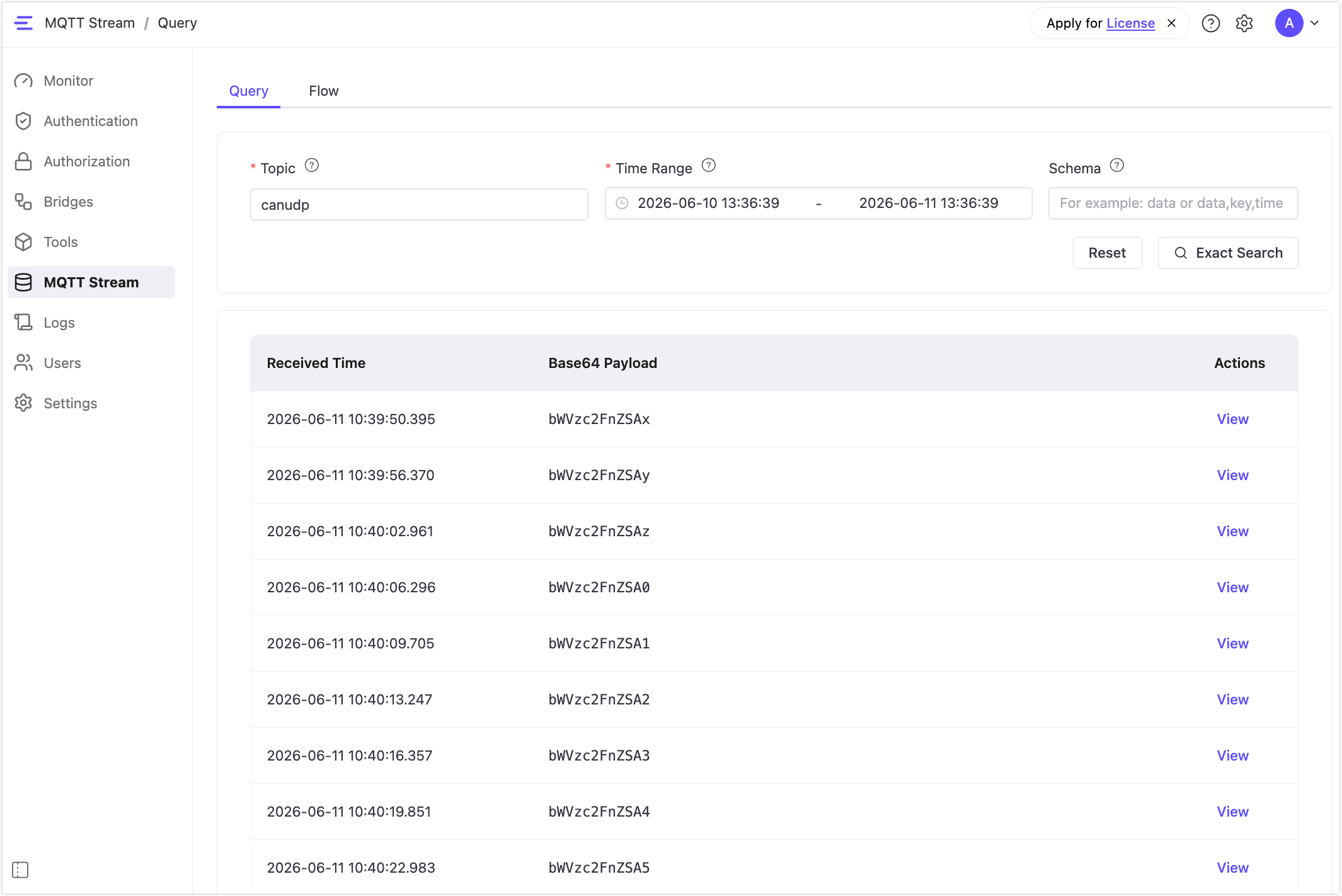
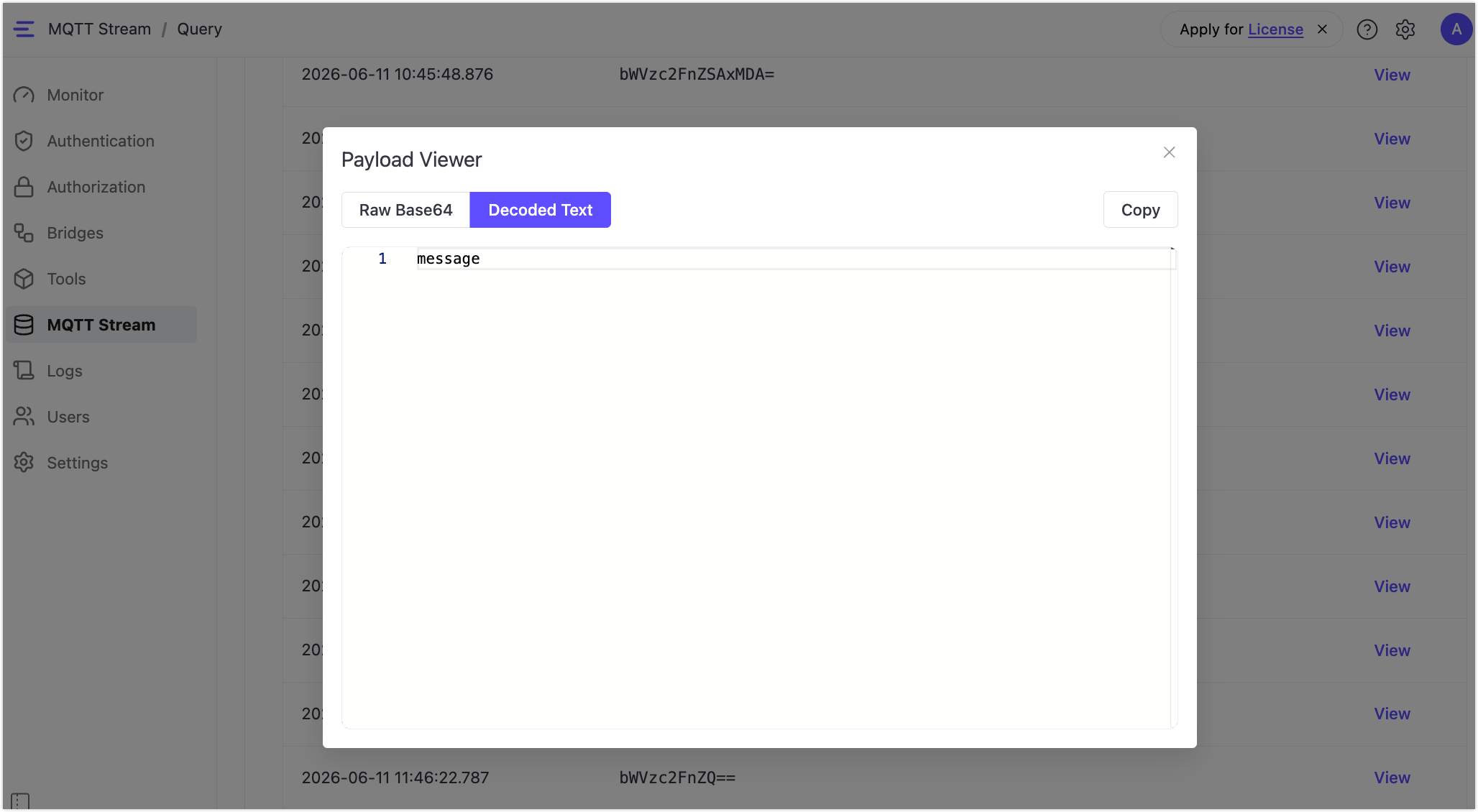
Payloads are shown as Base64-encoded strings. Click View on any row and switch to Decoded Text to see the original message content.
Schema Values by Stream Type
Schema is a column filter: when set, only the specified columns are returned. When left empty, all available columns are returned.
The ts column (millisecond timestamp) is always available regardless of stream type. Additional columns depend on the streamType of the Flow:
| Stream Type | Available Columns | Example Schema Value |
|---|---|---|
RAW (0) | ts, data | data or ts,data |
SPI (1) | ts + packet type IDs present in the data (4-digit hex) | ts,0055,0057 |
CANP (2) | ts + CAN IDs present in the data (4-digit hex) | ts,0123,0456 |
For SPI and CANP stream types, the available column names depend on what packet type IDs or CAN IDs were observed when the data was written. To discover available columns, run a query without specifying a schema first and inspect the returned field names.
Query via REST API
Historical data can also be queried programmatically using the REST API.
For the complete API reference, see MQTT Stream Query.
Endpoint
GET /api/v4/mqtt_streamRequired Parameters
| Parameter | Type | Description |
|---|---|---|
topic | String | The MQTT topic to query. Must match the Exchange topic name. |
start_ts | uint64 | Start of the time range, inclusive (milliseconds). |
end_ts | uint64 | End of the time range, inclusive (milliseconds). |
Optional Parameters
| Parameter | Type | Default | Description |
|---|---|---|---|
schema | String | All columns | Comma-separated list of columns to return, for example data or ts,0055. |
limit | uint64 | 10000 | Maximum number of records to return. |
offset | uint64 | 0 | Pagination offset. |
Response
{
    "count": 20,
    "dataArray": [
        {"ts": 1781145590395, "data": "bWVzc2FnZSAx"},
        {"ts": 1781145596370, "data": "bWVzc2FnZSAy"}
    ]
}count: total number of records returned after applyingoffsetandlimit.dataArray: array of result rows. Column values are Base64-encoded. Ifschemais specified, only the requested columns are returned.
Example Requests
Query all columns for a RAW stream:
curl -i --basic -u admin:public -X GET \
  "http://localhost:8081/api/v4/mqtt_stream?topic=canudp&start_ts=1781145590395&end_ts=1781145948876"
Query specific SPI packet type columns:
curl -i --basic -u admin:public -X GET \
  "http://localhost:8081/api/v4/mqtt_stream?topic=canudp&start_ts=1781145590395&end_ts=1781145948876&schema=ts,0055,0057"
Paginate results (second page of 100 records):
curl -i --basic -u admin:public -X GET \
  "http://localhost:8081/api/v4/mqtt_stream?topic=canudp&start_ts=0&end_ts=9999999999999&limit=100&offset=100"
Error Codes
| HTTP Status | Meaning |
|---|---|
200 OK | Query succeeded. |
204 No Content | No data matched the specified time range. |
400 Bad Request | Missing required parameters, invalid timestamp format, or invalid schema value. |
Typical Use Cases
- Replaying historical data after device or system failures.
- Compensating for data gaps caused by network outages.
- Exporting locally persisted data for offline analysis.
Troubleshooting
EMQX Edge fails to start with NULL s->ex_node!
The ringbus.name or ringbus.cap field is missing or empty in the configuration. Both fields are required. A missing name causes Ring Queue initialization to fail, which in turn prevents the Exchange from binding correctly. Set both fields and restart.
Parquet files are not generated
Check the following:
- EMQX Edge was compiled with
-DENABLE_PARQUET=ON. - The
parquet.dirpath is writable. - If
parquet.file_name_prefixis set, it contains only normal filename characters and no path separators. - The number of messages published exceeds
ringbus.cap. The Ring Queue does not flush until it is full.
REST API returns 400 Bad Request
Confirm that topic, start_ts, and end_ts are all provided and that start_ts is less than or equal to end_ts. The topic value must exactly match the Exchange topic name configured in the Flow.