MQTT Access
MQTT Access turns an existing device into a real device that a Device Agent can control and query. The device does not need to use the Device Agent SDK or rewrite existing drivers. Add an MQTT adapter that subscribes to commands, calls the existing device capability, returns execution results, and reports state and events according to the DeviceSpec.
Get Connection Details
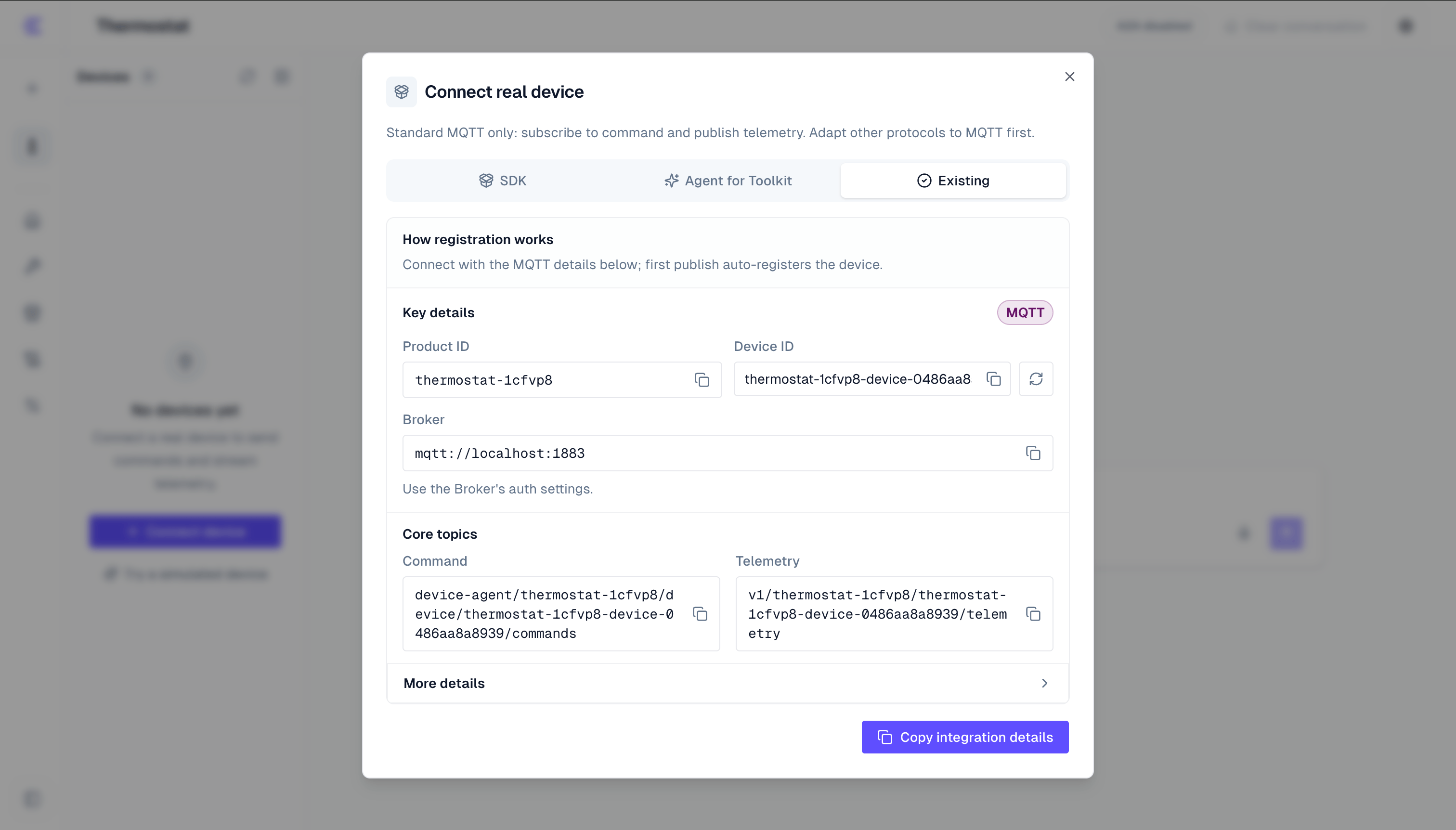
In the Device Agent workspace, click Connect device, then choose Existing device. The console shows the details required for integration:
productId: the current Device Agent identifier.namespace: the current runtime namespace. The default isdefault.deviceId: the unique identifier of this real device. It must be unique within the Device Agent deployment.- MQTT broker URL, username, and password status.
- Command, response, telemetry, event, and time synchronization topics.
- Payload examples for commands, responses, online status, state telemetry, and device events.
- Commands, properties, and events from the current DeviceSpec.
If MQTT topic templates have been changed in configuration, use the topics shown in the console.
Choose the Adapter Location
Place the adapter where it can read state and execute actions most reliably:
- Device firmware: the firmware already supports MQTT, so it subscribes to commands and reports state directly.
- Edge gateway: the gateway talks to the real device through Modbus, BLE, serial, or a private protocol, then converts it to MQTT.
- Backend service: an existing cloud or local service can already control the device, so an MQTT adapter process translates commands into existing API calls.
Regardless of where the adapter runs, the Device Agent uses the same MQTT contract.
Adaptation Steps
First align the DeviceSpec with existing device capabilities:
| DeviceSpec | Existing device mapping | MQTT action |
|---|---|---|
| Commands | Driver calls, HTTP APIs, serial instructions, or business functions | Subscribe to commands and publish responses |
| Properties | Current state, sensor readings, operating mode | Publish online status and state telemetry |
| Events | Alerts, failures, task completion, button callbacks | Publish event messages |
The minimal adapter loop is:
Startup:
  Connect to MQTT
  Subscribe to the command topic
  Publish online status and the current state snapshot

On command:
  Call the existing device capability with cmd and params
  Publish a command response with the same requestId
  If state changed, publish the latest state snapshot

On device state change:
  Publish state telemetry

On alert, failure, or task completion:
  Publish an event
Device Agent resolves productId and deviceId from the topic path. Keep metadata.productId in reports as well; it helps auto-registration, debugging, and custom topic template setups. If MQTT Client ID must be bound to the device ID, enforce that in broker authentication or ACL rules.
Topics
Default topics are listed below. Copy the topics from the console when integrating.
| Direction | Purpose | Default topic |
|---|---|---|
| Chat client publishes | Product-level chat request | device-agent/{productId}/in |
| Chat client subscribes | Product-level chat reply | device-agent/{productId}/out |
| Chat client publishes | Device-scoped chat request | device-agent/{productId}/device/{deviceId}/in |
| Chat client subscribes | Device-scoped chat reply | device-agent/{productId}/device/{deviceId}/out |
| Device subscribes | Receive commands | device-agent/{productId}/device/{deviceId}/commands |
| Device publishes | Return command responses | device-agent/{productId}/device/{deviceId}/responses |
| Device publishes | Report online status and telemetry | v1/{productId}/{deviceId}/telemetry |
| Device publishes | Report raw device events | v1/{productId}/{deviceId}/event |
| Gateway publishes | Publish normalized realtime events | v1/{productId}/{deviceId}/event |
| Device publishes | Request time synchronization | device-agent/{productId}/device/{deviceId}/ntp/request |
| Device subscribes | Receive time synchronization responses | device-agent/{productId}/device/{deviceId}/ntp/response |
Regular Gateway MQTT publishes and subscriptions currently use QoS 0 with retain: false. Generated device SDKs use QoS 1, but the effective delivery level still depends on the publisher, broker, and Gateway subscription. Do not rely on end-to-end QoS 1.
Payload Rules
All payloads are UTF-8 JSON objects.
| Field | Description |
|---|---|
ts | Optional Unix timestamp in milliseconds, useful for debugging and ordering. |
metadata | Optional object. Include at least productId, for example { "productId": "thermostat", "source": "existing-device" }. |
data | Reported data object. Status and property fields must come from the current DeviceSpec. |
Current validation behavior is:
- Command names and parameters must match command definitions.
type: "state"telemetry is validated strictly against the DeviceSpec. Unknown fields or invalid types do not update current state.data.statein atype: "status"message is not currently validated strictly against the DeviceSpec. Report only defined properties with valid types to avoid writing invalid fields into current state.- Event names and fields in
type: "event"messages are validated strictly. A failure produces a normalizedvalidation_errorevent.
Online Status
After the device connects to MQTT, publish online status to the telemetry topic. After the first accepted report, the device appears in the device list.
{
  "type": "status",
  "data": {
    "status": "online",
    "state": {
      "current_temperature": 26.5,
      "target_temperature": 24,
      "humidity": 61,
      "mode": "auto"
    }
  },
  "ts": 1710000000000,
  "metadata": {
    "productId": "thermostat",
    "source": "existing-device"
  }
}
Use online, offline, or error for status. Include a full state snapshot when possible. Before shutdown, publish offline; if the device supports MQTT Will Message, use the offline status payload as the will payload.
State Telemetry
Publish state changes to the telemetry topic. The usual type is state. Put only property fields defined in the DeviceSpec into data.
{
  "type": "state",
  "data": {
    "current_temperature": 27.1,
    "target_temperature": 24,
    "humidity": 60,
    "mode": "auto"
  },
  "ts": 1710000005000,
  "metadata": {
    "productId": "thermostat",
    "source": "existing-device"
  }
}
Report a full snapshot after startup, after command execution, and after important state changes. If a device reports only partial fields, the console can only update those fields.
Command Responses
When a user controls a device through conversation, the Device Agent publishes a command to the command topic.
{
  "cmd": "set_target_temperature",
  "params": {
    "target_temperature": 24
  },
  "requestId": "req-001",
  "ts": 1710000010000
}| Field | Type | Required | Description |
|---|---|---|---|
cmd | string | Yes | Command name defined in the DeviceSpec. |
params | object | No | Command parameters. They must match the command parameter definition. Use {} or omit it when the command has no parameters. |
requestId | string | Yes | Request ID for this command. |
ts | number | No | Unix timestamp in milliseconds. |
After execution, publish the result to the response topic. requestId must match the received command.
{
  "code": 0,
  "msg": "ok",
  "requestId": "req-001",
  "data": {
    "target_temperature": 24,
    "mode": "auto"
  },
  "ts": 1710000011000,
  "metadata": {
    "productId": "thermostat",
    "source": "existing-device"
  }
}| Field | Type | Required | Description |
|---|---|---|---|
code | number | Yes | 0 means success. Non-zero values mean failure. |
msg | string | Yes | Execution result message. |
requestId | string | Yes | Must equal the command requestId. |
data | any | No | Execution result returned to the Device Agent. |
ts | number | No | Unix timestamp in milliseconds. |
If a command changes device state, publish the latest status or state immediately after the response so the status panel reflects the result.
Device Events
Events are one-time device-originated changes, such as alerts, failures, threshold triggers, task completion, or button presses. Publish type: "event" to the event topic.
{
  "type": "event",
  "data": {
    "event": "temperature_alert",
    "current_temperature": 38.5,
    "level": "warning"
  },
  "ts": 1710000020000,
  "metadata": {
    "productId": "thermostat",
    "source": "existing-device"
  }
}
data.event must be an event name defined in the DeviceSpec. Other fields must be output fields defined by that event. Events do not automatically update current data, but they appear in recent events. For threshold events, use edge triggering or a cooldown to avoid duplicate reports.
After processing a device report, the Gateway publishes a normalized realtime event to the same event topic. Device-originated messages use type and data; normalized messages use eventId, kind, namespace, deviceId, occurredAt, and summary. Subscribers must distinguish the two shapes and must not report normalized messages as device events again.
Chat over MQTT
Publish requests to the product-level input topic. Use the input topic with deviceId when the chat must target one device. Receive replies from the matching output topic.
{
  "id": "req-001",
  "sessionId": "terminal-001",
  "prompt": "Set the target temperature to 24 degrees"
}- Use a unique
idfor each request. ReusesessionIdto continue the conversation. - Processing state is in
metadata.status:start,thinking,text_block,tool_start,tool_end,complete, orerror. Fortext_blockandcomplete, read text frommetadata.status.text. - For status messages,
metadata.replyTomatches the requestid. The Gateway also sends a final reply in top-leveltext; consume either incremental status or the final reply instead of appending both. - The final reply does not currently guarantee
replyTo. Send the next request on a sharedsessionIdonly after the current turn completes. Use different session IDs for parallel conversations. - To interrupt or clear a session, publish the same
sessionIdwith an emptypromptand setmetadata.interrupt: trueormetadata.clearSession: true. The result usesmetadata.status.type: complete.
Test with MQTTX
Before adapting a real device, you can use MQTTX CLI to simulate one device. The examples below assume:
- MQTT broker:
127.0.0.1:1883 productId:thermostatdeviceId:thermostat-001
If the MQTT broker does not require username and password, remove -u and -P.
First, open one terminal and subscribe to the command topic. This lets you see commands sent by the Device Agent:
mqttx sub \
  -h 127.0.0.1 \
  -p 1883 \
  -u your-username \
  -P 'your-password' \
  -q 0 \
  -t 'device-agent/thermostat/device/thermostat-001/commands'
Then use another terminal to simulate the device coming online:
mqttx pub \
  -h 127.0.0.1 \
  -p 1883 \
  -u your-username \
  -P 'your-password' \
  -q 0 \
  -t 'v1/thermostat/thermostat-001/telemetry' \
  -m '{"type":"status","data":{"status":"online","state":{"current_temperature":26.5,"target_temperature":24,"humidity":61,"mode":"auto"}},"metadata":{"productId":"thermostat","source":"mqttx"}}'
After thermostat-001 appears in the device list, simulate a state update:
mqttx pub \
  -h 127.0.0.1 \
  -p 1883 \
  -u your-username \
  -P 'your-password' \
  -q 0 \
  -t 'v1/thermostat/thermostat-001/telemetry' \
  -m '{"type":"state","data":{"current_temperature":27.1,"target_temperature":24,"humidity":60,"mode":"auto"},"metadata":{"productId":"thermostat","source":"mqttx"}}'
You can also simulate a device-originated event:
mqttx pub \
  -h 127.0.0.1 \
  -p 1883 \
  -u your-username \
  -P 'your-password' \
  -q 0 \
  -t 'v1/thermostat/thermostat-001/event' \
  -m '{"type":"event","data":{"event":"temperature_alert","current_temperature":38.5,"level":"warning"},"metadata":{"productId":"thermostat","source":"mqttx"}}'
Finally, ask the Device Agent to control this device in the conversation. The subscription terminal receives a command with requestId. Copy that requestId into the response payload:
mqttx pub \
  -h 127.0.0.1 \
  -p 1883 \
  -u your-username \
  -P 'your-password' \
  -q 0 \
  -t 'device-agent/thermostat/device/thermostat-001/responses' \
  -m '{"code":0,"msg":"ok","requestId":"replace-with-received-requestId","data":{"target_temperature":24,"mode":"auto"},"metadata":{"productId":"thermostat","source":"mqttx"}}'
These commands validate the full path: device online status, telemetry reporting, event reporting, command reception, and command response. For a real device, replace the MQTTX commands with MQTT publish and subscribe logic in firmware, a gateway, or a backend service.
Time Synchronization
If the device needs to estimate local clock drift from Agent Gateway, use the time synchronization topics.
Publish this payload to the request topic:
{
  "deviceSendTime": 1710000030000
}
Receive this payload from the response topic:
{
  "deviceSendTime": 1710000030000,
  "serverRecvTime": 1710000030120,
  "serverSendTime": 1710000030122
}
deviceSendTime is the device's local Unix timestamp in milliseconds when it sends the request. serverRecvTime and serverSendTime are Agent Gateway timestamps for receiving the request and sending the response.
Verify Access
After adapting the device side, check the workspace in this order:
- The device is connected to MQTT and has subscribed to the command topic.
- After the telemetry topic receives the first
statusorstatereport, the device appears in the device list. - Current state shows property fields defined in the DeviceSpec.
- A conversation control request reaches the device, and the device publishes a response with the same
requestId. - After a command changes state, the device publishes the latest status or telemetry.
- Device-originated events appear in recent events.
If the device does not appear, check the MQTT broker and credentials first, then verify productId, deviceId, topic paths, and metadata.productId. If the device appears but current state does not update, check whether property field names and types match the DeviceSpec. See Configuration for runtime settings.
Next Steps
- Read SDK Access to connect real hardware with a generated device-side project.
- Read Device Simulator to validate the DeviceSpec without real hardware.
- Read Use a Device Agent to select devices and control them through conversation.