Scheduled Tasks
Scheduled tasks save a complete instruction and run it later in an isolated Device Agent session. Create a task in conversation, then use Schedules to inspect it, pause or resume future runs, update its instruction, and review each execution.
Create a Task
In a Device Agent workspace, select the target device when the task needs one, then describe the work and schedule. Device Agent supports one-shot, fixed-interval, and cron schedules and returns the next run time after creation.
| Task type | Example |
|---|---|
| Delayed run | In 1 minute, set the current thermostat target temperature to 24°C. |
| Fixed interval | Every 5 minutes, check the current temperature. If it is above 30°C, set the target temperature to 24°C. |
| Daily run | Every morning at 9 AM, switch the current thermostat to eco mode. |
Make the instruction self-contained because each run uses a separate session and cannot rely on context omitted from the saved instruction. The task also stores its schedule, timezone, Device Agent, and device scope.
Fixed intervals have a minimum of 60 seconds. A wall-clock time without an explicit timezone uses the service server’s system timezone at creation. Specify a timezone such as Asia/Shanghai for use across timezones.
Manage Tasks
Open Schedules. Active includes scheduled, paused, and currently running tasks; Completed contains finished one-shot tasks. Select a task to view its instruction, schedule, timezone, device scope, status, last and next run times, source session, and latest error. Use the task ID at the top to correlate logs.
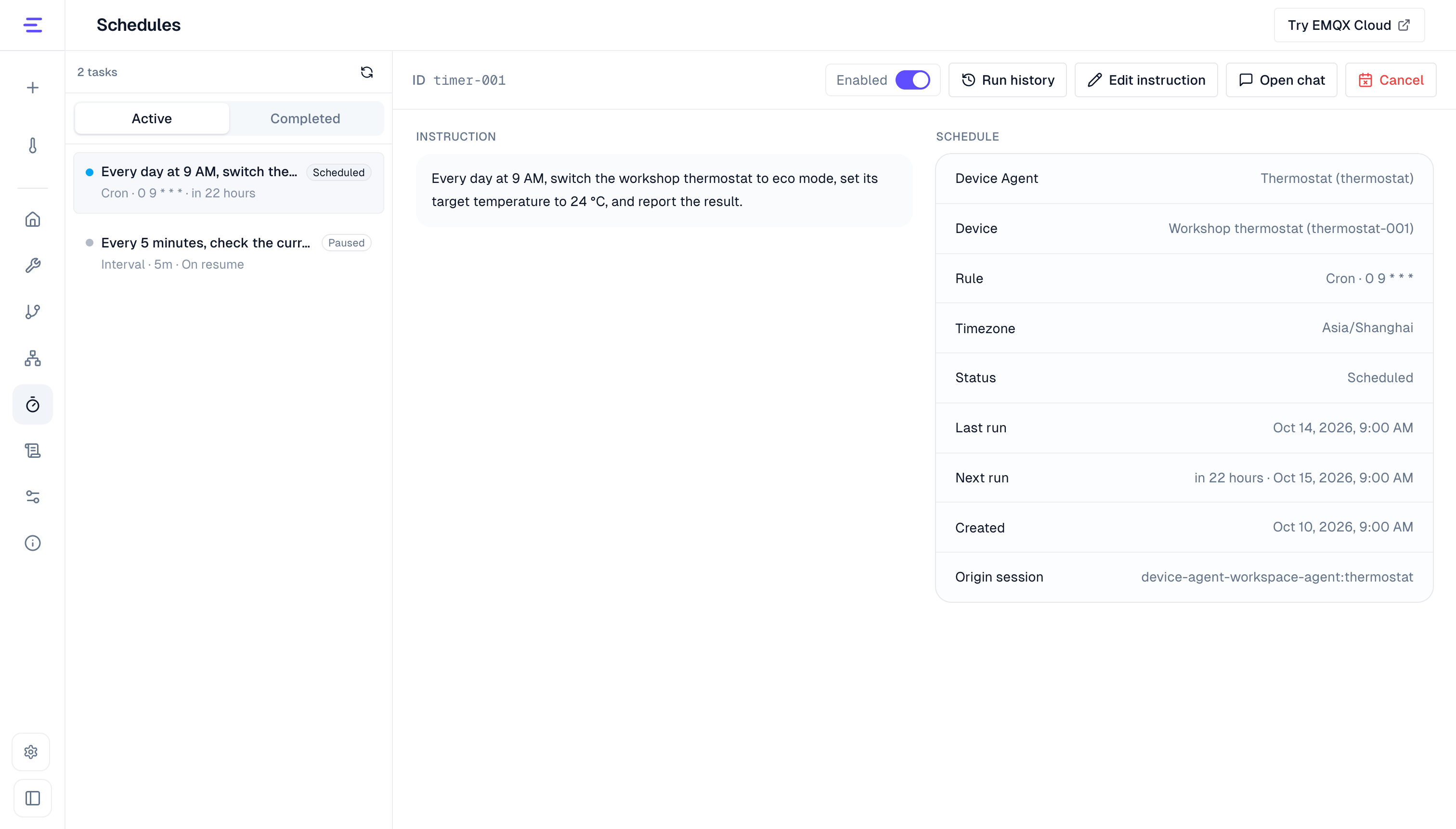
| Action | Result |
|---|---|
| Enable or pause | Pausing prevents new runs but lets an active run finish. When an overdue task is resumed, a one-shot task becomes due and a recurring task recalculates its next occurrence. |
| Edit instruction | Changes only the instruction for future runs. The schedule, timezone, and device scope remain unchanged, and an active run keeps its original instruction. |
| Open chat | Returns to the source conversation when it is still available. |
| Cancel | Prevents future runs but lets an active run finish. |
Completed tasks are read-only. The page edits the instruction. Change schedule or time zone in conversation using the task ID, preserving task identity and device scope:
Change timer-001 to run every day at 10 AM in Asia/Shanghai. Keep everything else unchanged.Only active or paused tasks can change schedule. Wait for an ongoing run to finish. Relative times restart from the update time. Paused tasks remain paused unless explicitly resumed. To change target scope, cancel and recreate the task.
Check Run History
Select a task and click Run history to view each run's start and completion time, status, duration, result or error, run ID, and isolated session ID. Expand a record to read its full result.
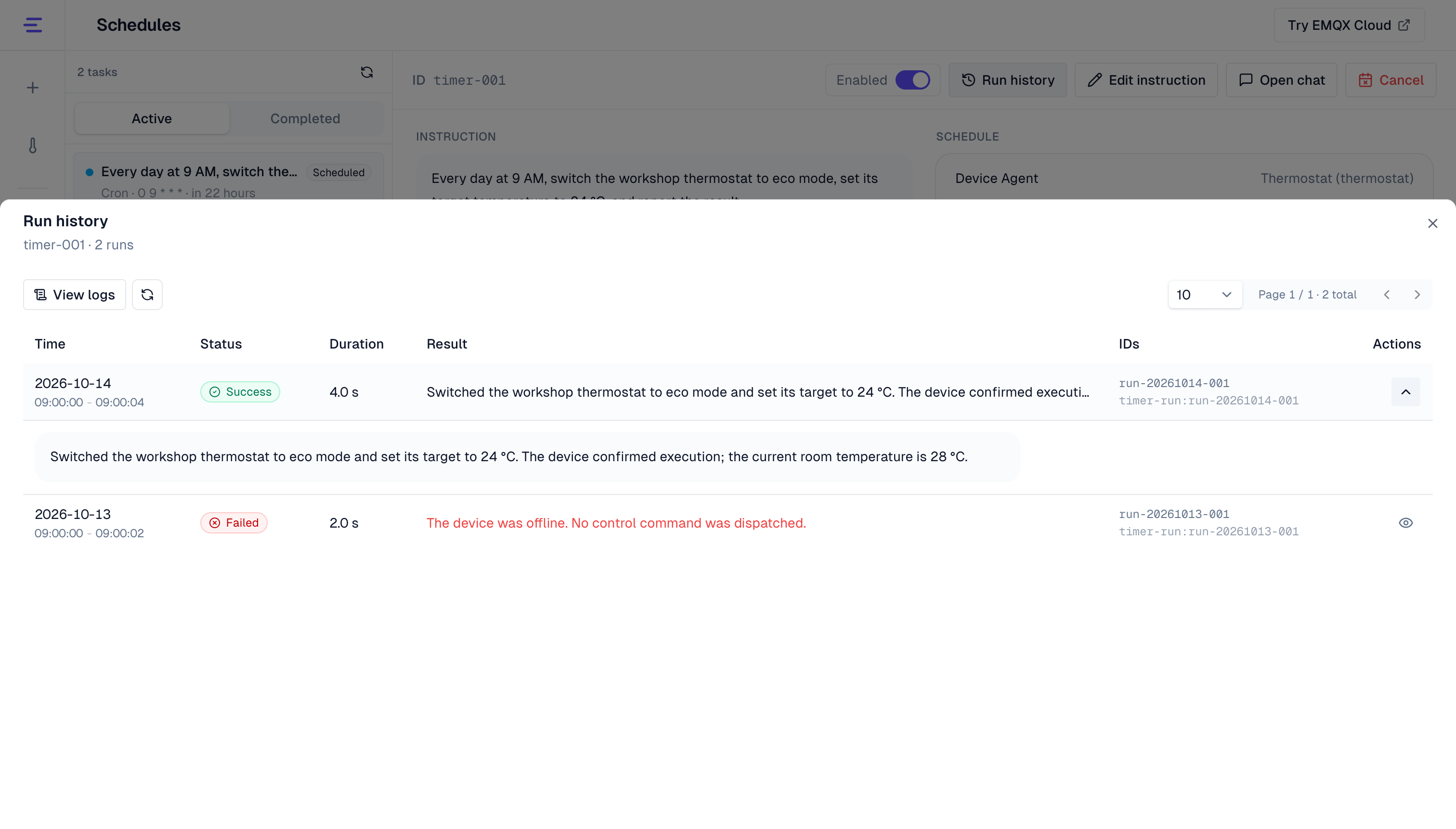
For deeper diagnostics, click View logs to open Logs with the task ID applied. A successful run means the Device Agent completed the saved instruction; for device actions, also verify current device state, device-side logs, or MQTT messages.
Runtime and Restart Behavior
- Tasks, status, and Run history are persisted. A service restart restores enabled schedules, while paused tasks remain paused.
- Tasks do not run while the Gateway is stopped. After startup, an overdue enabled task runs at most once; recurring tasks do not replay every missed interval.
- If a local Gateway stops during a run, it is recorded as failed. One-shot tasks are not retried automatically; recurring tasks continue later. For Platform deployments, inspect execution and recovery records before deciding whether to repeat a failed or interrupted operation.
- Every run uses the saved Device Agent and device scope. Target devices and dependent services must be available at run time.
Device reminders and collaboration tasks
Schedules store the device scope and allowed capabilities captured at creation. IoT platform devices, tools, services, and permissions must remain available at execution time. Once a task is stored, the browser page does not need to remain open.
For a device reminder, confirm that the device supports task notifications and write the reminder content in the instruction. At the due time, check both device receipt and the task result. Task creation confirmation does not mean the device has received its later reminder. For A2A, configure controller bindings and specify targets first. A scheduled task cannot expand the collaboration scope captured at creation.