Device Agent Configuration
Device Agent configuration adapts an assistant's role, voice interactions, and device collaboration scope to different use cases. Agents in the same deployment can share models, speech services, and platform connections while maintaining their own hotwords, voice tools, and feedback messages.
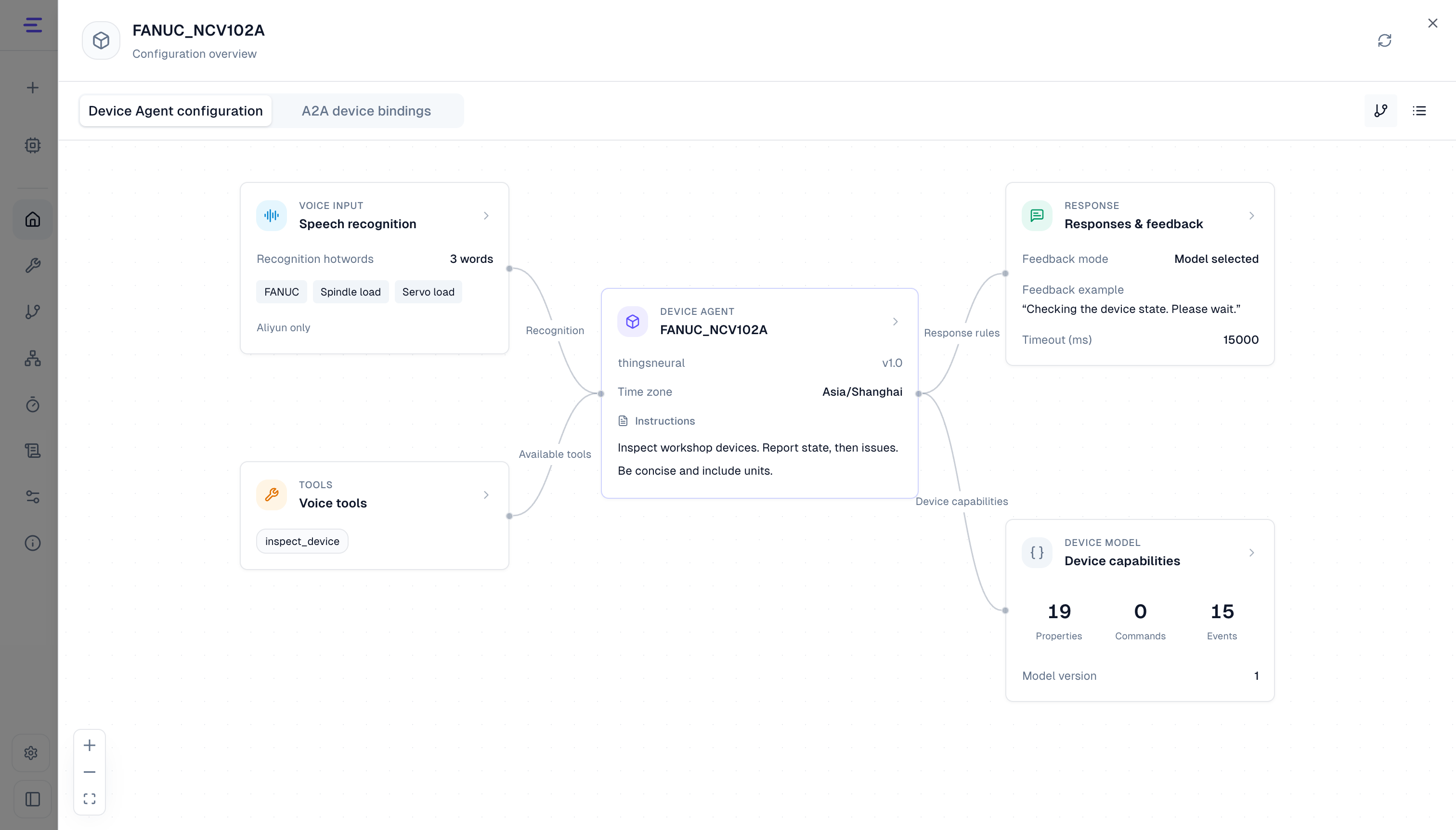
Open Configuration Overview
Open the agent card's More menu and select Configuration overview. It contains Device Agent configuration and A2A device bindings.
Agent configuration supports map and list views. Select a section to inspect it. Conversation rules, speech recognition, and responses and feedback use Edit configuration and Save; voice tool changes save directly. Mobile defaults to list view and also supports switching views.
| Section | Purpose |
|---|---|
| Conversation rules | Set the role and reply style for the use case, and specify the time zone for time expressions |
| Speech recognition | Add device names and business terms as hotwords to reduce recognition errors |
| Voice tools | Expose only the tools needed for the use case and control the voice assistant's tool scope |
| Responses & feedback | Keep identity and feedback messages consistent, and tell users when a request is processing or has timed out |
| Device capabilities | Check available data, commands, and parameter requirements to prepare valid requests |
| A2A device bindings | Select the controller's target devices and restrict collaboration to those devices |
Configuration Examples
These examples use a workshop assistant with devices and tools available in the current deployment.
- Voice inspection: Set the time zone to
Asia/Shanghai; addFANUC,Spindle load, andServo loadas speech recognition hotwords, each with weight3; and selectinspect_device(device state queries) under Voice Tools. Ask by voice, “Check the machine's current spindle load and servo load,” to verify recognition and query results. - Query feedback: If the agent already has the corresponding configuration fields, open Responses and Feedback, set the identity reply to “I am the workshop device assistant” and Feedback mode to Model selected. Under Category messages, add
device_querywith the Chinese message “正在查询设备状态,请稍等。” and the English message “Checking the device state. Please wait.” Under Tool categories, associateinspect_devicewith that category. Set Timeout (ms) to15000. - Device collaboration: Bind an A2A-enabled cooling pump and exhaust fan to the workshop controller. Ask the controller, “Check the current state of the cooling pump and exhaust fan,” to coordinate queries across its bound devices.
Conversation Rules
Under Conversation rules, inspect the basic information, click Edit configuration, adjust Instructions and Time zone, then save.
Instructions describe the role, reply tone, and business preferences, for example:
Inspect workshop devices. Report state, then issues. Be concise and include units.The current model and access scope determine device capabilities. Instructions shape how the agent handles requests; they do not add device actions absent from the model.
The time zone helps interpret expressions such as today, tomorrow, or at a particular hour. Enter a name such as Asia/Shanghai; without a configured value, the service time zone applies. See Scheduled Tasks for time-based tasks.
Speech Recognition
Under Speech recognition → Edit configuration, add device names, personal names, or business terms that are often misheard. Set Recognition weight to 1–5 for ordinary hotwords (new entries default to 3), or 50 for a small set of terms requiring particular emphasis. Hotwords require a supported Aliyun recognition model and Use product ASR vocabulary in global voice settings. See Voice Configuration for supported models and setup.
Voice Tools
Under Voice tools → Edit configuration, search and select tools, then click Confirm add. Adding, removing, or restoring all tools saves directly. Click Close when finished.
An unrestricted scope uses currently available voice tools; selecting tools allows only those tools. Removing all tools and confirming disables tool calls in voice conversations. This scope applies only to voice conversations. Tools must still be enabled, and device access permissions and A2A bindings must permit the operation.
Responses and Feedback
Under Responses & feedback → Edit configuration, maintain Chinese and English identity replies, model identity replies, tool waiting messages, and timeout replies. Editable options depend on the agent's existing configuration.
Waiting messages indicate that a request is being processed; timeout replies indicate a long wait. Neither establishes whether a device action completed or stopped. Check the execution result separately.
Inspect Device Capabilities
Device capabilities lists the properties, commands, and events provided by the current connection, including writability, parameters, types, and allowed values. Use this read-only view to inspect what the agent can understand and call.
Change capabilities through Define a Device Agent or the current IoT platform's model-management interface. See IoT Platform Integration for connection rules.
A2A Controller Bindings
Under A2A device bindings, click Configure device bindings, select the controller device and A2A-enabled target agents and devices, then click Confirm add and save. Each controller has its own scope. See A2A Multi-Agent Collaboration for capability publication and collaboration options.
Save and Verify
After saving, reopen the section and inspect its values. Verify voice tools and feedback with the next request; verify recognition hotwords on a new voice connection.
If the page reports that configuration changed elsewhere, reopen it and review the current values before saving.