Use a Device Agent
After a Device Agent is created, you work inside its workspace. This is where you manage devices that share the same DeviceSpec: validate interactions with a simulated device, connect real hardware, inspect status and events, and use conversation to control or query devices.
Workspace Areas
The workspace has three main areas:
| Area | Purpose |
|---|---|
| Device list | View real and simulated devices, connect new devices, refresh devices, or remove devices |
| Device status | After selecting a device, inspect online status, current state, available commands, and recent events |
| Conversation | Interact with the Device Agent through text, voice, or media input |
If no device is connected yet, start from the device list: connect a real device, or launch a browser simulated device. After a device appears, select it to open the status panel and make following messages target that device by default.
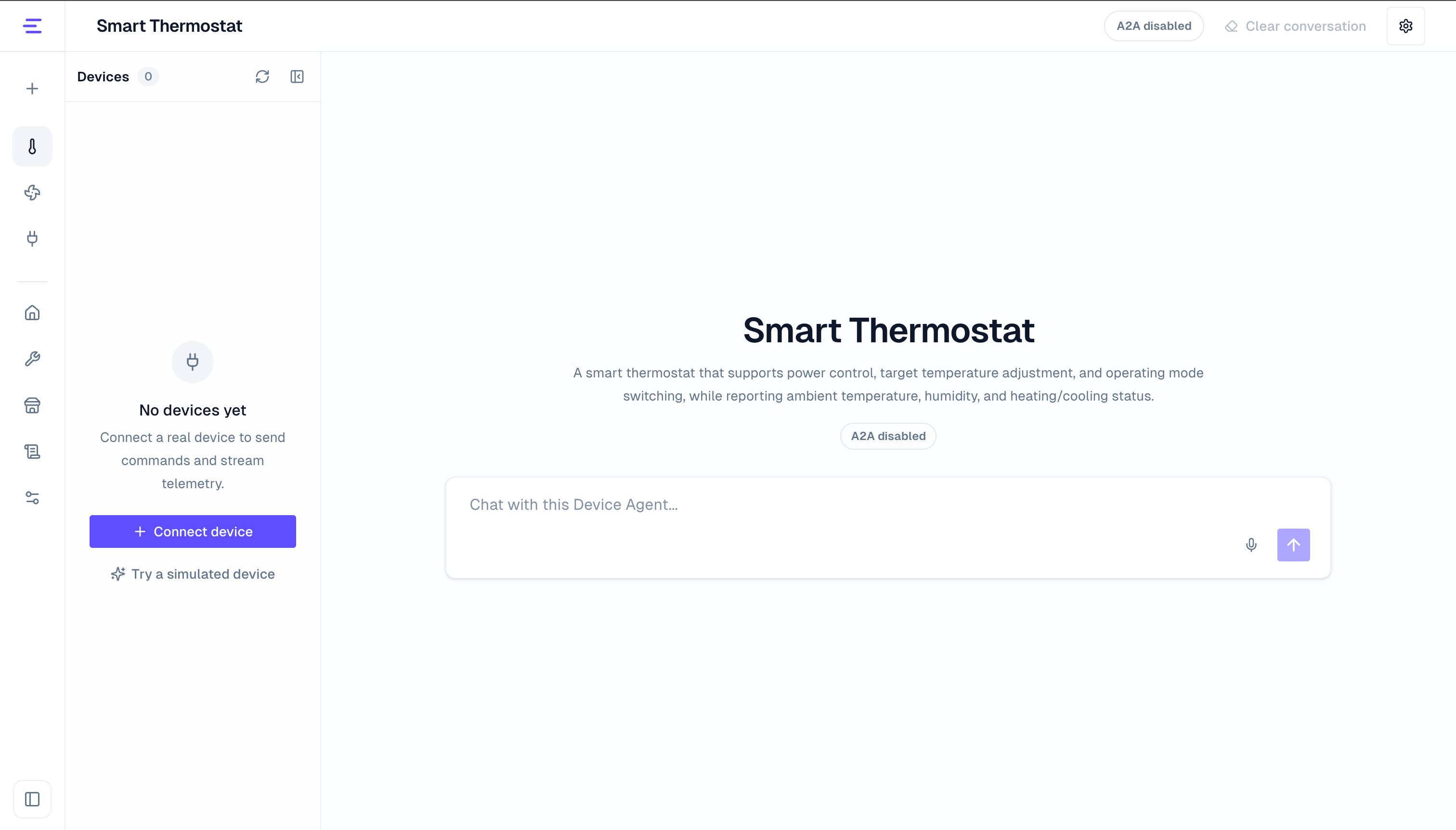
Connect Real Devices
Click Connect device in the device list to connect physical hardware to the current Device Agent. The console provides three entry points:
| Path | Best for |
|---|---|
| SDK toolkit | You need a runnable device-side project and will add hardware logic yourself |
| Agent-enhanced SDK | Generate device-side business logic on top of the SDK toolkit, then run or refine it |
| Existing device | You already have firmware, a gateway, or a backend service and only need to adapt it to MQTT topics and payloads |
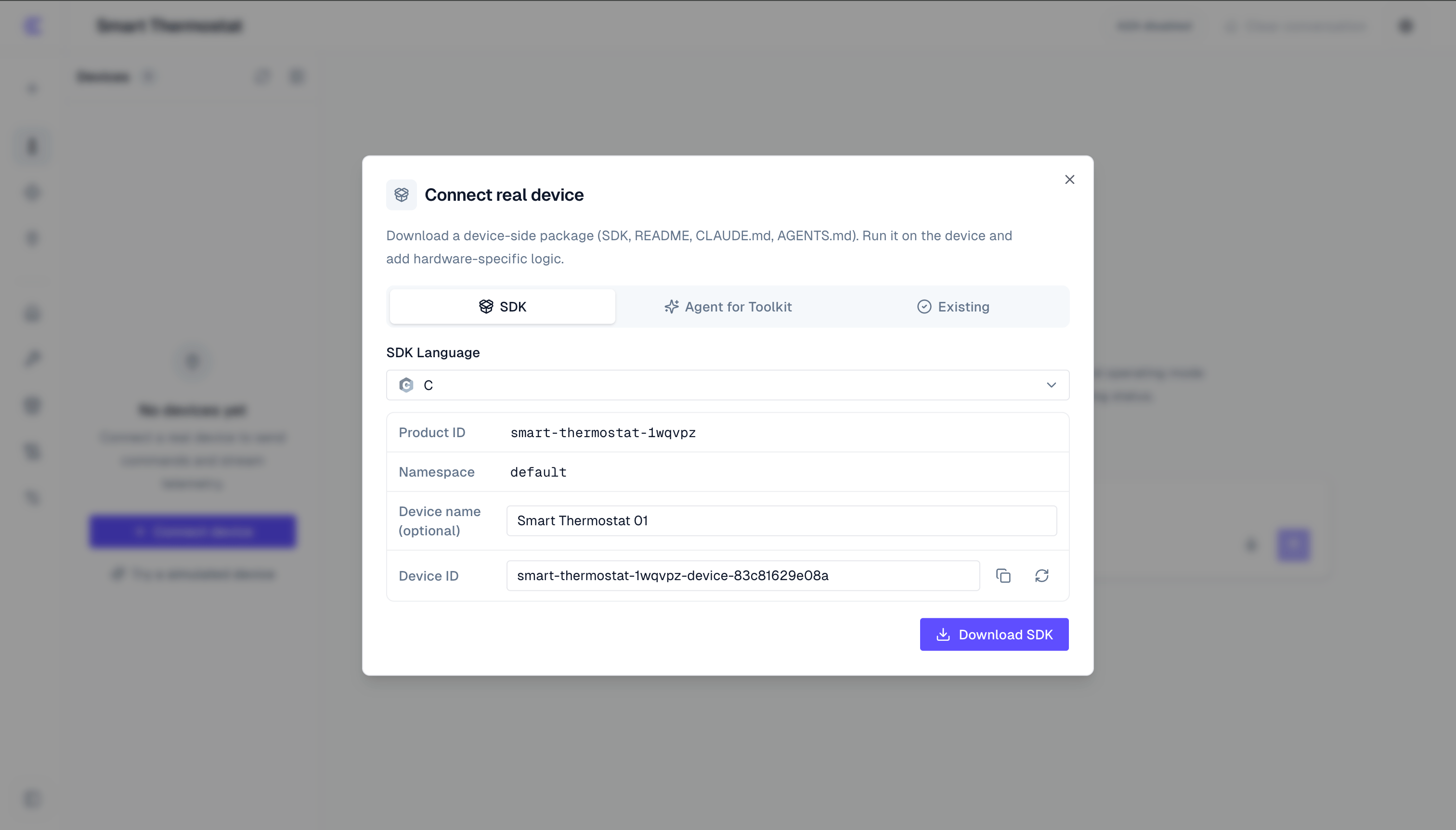
See SDK Access and MQTT Access for detailed flows.
Use a Simulated Device
If hardware is not ready, click Try a simulated device. A simulated device runs in the browser, uses the current DeviceSpec, and connects to the current Device Agent as a temporary device.
Use it to validate:
- Online and offline behavior
- Current state shown from property fields
- Control requests converted into device commands
- Events reported by the device and shown in recent events
The simulated device appears in the device list with a Sim badge. It is useful for PoC work, demos, and debugging, but it does not replace physical device access.
See Device Simulator for more detail.
Device List
The device list shows every device under the current Device Agent. Each device has its own device ID, online status, current state, and event history. They share the same DeviceSpec, so the same Device Agent can understand and control them.
Common actions in the device list:
- Refresh: reload devices and their online status
- Connect device: open the real device access flow
- Try a simulated device: start the browser simulator
- Select device: open that device's status panel and make following messages target it by default
- Delete device: remove the device record from the current Device Agent
If no device is selected, you can still ask for a device-level summary:
How many devices are currently managed by this Device Agent? Group them by online and offline status.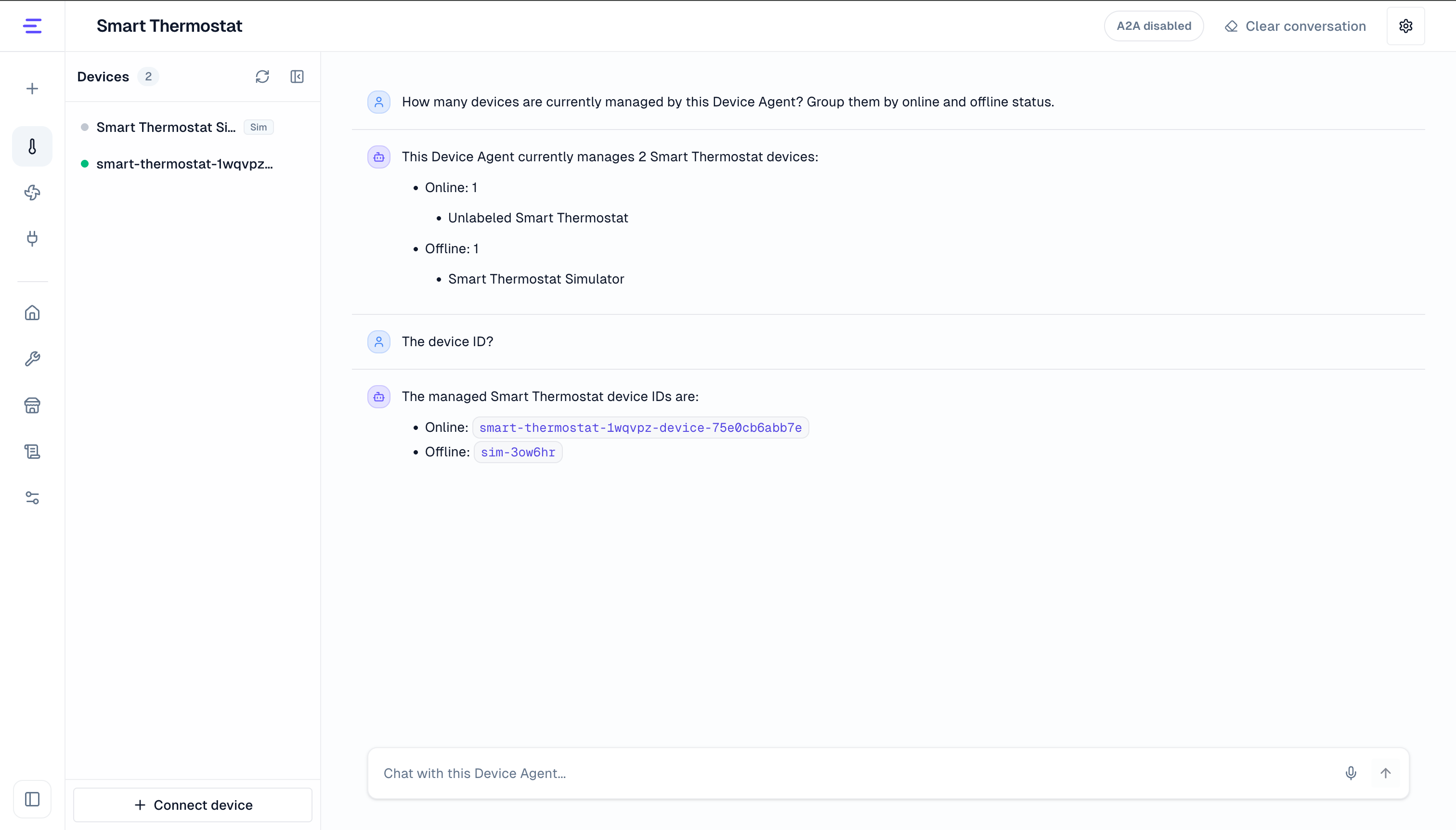
Device Status
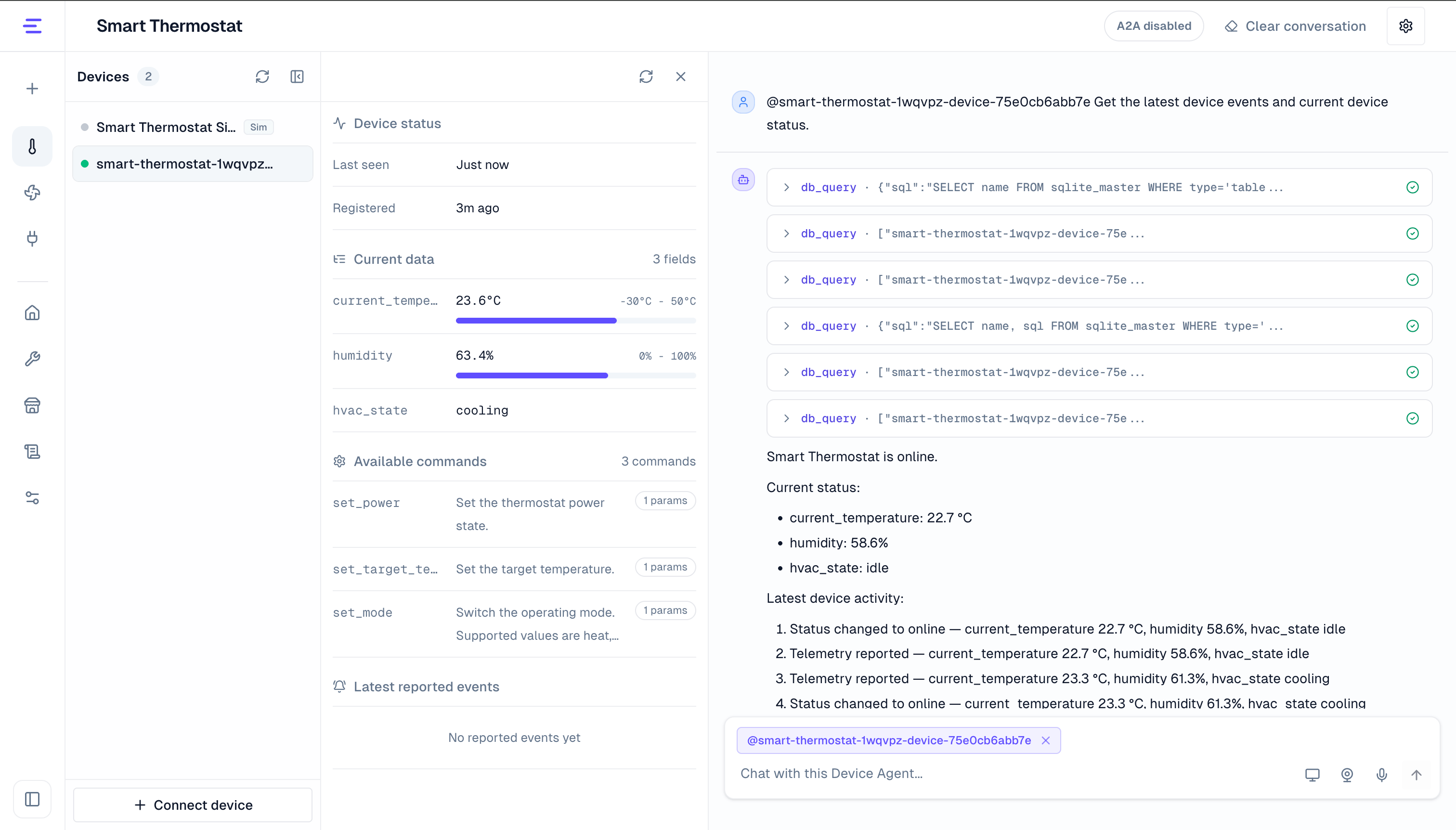
After you select a device, the status panel shows its runtime information:
| Content | Description |
|---|---|
| Device status | Whether the device is online, plus latest seen or registration time |
| Current state | Latest reported state fields, such as temperature, humidity, mode, or power state |
| Available commands | Commands defined in the DeviceSpec, including parameter count and descriptions |
| Recent events | Events reported by the device, including name, type, source, and payload |
Use the status panel to confirm that interactions took effect. For example, after asking a device to switch mode, check the corresponding field in Current state. If the device reports an alert, inspect it in Recent events.
For a simulated device, the status panel also provides connect and disconnect actions so you can test online, offline, and reconnect behavior.
Control Devices Through Conversation
The conversation area uses the DeviceSpec and target device to understand user requests.
When a device is selected, you can enter a control request:
Set the target temperature to 24 degrees and switch to automatic mode.The Device Agent selects the matching command, prepares parameters, and sends the command to the current device.
You can also ask query requests:
Show the current device status and tell me whether there have been any recent reported events.These requests read the latest device state and events; they do not redefine device capabilities.
If no device is selected, start with a fleet-level question:
List the devices under this Device Agent and group them by online and offline status.Scheduled Tasks
For checks, reminders, summaries, or device actions that should run later or repeatedly, describe the task and schedule in the conversation. For example:
In 1 minute, set the current thermostat target temperature to 24°C.The Device Agent creates a built-in scheduled task. When it becomes due, the Gateway starts an isolated run with the saved instruction. Open Schedules to manage the task and use its Run history to verify execution; use Logs when a failed run needs deeper diagnosis. See Scheduled Tasks for details.
Workflows
Use a workflow when handling should start from a device report instead of time. See Workflows for a complete runnable example.
Target a Device
When one Device Agent manages multiple devices, there are two ways to target a device:
| Method | Best for |
|---|---|
| Select from the left panel | Make following messages target this device by default |
Use @ in the input | Temporarily target a device or switch between devices quickly |
Type @ to choose a device from the list. You can also enter the full device name or device ID directly:
@thermostat-01 Show current temperature and humidity.@thermostat-02 Set the target temperature to 23 degrees.If a device is selected and another device is mentioned in the message, the Device Agent uses both as targets for this request. This is useful for comparison, batch queries, or controlling different devices in one conversation.
Voice, Camera, and Simulated Display
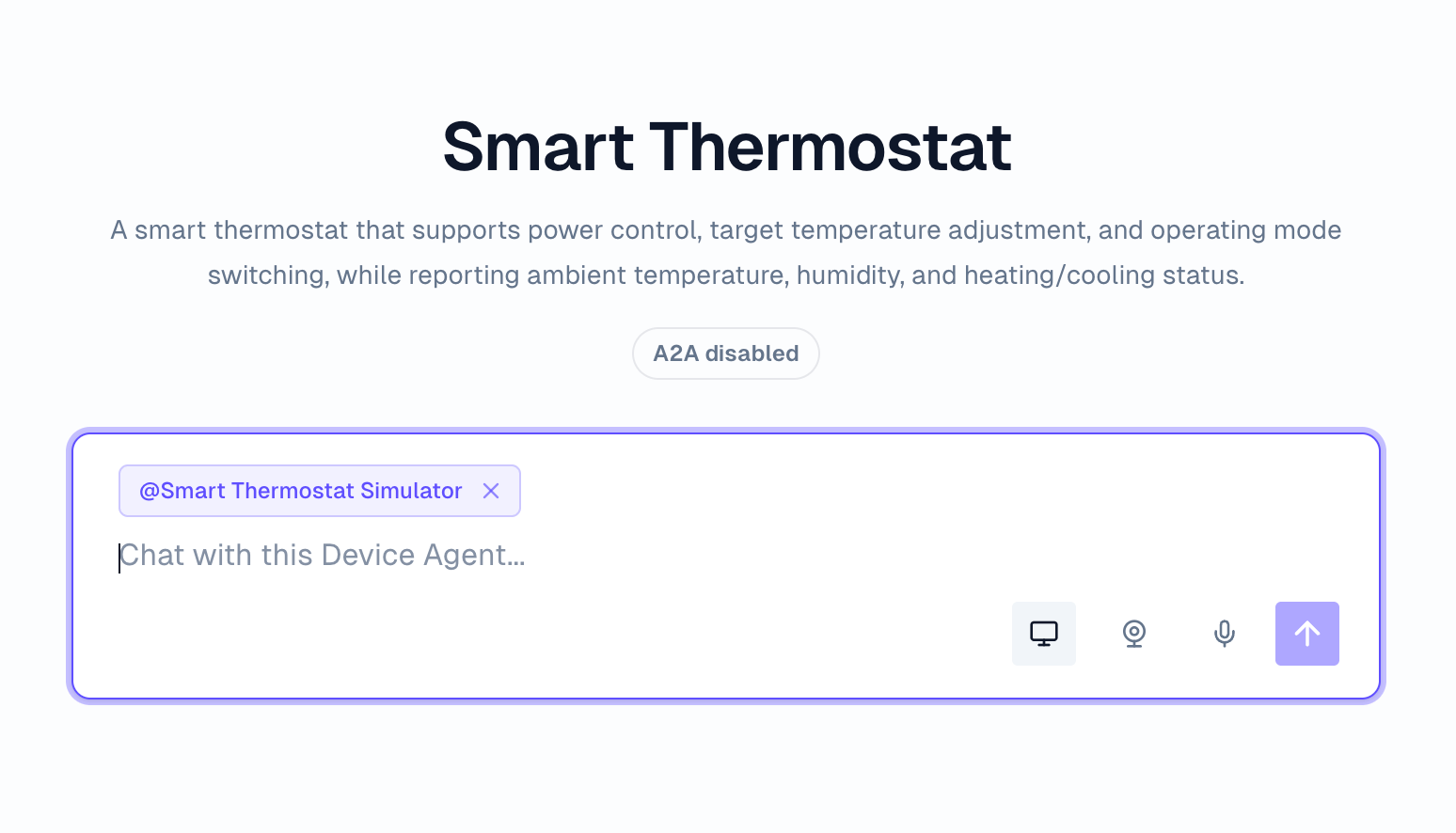
After a device is selected, the conversation area can show more interaction entry points when the corresponding capabilities are enabled. These capabilities can be used in the console and wired into real devices through the device-side SDK.
- Voice: speak to the Device Agent through the microphone, and connect device-side voice interaction through the SDK.
- Camera: provide image input for the current device, such as photo recognition, scene understanding, or vision-based operations. Real devices can upload image frames through the SDK.
- Simulated display: view or simulate visual output for a device. You can ask the Device Agent to generate a control panel, status panel, extended content, or a simulated device screen.
These capabilities apply to the selected device. For configuration and enablement, see Configuration. For usage guides, see Voice Interaction, Camera and Vision, and Simulated Display. For device-side code generation, see SDK Access.
Skills and Tools
The DeviceSpec defines device-native commands, state, and events. Skills and tools extend what the Device Agent can call outside the device itself, such as reading business data, triggering an external service, or packaging a workflow.
If a capability belongs to the device, model it in the DeviceSpec. If it depends on an external system or business workflow, put it in Skills and Tools.
See Skills and Tools for details.
Suggested Flow
For a first Device Agent, use this order:
- Start with a simulated device to validate commands, state, and events.
- Connect real hardware through SDK Access or MQTT Access.
- Select the real device from the device list and confirm online status and current state.
- Send control requests through conversation and confirm results in the status panel.
- Add workflows when device reports should trigger automatic handling.
- Add Skills and Tools when the Device Agent needs external systems or reusable business capabilities.