Define a Device Agent
A Device Agent represents a device category, not one physical device. It defines actions, state, and events, then provides the shared basis for conversation, device access, simulation, SDKs, and many bound devices with separate IDs, status, properties, and history.
Core Concepts
- Device Agent: the user-facing and integration-facing agent entry point. It understands conversations, selects devices, invokes commands, and queries status.
- DeviceSpec: the structured capability definition for the Device Agent. It contains basic information, commands, properties, and events.
- Real devices: concrete hardware instances connected under the Device Agent. They can report data and respond to commands through MQTT, SDKs, or the simulator.
Creation Entry Points
If there are no Device Agents yet, the console home page shows the creation input directly. You can enter a device description or upload an existing device definition file.
If you already have Device Agents, start a new creation flow from either entry point:
- Click the + button in the left sidebar
- Click Create device agent on the home page
The device description can be natural language, or any text content that describes device capabilities in a structured way, such as Markdown, JSON, or YAML. View examples is only a reference entry point; you can use your own description or a full DeviceSpec.
Click View examples to open the examples panel. Examples are grouped by device scenario. When you select one, a reference description is inserted into the input box; revise it before sending so it matches your own device.
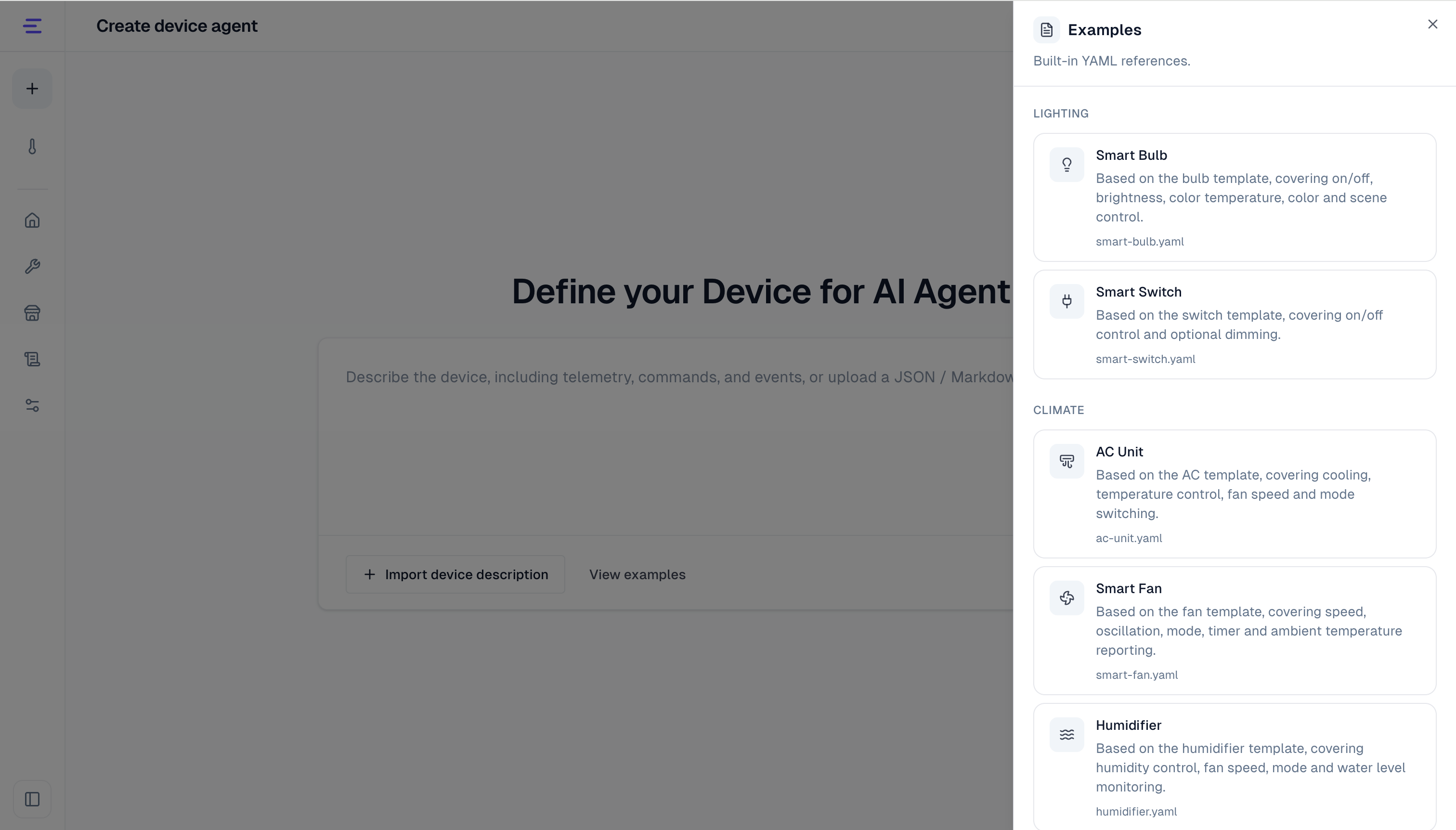
The creation flow is handled by the Device Agent creation agent. You provide the device description, then review or refine the generated result.
DeviceSpec Schema
The top-level DeviceSpec structure is fixed: name, description, commands, properties, and events.
{
  "name": "SmartThermostat",
  "description": "A thermostat that controls temperature, switches modes, reports state, and emits alerts.",
  "commands": {
    "set_target_temperature": {
      "description": "Set the target temperature.",
      "parameters": {
        "value": {
          "type": "float",
          "description": "Target temperature in Celsius.",
          "required": true
        }
      }
    }
  },
  "properties": {
    "current_temperature": {
      "type": "float",
      "description": "Current room temperature in Celsius.",
      "defaultValue": 26
    }
  },
  "events": {
    "over_temperature": {
      "description": "Reported when the current temperature is above the safe threshold.",
      "eventType": "alert",
      "outputData": {
        "current_temperature": {
          "type": "float",
          "description": "Temperature that triggered the alert.",
          "required": true
        }
      }
    }
  }
}
Top-level fields:
| Field | Description |
|---|---|
name | Device Agent name. Use a stable, short English identifier. |
description | Device Agent description used to help the model understand the scenario. |
commands | Operations the device can execute. |
properties | State fields the device reports or exposes for status queries. |
events | Structured events reported by the device. |
Supported Field Types
Command parameters, property fields, and event payload fields use the same type set:
| Type | Usage | Example value | Accepted aliases |
|---|---|---|---|
string | Text, enum values, status names, mode names | "warm", "idle" | — |
int | Integer values, such as counts, levels, and stepped settings | 80, 0 | integer |
float | Decimal or measured values, such as temperature, voltage, power, and ratios | 22.5 | number, double |
bool | Switches, online state, enabled flags | true, false | boolean |
json | Structured objects, such as coordinates, zones, and complex configuration | { "mode": "eco" } | object |
array | Lists, such as detection results or history records | ["a", "b"] | list |
Aliases listed in the rightmost column are accepted on input (for example when an AI-generated spec uses integer) and normalized to the canonical name before the DeviceSpec is saved. The final stored type is always one of the six canonical names.
Events use eventType:
| Type | Usage |
|---|---|
info | Normal notifications or business state changes |
alert | Alerts that need attention |
error | Faults, offline events, execution failures, or other errors |
Describe Capabilities
When defining a device, describe the capabilities in this order:
- What the device is: device category, scenario, and main goal.
- What commands it supports: user- or agent-invoked operations and their parameters.
- What properties it reports: state fields to monitor, with reasonable initial values.
- What events it emits: business changes, alerts, or faults, plus event payload fields.
- Preferred field names: expected identifiers if you already have a device protocol or MQTT plan.
For example:
Define a smart thermostat. It supports power control, target temperature setting, and mode switching.
Supported modes are heat, cool, auto, fan_only, and eco.
It reports current temperature, target temperature, humidity, current mode, heating state, cooling state, and online state.
It emits an over_temperature alert when temperature is above 30 C, and a device_offline error event when the device goes offline.
Use lowercase English identifiers with underscores for commands, property fields, and events.
You can also upload a complete JSON or YAML DeviceSpec. Prefer lowercase English identifiers with underscores, such as set_target_temperature, current_temperature, and device_offline. This makes MQTT access, SDK code, and device-side implementation more stable.
Commands, Properties, and Events
Commands are actions the device can receive. Each command contains description and parameters. When a command is invoked, parameters are validated against the DeviceSpec. Missing required parameters, type mismatches, and unknown parameters are treated as invalid for the current spec.
{
  "set_mode": {
    "description": "Switch HVAC mode.",
    "parameters": {
      "mode": {
        "type": "string",
        "description": "One of heat, cool, auto, fan_only, eco.",
        "required": true
      }
    }
  }
}
Properties define the state the device reports continuously or exposes for status queries. defaultValue is optional, but recommended for simulator and SDK examples. It must match the field type.
{
  "humidity": {
    "type": "int",
    "description": "Current humidity percentage.",
    "defaultValue": 60
  }
}
Events are one-time changes reported by the device. Each event contains description, eventType, and outputData. Event names and payload fields are also validated against the DeviceSpec.
{
  "device_offline": {
    "description": "Reported when the device goes offline.",
    "eventType": "error",
    "outputData": {
      "reason": {
        "type": "string",
        "description": "Offline reason.",
        "required": false
      }
    }
  }
}
Generate and Review
After you send the description, the creation agent generates a DeviceSpec draft. Use the conversation area on the left to refine it, and the preview panel on the right to review commands, properties, and events.
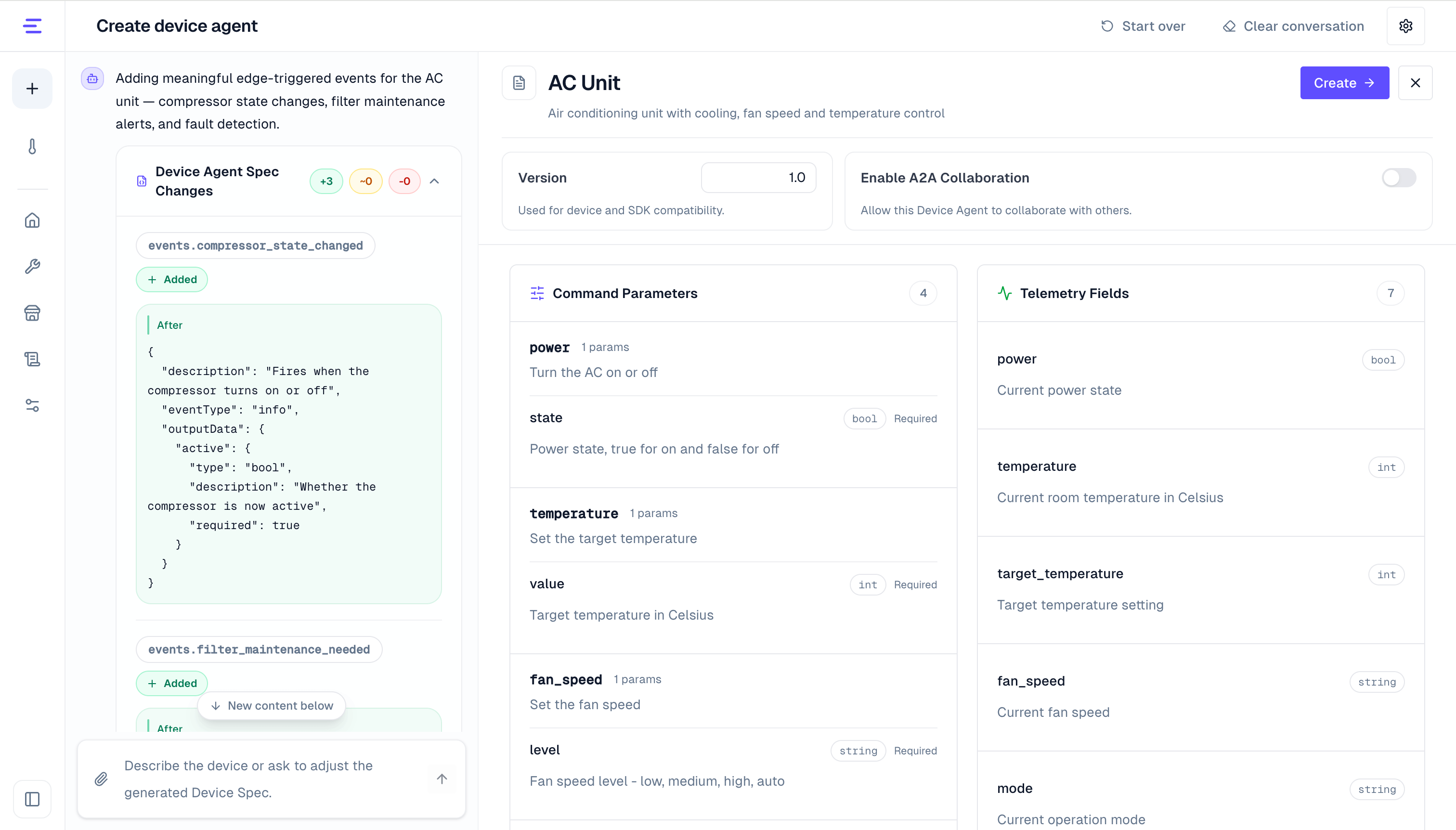
Review the draft with these checks:
- Commands cover the operations users need to perform
- Command parameters include
type,required, and cleardescription - Properties cover the state the device should report or expose for queries
- Property
defaultValuevalues match their field types - Events cover exceptions or business changes that should be reported proactively
- Events use the right
eventTypeandoutputData - Field names are stable enough for MQTT access and SDK access
If the draft does not match your intent, continue editing from the left conversation area:
Rename the temperature command to set_target_temperature, use value as the parameter name, and add a device_offline event with eventType set to error.If the selected model returns malformed structure, the preview panel shows validation issues. You can click auto repair to have the creation agent fix the DeviceSpec from those validation results, or continue refining it in the conversation area on the left.
Set Version, Persona, and A2A
In the preview panel, you can also configure:
- Version: used for device and SDK compatibility checks, with a format such as
1.0,1.1, or2.0.3 - Persona: sets reply style, such as "warm, concise, lead with the answer." It affects tone only and does not change the DeviceSpec or command permissions.
- A2A collaboration: uses the EMQX 6.2 A2A over MQTT capability to publish this Device Agent as a node that other A2A agents can discover and call
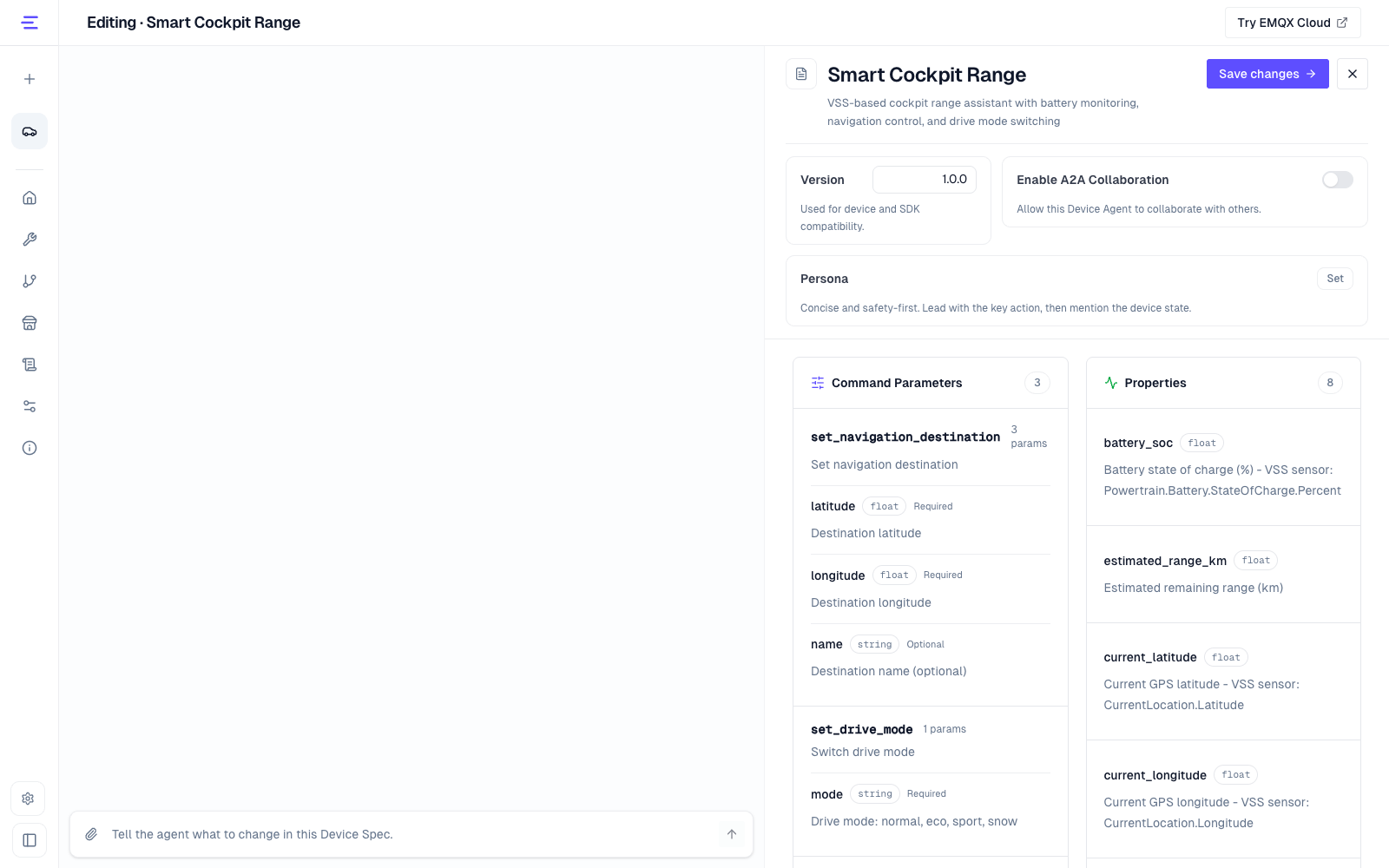
When A2A is enabled, the system generates an A2A card from the DeviceSpec and maps device commands into A2A skills. Enable it only when this Device Agent needs to collaborate with other A2A agents over MQTT. See A2A Multi-Agent Collaboration for the usage flow.
If the DeviceSpec has no commands, an A2A card cannot be published.
During creation, the system also selects a suitable sidebar icon based on the DeviceSpec. If no reliable result is available, it uses the default icon.
Open the Device Agent
When the draft looks correct, click Create. The Device Agent appears in the left sidebar. Click Enter Device Agent, or open it from the Device Agent list.
Inside the Device Agent, you can:
- Validate interactions with a browser simulated device
- Bind one or more real devices
- Send commands to the selected device through conversation
- Query the current device status and recent events
- Generate or adapt a device-side SDK and connect real hardware
Conversation uses the current DeviceSpec and selected device. For example, when a user says "set the target temperature to 24 degrees", the Device Agent selects the matching command and generates the parameters. When the user asks for status or events, it reads the selected device's latest reported data.
Next Steps
- Read Device Simulator to validate interactions without real hardware.
- Read MQTT Access to connect real devices to Device Agent.