Simulated Display
The simulated display previews and validates visual device output in the console. It binds to the selected device, reads state, maps UI actions to DeviceSpec commands or events, and checks content, interaction, and control paths before real rendering.
Before You Start
Before using the simulated display, complete these steps:
- Create a Device Agent and define the DeviceSpec for the target device. Buttons in the display should map to commands or events in the DeviceSpec.
- If the display needs real state, the device should be online through MQTT or the SDK and report state or telemetry.
- If the display needs control buttons, the device side should be able to receive commands and return results.
- Before real screen integration, define the screen resolution, input method, rendering framework, and refresh rate.
Console Usage and Real Screen Integration
The simulated display has two usage paths:
| Path | Use case | Requirement |
|---|---|---|
| Console usage | Development, demos, and validation of a device screen or control panel | Select a device, then ask the Device Agent to update the simulated display |
| Real screen integration | Devices with screens, touch screens, or button interfaces | Use the confirmed structure and interaction as a reference, then implement rendering and input handling on the device side |
Both paths use the same DeviceSpec. The console only simulates and validates the display; a real screen must be implemented on the device side.
Console Usage
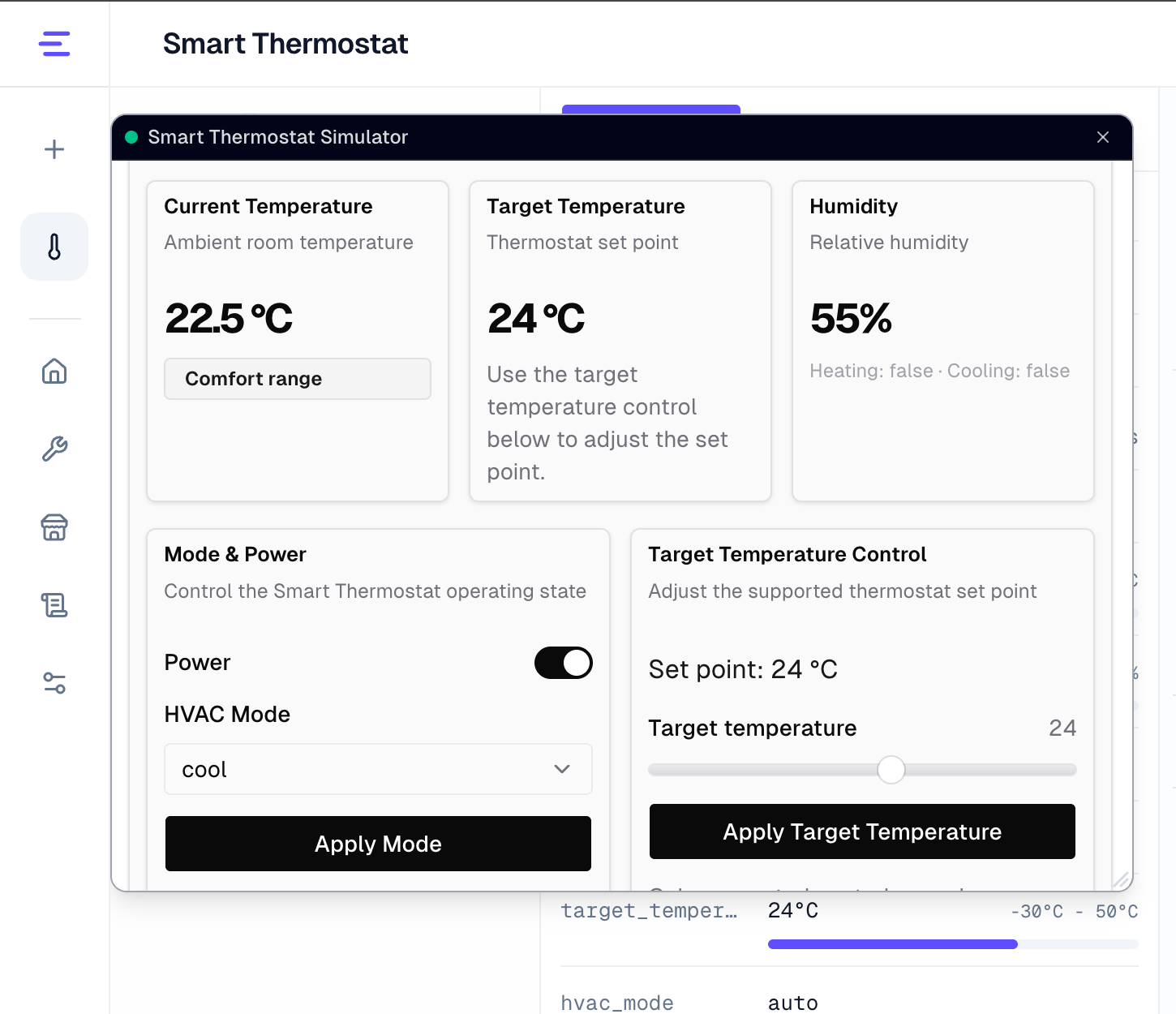
Open a Device Agent workspace, select a device, then ask the Device Agent to update the simulated display. For example:
Update the simulated screen to show the Smart Thermostat control panel from Quick Start.
Only use state fields from the current device spec: power, current_temperature, humidity, heating_status, cooling_status, target_temperature, and hvac_mode.
Only use commands from the current device spec: set_power, set_target_temperature, and set_hvac_mode.
Show current temperature, target temperature, humidity, HVAC mode, power state, heating state, and cooling state.
Add a chart comparing current temperature with target temperature, plus a humidity gauge.
Provide a power switch, target temperature slider, and HVAC mode selector, and bind each control to the matching command.
Do not add fields or controls that are not in the device spec.
In the console, you can:
- Ask the Device Agent to generate a status panel, control panel, list panel, chart dashboard, or device screen.
- Enlarge the simulated display window or drag it to another position so you can view it alongside device state and chat history.
- Check whether the display reads current device state, such as temperature, humidity, mode, and online status.
- Check whether charts use telemetry or event data reported by the device, such as current vs. target temperature, humidity gauges, or status summaries.
- Try buttons, switches, sliders, or inputs one by one, and confirm that each action triggers the intended command or event from the DeviceSpec.
- Regenerate the display after editing the prompt to compare layout, copy, and interaction behavior.
Real Screen Integration
The simulated display does not automatically push content to a real hardware screen. If a real device has a screen, use this flow:
- Validate display content, state fields, and control actions in the console.
- Define the real screen resolution, input method, rendering framework, and refresh rate.
- Implement device-side rendering and map state, buttons, and inputs to fields, commands, and events in the DeviceSpec.
- To generate device-side screen, button, or touch interaction code, use agent-assisted SDK adaptation in SDK Access.
Verify Results
After console usage or real screen integration, verify these results:
- The display updates the currently selected device and does not apply to another device.
- State, telemetry, and alerts match values reported by the real device.
- Buttons or inputs trigger commands or events defined in the DeviceSpec.
- The device side receives commands, returns results, and shows corresponding records in the console or logs.
- The real screen implementation does not depend on the console simulated display runtime.
Notes
The simulated display is tied to the selected device and works best for static or low-frequency panels. Real screen rendering and any control actions still need device-side implementation through DeviceSpec commands or events; video, high-frequency animation, and complex UI belong in a real frontend or device-side UI.