IM Access
IM Access connects a Device Agent to Feishu, DingTalk, Slack, Discord, or Telegram. Users message a bot to query status, send commands, or ask about device capabilities; setup is create a bot or app, enter credentials in Settings → Channels, and enable it.
When to Use IM Access
- Teams already work in Feishu, DingTalk, or Slack and want to query or control devices from a group chat.
- A device needs a remote operation entry point without building a separate app or admin portal for every user.
- Alerts, status queries, and control commands should live in the same conversation context.
- Access should be restricted to specific platform users through an allow list.
Setup Flow
- Create a bot or app in the third-party platform.
- Enable message receiving and copy the credentials issued by the platform.
- Open Settings → Channels in the Device Agent console.
- Select the platform, enter credentials, configure an allow list if needed, and enable the channel.
- Save the configuration and restart the service.
- Send a DM to the bot, or mention the bot in a group or channel.
Saved IM settings are written to local configuration. Matching .env variables override them at startup. See Configuration for configuration sources.
What to Prepare in Each Platform
| Platform | Platform setup | Credentials in Device Agent | How users trigger it |
|---|---|---|---|
| Feishu | Internal app, bot capability, long connection event subscription | App ID, App Secret, optional Encrypt Key and Verification Token | DM the bot or mention it in a group |
| DingTalk | DingTalk app, bot capability, Stream Mode | Client ID, Client Secret | DM the bot or mention it in a group |
| Slack | Slack App, Socket Mode, Bot Token, App Token | Bot Token, App Token, optional Signing Secret | Mention the app in a channel or send a DM |
| Discord | Discord Application, Bot, Message Content Intent | Bot Token | DM the bot or mention it in a server channel |
| Telegram | Bot created with @BotFather | Bot Token | DM the bot, mention it in a group, or reply to the bot |
Configure Device Agent
Open Settings → Channels and choose the platform to connect. Each platform uses different credentials, but the base fields are shared:
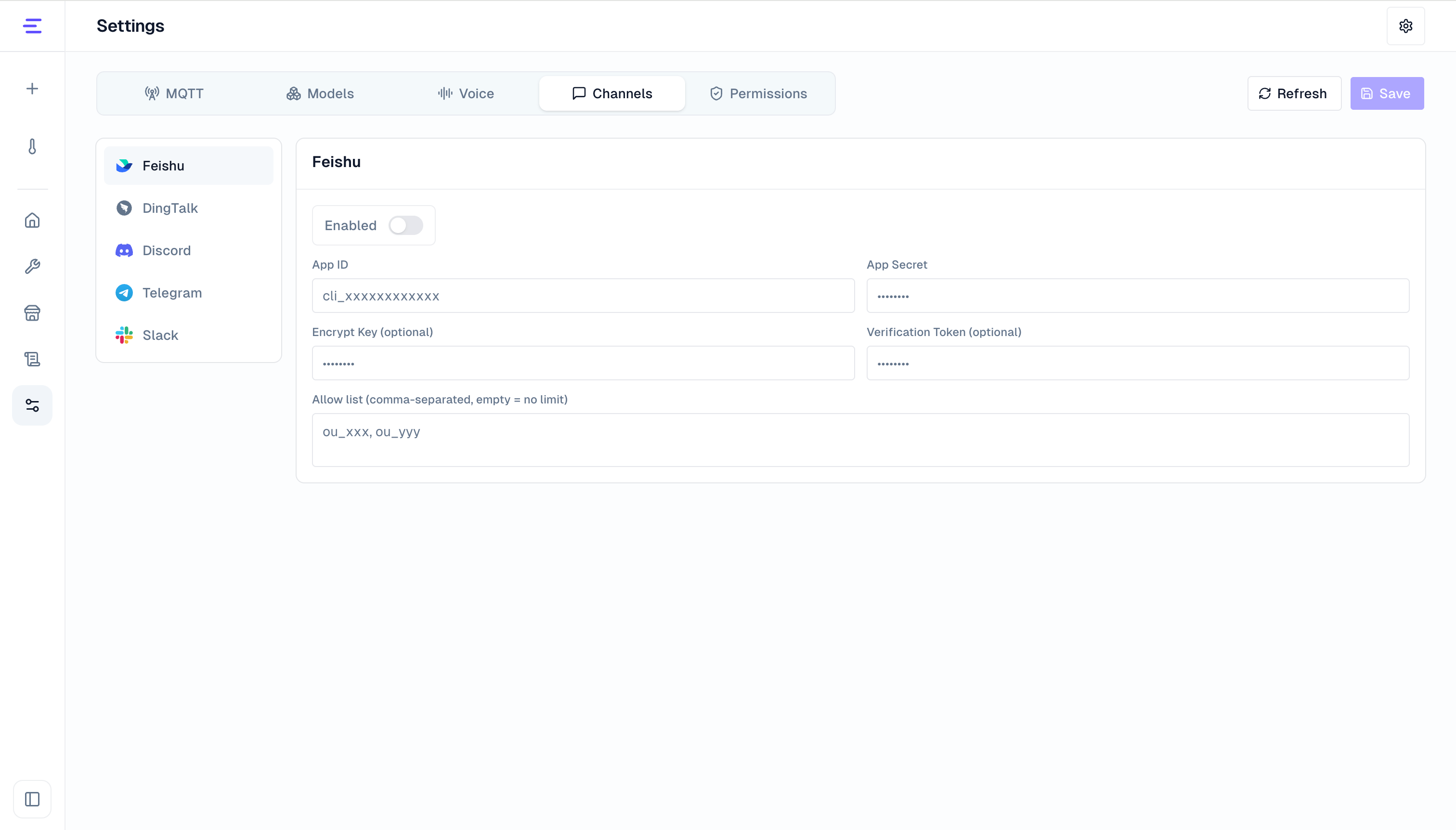
| Field | Purpose |
|---|---|
| Enabled | Starts the selected IM channel |
| Allow list | Platform user IDs allowed to access the Device Agent; comma-separated. Empty means no restriction |
Use platform user IDs, not display names:
| Channel | User ID |
|---|---|
| Feishu | open_id, for example ou_xxx |
| DingTalk | Employee ID or senderStaffId |
| Discord | User Snowflake ID |
| Telegram | Numeric user ID |
| Slack | User ID, for example U01234567 |
If you do not know the user ID yet, leave the allow list empty, send a test message, then read the sender ID from service logs before tightening access.
Verify Access
After restarting the service, send a simple message from the platform:
Which devices are online?If a device is already online, test status query and control:
Show the current status of thermostat-01.Set the target temperature of thermostat-01 to 24 degrees.DMs usually trigger directly. In groups or channels, users usually need to mention the bot or reply to the bot. After the Device Agent finishes processing, the response is sent back to the same conversation.
How Messages Reach the Device Agent
Each IM channel turns platform messages into Device Agent conversation sessions. Message text is sent to the Device Agent; platform user ID, conversation ID, group, or channel information is used to reply to the original conversation and enforce allow lists.
Multimedia support is not identical across platforms. Feishu currently supports text, rich text, images, and voice-to-text. Other channels are mainly text-first; image, voice, and file messages are not the same as full vision or voice access. For device-side voice, camera, or simulated display capabilities, see Voice Interaction, Camera and Vision, and Simulated Display.
Compared With Other Conversation Entry Points
| Entry point | Purpose |
|---|---|
| Console Chat UI | Built-in entry point for creation, debugging, device selection, status views, and manual control. See Use a Device Agent. |
| HTTP Chat API | For custom web apps, mobile apps, or business systems that need to embed Device Agent conversations. |
| IM Access | For third-party chat platforms, so users can work with Device Agents from existing collaboration tools. |
| Device-side voice and vision | For real devices with microphones, cameras, or screens, connected through the device SDK and multimedia capabilities. |