A2A Multi-Agent Collaboration
A2A makes Device Agents discoverable and callable by other agents. In the A2A workspace, you can save a repeatable Scene or send a one-off Task to coordinate several agents and devices.
You can also start collaboration from a device conversation or voice request. For example, bind thermostats and a fan to a Home Controller, then ask that controller to query or adjust them together.
When to Use A2A
- Another agent needs to query device information or call device operations.
- Several Device Agents need to complete one goal together.
- An external A2A client needs to discover and reuse device capabilities.
For direct conversation, debugging, or control of one device, use the Device Agent chat, MQTT, or SDK instead.
Before You Start
Check the following:
- The Gateway can connect to an EMQX deployment with the A2A registry enabled. EMQX 6.2.0 or later is required.
- Target Device Agents are A2A-enabled and have publishable device capabilities. Their current models supply callable skills for queries, control, and other supported operations.
- Participating agents use the same MQTT broker, A2A organization, and A2A unit.
- The Gateway has a usable LLM configured. See LLM Configuration.
- Target devices needed during execution are online.
Runtime configuration provides the shared A2A identity:
| Setting | Purpose | Default |
|---|---|---|
A2A_ORG_ID | Organization used for registration and discovery | default |
A2A_UNIT_ID | Unit used for registration and discovery | default |
| MQTT broker settings | Communication address in the agent card | Current MQTT runtime settings |
See Configuration for configuration details.
Enable a Device Agent for A2A
Enable A2A for targets such as thermostats and fans so other agents can discover and use their capabilities. A controller that only initiates requests does not need to publish its own A2A card for that purpose. Configure its collaboration scope with controller bindings below.
- Create a Device Agent, or open an existing Device Agent for editing.
- Review the device specification in the preview panel.
- Turn on Enable A2A Collaboration.
- Save the Device Agent.
Enable A2A Collaboration publishes the agent to the live A2A network and registers its card. While the Gateway is connected, the agent can appear in the A2A workspace and receive requests.
Turning off Enable A2A Collaboration and saving unpublishes the agent and removes its registered card.
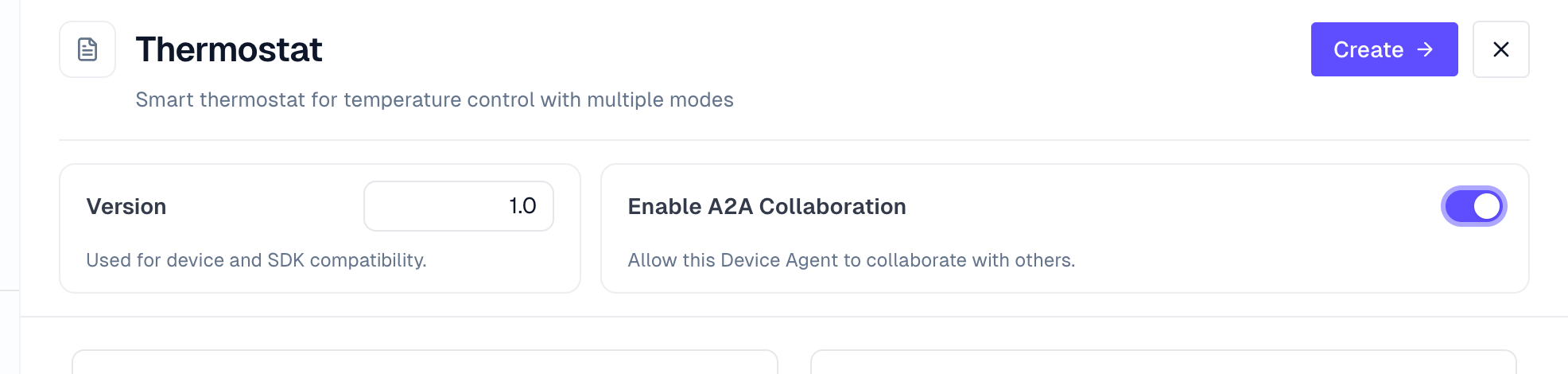
Publish and update device capabilities
An A2A card describes capabilities that other agents can call. Direct devices use commands from their model. IoT platform devices use services, writable properties, and job capabilities supplied by the platform model.
| Capability supplied by the connection | Collaboration use |
|---|---|
| State and history queries | Read state, events, or operation records at run time to inform later decisions |
| Commands or services | Perform device operations such as power or mode changes |
| Writable properties | Update desired state such as target temperature or operating mode |
| Device jobs | Call supported job creation or update operations |
Check the A2A workspace for the actual skill list. Connections offer different capabilities. Publishing skills and binding devices remain subject to existing device permissions.
For an A2A-enabled Device Agent, saving the model or synchronizing it from an IoT platform automatically updates the published card's skill list. After adding, removing, or changing an operation, review the skill names in A2A and check parameter requirements in the corresponding model. If a capability used by an existing scene changes, review that scene and validate its execution again.
Collaborate in the A2A workspace
Create and run Scenes, or send one-off Tasks, in the A2A workspace to verify that published device capabilities can complete a goal together. Each Scene or Task run selects one specific device per participating agent.
Choose Scenes or Tasks
Open A2A and choose a mode at the top of the conversation:
| Need | Mode |
|---|---|
| Save and reuse a generated collaboration workflow | Scenes |
| Complete a one-off request | Tasks |
In Scenes, the left panel lists saved scenes and the right panel shows the selected scene's workflow. In Tasks, the left panel lists available agents, their skills, and online state.
All ready scenes share the center conversation. Selecting a scene opens its workflow for review, but does not bind the conversation to that scene. When you want to run a scene, name it or describe it unambiguously and explicitly ask the system to execute it.
Create a Reusable Scene
A scene saves a goal and a generated collaboration workflow. This example uses Smart Lock, Smart Fan, and Humidifier from the A2A list:
- Open A2A and select Scenes.
- Click the + button beside the scene list.
- Enter the scene name and goal shown below.
- Select all three A2A agents.
- Click Create.
| Field | Value |
|---|---|
| Scene name | Away Mode |
| Goal | Lock the door before leaving, and turn off the fan and humidifier. |
| A2A agents | Smart Lock, Smart Fan, and Humidifier |
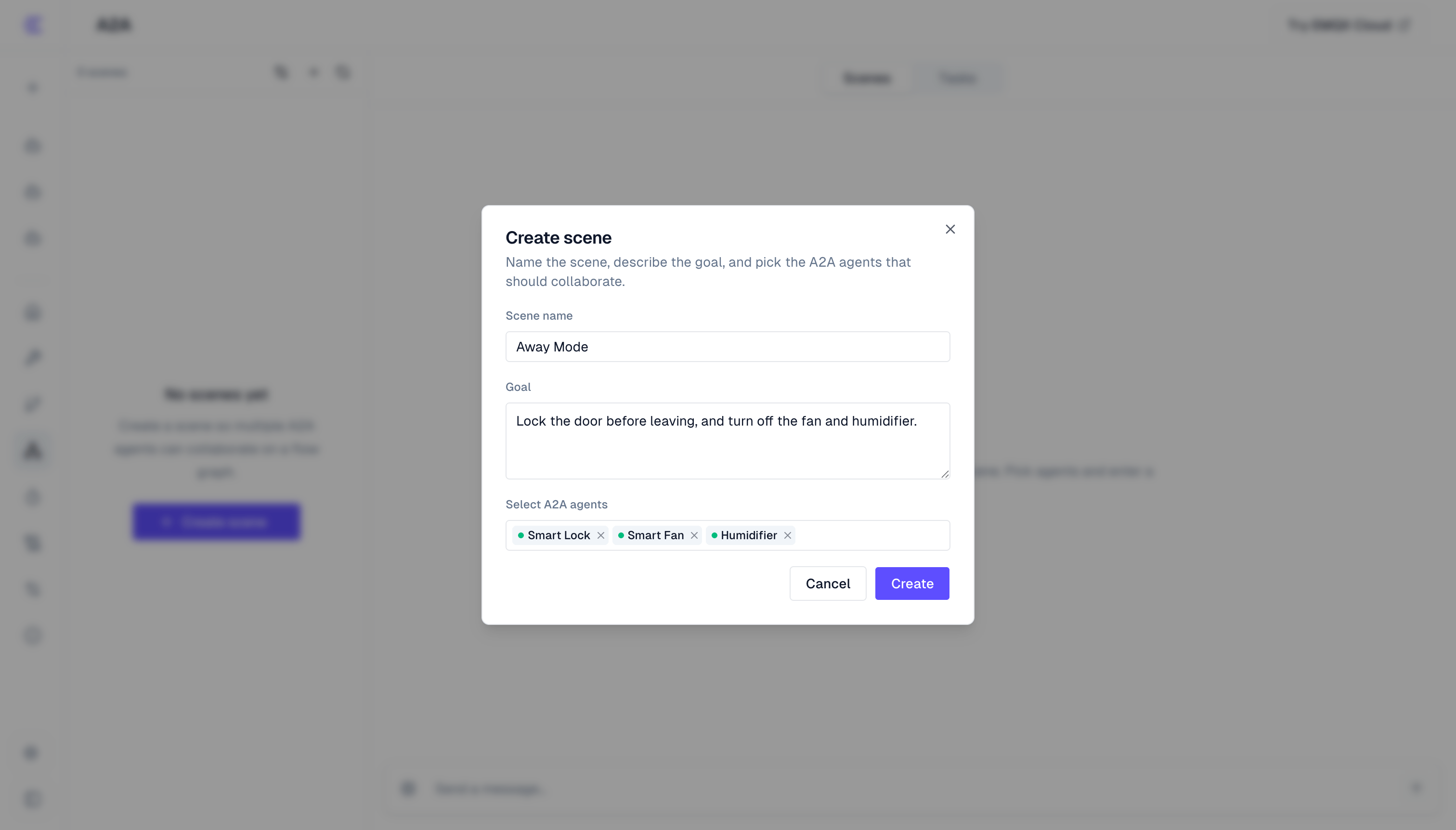
Device Agent splits the goal into operations based on the three agents' skills and generates a collaboration flow. If required information is missing, it asks for that information before generation continues.
After creation, the scene moves through these generation states:
| State | What to do |
|---|---|
| Generating | Wait while the system prepares, plans, and validates the workflow. |
| Needs input | Open the scene, provide the requested information, then click Submit answer. |
| Ready | Review the workflow and run the scene from the shared conversation. |
| Failed | Review the reason. Edit the goal or agents, then save and regenerate the scene. |
| Updating | Wait while an edited scene is regenerated. |
Review or Change a Scene
Select a scene in the left panel to open its workflow.
- Each node shows the assigned agent and its instruction.
- Connections summarize the planned flow. At run time, independent steps can run in parallel.
- Use the expand control to inspect a larger graph.
- For a ready or failed scene, click Edit to change its name, goal, or agents. Click Save & regenerate to rebuild the workflow.
- To remove a scene, use Delete in the scene list. Deletion is permanent.
Run a Scene
When Away Mode is ready, enter this in the A2A → Scenes conversation:
I'm heading out. Run Away Mode.Device Agent matches Away Mode; if several scenes fit, it asks which one to use. When the page asks for devices, select one online device per participating agent, check its name and ID, then click Continue. Steps assigned to the same agent share its selected device.
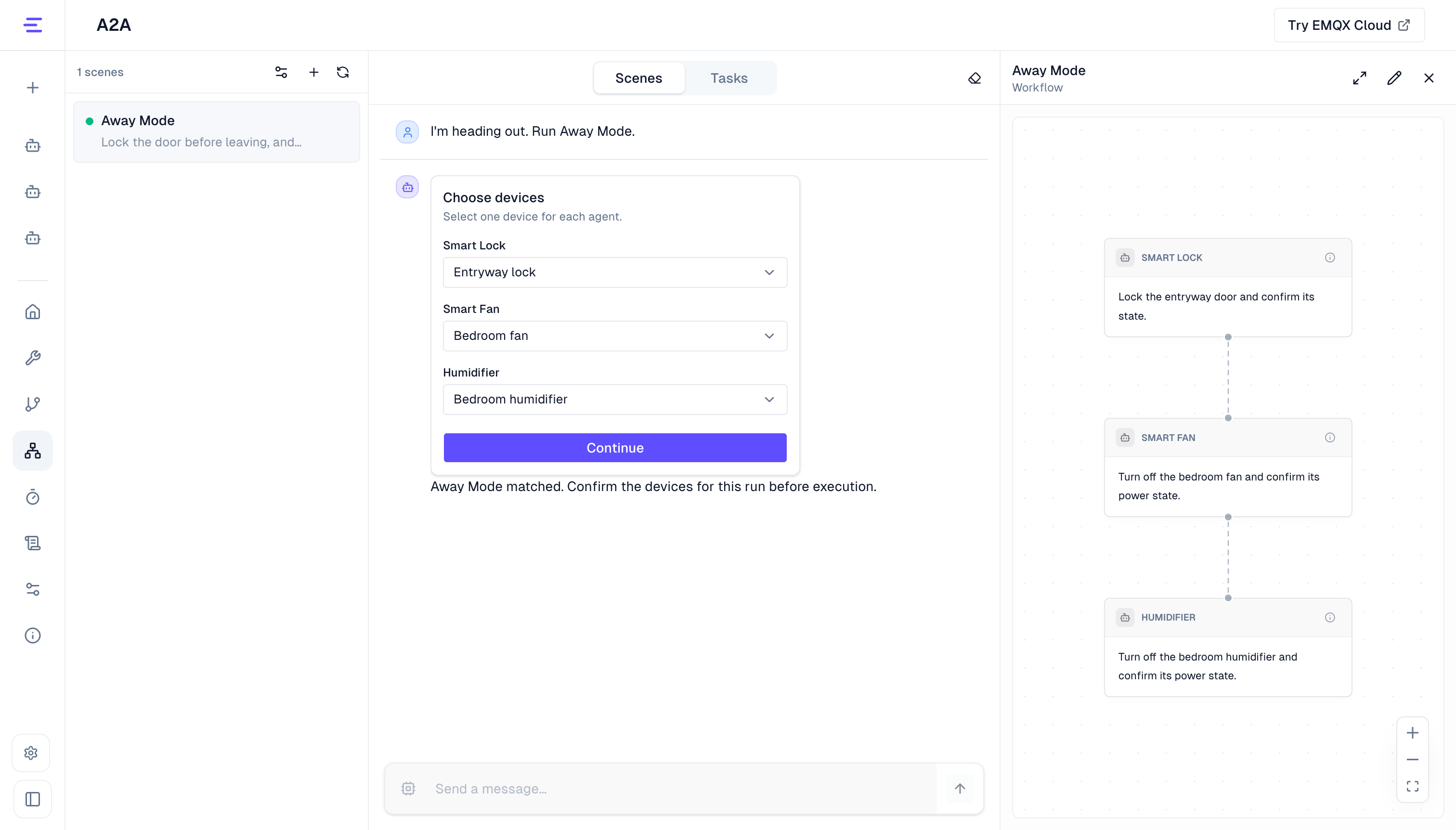
After device validation, the system executes the collaboration flow and shows each step's status and the final result. Check which device each step used and verify its resulting state.
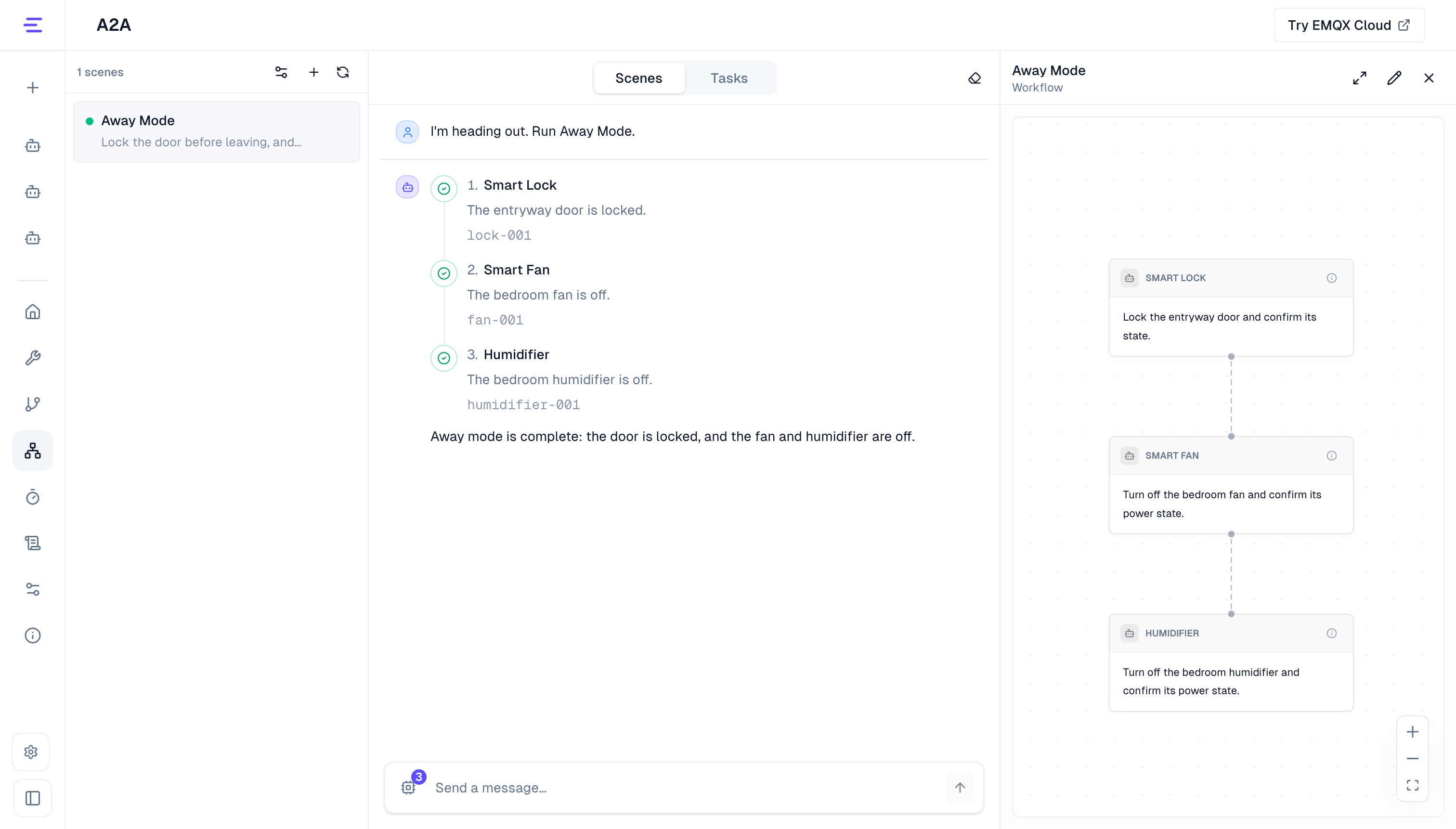
The stop control ends orchestration waiting and prevents steps that have not been dispatched. It cannot undo an action already sent to an agent or device, so check device state afterward when needed. Clearing the conversation also clears selected devices, but does not delete any scene.
Write Goals That Run Reliably
- State the desired outcome, not only the first action.
- Include thresholds, locations, and other fixed values.
- Say what final report or confirmation you expect.
- Select agents that can obtain every required live value.
Do not rely on values observed while a scene is being created. Current temperature, time, device state, and similar values must be read by an agent when the scene runs.
Run a One-Off Task
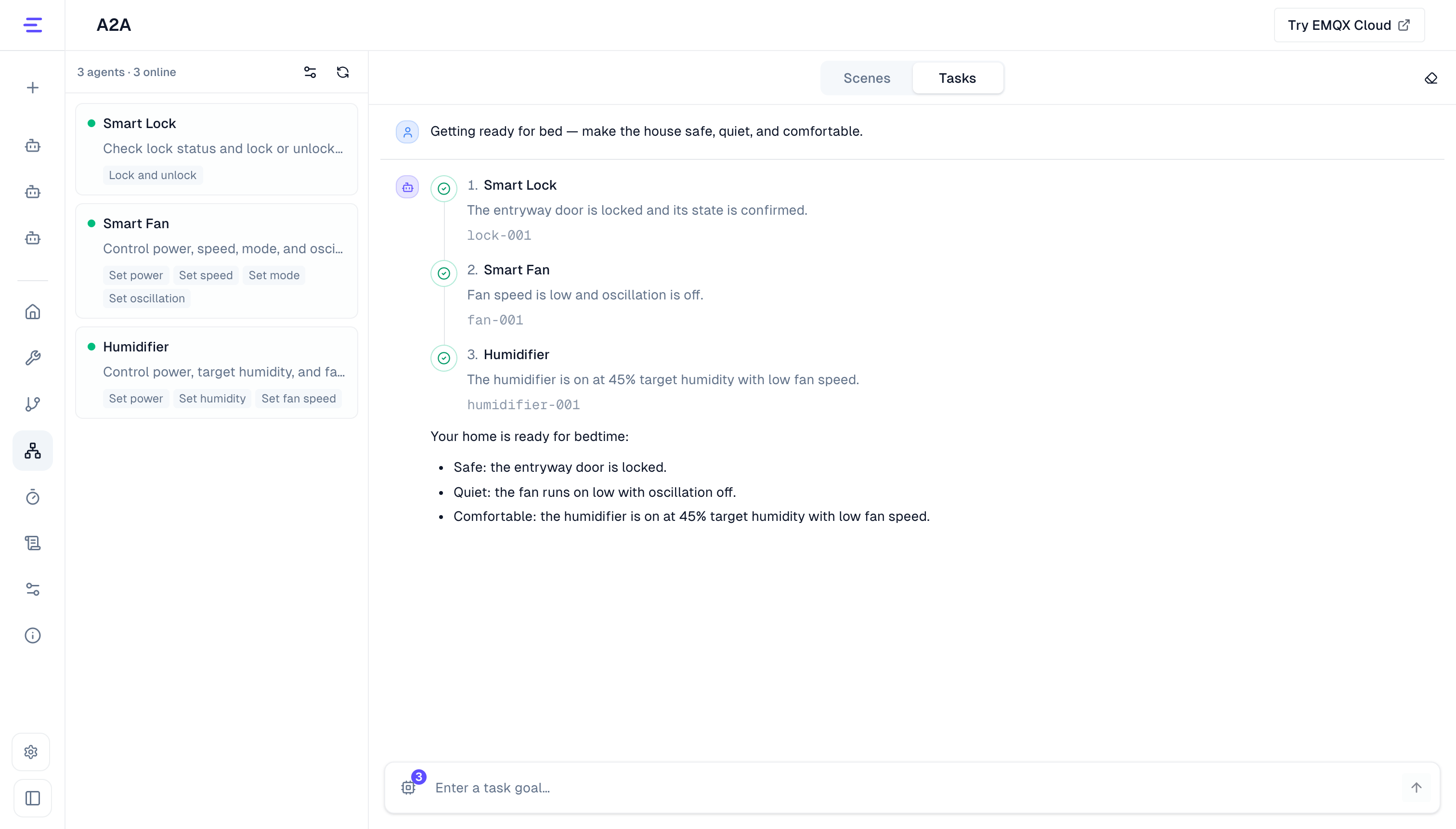
When several agents need to work together now but the flow is not worth saving as a scene, open A2A → Tasks and enter:
Getting ready for bed — make the house safe, quiet, and comfortable.You do not need to choose devices in advance or break the goal into commands. Task Agent plans the participants, steps, parameters, and execution order from the skills published by online agents; if you preselected devices with the button beside the input, it prefers their agents when the capabilities fit.
When the plan needs a specific device, the page asks you to choose one and validates its availability. The execution trace shows the steps, statuses, and final result. Tasks are not saved as scenes, so each new run is planned again.
Control multiple devices from a controller
A controller is the specific device receiving a collaboration request. Targets are the devices it is allowed to query or control. One controller can bind several targets, including multiple devices from the same Device Agent. Bindings are saved separately for each controller; another controller under the same Device Agent does not inherit them.
Controller bindings define the persistent scope for device chat and voice. They are independent of device selection for Scenes and Tasks in the A2A workspace, which never changes them.
Bind multiple devices to a Home Controller
This example uses a Home Controller with voice already connected. Its device ID is home-controller-01, and it binds these three devices:
| Target Device Agent | Target device | Device ID |
|---|---|---|
| Thermostat | Living-room thermostat | living-thermostat-01 |
| Thermostat | Bedroom thermostat | bedroom-thermostat-01 |
| Smart Fan | Bedroom fan | fan-01 |
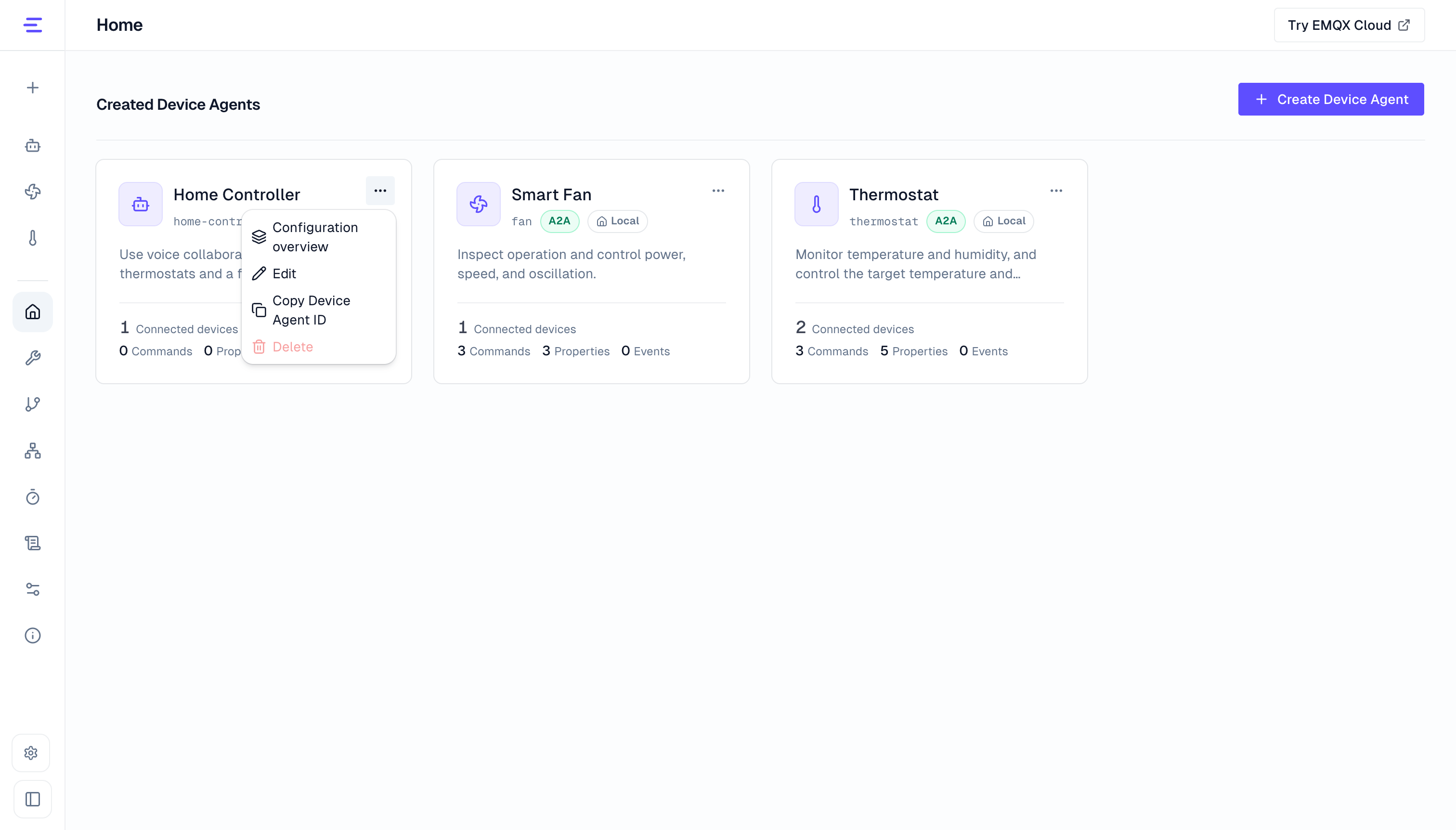
- On the home page, find the Home Controller card and open Configuration Overview from its more-actions menu.
- Switch to A2A device bindings and click Configure device bindings.
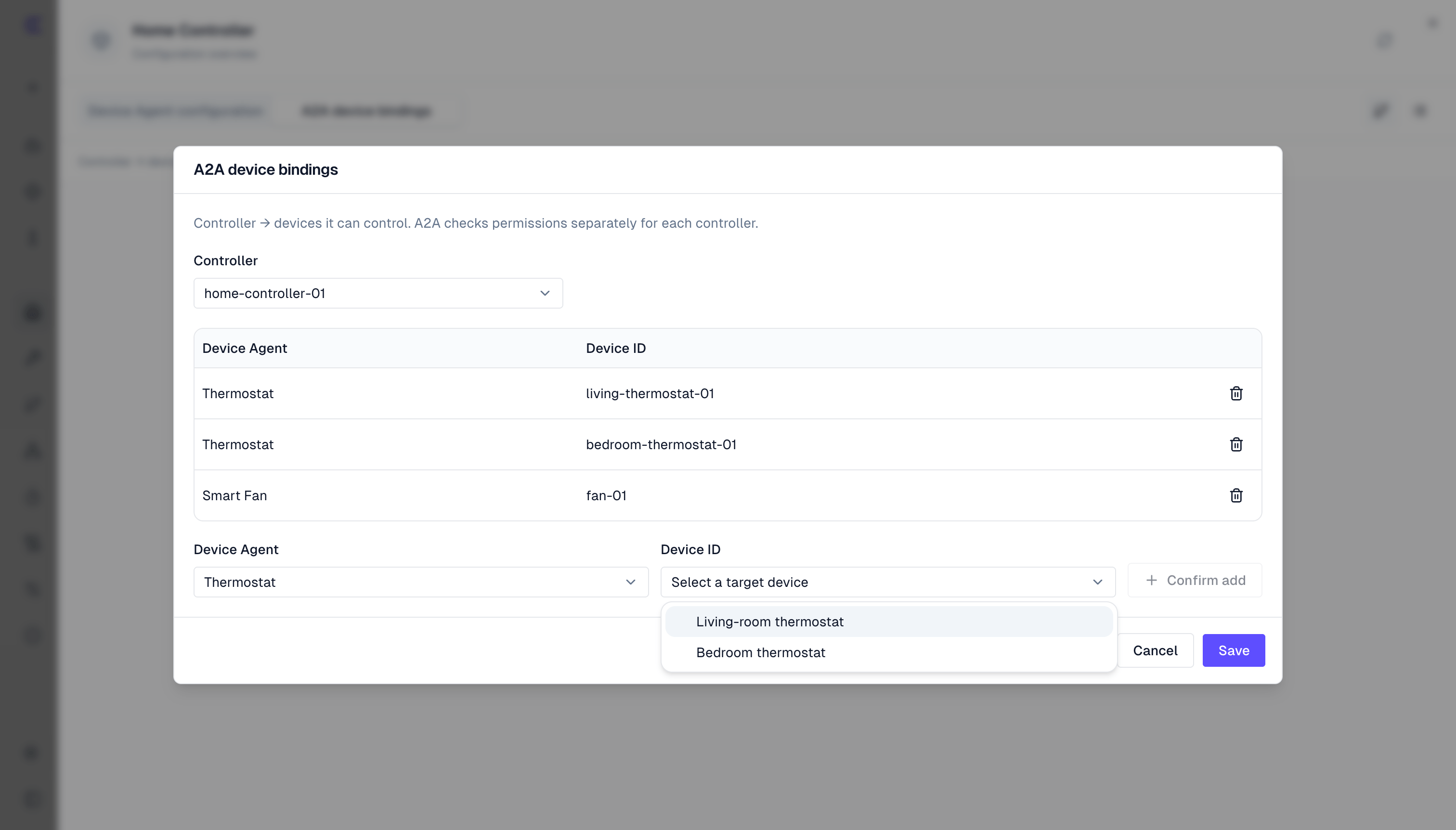
- Select
home-controller-01under Controller. - Select Thermostat under Device Agent, choose the living-room thermostat under Device ID, then click Confirm add.
- Repeat for the bedroom thermostat and bedroom fan. To add the second thermostat, keep Thermostat selected and choose the other specific device.
- Check all three rows, then click Save. Confirm add changes the current draft; the bindings take effect after the final save.
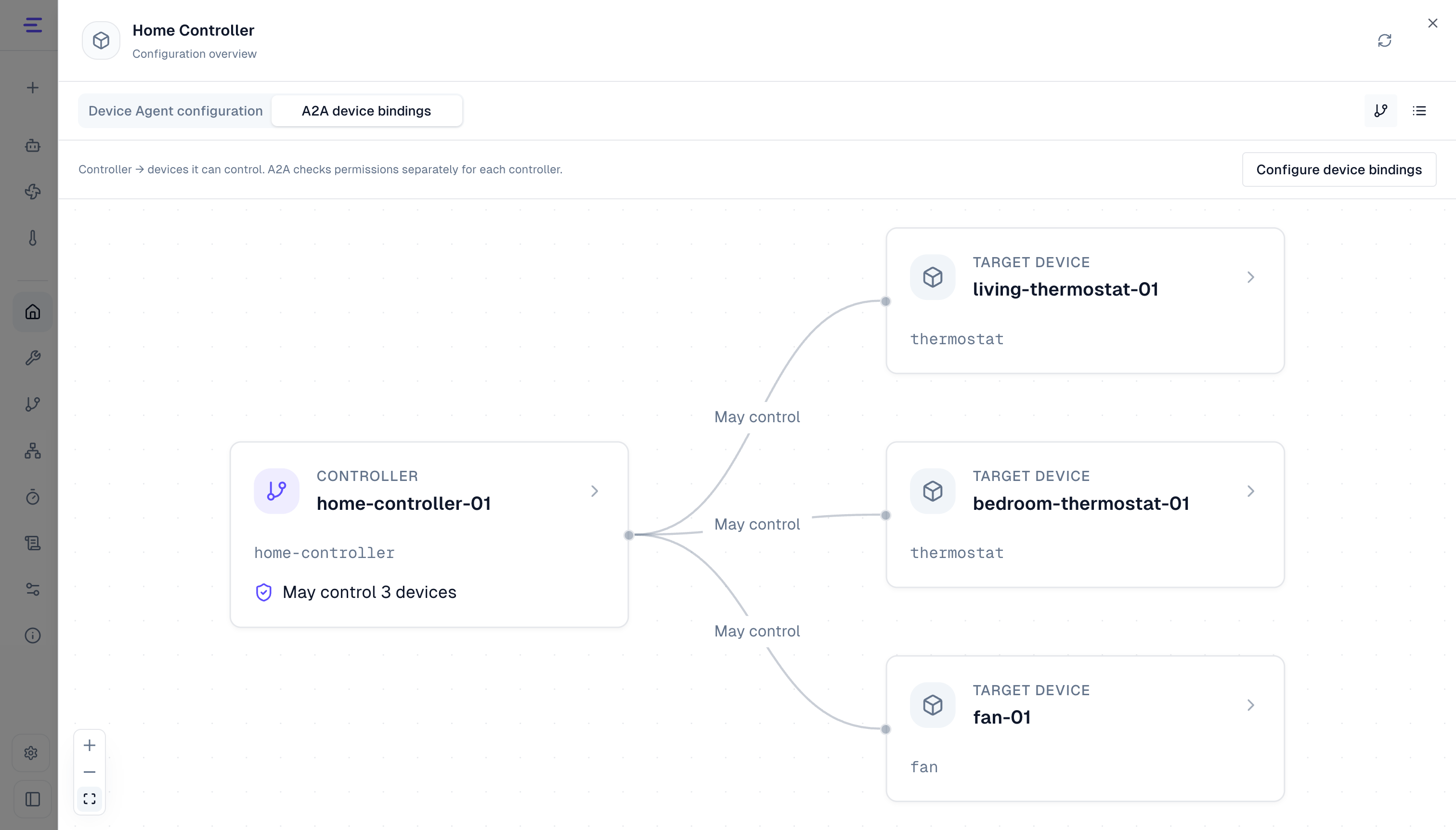
After saving, the binding map should connect the same controller to all three targets. Click the controller node to inspect or edit its bindings. Use Configure device bindings to switch to another controller.
The target Device Agent selector lists only A2A-enabled agents. Binding remains subject to each target's model and access permissions. Targets must be online when queried or controlled.
Start collaboration from the controller's chat or voice input
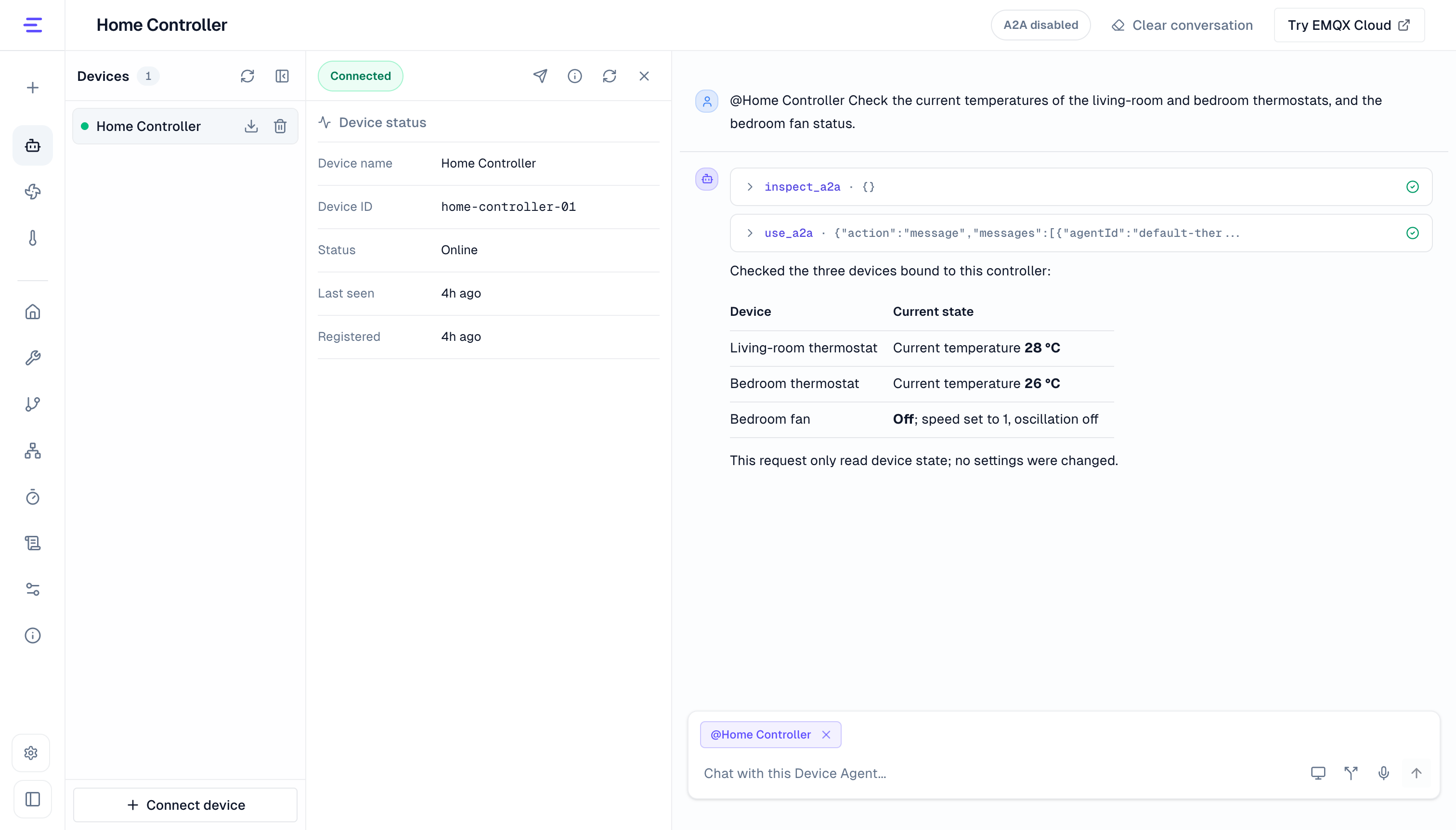
Open the Home Controller conversation, select the controller in the device list on the left, and confirm its device ID is home-controller-01 in the device status panel. Then enter:
Read the current temperatures of the living-room and bedroom thermostats, and check the bedroom fan's operating state.The Device Agent finds targets within the selected controller's bindings and queries both thermostats and the fan. Check the tool calls and device names in the reply to confirm the intended targets were used.
You can also request different operations on several devices at once:
Set the living-room thermostat's target temperature to 24 degrees. Turn on the bedroom fan, set its speed to 1, and turn oscillation off. Confirm each device's state afterward.Use the same request through the Home Controller's voice input after completing voice setup. If Configuration Overview → Device Agent configuration → Voice tools has a restricted tool list, include use_a2a (Call a collaborative device), and preferably inspect_a2a (View collaborative devices and scenes). See Voice Tools for the configuration steps.
With only inspect_a2a, voice can inspect the collaboration scope but cannot call targets. The voice tool scope does not restrict text conversations. A delegated target does not forward the request to another layer of devices, even if that target has its own controller bindings.
To change the scope, edit this controller's bindings, remove a target, and save. Subsequent requests use the updated bindings. Removing a binding does not undo operations already dispatched.
Verify Registry Publication
After enabling A2A, open EMQX Dashboard and confirm that the registered card is present and online.
The generated card includes the Device Agent name, description, MQTT interface, and publishable skills supplied by the current model. Treat the A2A agent identifier as an opaque value and read it from discovery data or the registry instead of assembling it manually.
Saved A2A-enabled Device Agents are announced again after the Gateway restarts.
Connect an External A2A Client
External clients use MQTT v5 discovery and request/reply messages. See API Reference: A2A over MQTT for topics, the SendMessage request body, reply states, and device targeting.
For creating or running Scenes and one-off Tasks from a business system over HTTP, see API Reference: Multi-Agent Orchestration.
Persistence and Limits
- Scene definitions persist across Gateway restarts.
- In a local runtime, a scene that was generating or updating during a restart is marked as failed. Edit and regenerate it after the Gateway is available.
- Local executions stop when the Gateway restarts. For platform deployments, inspect existing run records before resubmitting to avoid repeating device operations. Restart unfinished device selection in the page.
- Conversation history exists only in the current page session. Refreshing the page or switching between Scenes and Tasks clears it.
- Agents and selected devices must be online when their steps run.
Troubleshooting
| Symptom | What to check |
|---|---|
| The agent does not appear in A2A > Tasks | Confirm that Enable A2A Collaboration was enabled before saving. Confirm that the Gateway is running and connected to the MQTT broker, then refresh the agent list. |
| Device capabilities cannot be published | Check whether the model supplies publishable queries, commands, services, writable properties, or jobs. For platform devices, confirm model synchronization, save, and review the error. |
| The agent is listed as offline or agents cannot discover one another | Confirm that the Gateway is running and all agents use the same broker, A2A_ORG_ID, and A2A_UNIT_ID. |
| Device selection cannot continue | Select one online device for every listed agent. Replace stale or offline selections. |
| The controller conversation reports no collaborative devices | Check that the selected controller is the same specific device used in the binding configuration, and confirm you clicked Save. Bindings belonging to another controller under the same agent do not apply. |
| A target is missing from the binding selector | Enable and save Enable A2A Collaboration for the target Device Agent and confirm it is discoverable. The controller does not need to publish a card merely to initiate requests. |
| Text collaboration works, but Home Controller voice collaboration does not | Check the controller's voice connection and allowed tools. A restricted list must include use_a2a; inspect_a2a alone cannot execute collaboration. |
| An agent has two devices, but a Scene only lets me choose one | Scenes and Tasks select one device per participating agent. To operate several devices under the same agent from a controller, bind each device to that controller and request the operation through its device chat or voice input. |