Workflows
Workflows automatically run actions when device state, events, command responses, or validation errors arrive. They connect device reports to follow-up actions in one automatic path: when state or events change, the system can log, control, notify, or ask the Agent to judge context. You do not need to manually arrange nodes or steps; describe the trigger, handling goal, and whether Agent judgment is needed, and the Agent generates a workflow that can be viewed, enabled, disabled, and reviewed.
Create a Workflow
This tutorial uses the built-in Vehicle / Smart Cockpit Range example. The event name and fields come from that example's DeviceSpec. After setup, when the simulated device reports a low-battery event, the workflow records the event data and asks the Agent to generate a short handling recommendation.
- Create a Device Agent from Examples > Vehicle > Smart Cockpit Range.
- Start a browser simulated device and select it.
- In the conversation area, enter:
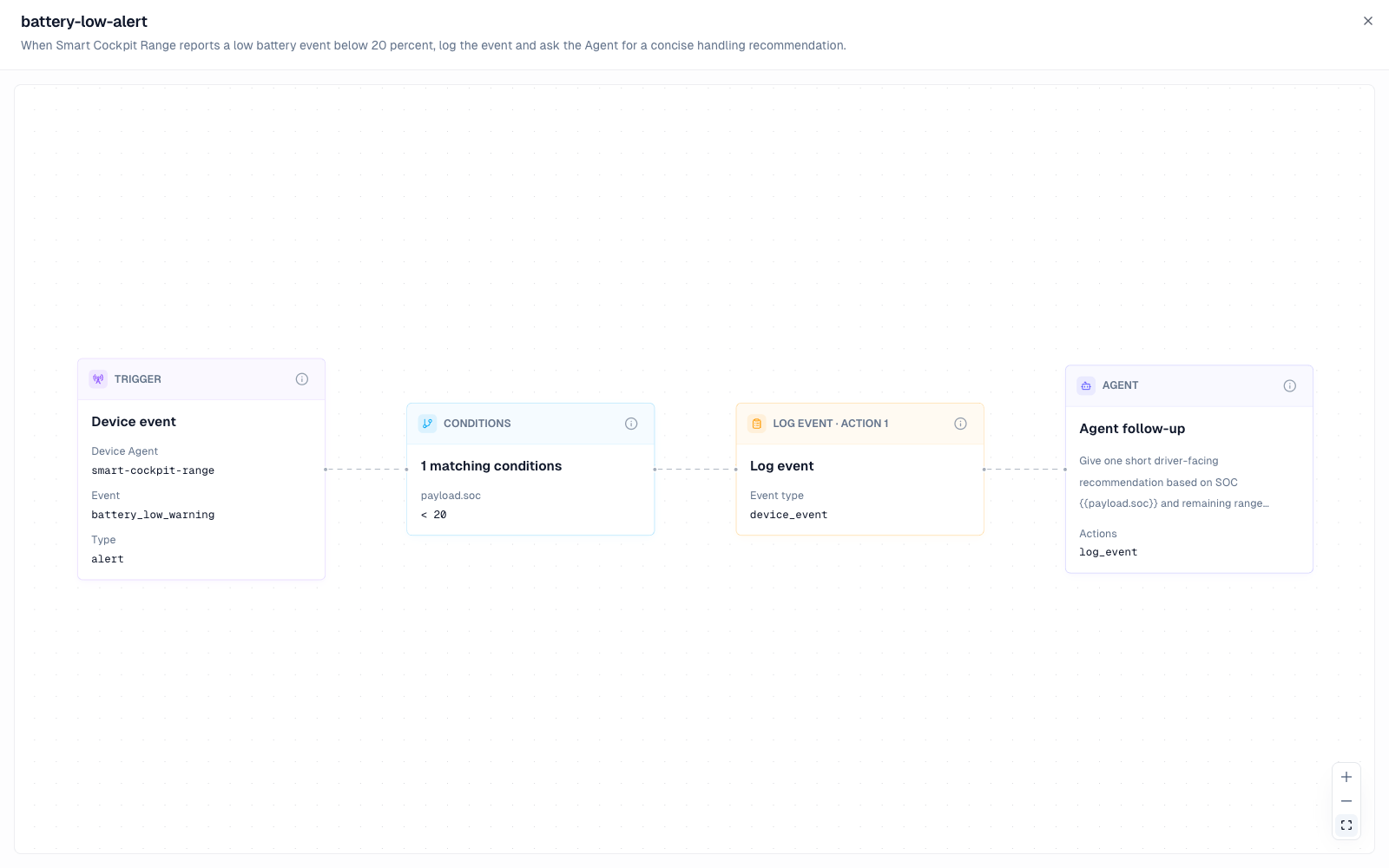
Create a workflow named battery-low-alert: when the current device reports a battery_low_warning event and payload.soc is below 20, log one device_event. Include soc and estimated_range_km in detail. Then ask the Agent to generate a short handling recommendation.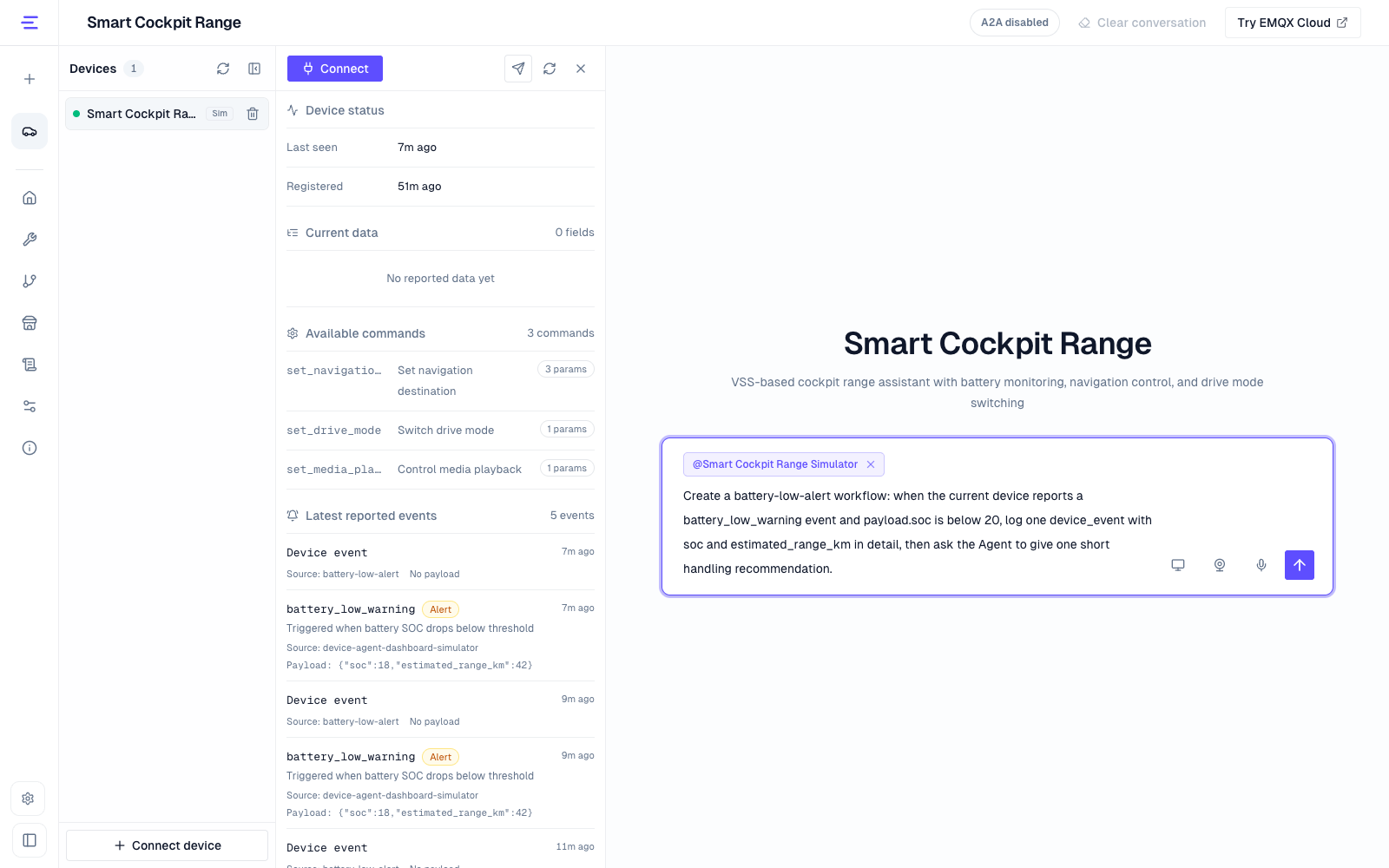
- Open Workflows and confirm that
battery-low-alertis enabled.
- Return to the simulated device status panel, click Simulator report, choose
battery_low_warning, and use this payload:
{
  "soc": 15,
  "estimated_range_km": 42
}
The payload is the event data. Its fields must match the event definition in the DeviceSpec.
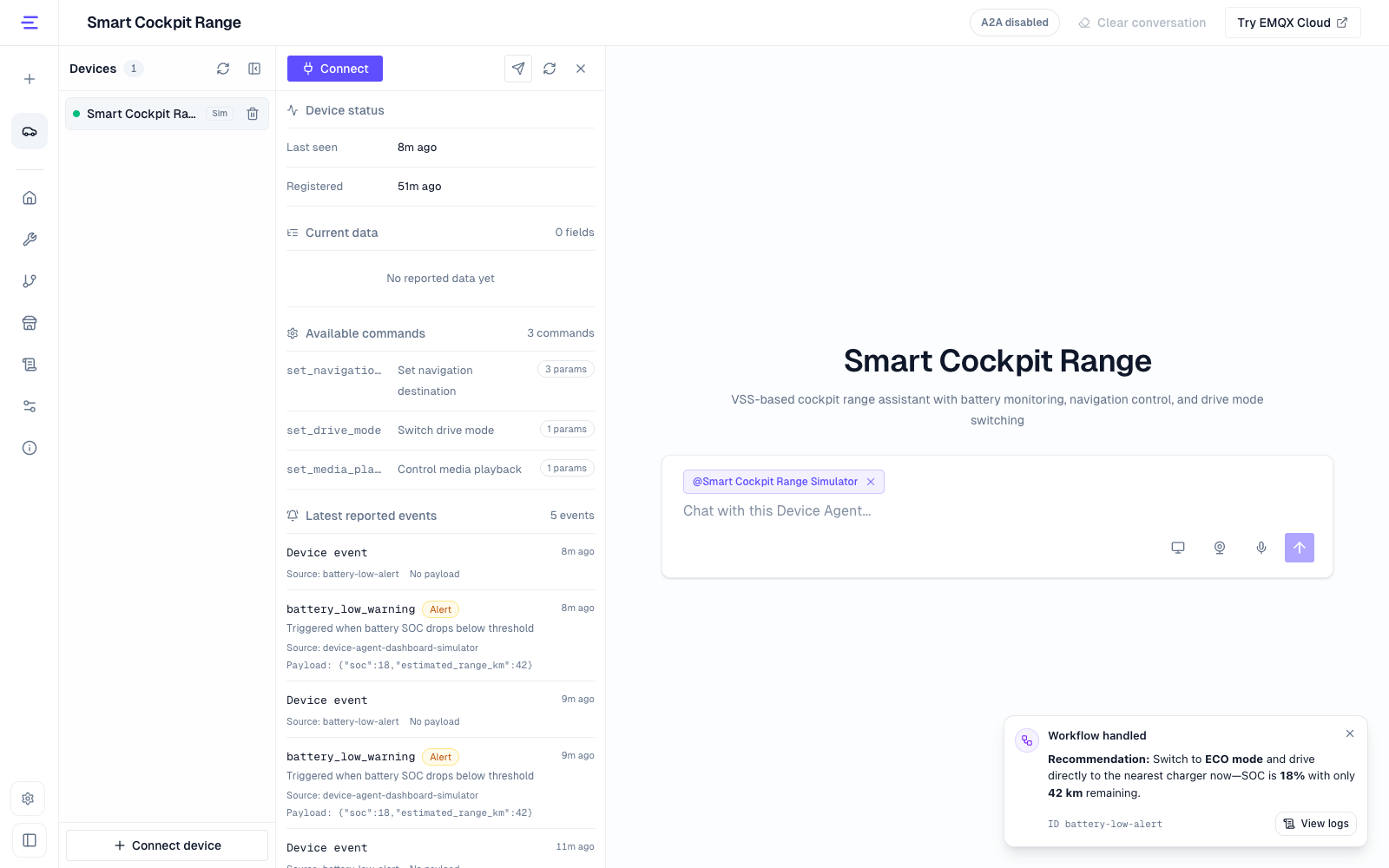
- Click Emit event. After it succeeds, check Recent events, Logs, and the workflow notification.
Choose an Automation Method
| Need | Use |
|---|---|
| Run later or repeatedly | Scheduled Tasks |
| React after a device report | Workflows |
| Route multiple paths | Branched workflows |
| Extend conversation capability | Skills and Tools |
Choose a Handling Method
A workflow can run fixed rules, or it can ask the Agent to analyze context after the trigger fires.
| Scenario | Recommended approach |
|---|---|
| The condition is explicit and the result must be stable, such as turning off heating or switching to safe mode when temperature exceeds a threshold | Fixed condition + fixed action |
| The decision depends on several state signals, such as an empty locked vehicle with the air conditioner still running | Let the Agent analyze the context, then run the handling action |
Describe Workflow Requirements
Describe the trigger and handling goal in natural language; you do not need to manually arrange workflow nodes. When creating a workflow, include these details:
- Trigger source:
device_event,telemetry,status,command_response, orvalidation_error. - Match conditions: event name, event type, device ID, or field threshold.
- Actions:
log_event,send_command,mqtt_publish,webhook, or Agent summary. - Workflow ID: use stable English, such as
battery-low-alert.
To edit an existing workflow, mention its workflow ID and the change you want.
Send a Webhook
A Webhook is one of the built-in actions available to a workflow. When creating or updating a workflow, name the connection and provide the message; the message can reference trigger data such as {{deviceId}}, {{eventName}}, and {{payload.soc}}. See Webhook for connection setup, testing, and delivery limits, and check workflow Run history for the delivery result.
Manage Workflows
Use the Workflows page to refresh, enable, disable, delete, and view workflows fullscreen. Create or substantially change workflows from the conversation area.
API
HTTP can list, enable, disable, and delete workflows, and read run history and step results. Creation is handled by workflow tools in conversation. See API Reference for request examples.
Troubleshooting
- The event name must exist in DeviceSpec
events. - Condition fields should use event payload paths, such as
payload.soc. - The workflow must be enabled.
- Simulator report only works for browser simulated devices.