Device Simulator
The Device Simulator runs the current Device Agent before hardware is ready. It starts a browser device from the DeviceSpec, connects to MQTT, reports state, responds to commands, and verifies device lists, status, events, and message flow.
Validate the Device Flow
The simulator is useful when you need to:
- Confirm that commands, properties, and events match expectations after creating a Device Agent.
- Validate conversation control and status display before a hardware prototype is ready.
- Check field names, command parameters, and event definitions before SDK or MQTT access work starts.
- Demo or debug with a device that can come online immediately and respond to commands.
The simulator does not read real sensors, control actuators, or validate firmware, drivers, network behavior, or system permissions. It is for validating the Device Agent and DeviceSpec; production still requires a real device integration.
Start a Simulated Device
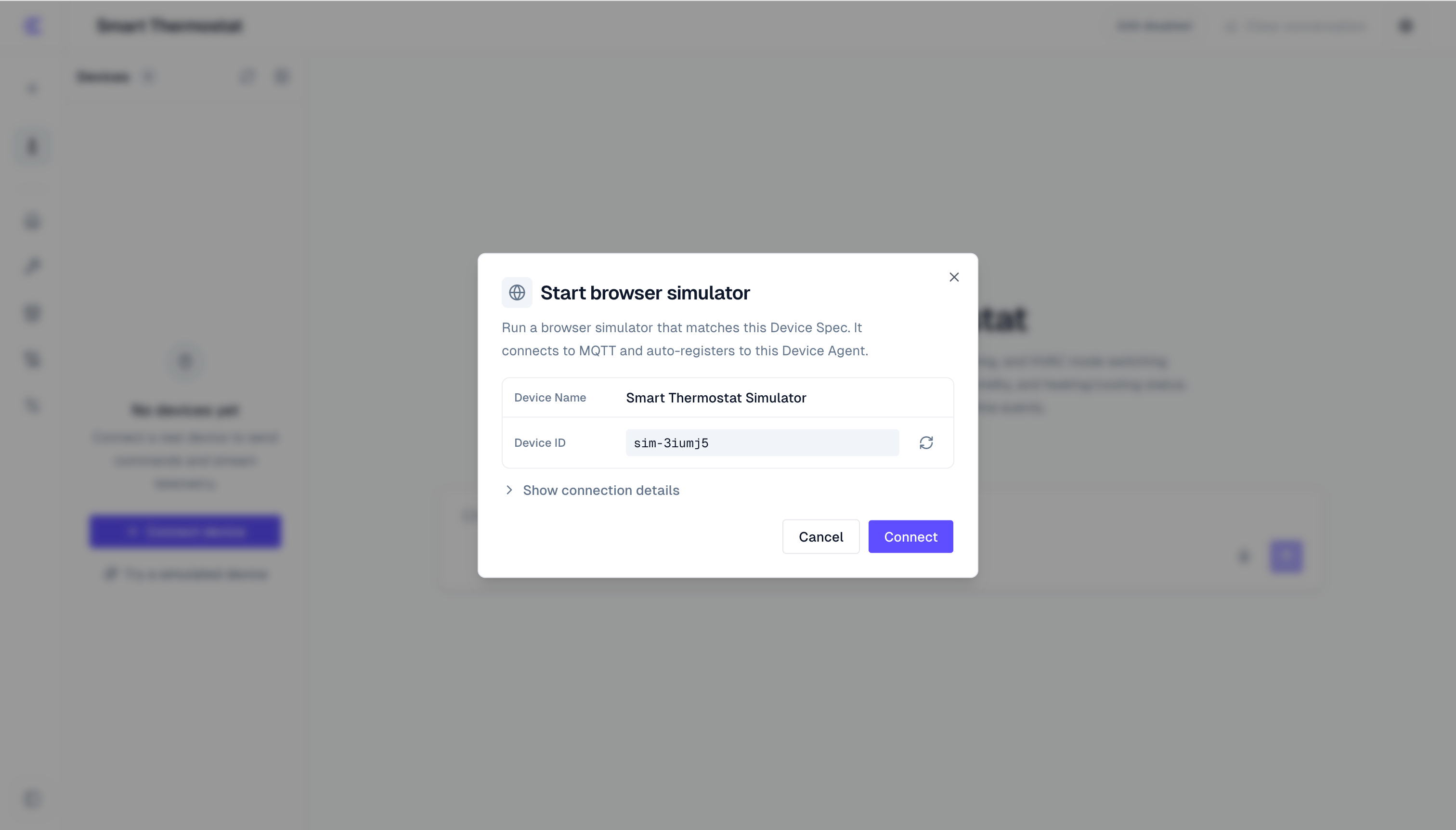
In the Device Agent workspace, click Try a simulated device in the Devices panel. The dialog shows the simulated device details:
- Device name: generated from the current Device Agent name.
- Device ID: a generated ID with a
sim-prefix. You can regenerate it. - Connection details: expand the section to view namespace, MQTT broker, username, and password status.
Click Connect. The browser starts the simulated device, connects it to MQTT, and reports the first status and state to the current Device Agent.
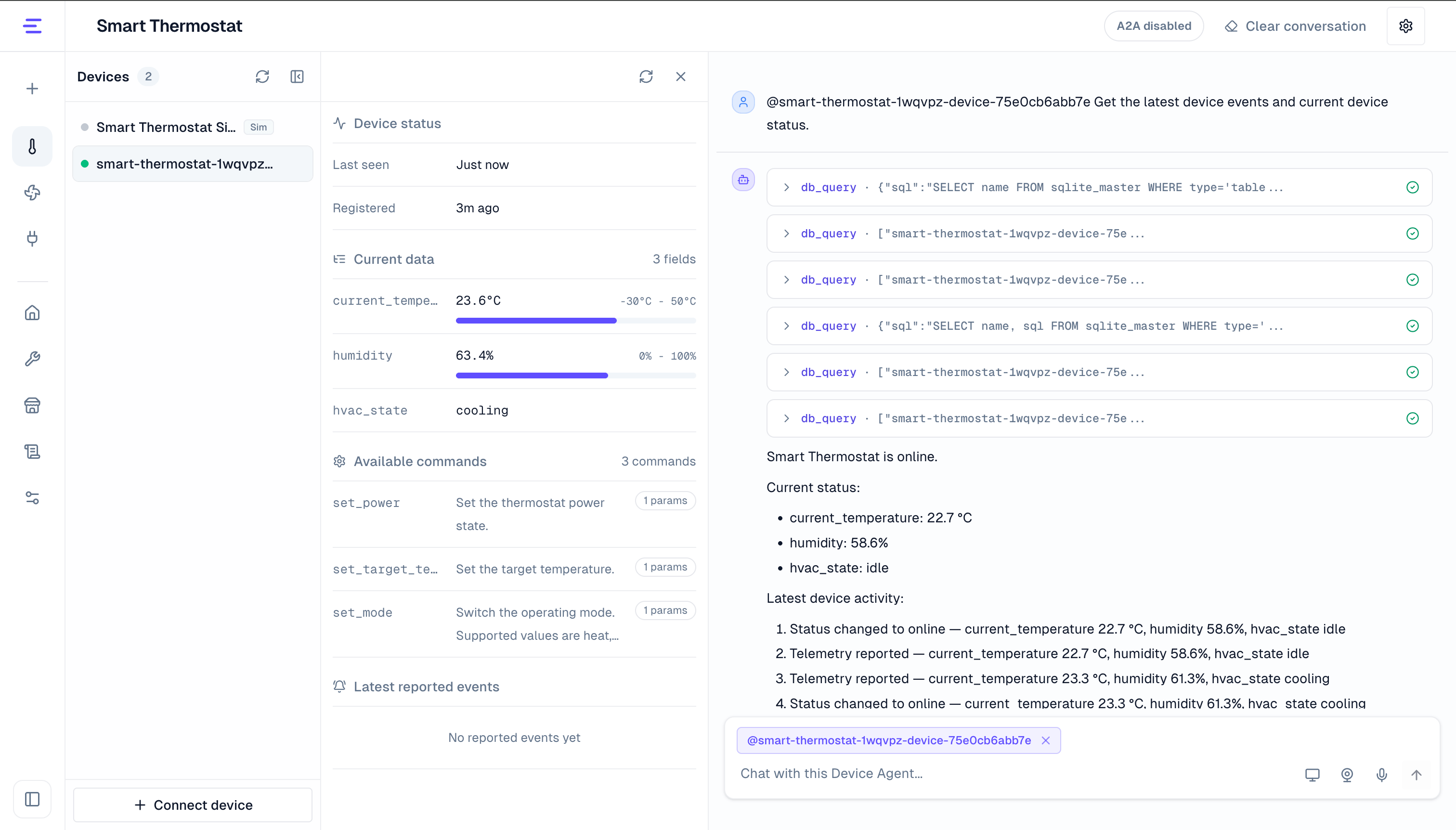
After it connects, the device list shows a device with the Sim badge. Select it to open the status panel, where you can inspect:
- Device online status.
- Current state.
- Available commands.
- Recent events.
State Reports
The simulator builds the initial state from property fields in the DeviceSpec. If a field has a default value, the simulator uses it. Otherwise it generates a basic value by field type: false for booleans, 0 for numbers, {} for objects, [] for arrays, and an empty string for strings.
After connection, the simulated device keeps the MQTT connection open and regularly reports the current state. The status panel updates as new reports arrive.
If the DeviceSpec includes online or connected, the simulator sets those fields to true when connected and false when disconnected.
Conversation Control
Keep the simulated device selected, then enter a control request in the conversation area:
Set the target temperature to 24 degrees and switch to auto mode.The Device Agent selects commands from the DeviceSpec and prepares parameters. The simulated device validates the command name and parameters against the DeviceSpec. If validation passes, it updates local state and reports the latest state again.
Use these signals to confirm that the command worked:
- Current state changed.
- The command is listed under available commands.
- The conversation shows a command result.
If the command name does not exist, required parameters are missing, or parameter types do not match, the simulator returns a failed result. In that case, adjust the command name, parameter fields, or field types in the DeviceSpec.
Emit Events
If the DeviceSpec defines events, select a browser simulated device and click Simulator report in the status panel. Use it to emit one event from the current simulator. This is useful for demoing alerts, validating event fields, or triggering workflows.
Think of it as manually asking the simulated device to emit one event, without waiting for real hardware.
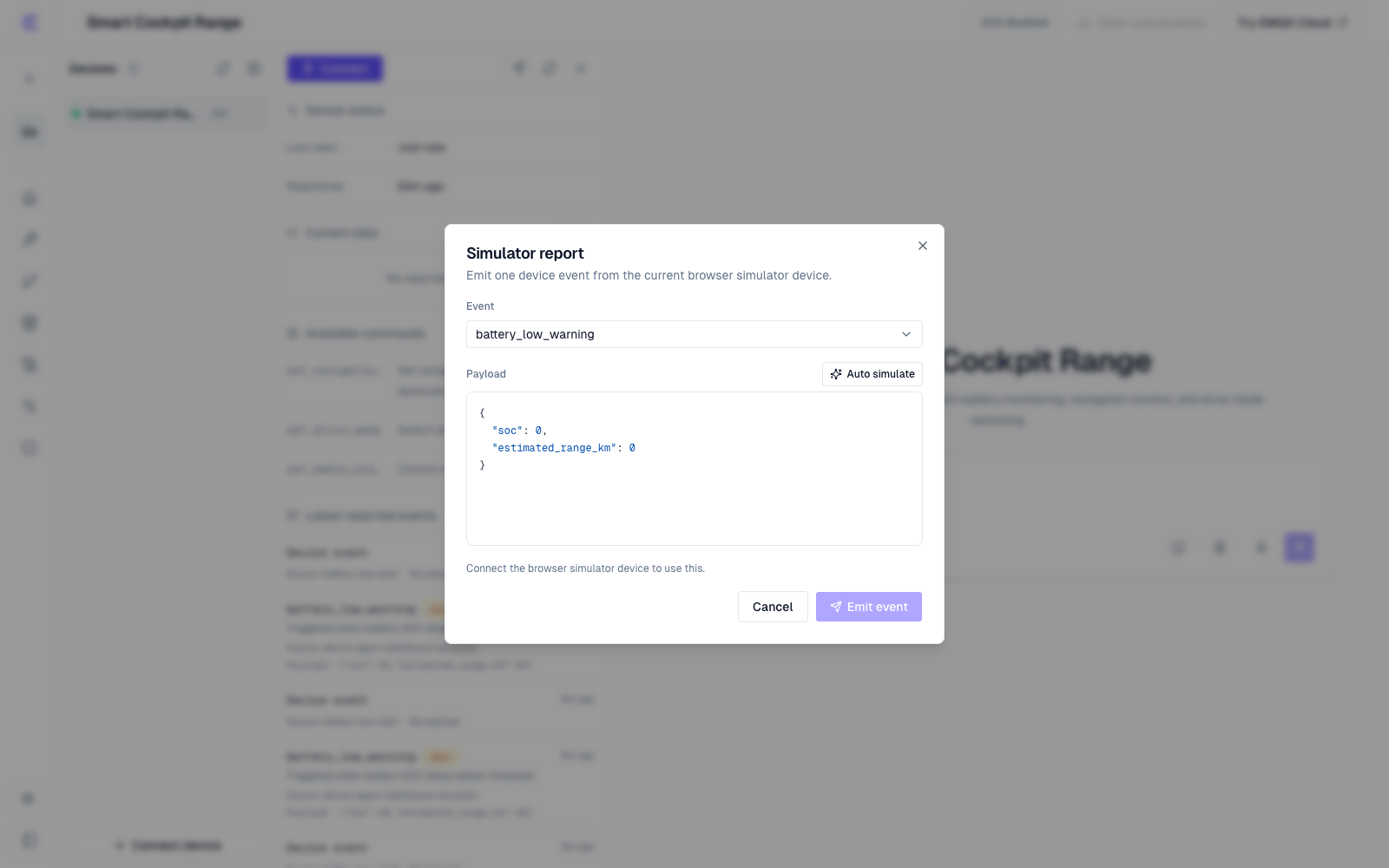
After you choose an event, the payload should contain only fields from that event's outputData. Edit the JSON directly, or use auto generation to have the Device Agent create a payload from the event definition and current state.
Click Emit event to send the event through the same device data handling path used by normal reports. After it succeeds, inspect Recent events, Logs, or the related Workflow.
Events do not automatically update current state. If state should change too, report a new state through conversation or MQTT. Simulator report is available only for browser simulated devices. Real devices should continue to report events through MQTT or the SDK.
Disconnect and Reconnect
The simulated device runs in the current browser. If you close the page, refresh the page, or disconnect it, it goes offline. The device list may still keep the simulated device record, so you can review its last state or delete it and start a new simulated device.
Usually, one browser simulated device is enough for a Device Agent. To use a different device ID, delete the old simulated device and create a new one.
Move to a Real Device
| Item | Simulated device | Real device |
|---|---|---|
| Runs in | Current browser | Device firmware, gateway, or backend service |
| State source | Generated from the DeviceSpec and command results | Real sensors, actuators, or business systems |
| Command behavior | Updates simulated state and returns a result | Controls real hardware or services |
| Best for | PoC, demos, and DeviceSpec debugging | Real integration, hardware testing, and production |
Next Steps
- Read Use a Device Agent to select a simulated device and control it through conversation.
- Read SDK Access to connect the same DeviceSpec to real hardware.
- Read MQTT Access for the topics and payloads shared by simulated and real devices.