Quick Start
After installing and starting Device Agent, create your first Device Agent from a thermostat description. Then start a browser simulated device to verify command delivery, state reporting, and chat-based control. No real hardware is required.
Before You Start
On macOS and Linux, run the commands below to install Device Agent and configure MQTT and the LLM for the first startup:
curl -fsSL https://emqx.sh/device-agent | sh

ZERO_EMQX_ENABLED=true \
LLM_PROVIDER=openai \
LLM_MODEL=gpt-5.5 \
OPENAI_API_KEY=sk-... \
device-agent
ZERO_EMQX_ENABLED=true creates a temporary Zero EMQX Broker at startup and writes the MQTT settings. When using an existing MQTT Broker, configure the connection values from MQTT Broker.
After Device Agent starts, open http://127.0.0.1:3000. For Windows installation, see Installation. The model can also be changed from Settings → Models in the console. See LLM Configuration for fields and provider examples.
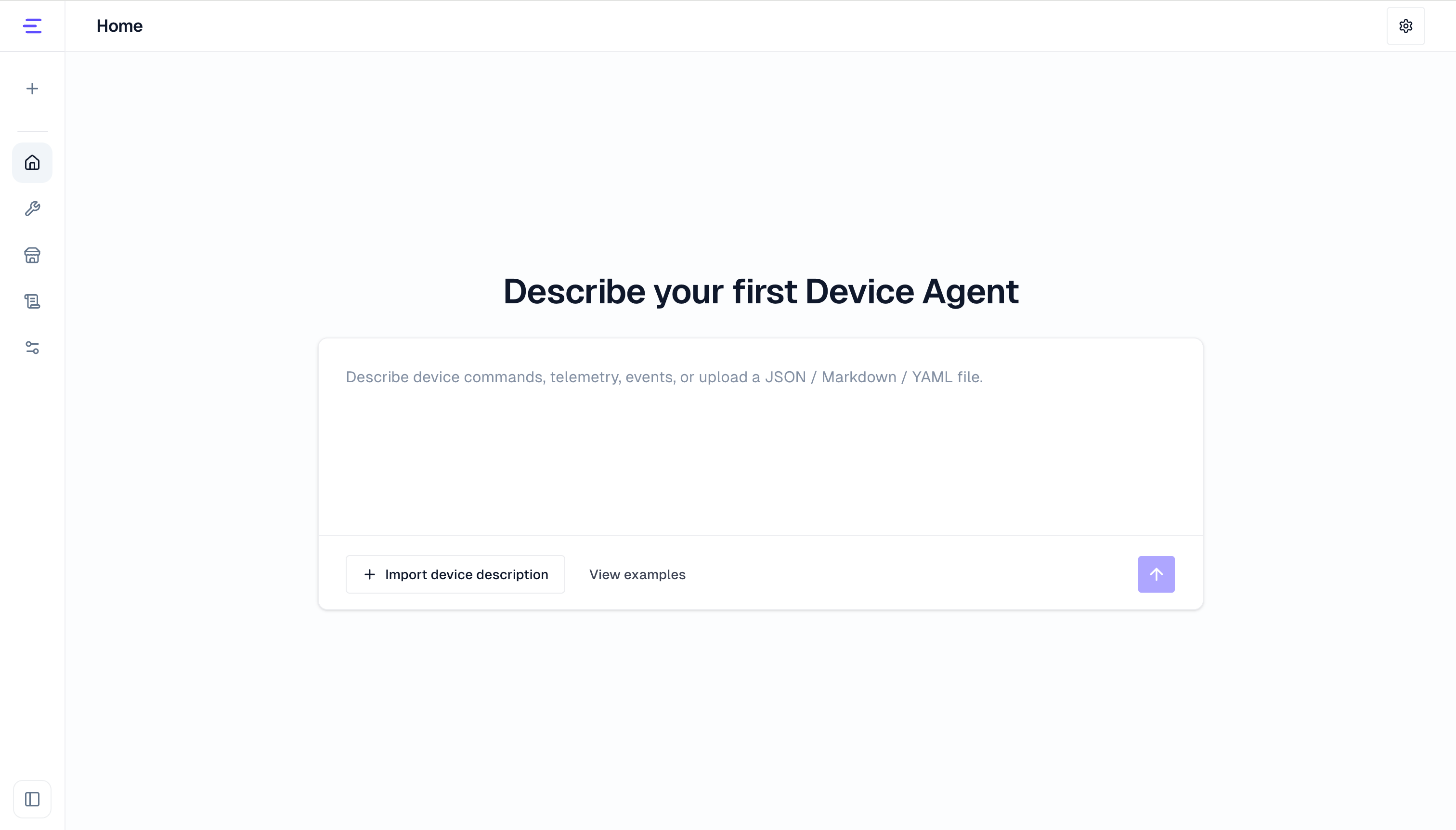
1. Enter a Device Description
If there are no Device Agents yet, the console home page shows an input box where you can enter or upload a device description. If you already have Device Agents, click the + button in the left sidebar, or click Create device agent on the home page to start a new creation flow.
A device description can be plain text, JSON, YAML, or Markdown, as long as it describes the device's commands, properties, and events. View examples is optional; use it as a reference, or enter your own device description directly.
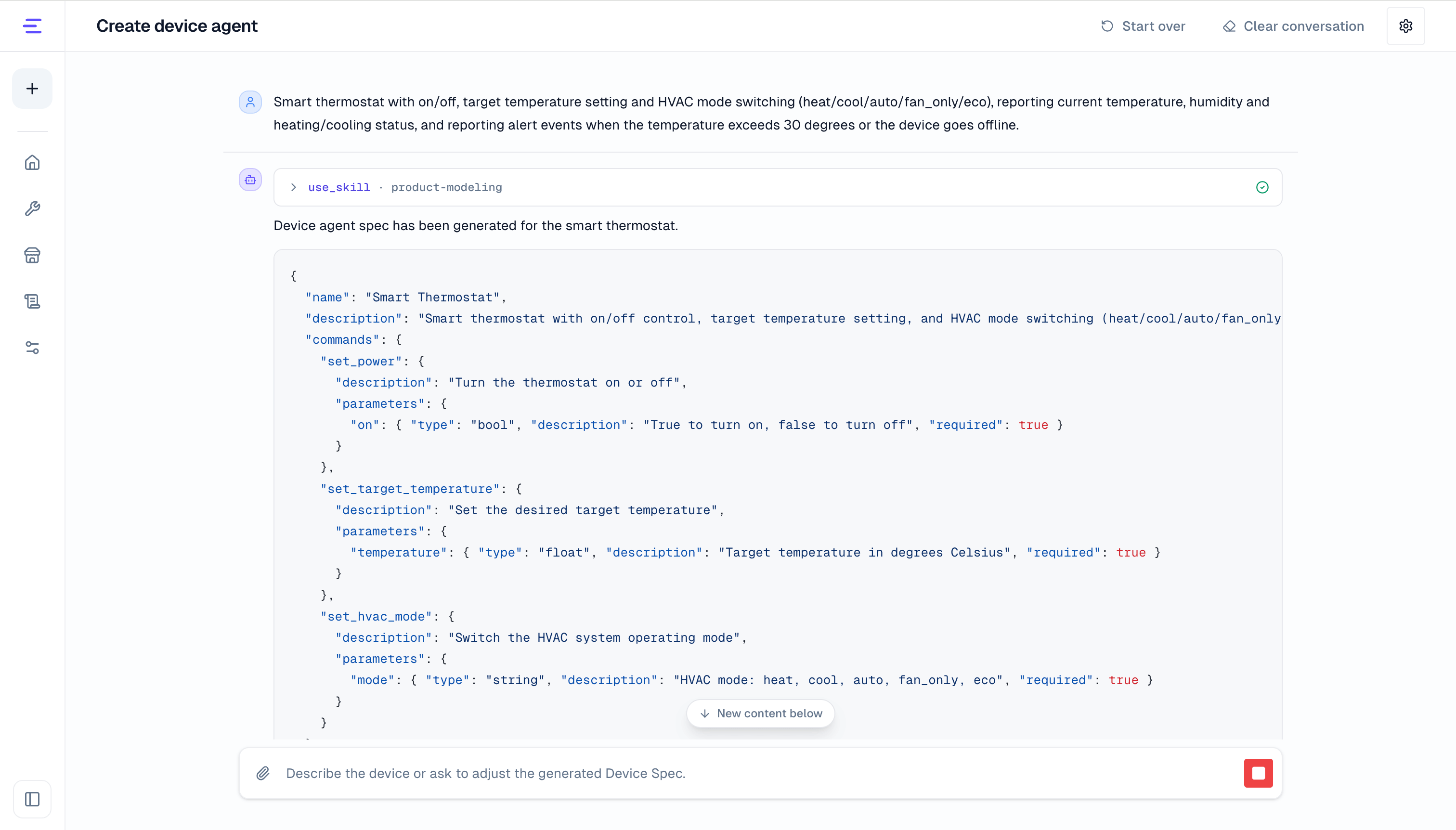
For this quick start, copy this description and send it:
Smart thermostat with on/off, target temperature setting and HVAC mode switching (heat/cool/auto/fan_only/eco), reporting current temperature, humidity and heating/cooling status, and reporting alert events when the temperature exceeds 30 degrees or the device goes offline.Click send, and Device Agent generates a DeviceSpec draft.
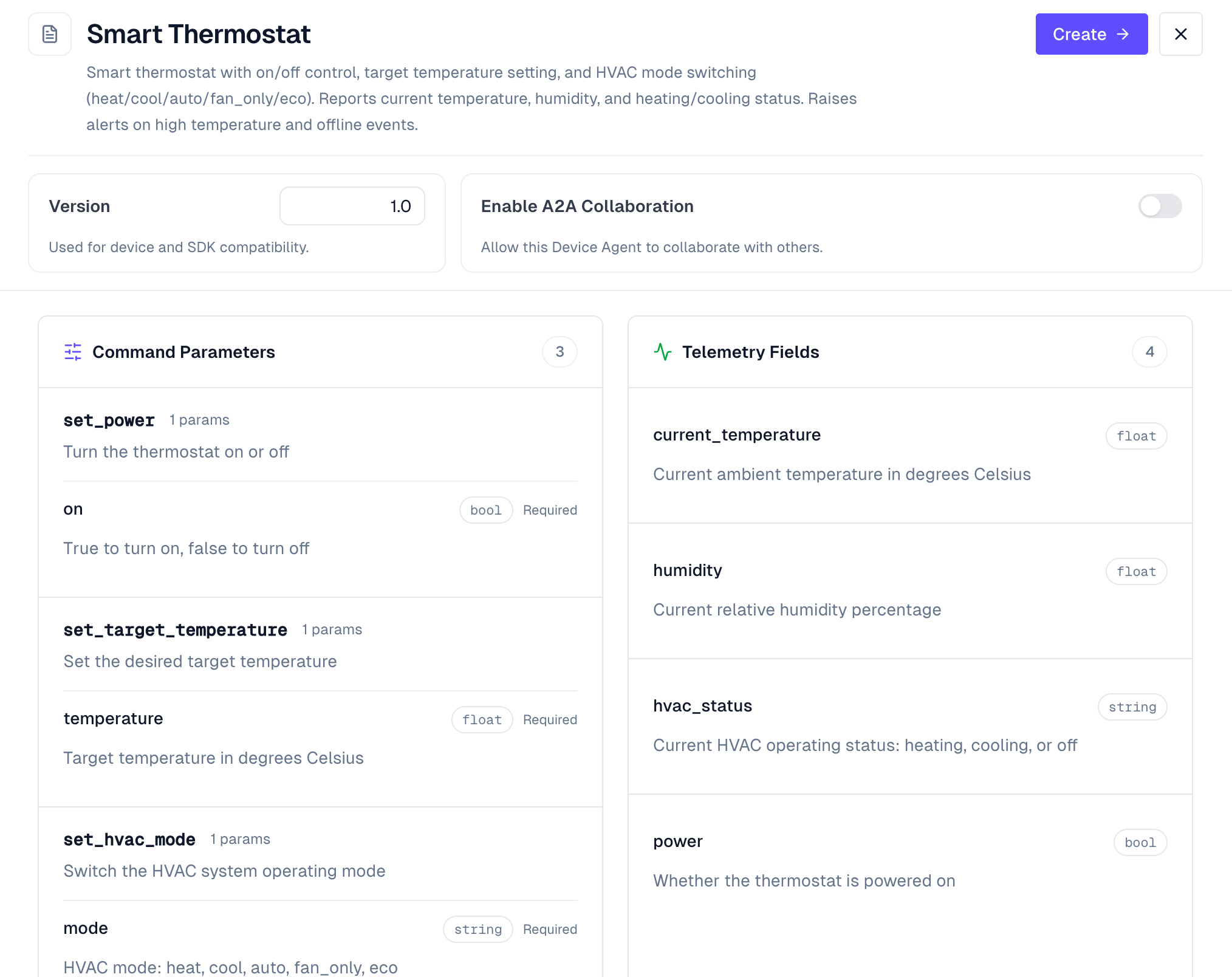
2. Review Device Capabilities
In the preview panel, review the capabilities generated by the model. The result depends on your input, so it does not need to match the list below exactly. Focus on whether commands, properties, and events cover the expected behavior. For the thermostat description above, it may include:
- Commands: power control, target temperature setting, mode switching
- Properties: current temperature, target temperature, humidity, mode, heating/cooling status, online status
- Events: over-temperature and device offline alerts
If the capabilities look correct, click Create. After creation finishes, click Enter Agent on the completion page, or open the newly created Device Agent from the left sidebar.
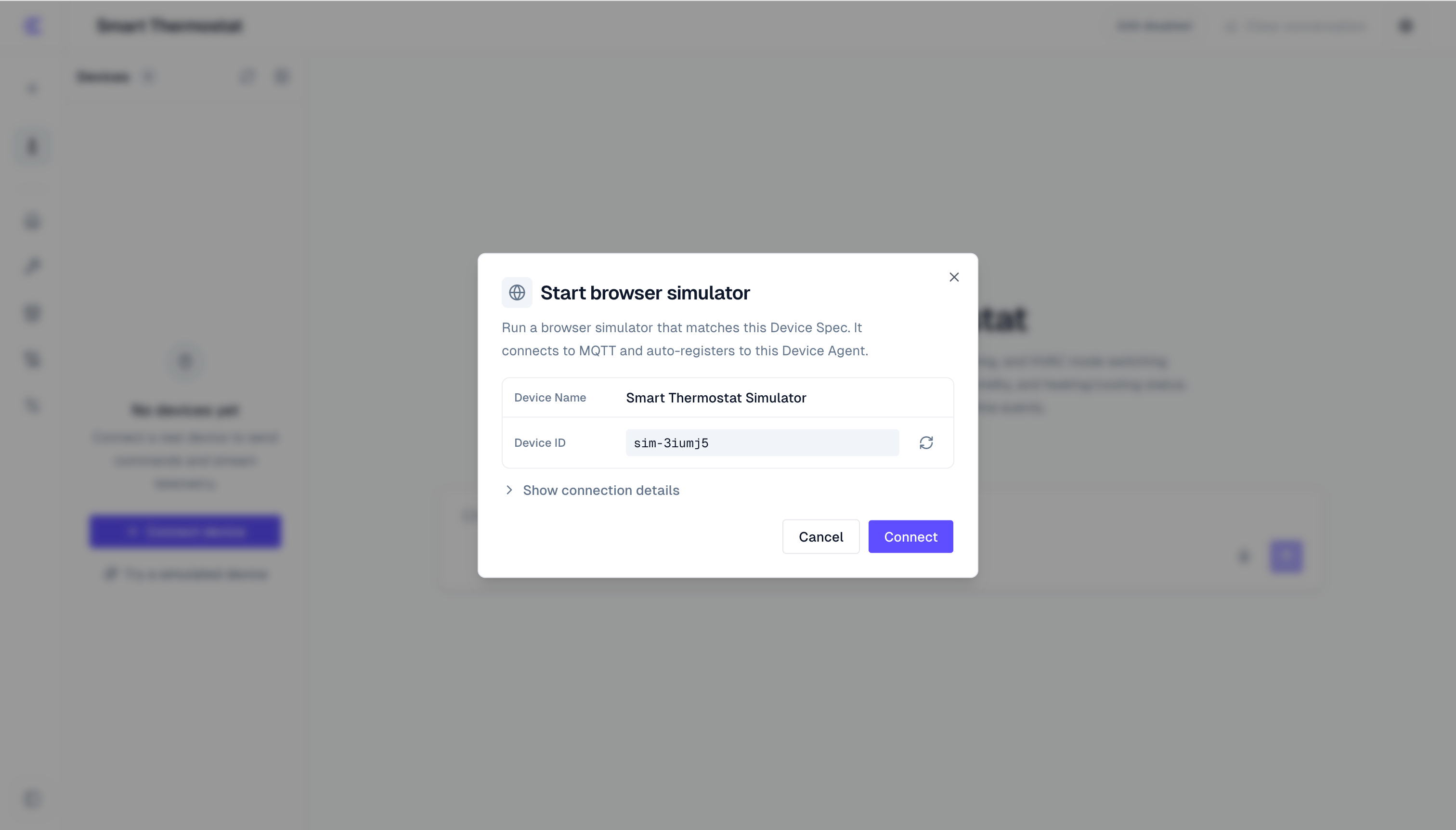
3. Start the Browser Simulated Device
After entering the Device Agent, the left side shows the Devices panel. If no devices are connected yet, click Try a simulated device.
In the dialog, confirm the device name and device ID, then click Connect. The simulated device runs in the browser, connects to MQTT, and registers itself to the current Device Agent.
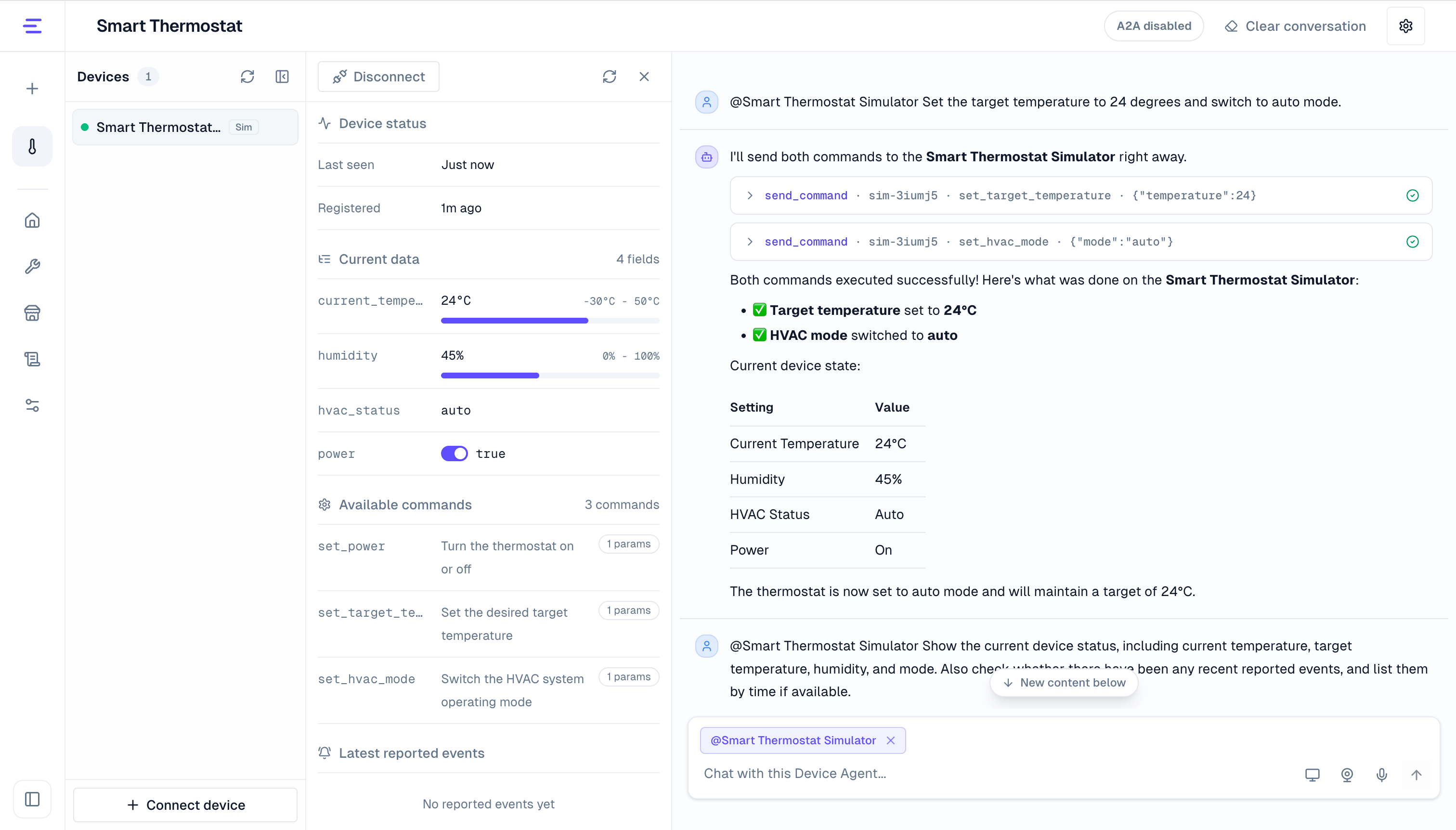
After it connects, the device list shows a device with the Sim badge. Select it to open the status panel, where you can see:
- Device status
- Current data
- Available commands
- Latest reported events
4. Control the Device and Query Status and Events
Keep the simulated device selected, then enter this control request in the chat box:
Set the target temperature to 24 degrees and switch to auto mode.The Device Agent uses the current DeviceSpec and selected device context to call the matching commands. After the browser simulated device receives the commands, it updates its current data and continues reporting state.
You can then query the current device status and recent events:
Show the current device status, including current temperature, target temperature, humidity, and mode. Also check whether there have been any recent reported events, and list them by time if available.Check the status panel to see whether target_temperature and mode changed. You can also view current data, available commands, and latest reported events. If the simulated device has not triggered or reported events yet, the conversation returns that no events are available.
Result
After completing the steps above, you have verified several core Device Agent capabilities:
- Generate a Device Agent draft from a text, JSON, YAML, or Markdown device description.
- Review commands, properties, and events in the DeviceSpec.
- Start a browser simulated device and register it to the current Device Agent.
- Send a device control command and query device status and events through conversation.
Next Steps
- Read Define a Device Agent to understand how Device Agents, DeviceSpec, and real devices relate.
- Read MQTT Access to connect real devices to Device Agent.
- Read SDK Access to generate or adapt a device-side access project.