SDK Access
SDK Access connects real hardware to a Device Agent. After the device-side program connects over MQTT, it can report state and events, respond to commands, and appear as a real device in the device list.
Choose an Access Path
Click Connect device in a Device Agent workspace. The console provides three entry points:
| Path | Best for |
|---|---|
| SDK toolkit | You need a runnable device-side project and will add hardware logic yourself |
| Agent-enhanced SDK | Generate device-side business logic on top of the SDK toolkit, then run or refine it |
| Existing device | You already have firmware, a gateway, or a backend service and only need to adapt it to MQTT topics and payloads |
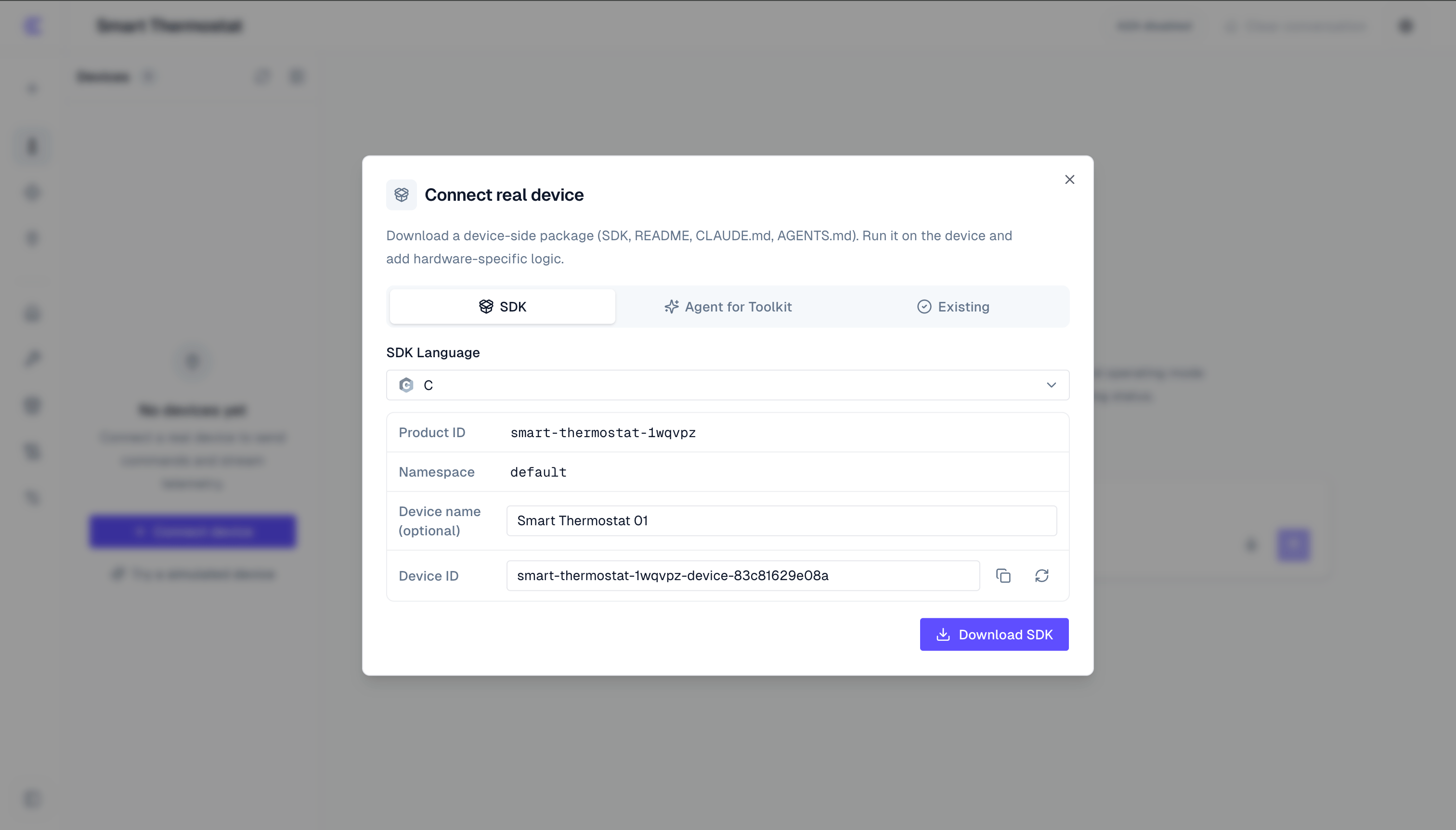
SDK Toolkit
An SDK toolkit is a runnable device-side project with MQTT connectivity, device identity, command responses, state reports, and event reports. Every generated package includes these common files:
| File | Purpose |
|---|---|
.env.example | MQTT, device identity, and connection settings |
device-spec.json | Commands, properties, and events for the current device |
README.md | Setup, configuration, run, and development steps |
The main file and runtime differ by language:
| Language | Main file to edit | Runtime and environment |
|---|---|---|
| C | src/main.c | Build with CMake for gateways and embedded Linux |
| Python | src/main.py | Run with uv for gateways, scripts, and existing Python services |
| Node.js | src/device.ts | Run with npm for TypeScript, JavaScript, and Node.js services |
device-spec.json is the source of truth for device-side implementation. Keep command names, parameter names, property fields, and event fields aligned with it.
Generated packages also provide optional voice and vision integration code for device microphones, speakers, and cameras. See Voice Interaction and Camera and Vision for usage details.
Download an SDK Toolkit
When creating an SDK toolkit, confirm:
- SDK language: the console currently supports C, Node.js, and Python.
- Device name: optional; it is not currently written into the generated SDK toolkit.
- Device ID: the unique identifier for this real device. It must be unique within the Device Agent deployment.
Start with the README to bring the device online, then replace the default logic with real sensors, actuators, or business service calls.
The usual flow is:
- Unzip the package.
- Configure connection settings from
.env.example. - Install dependencies or build the project.
- Start the device-side program.
After startup and the first state report, the device appears in the current Device Agent's device list.
See the language-specific SDK pages:
Use an Agent-Enhanced SDK
Use an Agent-enhanced SDK when device-side business logic has not been written yet. It starts from the SDK toolkit, then uses your description to generate state reporting, command handling, event triggers, and device-side flows.
You can provide:
- Device-side behavior, such as how to read sensors, control actuators, or emit alert events.
- Business requirements, such as reporting interval, threshold events, and how state should update after commands.
- Optional hardware context, such as chip, system, driver documentation links, interface docs, or protocol files.
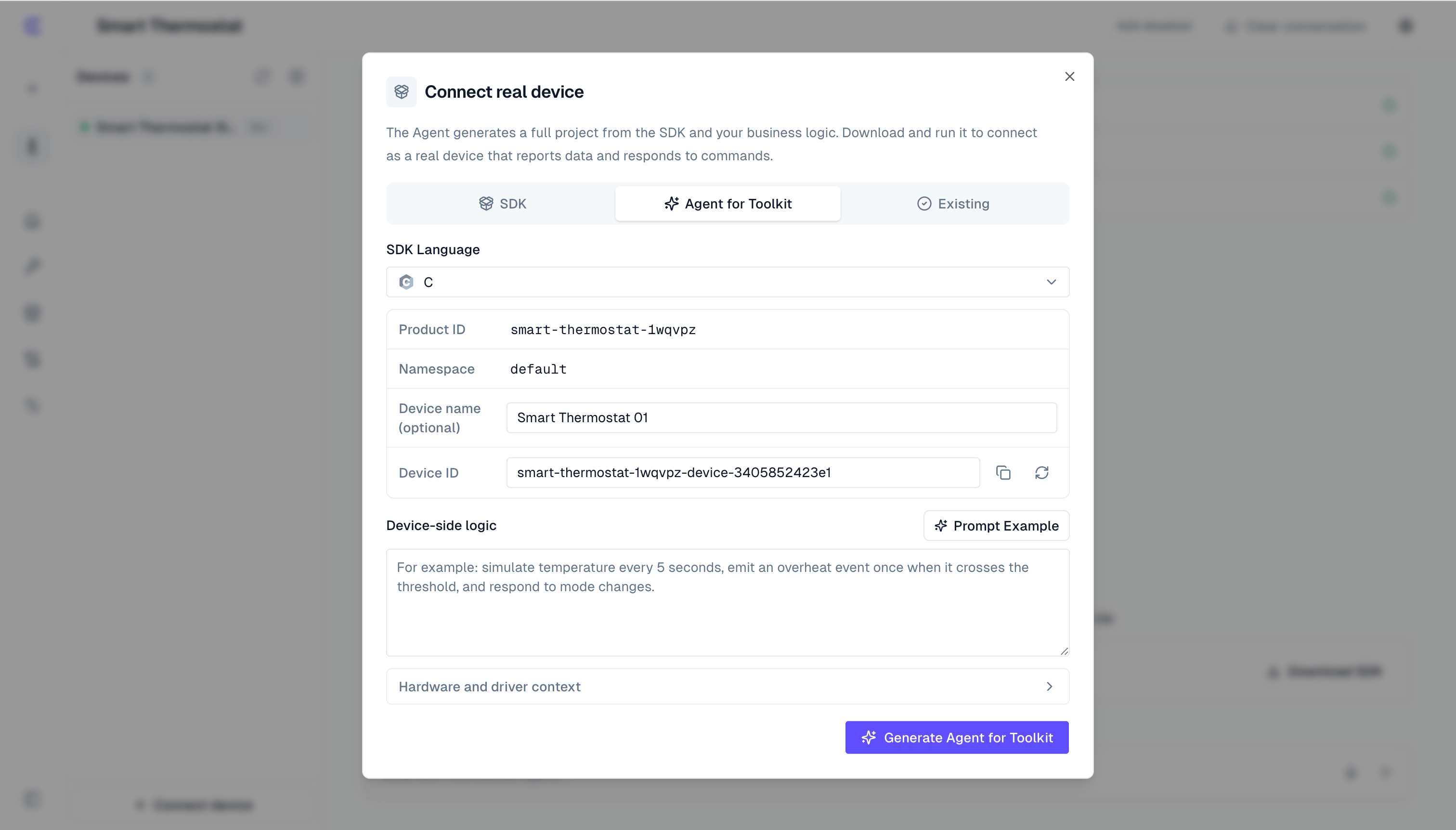
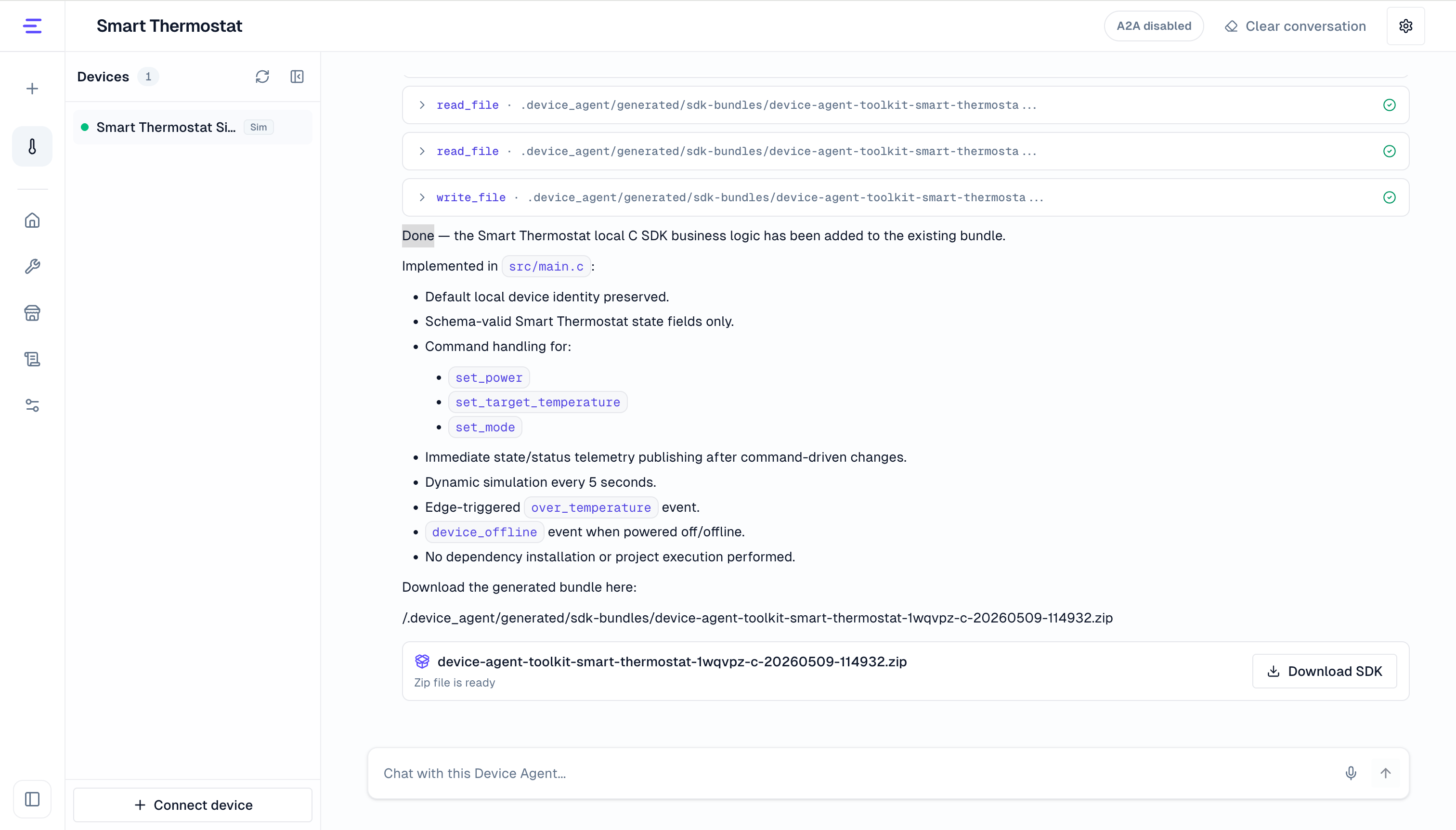
After submission, the Device Agent returns a downloadable code package in the conversation. If the result needs adjustment, continue the conversation: add a driver call, change event trigger logic, or simplify telemetry reporting.
Connect an Existing Device
If firmware, a gateway, or a backend service already exists, choose Existing device. This entry point does not generate SDK code. It shows the MQTT broker, device identity, topics, and payload examples so your existing system can adapt directly.
Existing device access is about subscribing to commands, responding to commands, and reporting state and events over MQTT. See MQTT Access for the full guide.
Run and Verify
After the device-side program starts, return to the Device Agent workspace and confirm:
- The new real device appears in the device list.
- The device is online.
- Current state shows reported property fields.
- A conversation control request reaches the device and returns a result.
- If the device emits events, recent events show the reported records.
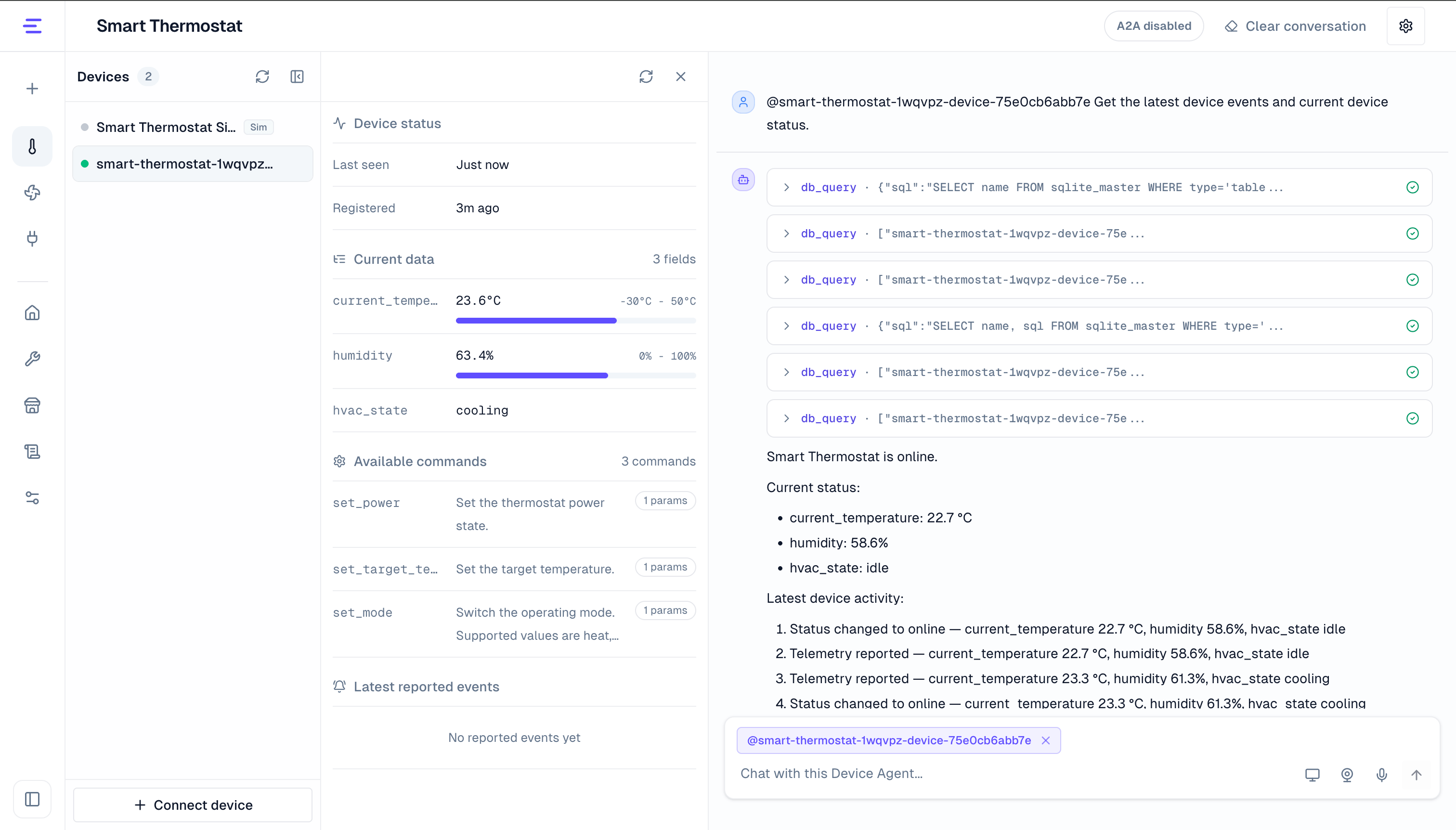
If the device does not appear, check whether the device-side program is connected to MQTT, whether productId and deviceId are correct, and whether it has reported status or telemetry. See Configuration for related settings.