Camera and Vision
Camera and vision add visual context to a Device Agent. It can read lights, screen text, values, objects, and scenes for the current request, while online state, command execution, and reporting still use MQTT or the device SDK.
Before You Start
Before using camera and vision, complete these steps:
- Create a Device Agent and define the DeviceSpec for the target device. If vision results trigger control, they still resolve to these commands, property fields, and events.
- Enable vision in Configuration, or confirm that the current Device Agent model supports image input.
- Console usage requires browser camera permission.
- SDK or device-side integration requires a way to capture images and upload them through the SDK or HTTP APIs.
Configure Vision
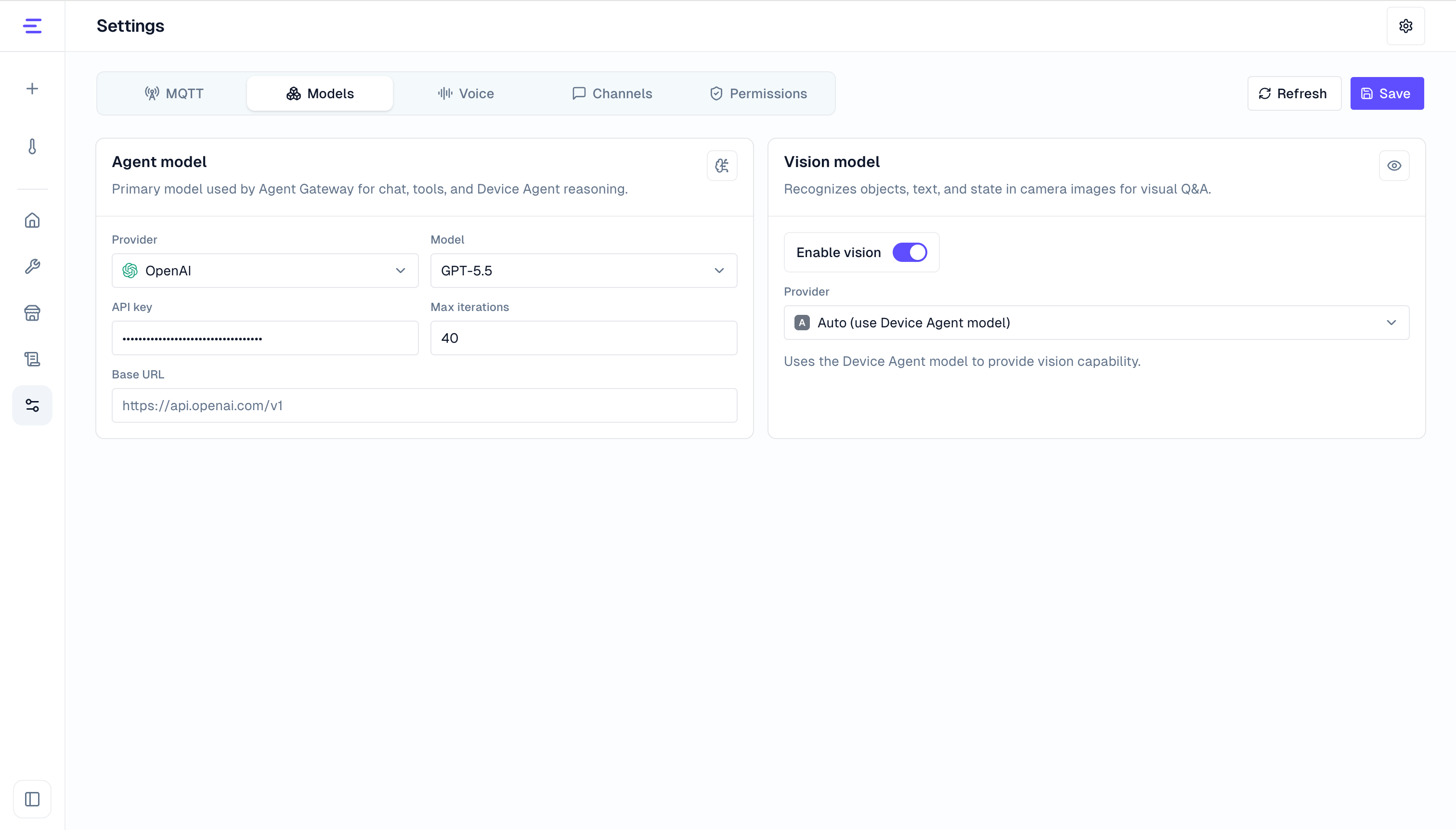
Enable vision in Configuration. Current options are:
| Mode | Description |
|---|---|
| Auto | Uses the current Device Agent model if that model supports image input. If it does not, vision is unavailable. |
| DashScope | Uses a configured Qwen VL vision model and requires the corresponding API key. |
Common settings include vision enablement, provider, model name, API key, and timeout. See Configuration for the full reference.
Console Usage and SDK Integration
Camera and vision have two usage paths. A common flow is to validate recognition behavior in the console, then integrate the SDK on a real device or image source.
| Path | Use case | Requirement |
|---|---|---|
| Console usage | Development, demos, and validation that the Device Agent can understand visible context | Enable vision, select a device, open the camera entry point, and grant browser camera permission |
| SDK/device-side integration | Devices with cameras, screenshots, inspection views, or image sources | Upload image frames from the device side and pass returned visionRefs into the conversation request |
Console usage is best for quickly checking recognition behavior and device context. SDK or device-side integration uploads images from real devices, screenshots, or inspection systems. Both paths enter the same Device Agent session and use the same DeviceSpec.
Console Usage
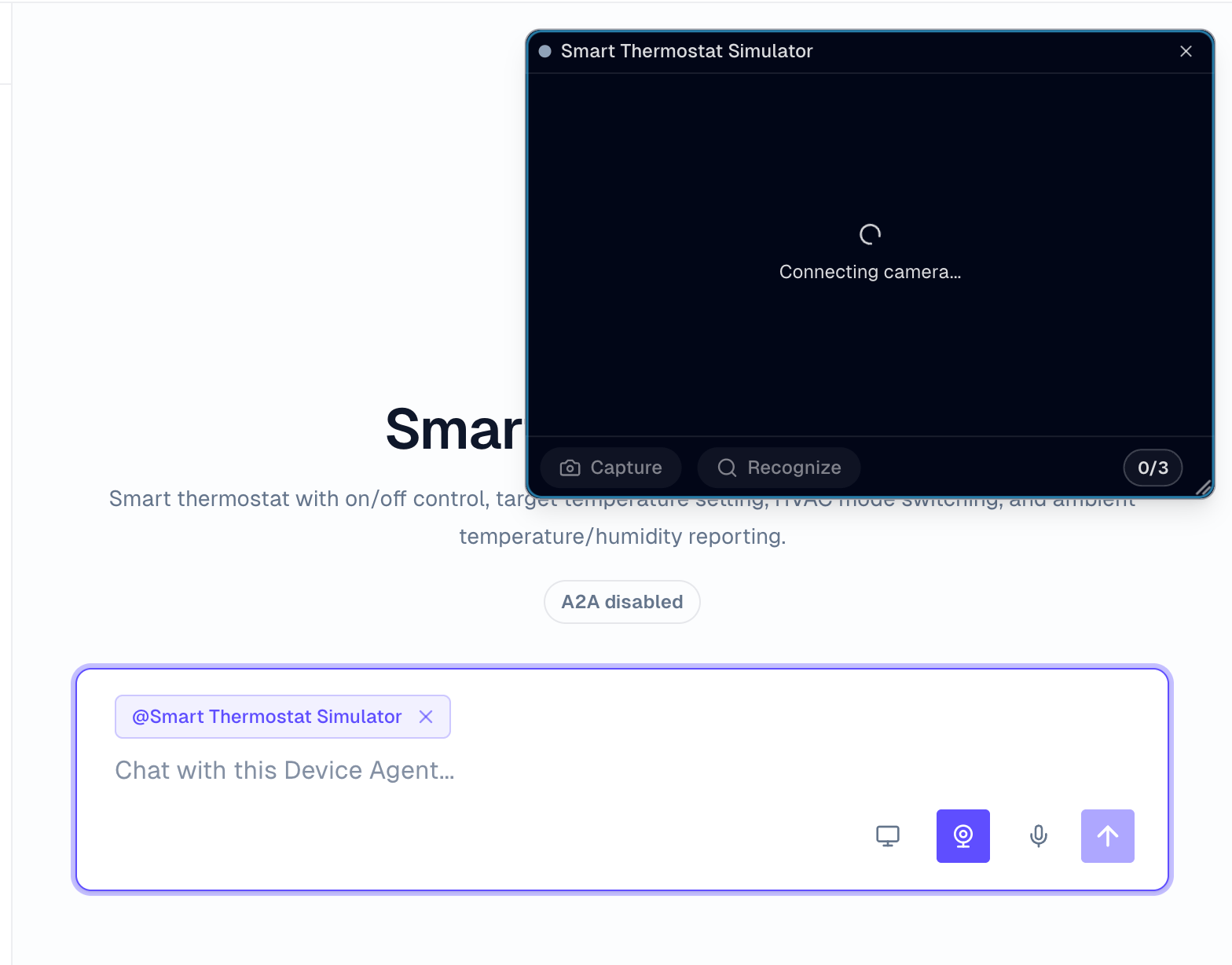
Open a Device Agent workspace, select a device, then open the camera entry point. The current view is attached to that device.
In the console, you can:
- Confirm that the camera preview works, then point it at an indicator light, screen, instrument, or object.
- Enlarge the camera preview or drag it to another position when it blocks the area you are working in.
- Click Capture and Recognize to submit the latest frame for one recognition request.
- Refer to the current view in a text or voice request, such as asking what color the status light is or what alert appears on the screen.
- Check whether the answer is grounded in visible content and whether expected commands are called when device control is needed.
SDK/Device-Side Integration
After generating a device SDK, the bundle can include vision code or examples. A device-side integration usually follows this flow:
- Start the device-side MQTT or SDK connection and confirm that the device is online in the console.
- Capture an image on the device, such as a camera photo, screenshot, or inspection frame.
- Upload the image frame to
/api/vision/framesand store the returnedvisionRefs. - Call
/api/chatwithvisionRefsso the Device Agent can use the image in the current turn. - If the result needs to control the device, the real device still receives commands through MQTT or the SDK and returns responses there.
Voice and vision are separate paths: voice uses /ws/voice; photo recognition uses /api/vision/frames plus /api/chat. To generate device-side photo recognition logic, use agent-assisted SDK adaptation in SDK Access.
To validate visual output for a device, use Simulated Display.
Verify Results
After configuration, console usage, or SDK/device-side integration, verify these results:
- The console camera preview works and browser permissions are not blocked.
- The Device Agent can answer questions from captured or uploaded images.
- Text or voice requests with images use both the visual content and selected device context.
- State queries read real device state, and control requests call commands defined in the DeviceSpec.
- Uploaded images are not treated as long-term assets; they are used only for the current or recent recognition request.
Notes
Vision uses only request-attached or recent frames and does not keep images as long-term assets. Keep answers grounded in visible evidence; camera use still depends on browser permission and device availability.