License Management
A License sets the deployment's Agent requests per minute (RPM) and authorization validity. All devices and execution instances share this allowance.
What the License Controls
Each Agent request triggered through text or voice conversations, IM, MQTT, workflows, scheduled tasks, or A2A counts once. Model calls, tool calls, and retries within that request do not count separately.
Usage is measured over a rolling 60-second window; each request stops counting 60 seconds after it starts. At the limit, new requests queue until allowance and execution resources are available, subject to request timeouts. Completion does not release allowance early.
For example, 100 requests/minute with 20% burst allowance permits 120 starts in any rolling 60 seconds. Request 121 waits until an earlier start leaves the window.
A License does not add compute or model-service resources. After upgrading capacity, use Deployment and Configuration to check that servers and model services can handle the workload.
These allowances are managed separately:
| Item | What it manages |
|---|---|
| License | The current deployment's Agent requests per minute and authorization validity |
| Device AI Credits | The AI usage budget available to each device |
| Third-party service allowances | Call quotas or balances provided by model, speech recognition, and speech synthesis services |
Note: A License does not include usage allowances for third-party services such as language models, speech recognition, or speech synthesis. Each provider manages its service allowances and charges separately.
Without a signed license, the permanent Trial License grants 10 requests/minute, or 12 with burst allowance. The workspace header shows Trial License; the License page shows Default and Never expires. Software upgrades preserve an installed signed license.
View Authorization and Usage
Open workspace Settings → License to review the current authorization. The usage limit includes the extra allowance shown on the page.
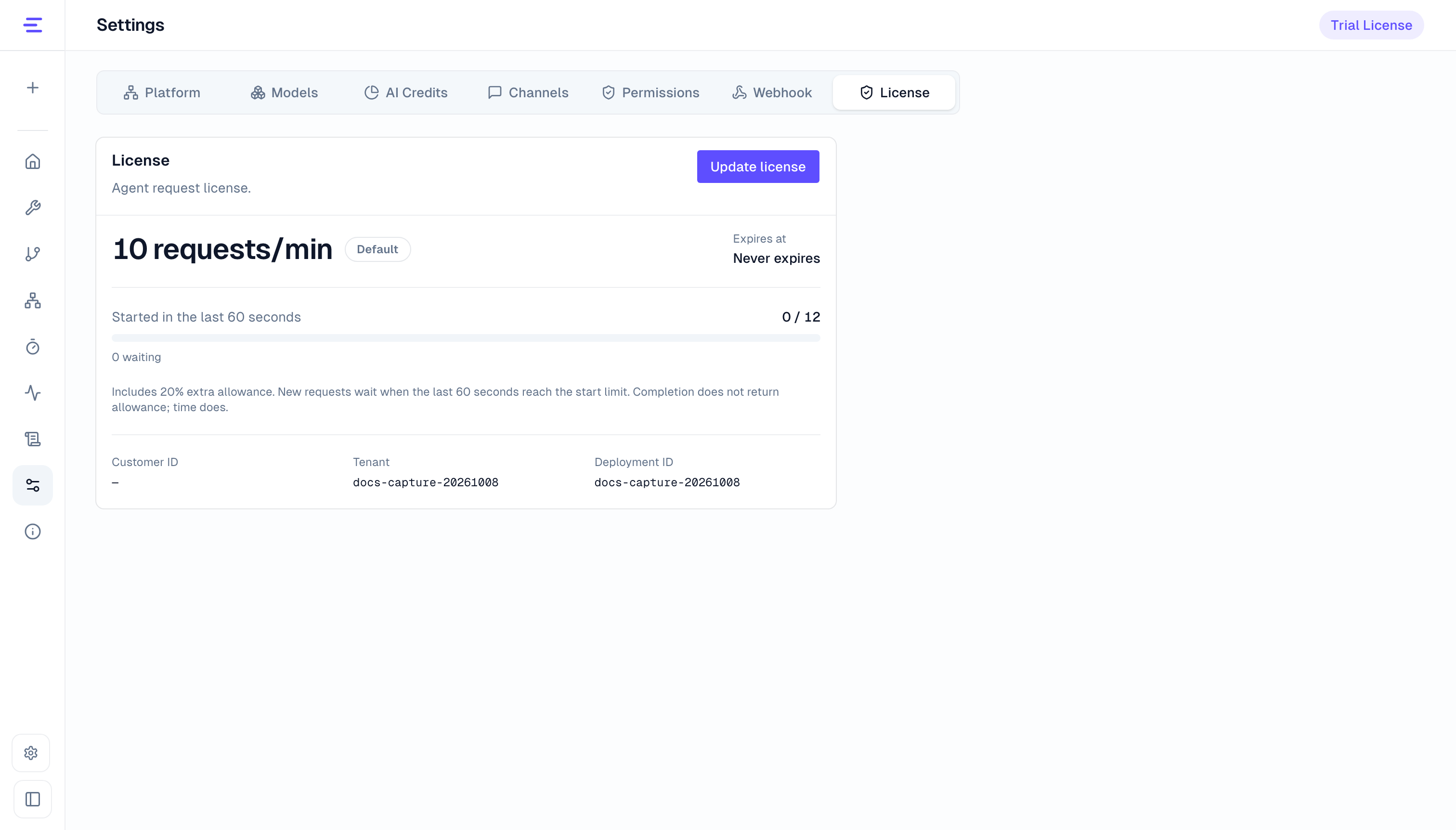
| Page information | Meaning |
|---|---|
| Capacity and type | Request capacity in requests/min, with the Default or Commercial type |
| Started in the last 60 seconds | Requests started in this deployment during the last 60 seconds and the start limit |
| Waiting | Requests waiting for allowance or execution resources |
| Expires at | The commercial license's validity period; renew before expiration |
| Customer ID, Tenant, and Deployment ID | License ownership and deployment identity; provide your actual tenant and deployment identifiers when applying |
Request a License
To request, upgrade, or renew a License, contact us. Provide your platform's Tenant and Deployment ID, along with the required requests per minute and validity period. These identifiers appear on the License page and in the Update license dialog.
We will provide the corresponding .lic file for a deployment administrator to import. The license can also be configured during deployment delivery.
Configure Your License
- Open workspace Settings → License and choose Update license.
- Select the
.licfile you received. - Enter the License administrator token and choose Import license to review the license details.
- Check the license ownership, deployment details, requests-per-minute allowance, and expiration, then choose Confirm update. Choose Back to review to change the file.
- After the success message, check the new capacity and expiration on the License page. The license takes effect immediately in the current deployment without a restart.
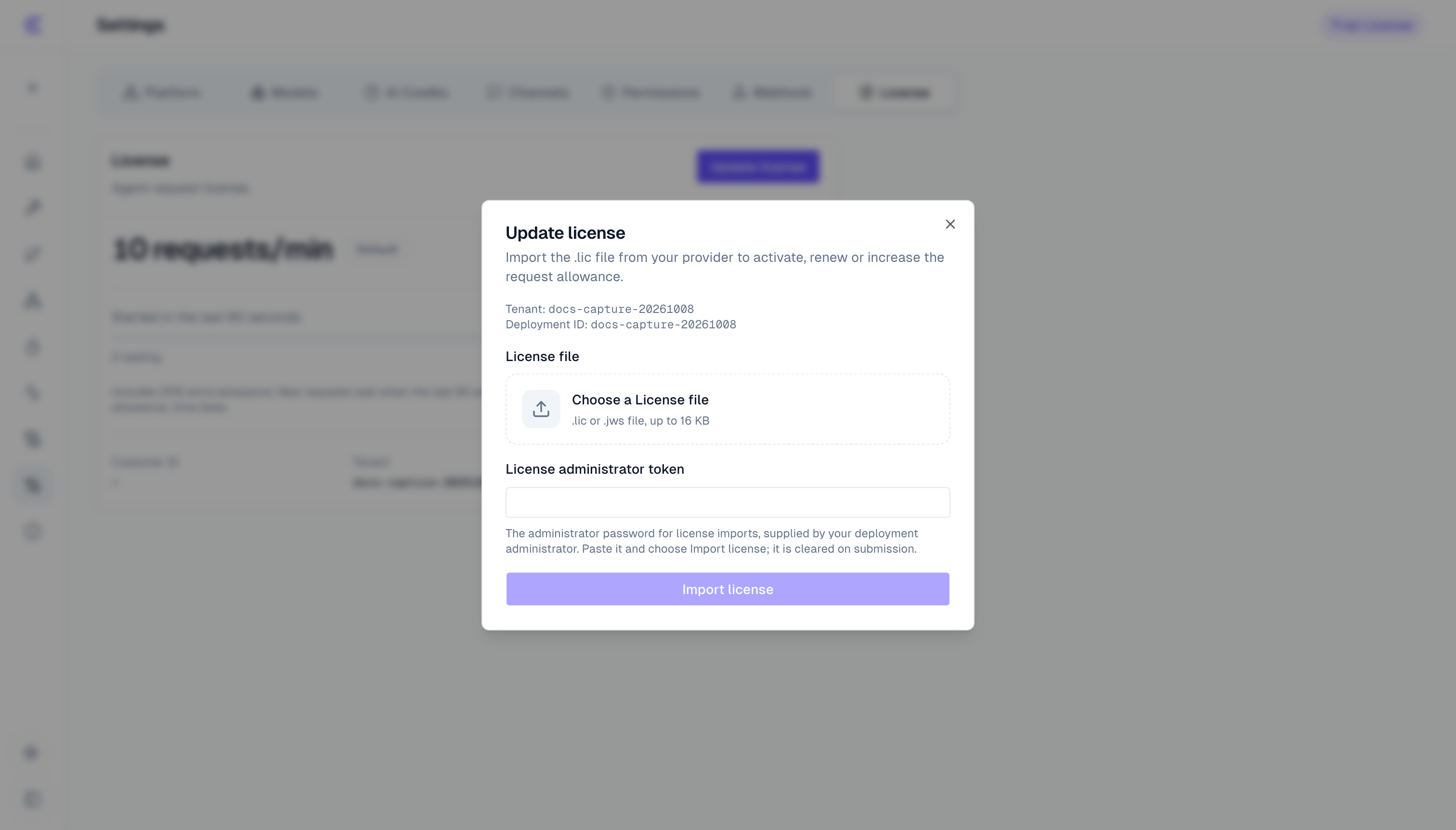
The administrator token is the import password held by the deployment administrator. It is separate from login credentials. Users can view license information and contact their administrator for imports. The provider can also activate the license during delivery. See Environment Variables for the required deployment settings.
Upgrade or Renew
Ask your provider for a new file and have an administrator import it. Upgrading to 200 requests/minute with 20% burst raises the maximum to 240 requests/minute. Software upgrades, license upgrades and renewals are separate operations.
A software upgrade preserves the installed license; it does not increase capacity or renew the license.
Importing a new license file or restarting services does not reset requests started in the last 60 seconds. Requests already executing can finish.
An expired, not-yet-active, or invalid commercial license prevents new Agent requests and does not fall back to the trial allowance. On expiration, queued requests that have not started fail; executing requests can finish. You can still open the License page to import a valid file. Renew before expiration to keep your workload running.
Common Questions
| Symptom | What to do |
|---|---|
| A device has AI credits, but requests still queue | Check request capacity, usage, and waiting requests on the License page, then use Monitoring to inspect execution resources and service status. |
| The import reports a missing or incorrect token | Confirm the License administrator token with the deployment administrator. The login password cannot replace it. |
| The file is invalid or belongs to another deployment | Check the tenant and deployment identifiers and request the corresponding file. Keep the original file intact. |
| The file has expired, is not yet active, or has a revision conflict | Follow the page's message and request a new file that is currently valid. |
A failed import leaves the installed license unchanged. If license information cannot be read, retry first, then ask the deployment administrator to check service health.