AI Credits
AI credits give each device a budget for text conversations, speech recognition, and speech synthesis, making AI usage costs easier to track and manage per device. With per-device limits enabled, devices use separate balances so heavy usage by one device does not consume another's budget; administrators can add credits to individual devices as business needs change.
Configure Device Credits
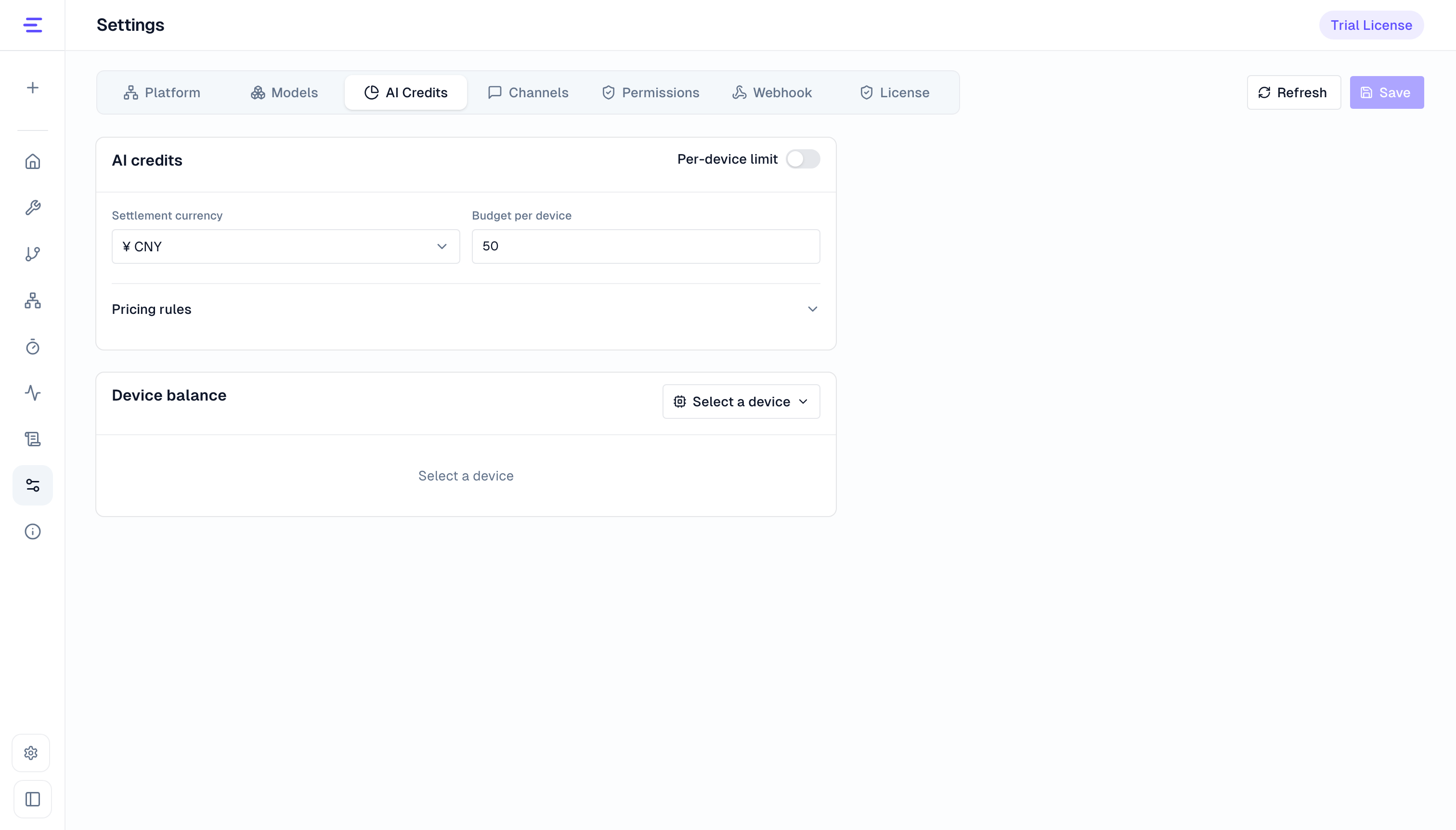
- Open Settings → AI Credits.
- Select a Settlement currency: Chinese yuan (
CNY) or US dollars (USD). - Enter the Budget per device and enable Per-device limit.
- Click Save and check the success message.
Budget per device sets each device's base budget. For example, 50 in CNY gives every device its own 50-yuan budget. New devices start with this budget. Changing the budget adjusts existing allowance balances by the difference between the old and new values, while preserving used amounts and paid / manual balances.
For example, a device with 12 yuan used and 5 yuan in manual credits has 43 yuan available under a 50-yuan base budget. Increasing the budget to 60 yuan raises its available total to 53 yuan. The budget is used continuously. To add credits to one device, adjust its manual balance. Increasing Budget per device affects every device.
AI credit limits are disabled by default. The platform locks the settlement currency once a credit account exists. Choose it before starting interactions with limits enabled or adjusting a balance. With Per-device limit disabled, usage statistics continue, but new interactions do not deduct device credits. Re-enabling limits does not charge for usage while limits were disabled.
Set Pricing Rules
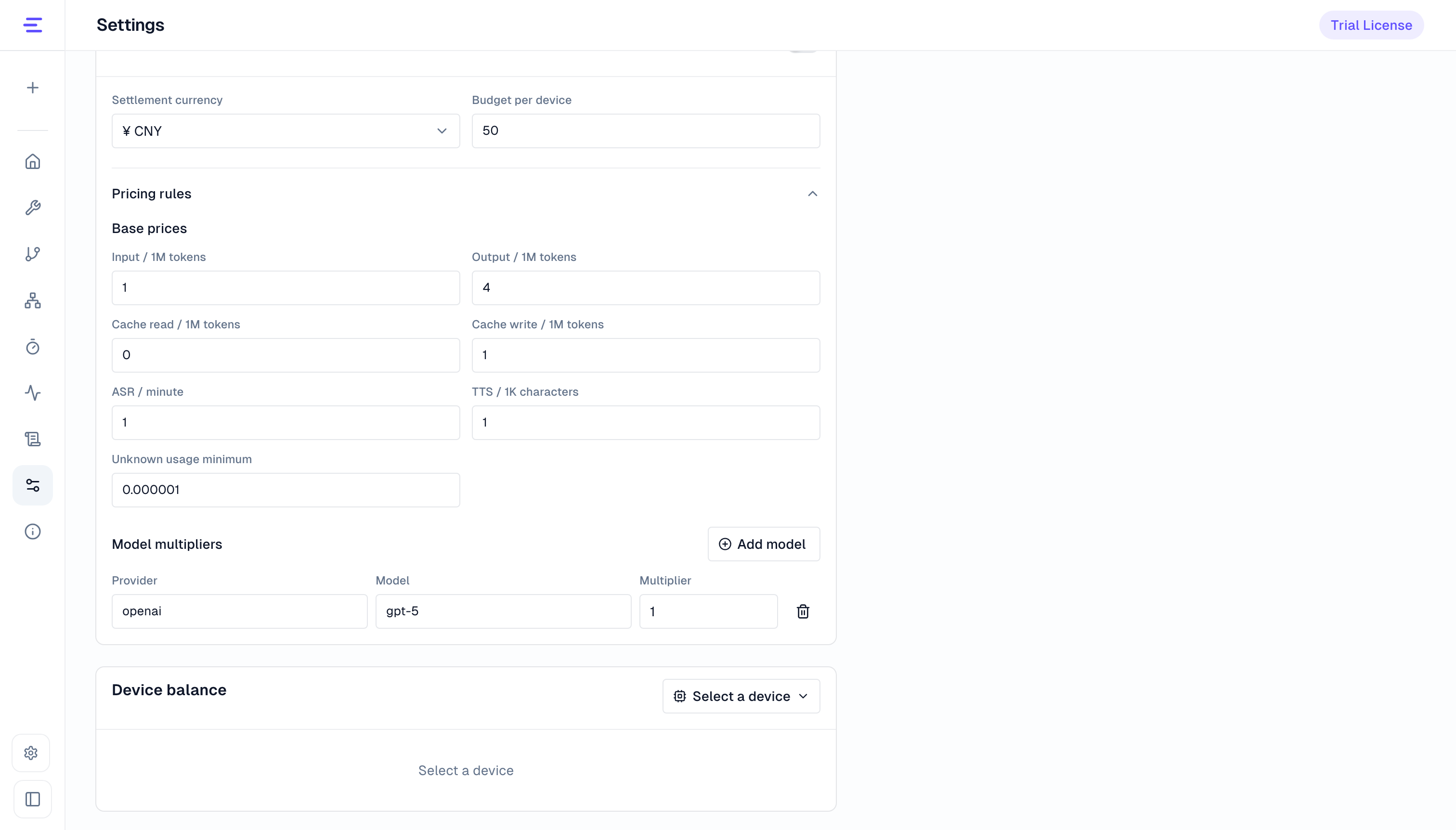
Expand Pricing rules and enter the base prices:
| Item | Pricing unit |
|---|---|
| Input, output, cache read, cache write | Per million tokens |
| ASR | Per minute of audio |
| TTS | Per thousand characters |
| Unknown usage minimum | Minimum base charge per call when usage is partial or unknown; a higher known cost takes precedence |
Prices use the selected settlement currency and must be nonnegative, with up to six decimal places. Each actual model call is charged separately: usage is multiplied by its price, then by that model's multiplier. For example, with input at 1 yuan per million tokens and output at 4 yuan per million tokens, 1,000 input tokens plus 500 output tokens cost 0.003 yuan before multipliers, or 0.006 yuan at a multiplier of 2.
Administrators configure these prices separately from provider invoices and Monitoring cost estimates. Unknown or partial usage can incur the minimum charge, so monitoring estimates and the device's used amount may differ.
To apply different prices to individual models, click Add model under Model multipliers and enter the Provider, Model, and Multiplier. Provider and model identifiers must match the actual call; check the Monitoring usage records. Models without a matching rule use a multiplier of 1; 2 charges twice the base cost. A price or multiplier of 0 is allowed.
A voice interaction can use an LLM, ASR, and TTS. Each model uses its own multiplier, and their charges add to the device's usage. To remove a multiplier, click the row's delete button. Click Save after editing. New rules apply to interactions that start afterward; ongoing interactions continue with the rules from their start.
View a Device Balance
Select the target device under Device balance to view:
| Field | Meaning |
|---|---|
| Budget per device | The currently configured shared base budget |
| Available total | Allowance plus paid / manual balance; determines whether a new interaction can start |
| Allowance | The remaining base budget after usage |
| Paid / manual | The balance added or deducted manually |
| Used | The total amount deducted so far |
Charges use the allowance first, then the paid / manual balance. The chart shows budget usage. Use the table to check exact amounts and whether the available total is negative. Check the device agent and device ID before adjusting a balance.
Adjust an Individual Device Balance
- Select the device under Device balance.
- Enter an Adjustment: a positive amount adds credits, and a negative amount deducts them. For example,
10adds 10 currency units;-2deducts 2 currency units. The amount must be nonzero, with up to six decimal places. - Enter a Reason, such as “Additional trial credits” or “Manual correction”.
- Click Apply, check the device, amount, and reason in the confirmation dialog, then confirm.
The adjustment is submitted separately and immediately changes the paid / manual balance; you do not need to click Save afterward. The page updates the balance after success. A deduction also lowers the available total; check the resulting balance before submitting.
When Credits Run Out
With limits enabled, a device whose available total is zero or negative cannot start its next AI interaction. An interaction already admitted can finish, which may leave a negative balance.
If a request reports insufficient credits, check the device balance, then add manual credits or increase the budget per device. When the balance is negative, added credits must cover the excess and make the available total positive before retrying. Actual AI usage from failed, cancelled, or retried calls is also charged.
If requests still fail after adding device credits, follow the error message to check the License request start rate and validity period, and model and voice provider allowances or balances.
Common Questions
| Symptom | What to do |
|---|---|
| Save is unavailable | Confirm that settings have changed, amounts are nonnegative with at most six decimal places, and each new multiplier has a provider and model. Delete unwanted empty rows. |
| The settlement currency cannot be changed | Existing credit accounts lock the currency. Continue managing budgets and balances in that currency. |
| Apply is unavailable | Select a device and enter a nonzero adjustment and a reason. The amount supports up to six decimal places. |
| The balance cannot be loaded or an adjustment fails | Check the selected device and retry as prompted. Ask an administrator to check service status if failures persist, and verify the balance after success. |