Create a Northbound Application
After southbound tags are collecting, use a northbound application to send data to MQTT, the cloud, or a processing engine. For the protocol list and parameters, see Northbound Applications.
Read in this order:
- This page: create the northbound node
- Subscribe to Southbound Data: attach southbound groups to the application
- Northbound Applications: MQTT, Sparkplug B, Kafka, and more
This walkthrough uses MQTT.
Add a northbound application
In Data Collection -> North Apps, click Add Application:
- Name: application node name, for example
mqtt. - Application: select MQTT.
After Create, you go to the application configuration page. You can also open Application Configuration from the card later.
Application configuration
Fill in the connection parameters. For MQTT fields, see MQTT.
After Submit, the card enters Running.
Application card
On North Apps, switch between list and card view in the upper right. On the card:
- Name: unique name of the northbound application.
- Application Configuration: connection parameters.
- Edit: change the node name.
- Data Statistics: runtime stats.
- DEBUG Log: print DEBUG logs for this node; after about ten minutes the default level returns.
- Delete: remove the node.
- Working state:
- Initialize: just added.
- Configure: configuration in progress.
- Ready: configuration succeeded.
- Running: running.
- Stop: stopped.
- Working state switch: on connects and reports; off disconnects.
- Connection state: whether the peer is connected.
- Application: application used by this application.
Subscribe to southbound data
Tags are reported by group. After you create the application, subscribe to southbound groups. See Subscribe to Southbound Data.
Operation and maintenance
Data statistics
On the card or in the list, click Data Statistics.
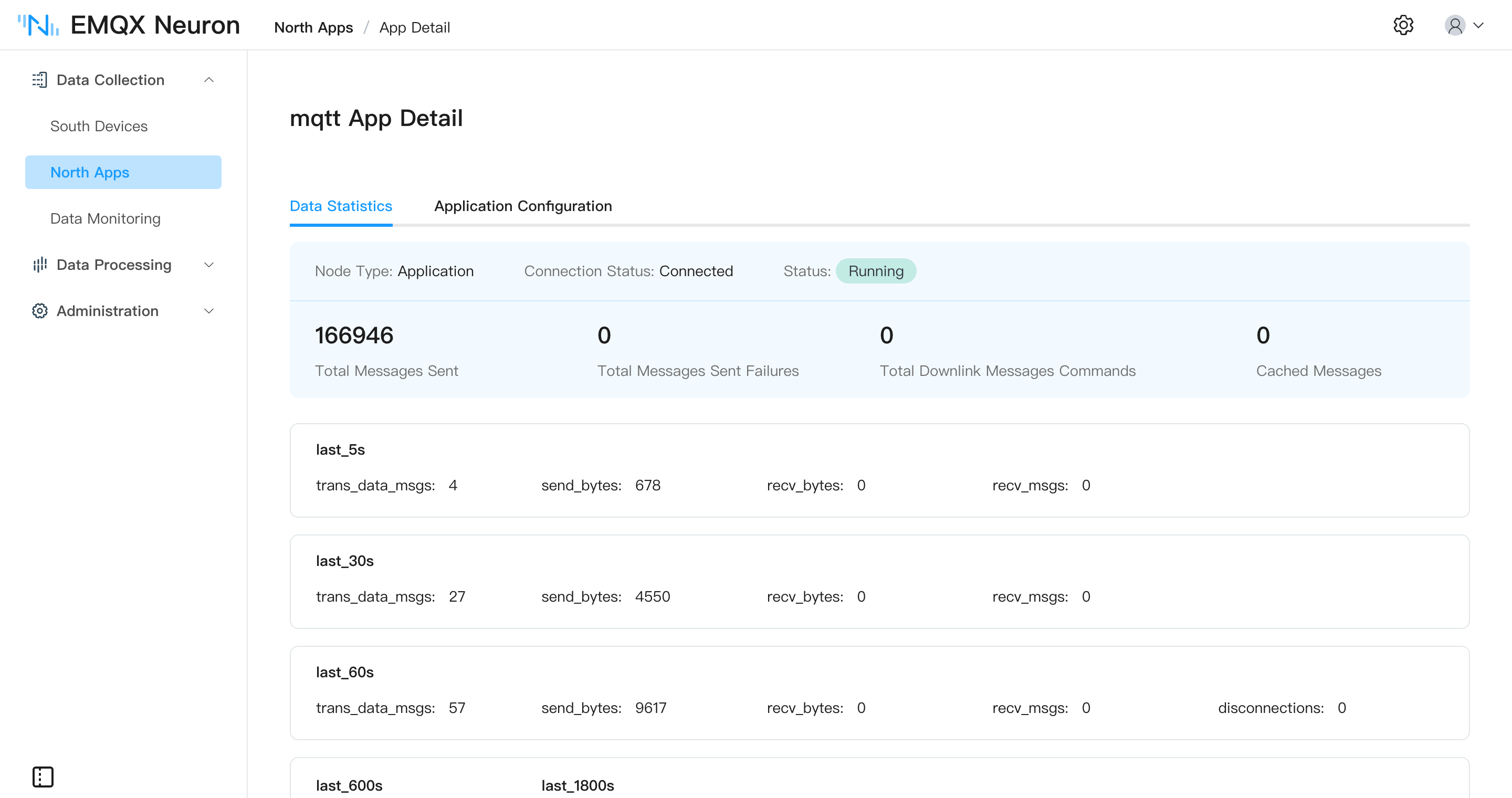
| Parameter | Description |
|---|---|
| send_msgs_total | Total messages sent |
| send_msg_errors_total | Total failed sends |
| recv_msgs_total | Total messages received |
| link_state | Connection: DISCONNECTED = 0, CONNECTED = 1 |
| running_state | Node: INIT = 1, READY = 2, RUNNING = 3, STOPPED = 4 |
Troubleshooting
If the application misbehaves, click DEBUG Log. The system prints DEBUG logs for that node and returns to the default level after about ten minutes. Then open Administration -> Logs. See Managing Logs.