Connect to USR DTU
USR DTU supports two-way conversion of data, supports mutual conversion of common serial data such as RS232, RS485, RS422, and TCP/IP data, and transmits them through the wireless communication network. The communication methods generally used by DTU are 2/3/4G, NB-IoT, LoRaWAN, WIFI, etc.
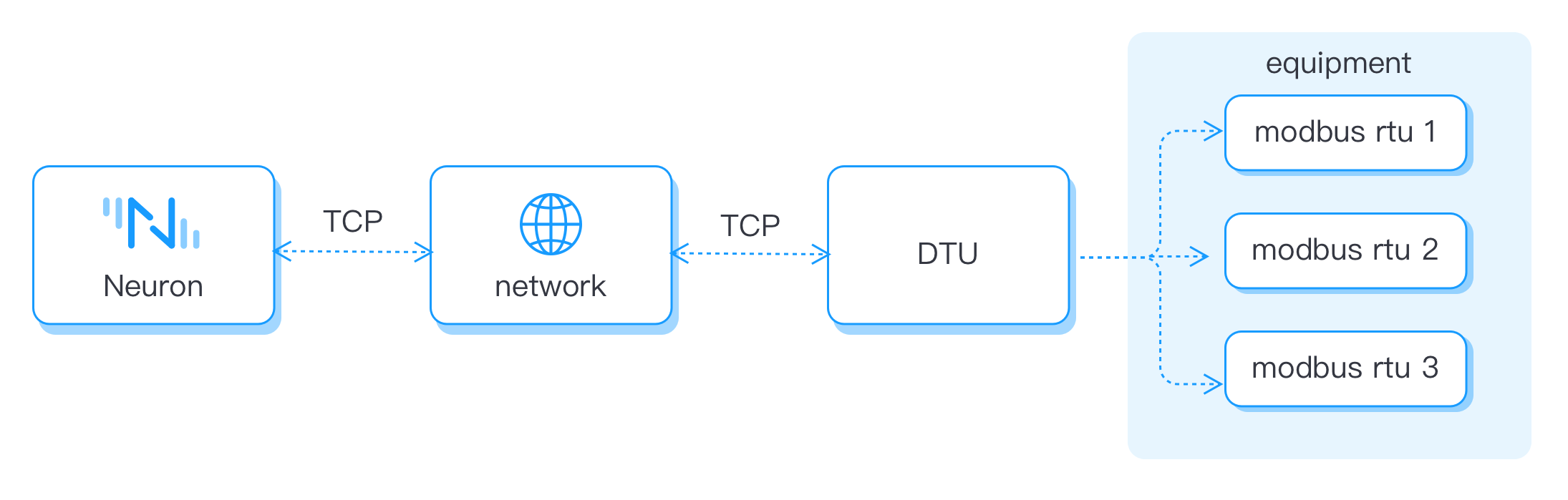
You can directly communicate with Modbus RTU devices using EMQX Neuron's Modbus RTU driver in serial mode. Or you can use USR DTU to first gather and convert serial data to network data, then connect it to EMQX Neuron. In this case:
- For USR DTU's pass-through working mode, connect directly to the Ethernet mode of EMQX Neuron's Modbus RTU module.
- If you're using USR DTU's Modbus TCP mode, you need to use the Modbus TCP driver.
This section introduces how to connect USR DTU under Modbus TCP mode. For details about EMQX Neuron's Modbus TCP driver, see the Modbus TCP driver module.
USR DTU Configuration
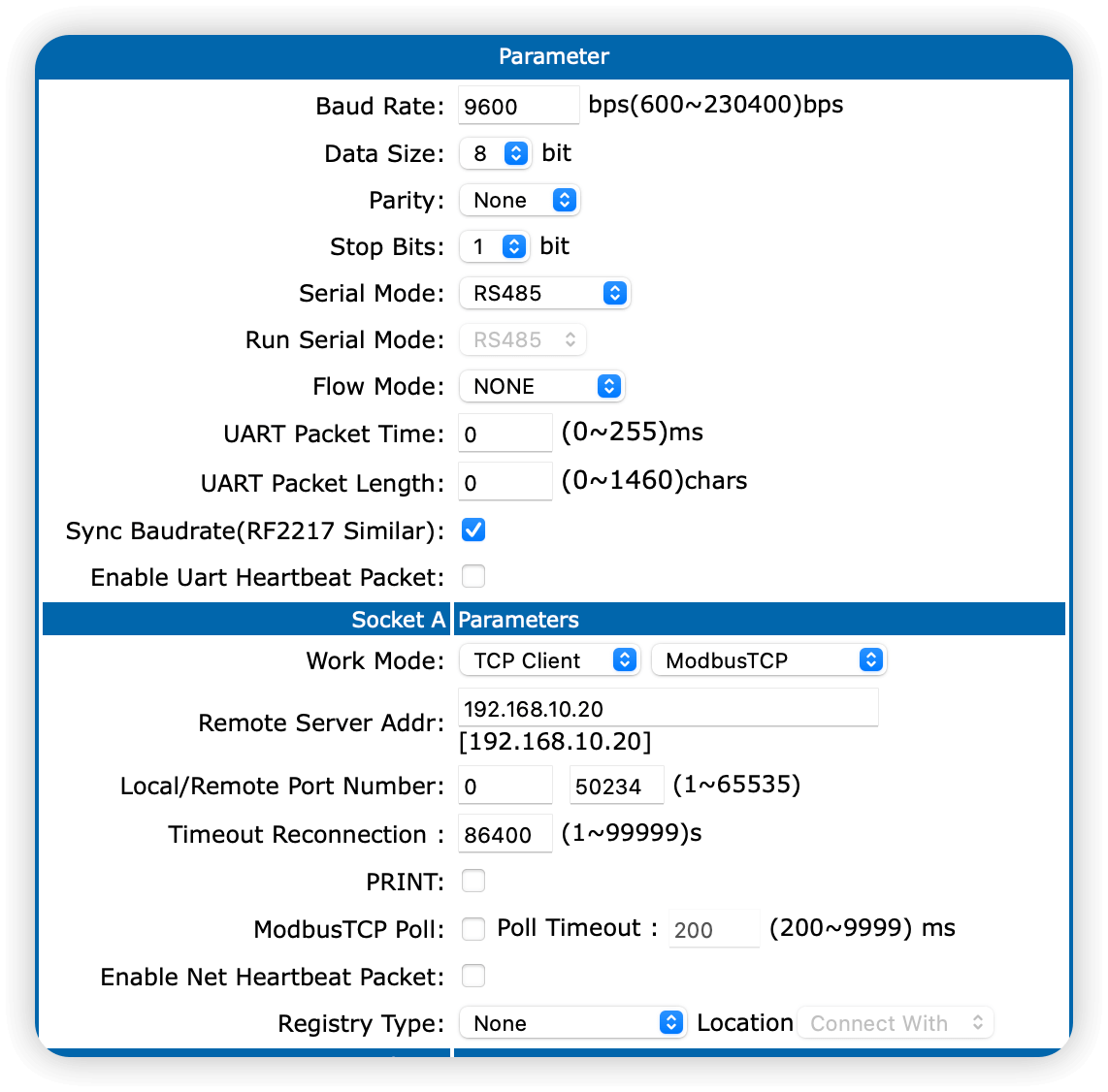
| Parameter | Description |
|---|---|
| Work Mode | Typically, USR DTU supports connecting via TCP or UDP in either client or server mode. It can transmit data using the Modbus TCP standard protocol, or it can transmit None (transparent) data. Here we set it to ModbusTCP. |
| Remote Server Addr | When DTU acts as a client, fill in the address bound to EMQX Neuron Modbus. |
| Local/Remote Port Number | When DTU acts as a client, fill in the port bound to EMQX Neuron Modbus. When DTU acts as a server, use the port of DTU. |
TIP
DTU usually supports serial port heartbeats, or enables network heartbeats and registration packets. These features cannot be used in the standard Modbus protocol, and EMQX Neuron currently is not compatible with these features. When using EMQX Neuron to connect to a DTU, be sure to turn off these options.
Client/Server Mode
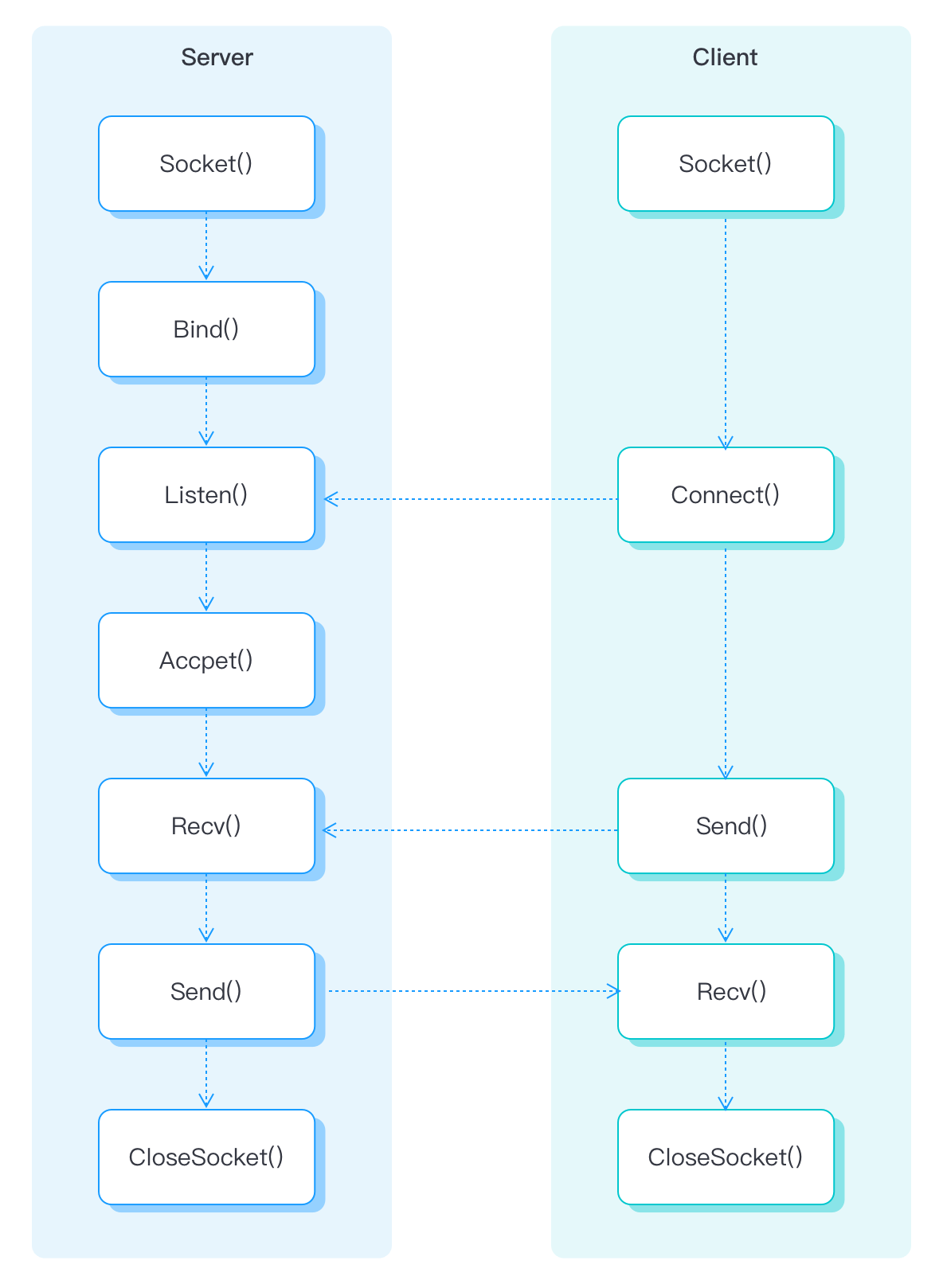
Client/Server, also known as client/server mode, referred to as C/S mode, is a network communication architecture, which is used to distinguish the two parties who establish a communication connection as a client (Clent) and a server (Server).
In TCP, the client is the initiator of the request and sends the connection request to the server actively, while the server waits for the request from the client passively.
The following figure shows the workflow for establishing a connection between the Client and Server.
Establish Client Connection with EMQX Neuron
This section mainly describes the configuration of EMQX Neuron and DTU when EMQX Neuron serves as the Client and DTU serves as Server.
As a Client, EMQX Neuron initiates connection requests to DTU actively. The user needs to ensure the network connectivity of EMQX Neuron -> DTU.
Configure DTU Server
First, you need to configure the parameters of the connection between the DTU and the serial port, and second, you need to configure the parameters of the Socket for the connection between the DTU and the EMQX Neuron, as shown in the figure below.
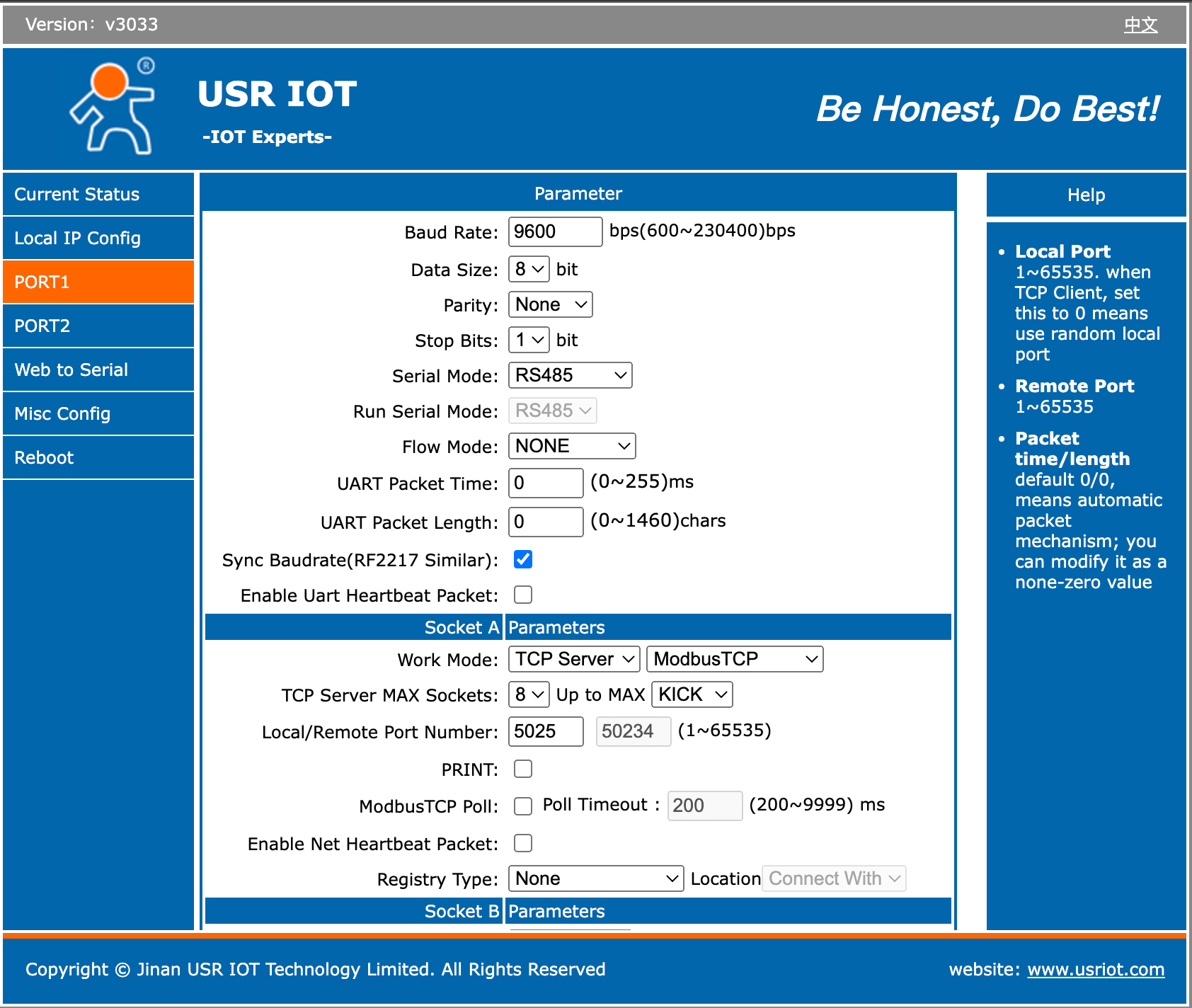
- Working mode: TCP Server, Modbus TCP;
- Fill in an unused local port, no need to fill in the remote port;
- The other parameters are optional.
Get DTU IP
While configuring the EMQX Neuron's southbound driver, you'll need to input the IP address of the server-side DTU, as illustrated in the figure below. 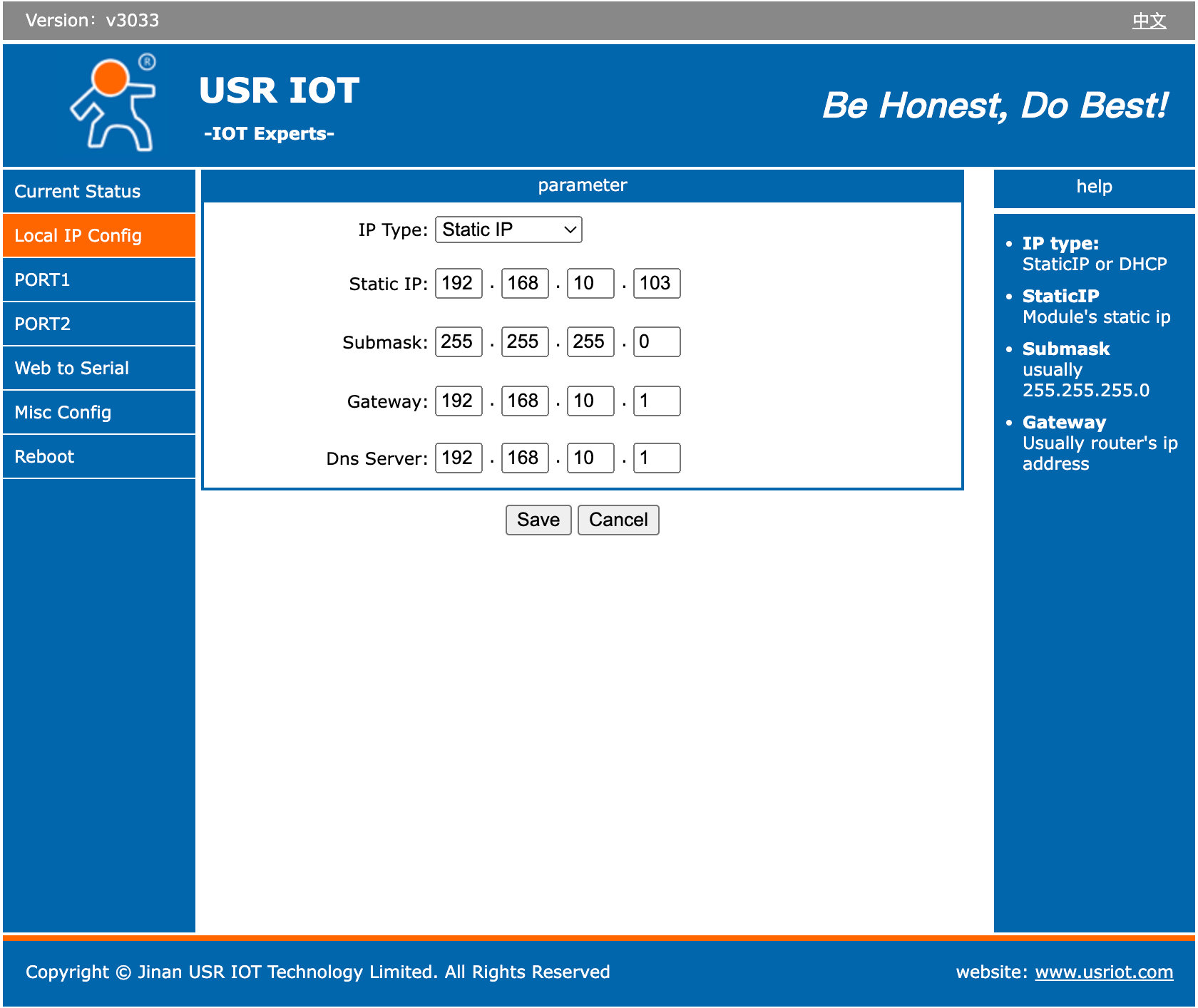
Configure EMQX Neuron (Client)
In South Device, create a node using the driver Modbus TCP, and configure the driver, as shown in the figure below. 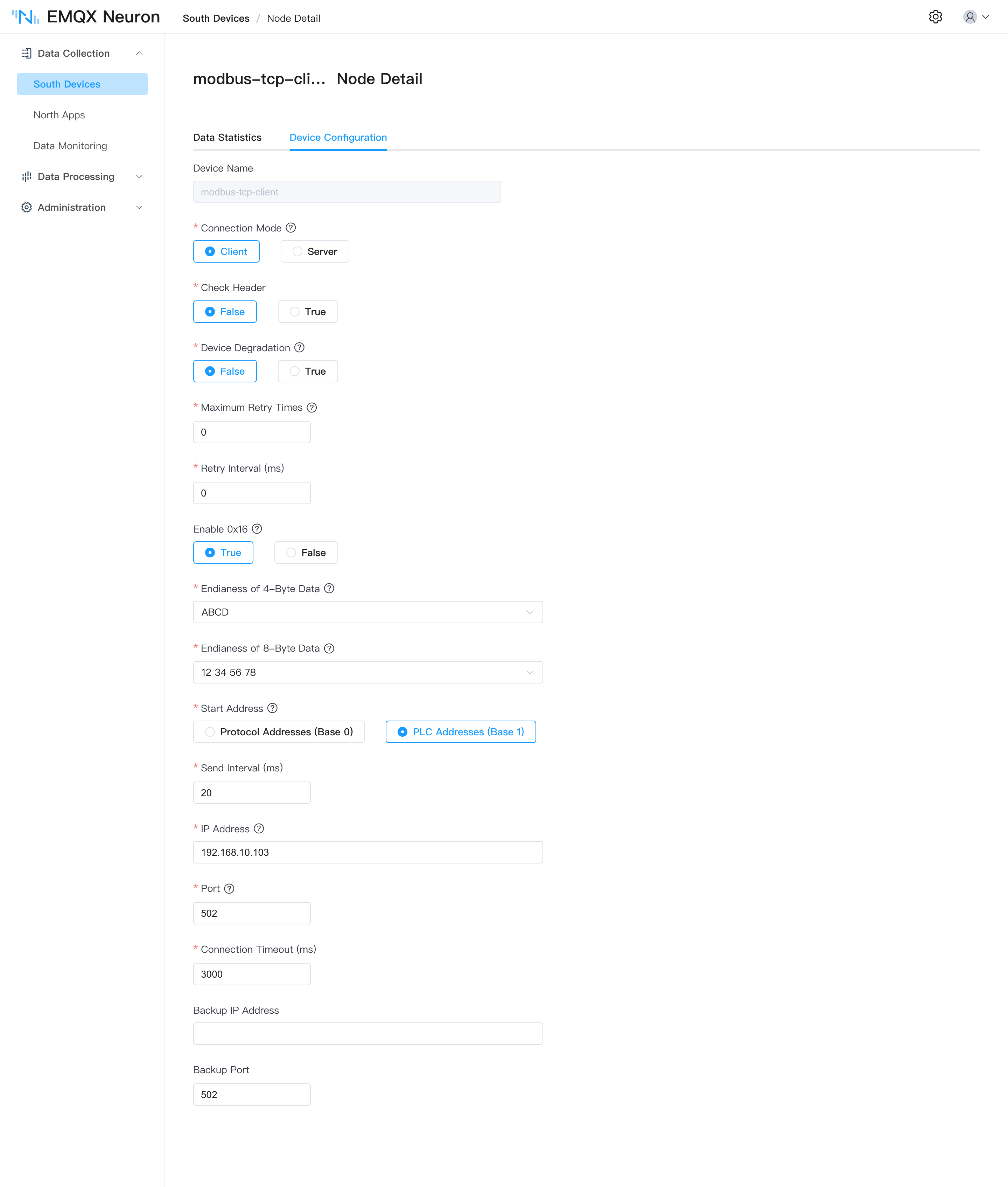
- Connection mode: client
- Host: Fill in the IP address of USR DTU
- Port: Fill in the port of USR DTU
- Timeout: Keep the default setting
Establish Server Connection with EMQX Neuron
This section mainly describes the configuration of EMQX Neuron and DTU when EMQX Neuron serves as the Server and DTU serves as the Client.
As a Client, DTU initiates connection requests to EMQX Neuron. Users need to ensure the network connectivity of DTU -> EMQX Neuron. This connection mode can generally be used in the following scenarios. When some DTU uses 4G to access the Internet, EMQX Neuron cannot actively connect to DTU, so EMQX Neuron can only choose Server mode and actively connect to EMQX Neuron by DTU.
Besides, When EMQX Neuron and DTU are not in the same LAN, you can map the LAN IP and port of the EMQX Neuron operating environment to the WAN, and use EMQX Neuron as the server end and DTU as the client end.
Configure DTU Client
First, you need to configure the parameters of the connection between the DTU and the serial port, and second, you need to configure the parameters of the Socket for the connection between the DTU and the EMQX Neuron, as shown in the figure below.
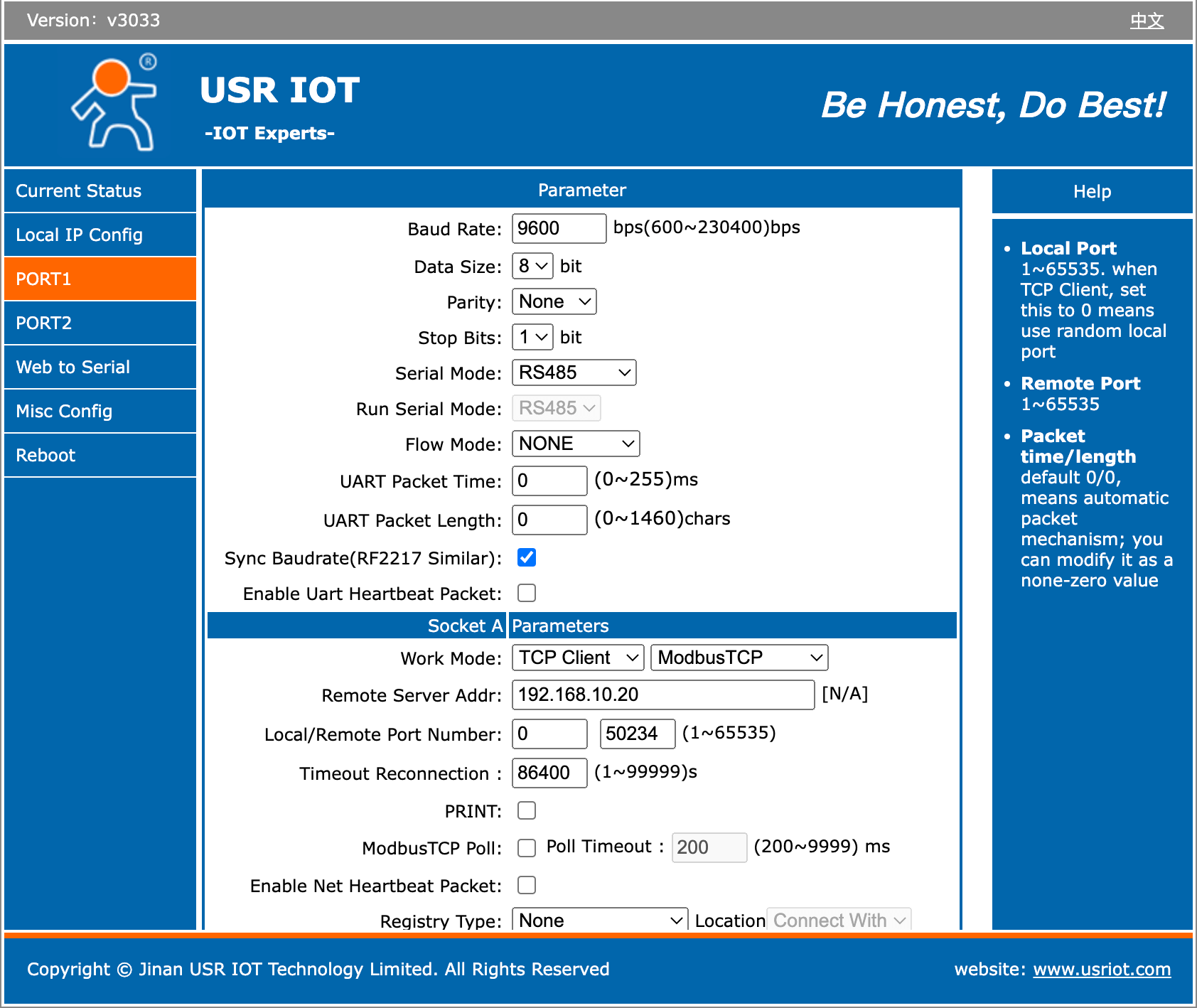
- Remote server address: Fill in the IP address of EMQX Neuron (running as the server);
- Local port: Not filled in by default;
- Remote port: Since each TCP Server port will listen to the incoming TCP traffic on the port specified by the client, therefore, the user needs to customize an unoccupied port for handshake establishment between the client and the server connect.
TIP
You can execute the following command on the server terminal to determine whether the listening port is occupied.
# Confirm whether the port is occupied
$ netstat -anp |grep <port>
Configure EMQX Neuron (Server)
In South Devices, create a node with driver Modbus TCP, and configure the driver, as shown in the figure below.
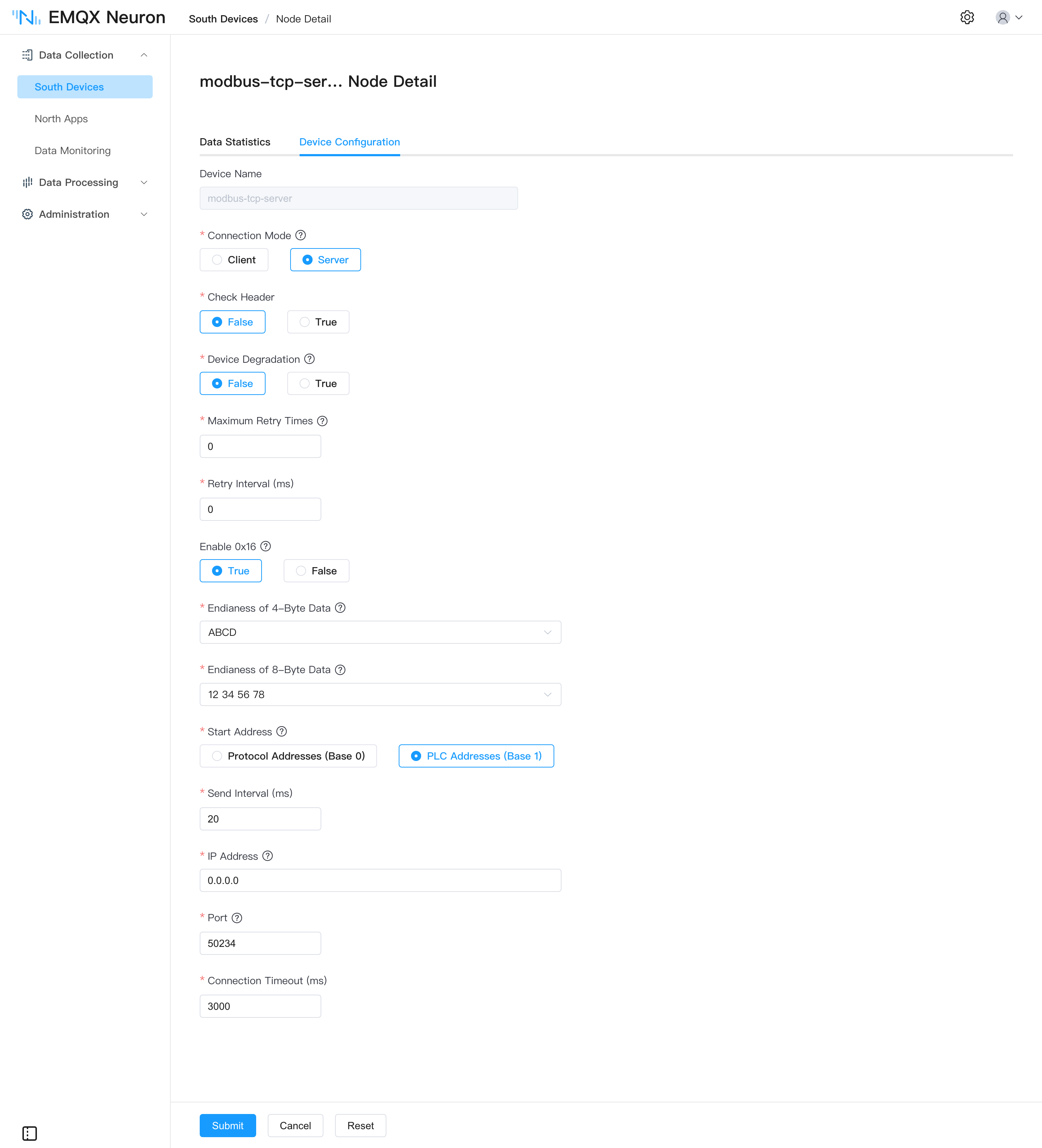
- Select server as the Connection mode;
- Host: Fill in 0.0.0.0;
- Port: Fill in the listening port.