Connect to CP2E
This article uses the Omron FINS TCP driver to connect to an Omron CP2E PLC and read/write tag values.
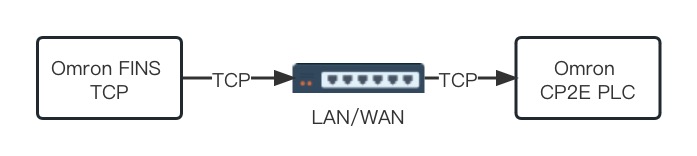
The Omron FINS TCP driver can reach the PLC over a local LAN or the Internet. If the PLC and the EMQX Neuron server are not on the same LAN, configure port forwarding on the PLC.
Prerequisites
CX-Programmer is already connected to the CP2E PLC so you can inspect PLC tags.
Inspect PLC tags
- In the left menu, open Settings to the PLC setup window, then the Built-in Ethernet tab, and configure the PLC IP address and subnet mask.
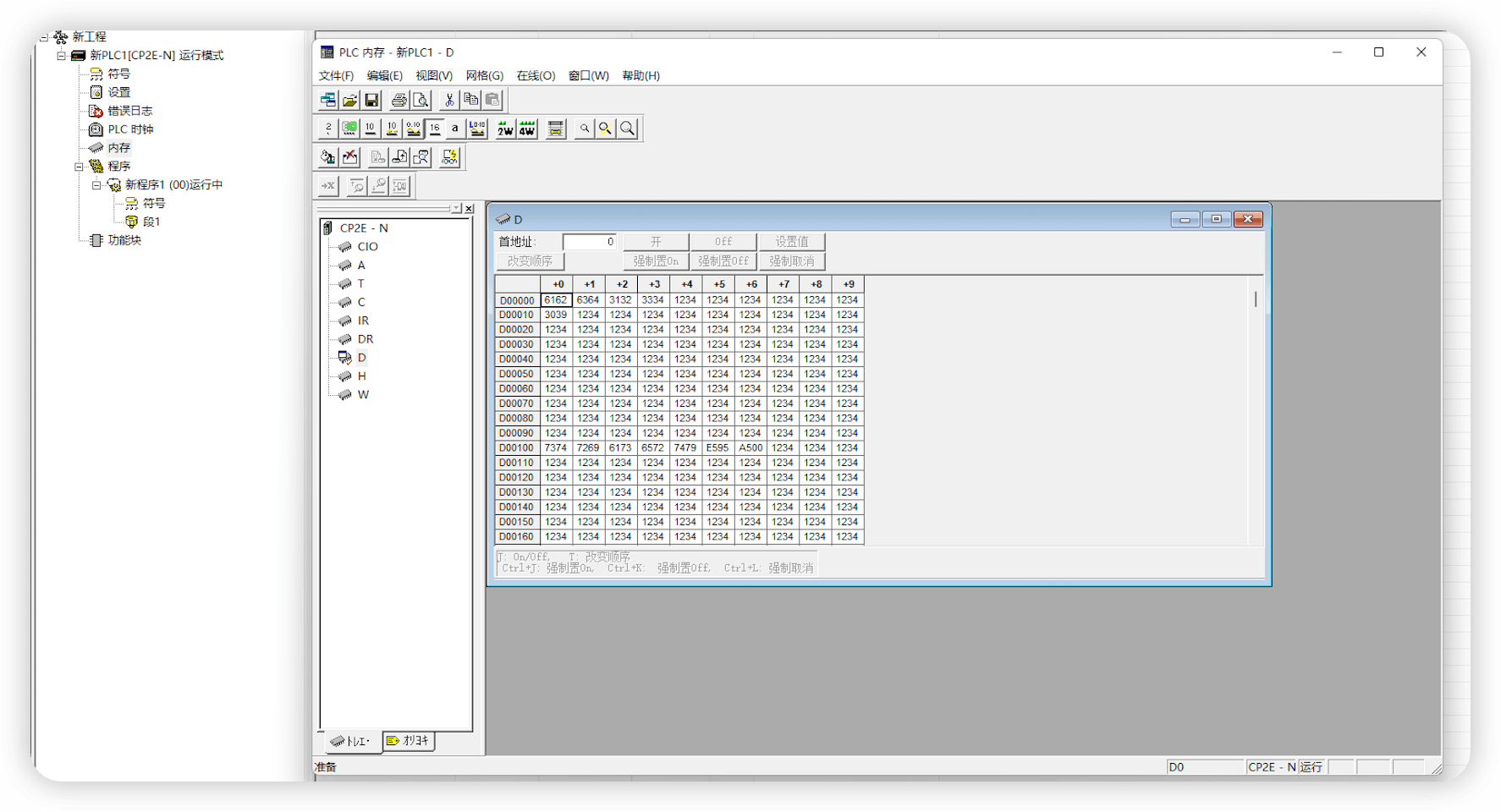
- In the left menu, open Memory to see the data areas and address ranges the PLC supports. As shown below, this PLC has multiple areas including CIO, A, and W.
Configure EMQX Neuron
- Under Southbound Devices, click Add Device and select the Omron FINS TCP driver to create a node for the CP2E PLC.
- After the node is created, click Device Configuration and set:
- PLC IP Address: IP address of the PLC
- PLC Port: PLC port, default 9600
- In the southbound node, create a group and add tags under the group.
Data monitoring
After tags are configured, open Data Collection -> Data Monitoring to view device data and write tags. See Data Monitoring.