Connect to Q03UDE
The Q03UDE, a flagship product in Mitsubishi Electric's Q series of PLCs, is engineered for complex and large-scale automation applications, delivering high performance and a comprehensive suite of features.
This section introduces how to connect Q03UDE using the EMQX Neuron Mitsubishi 3E driver.
Configure the PLC
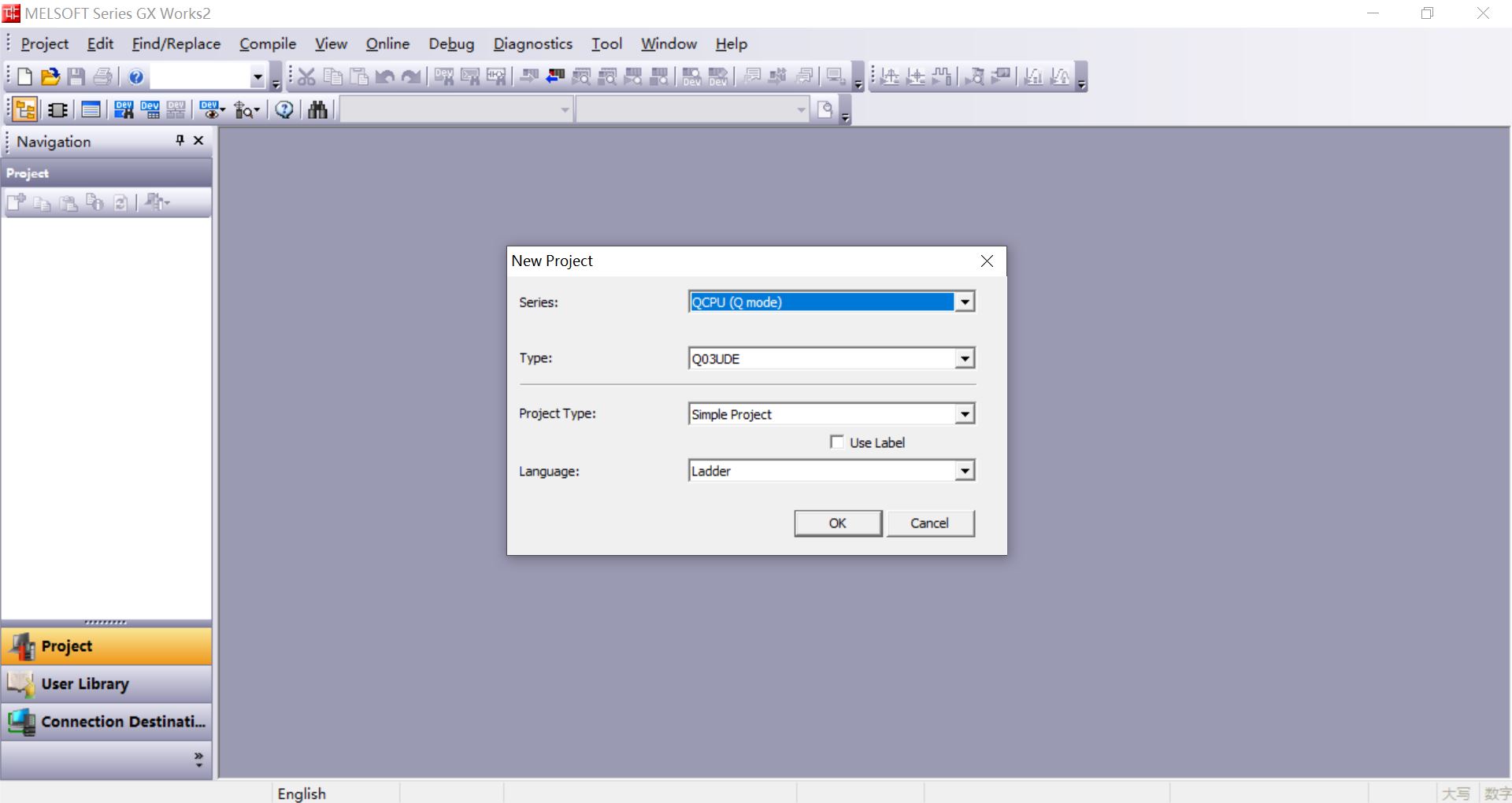
Open the GX Works2 PLC programming software and create a new project, Series select QCPU(Q mode), Type select Q03UDE, Click OK.
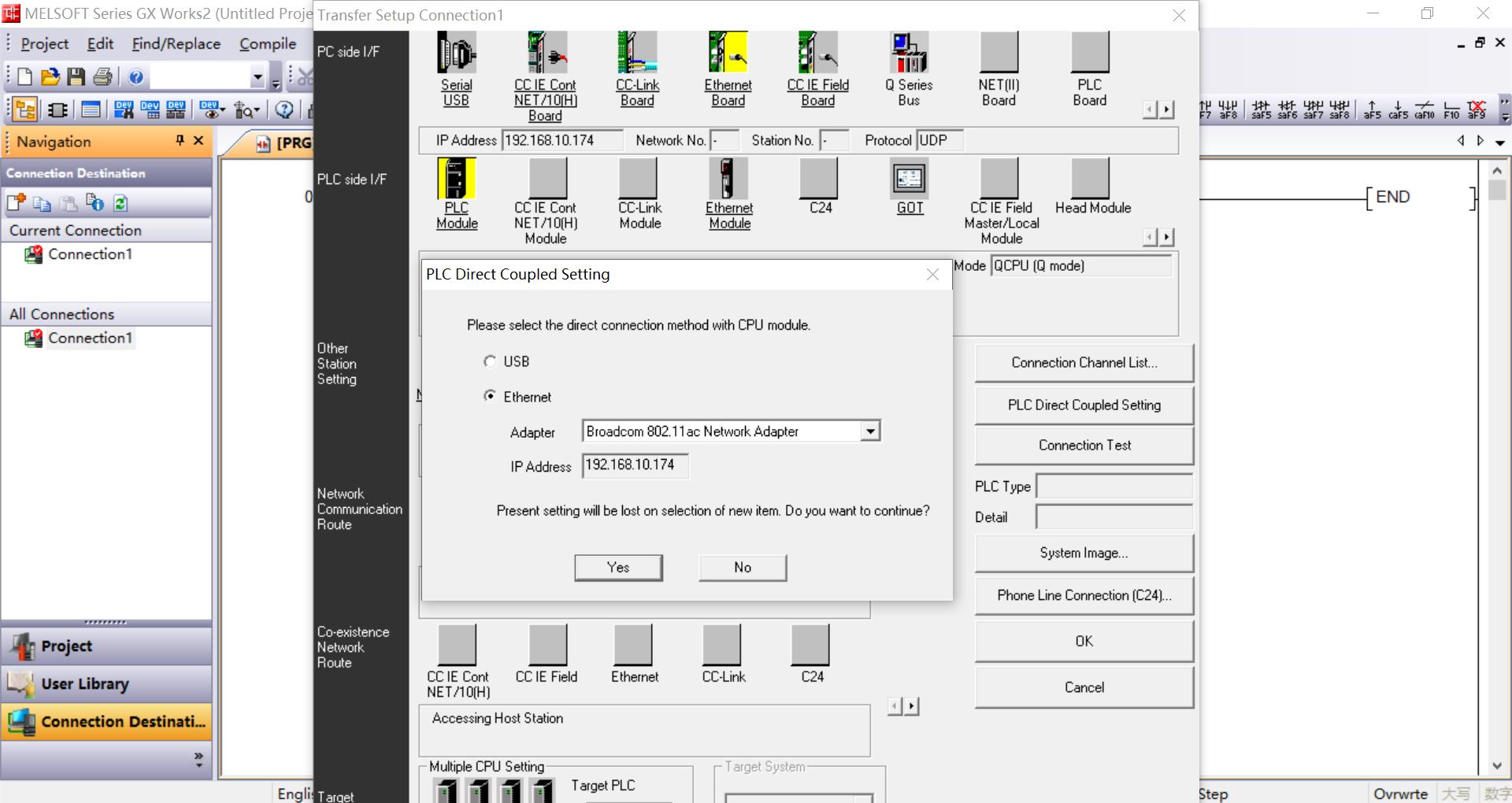
Click Connection Destination -> Connection1 -> PLC Direct Coupled Setting -> Ethernet, set Adapter and IP Address, Click OK.
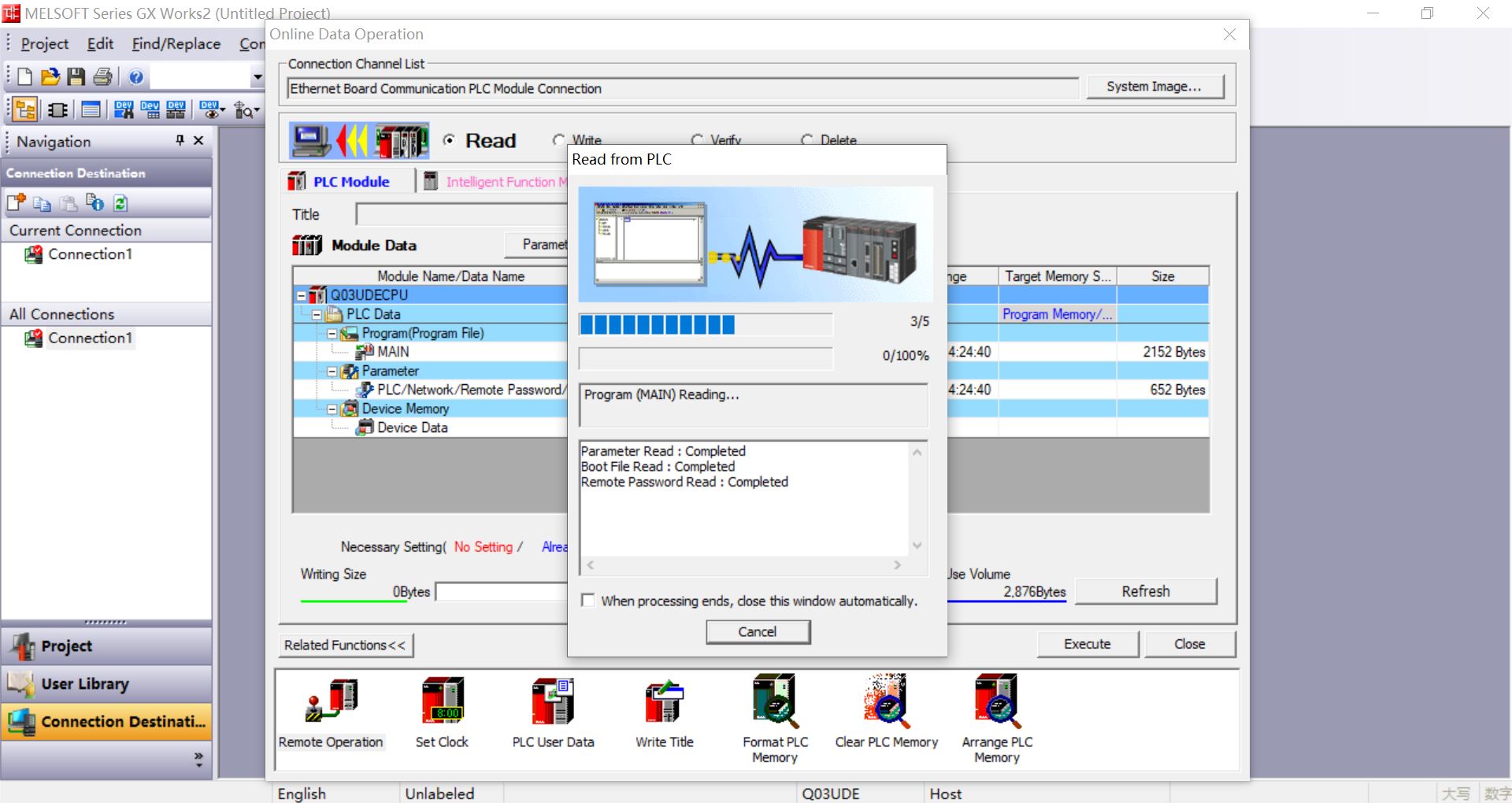
Click on the menu Online -> Read from PLC -> Select All -> Execute.
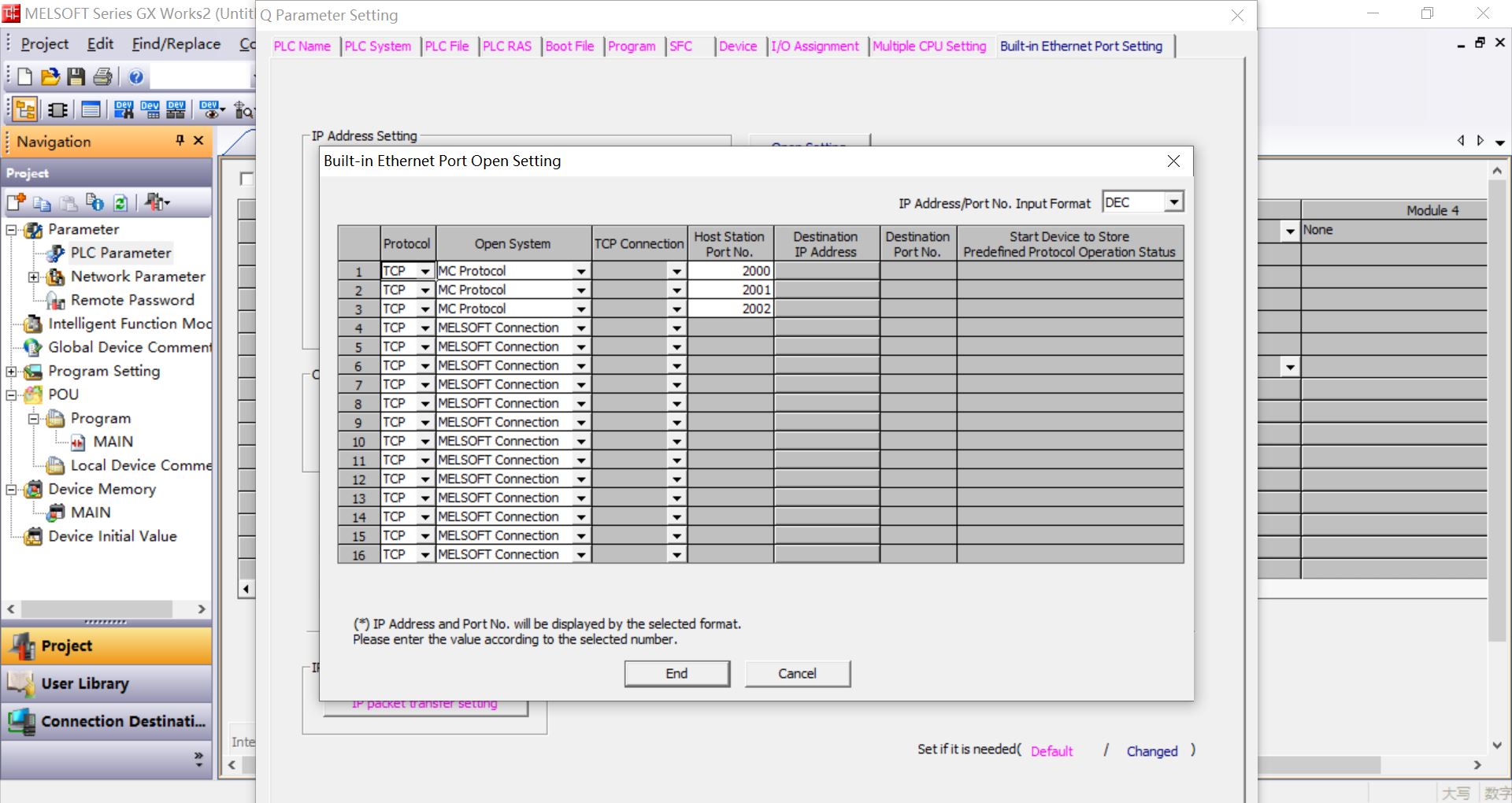
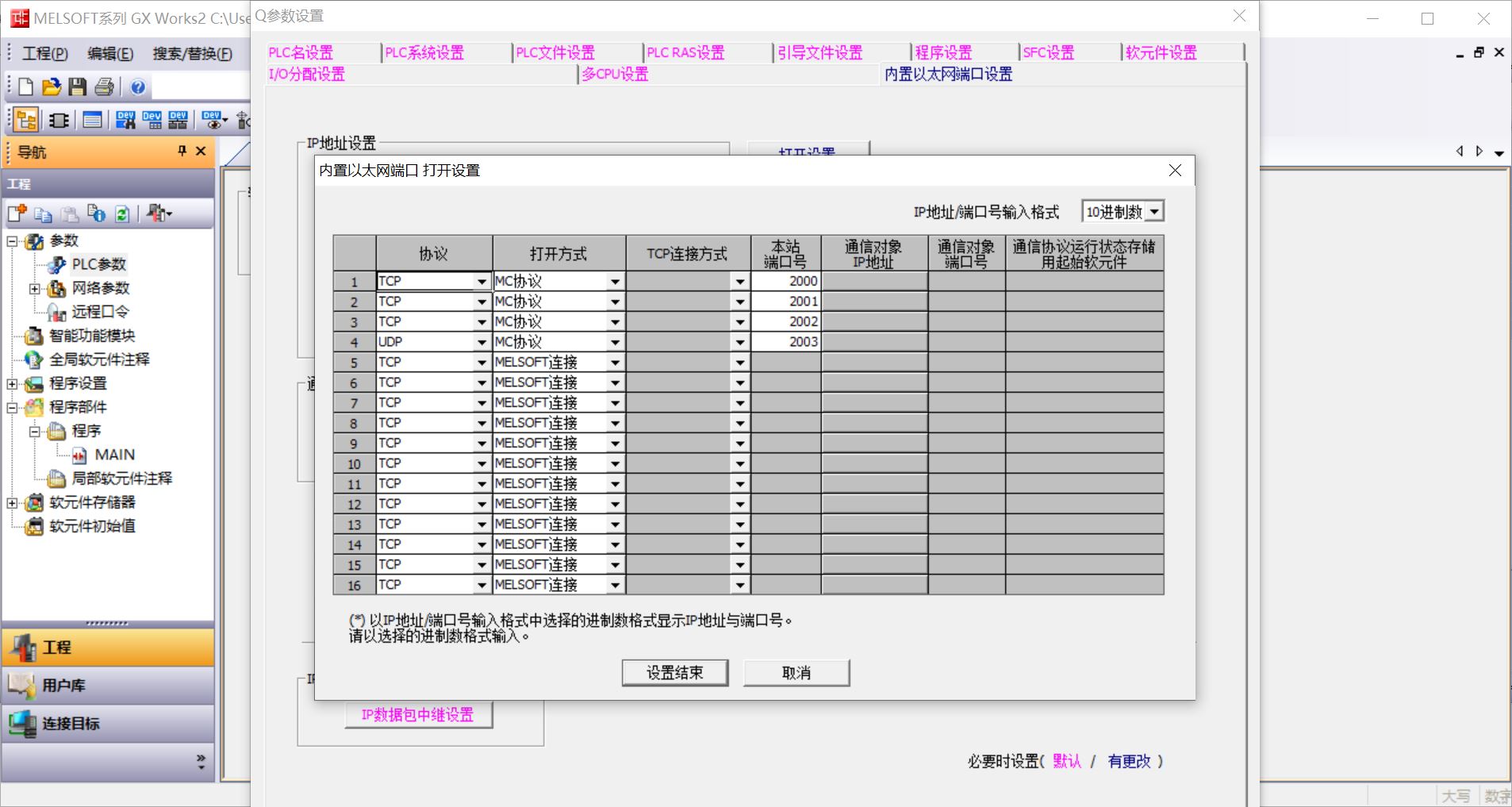
Click Navigation -> Parameter -> PLC Parameter -> Open Setting, Protocol select TCP, Open System select MC Protocol, Set Host Station Port No., Click End.
Tick Enable online change (FTP, MC protocols) as required.
Click on the menu Online -> Write to PLC -> Execute.
Configure EMQX Neuron
In EMQX Neuron, add a Mitsubishi 3E device under Data Collection -> South Devices.
Change the PLC IP Address to the target device IP address in the device configuration.
Modify PLC Port as the target device port in the device configuration and submit the setup form.
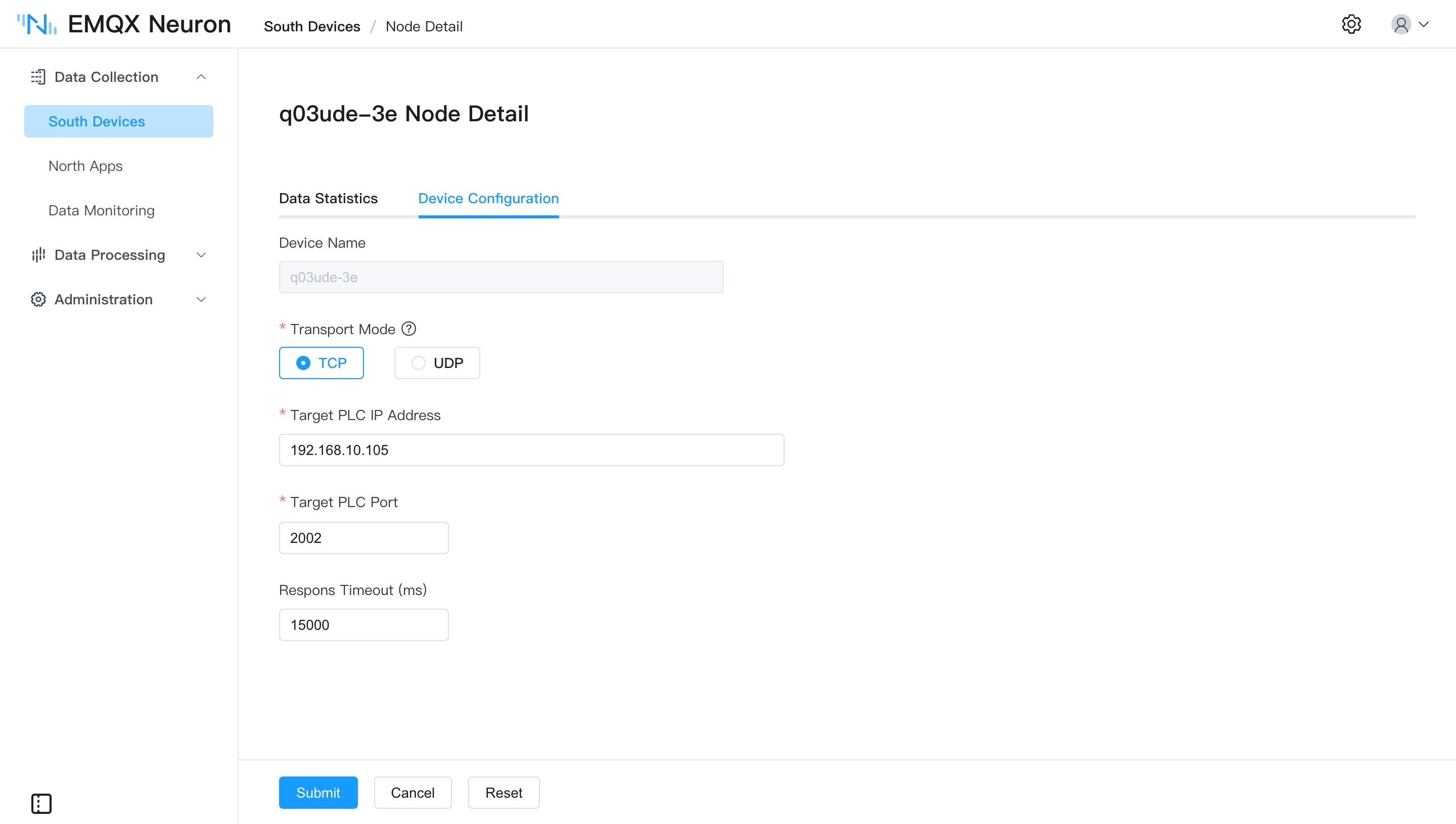
Add Group, add test tag.
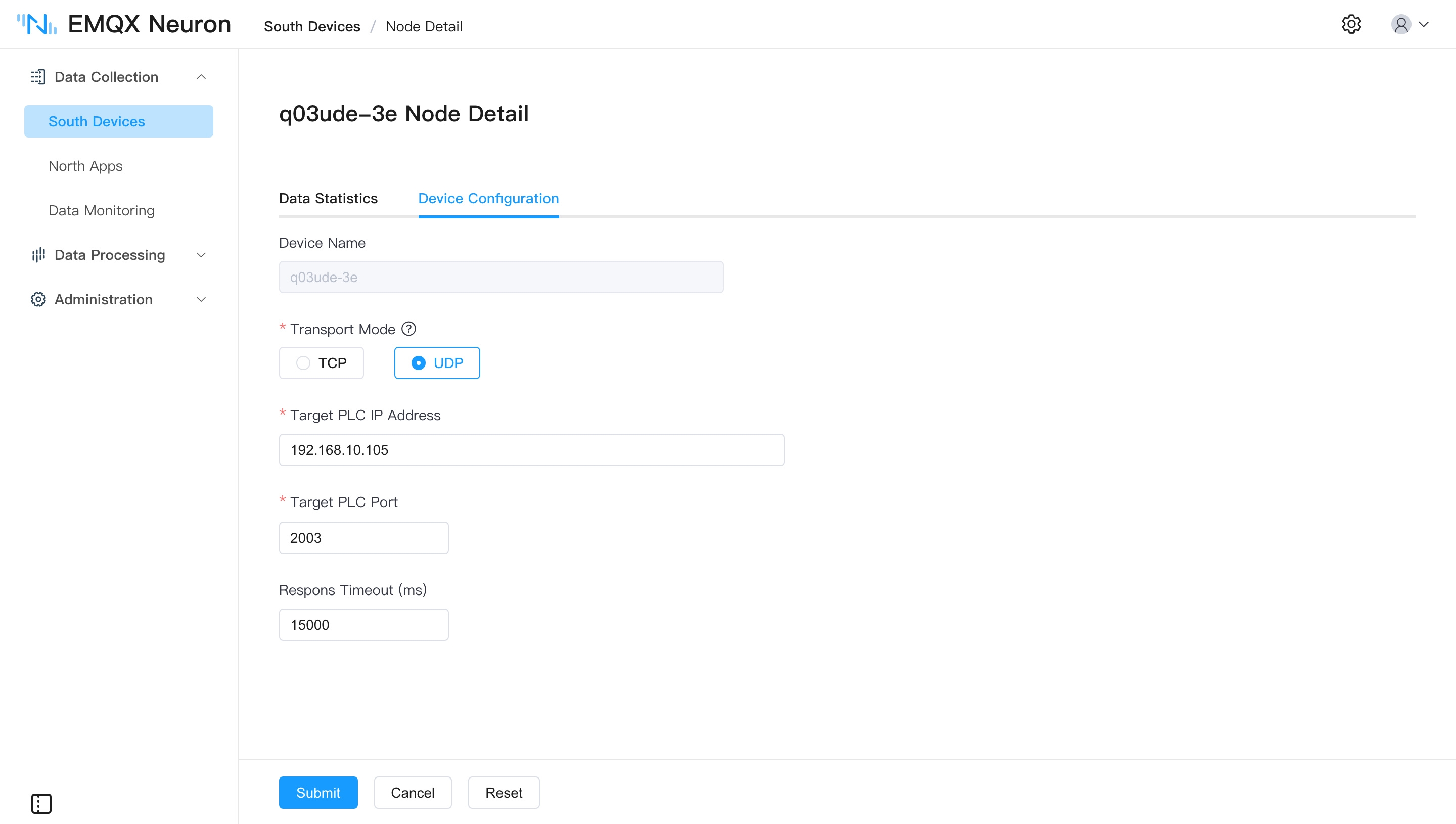
Connecting to the Q03UDE using UDP mode
Set the UDP protocol in plc, Protocol select udp, Port No. fill in the plc listening port.
In the EMQX Neuron device configuration, set Transport Mode to UDP and fill in Target PLC Port with the port the PLC listens on.
Test Data List
| Name | Address | Attribute | Data type |
|---|---|---|---|
| DATA1 | D0 | Read Write | INT16 |
| DATA2 | D1 | Read Write | UINT16 |
| DATA3 | D2 | Read Write | INT32 |
| DATA4 | D4 | Read Write | UINT32 |
| DATA5 | D6 | Read Write | FLOAT |
| DATA6 | D8 | Read Write | DOUBLE |
| DATA7 | X0 | Read | BIT |
| DATA8 | Y0 | Read Write | BIT |
| DATA9 | D20.0 | Read | BIT |
| DATA10 | D100.16 | Read Write | STRING |