Connect to Prosys Simulation Server
Developed by Prosys, the Prosys Simulation Server is a sophisticated OPC UA server that serves to replicate the behaviors of OPC UA devices and systems.
To establish a seamless connection with the Prosys Simulation Server using EMQX Neuron's OPC UA driver, it's essential first to switch the Prosys Simulation Server to Expert Mode. This can be done by selecting Options -> Switch to Expert Mode from the menu.
Anonymous Login
- Open the Endpoints -> Security Modes, deselect Sign and Sign&Encrypt, and select None.
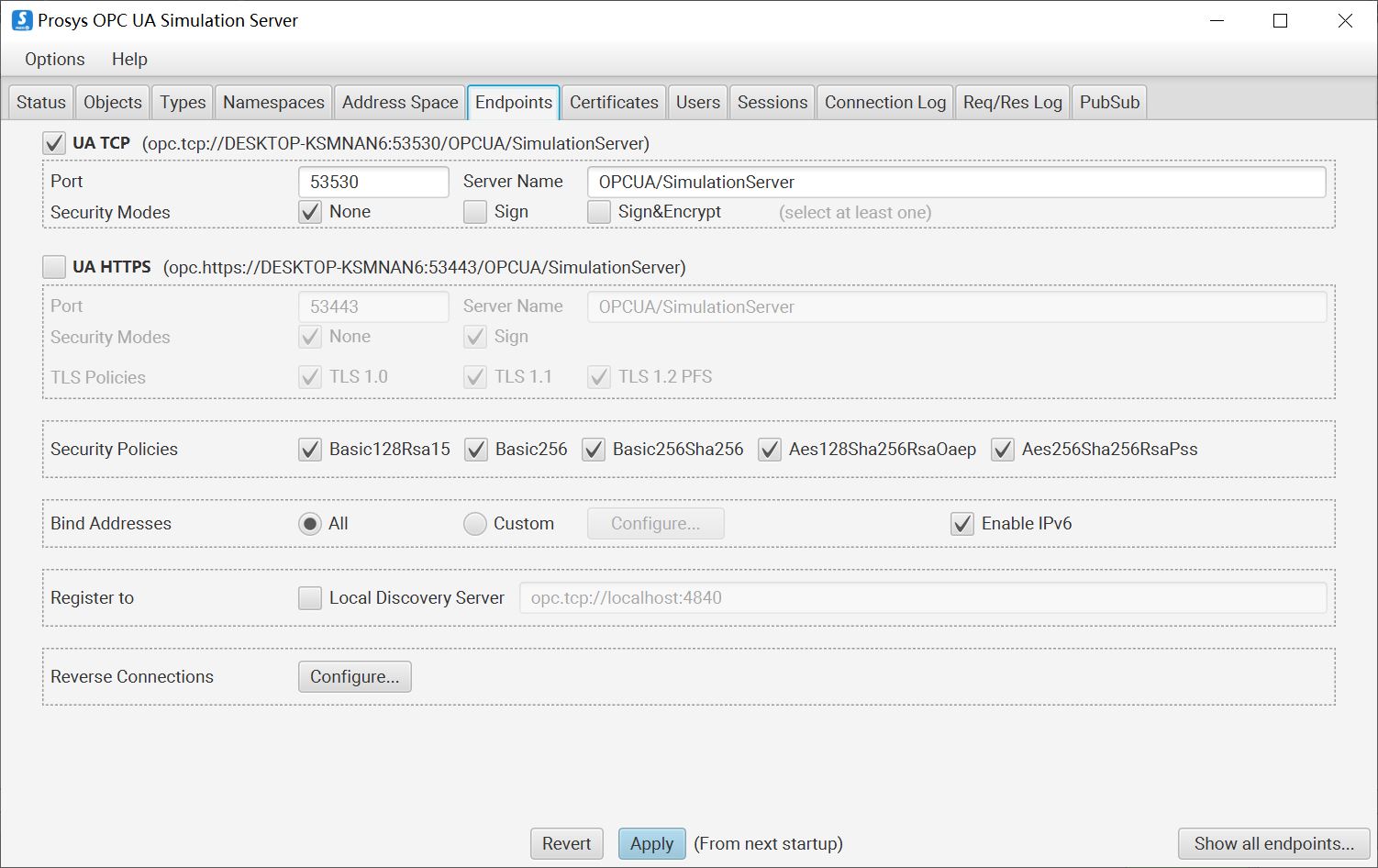
- Open the Users -> User Authentication Methods, deselect Username&Password, Certificate and IssuedToken/External System, and select Anonymous.
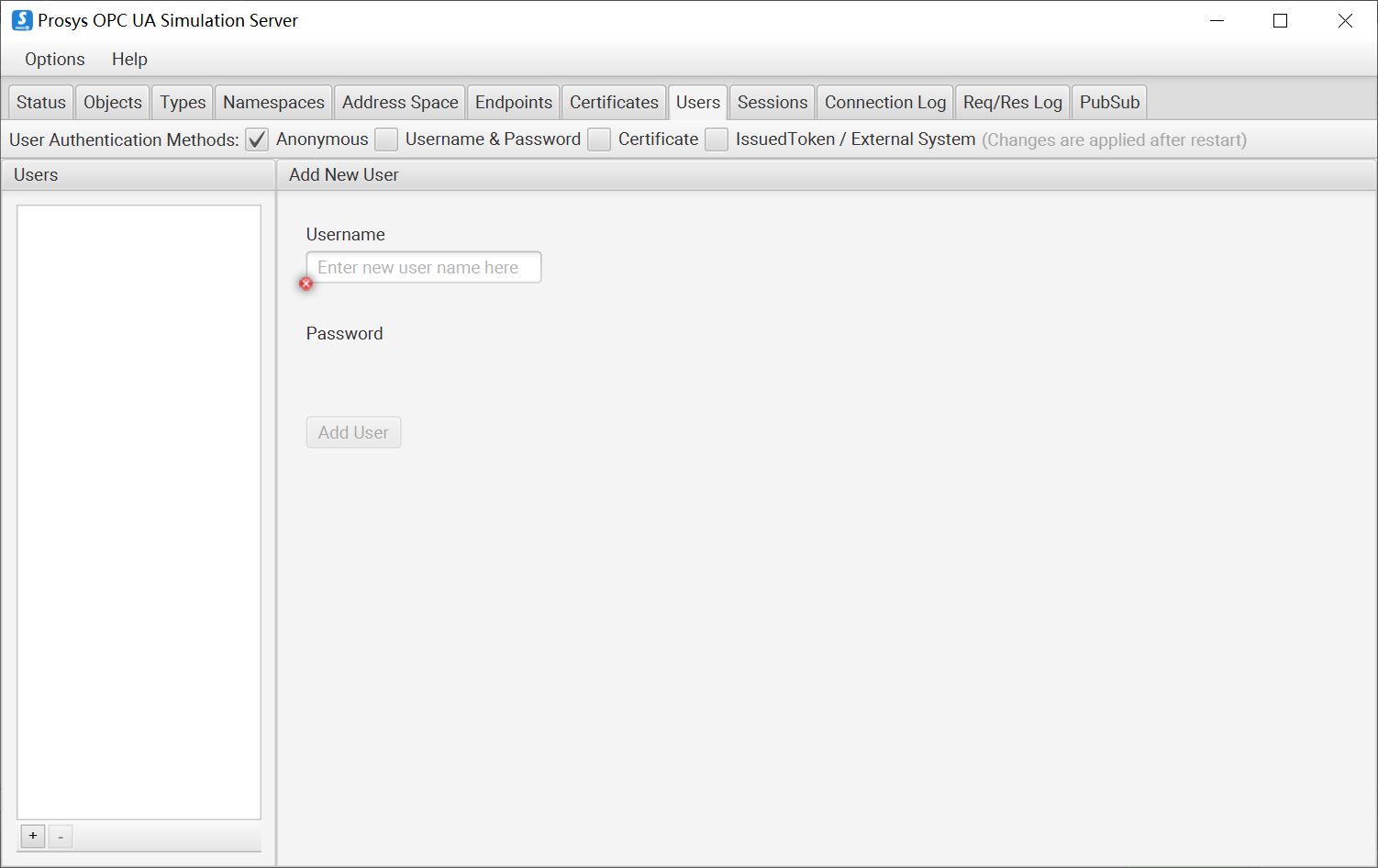
- Save the settings and restart the Prosys OPC UA Simulation Server.
Configure EMQX Neuron
- Get the PLC measurement point information via the UaExpert software, refer to UaExpert.
- EMQX Neuron adds a new southbound OPC UA device, opens Device Configuration, fills in the Endpoint URL of the target Server, without filling in username/password, without adding certificate/key, and starts the device connection.
- Add Groups and Tags based on the measurement point information.
Certificate/Key + Anonymous Login
- Refer to Connection policy to generate or convert a certificate/key.
- Open the Endpoints -> Security Modes, deselect None, and select Sign and Sign&Encrypt.
- Open the Users -> User Authentication Methods, deselect Username&Password, Certificate and IssuedToken/External System, and select Anonymous.
- Save the settings and restart the Prosys OPC UA Simulation Server.
Configure EMQX Neuron
Get the PLC measurement point information via the UaExpert software, refer to UaExpert.
EMQX Neuron adds a new southbound OPC UA device, opens Device Configuration, fills in the Endpoint URL of the target Server, does not need to fill in the username/password, adds the certificate/key and starts the device connection.
Open the Certificates and set the client certificate in the list to Trust.
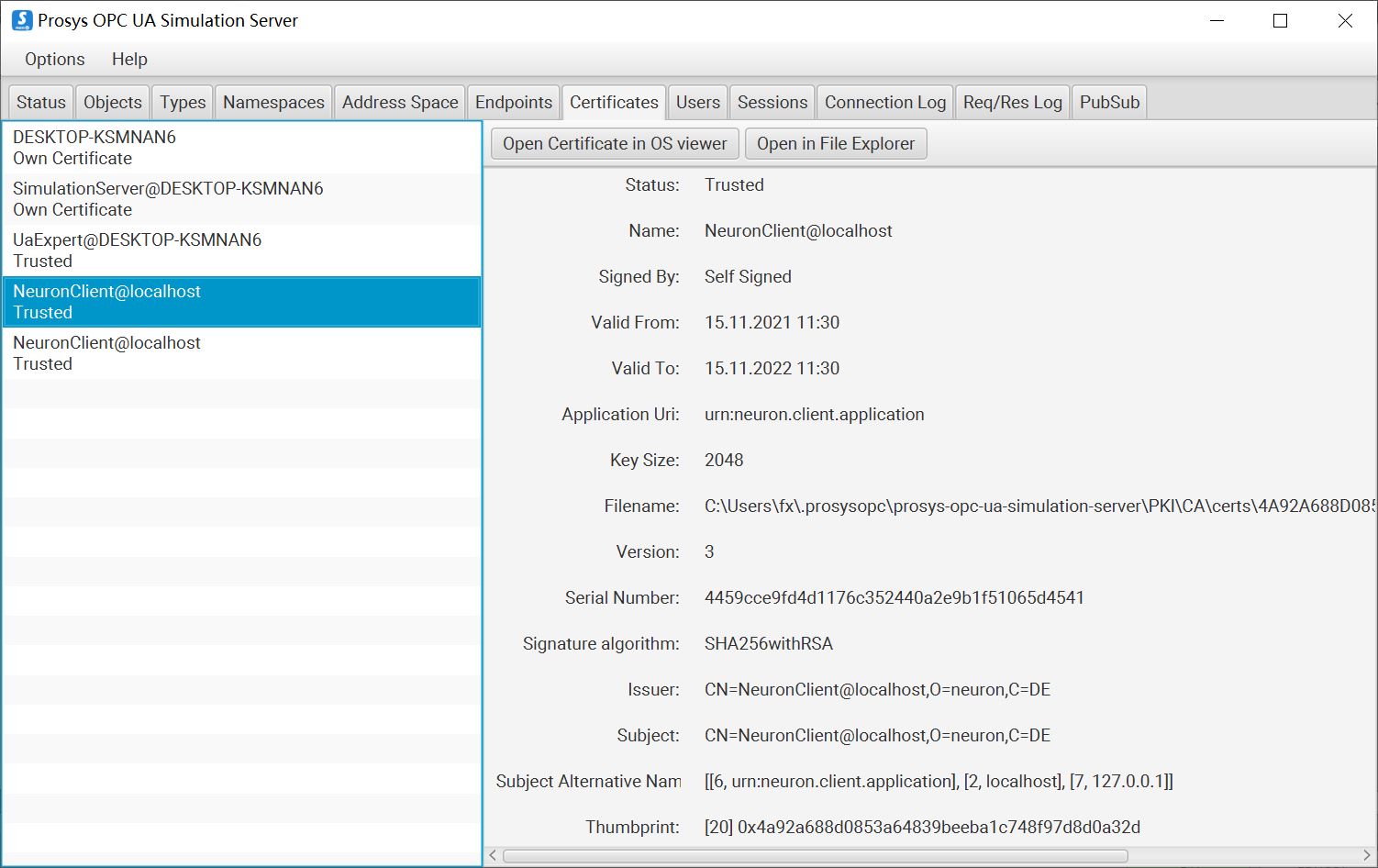
Add Groups and Tags based on the measurement point information.
Username/Password Login
Open the Endpoints -> Security Modes, deselect None, and select Sign and Sign&Encrypt.
Open the Users -> User Authentication Methods, deselect Anonymous, Certificate and IssuedToken/External System, and select Username&Password to add a custom username/password.
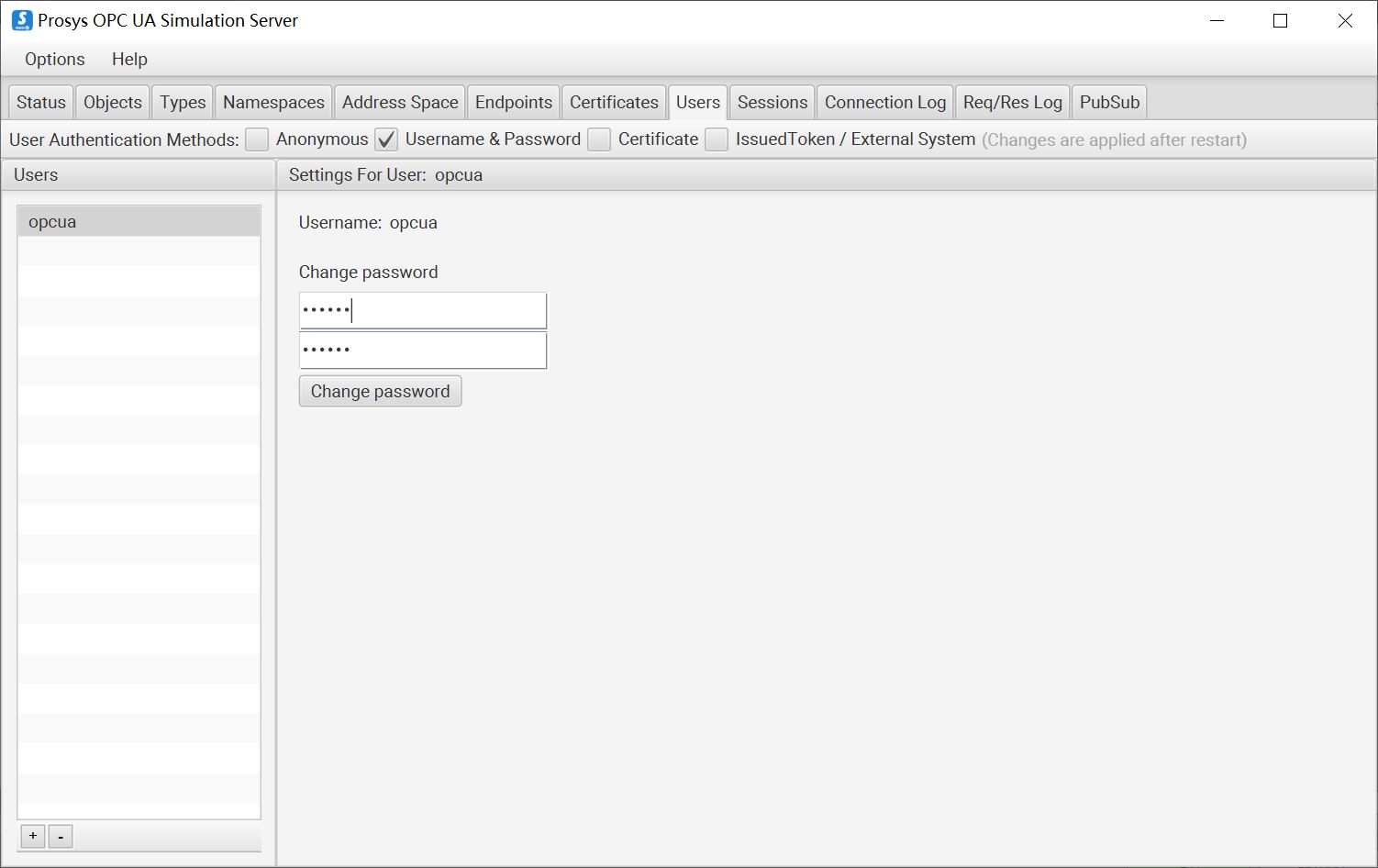
Save the settings and restart the Prosys OPC UA Simulation Server.
Configure EMQX Neuron
Get the PLC measurement point information via the UaExpert software, refer to UaExpert.
EMQX Neuron adds a new southbound OPC UA device, opens Device Configuration, fills in the Endpoint URL of the target Server, fills in the user name/password, no need to add certificate/key, and starts the device connection.
Open the Certificates and set the client certificate in the list to Trust.
Add Groups and Tags based on the measurement point information.
Certificate/Key + Username/Password Login
For how to set the certificate/key and the username/password, see the Certificate/Key + Anonymous Login and Username/Password Login sections above.
Configure EMQX Neuron
Get the PLC measurement point information via the UaExpert software, refer to UaExpert.
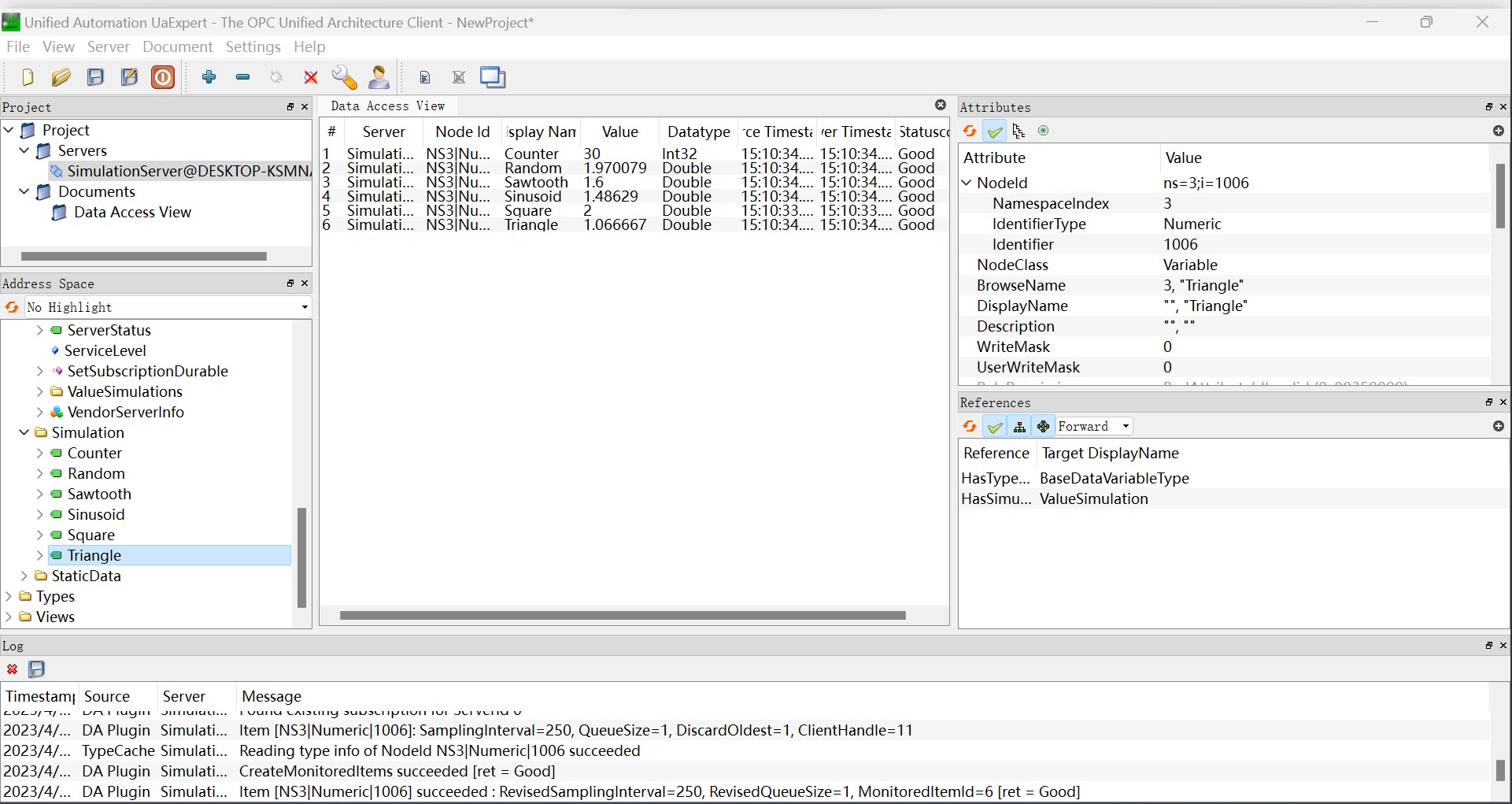
EMQX Neuron adds a new southbound OPC UA device, opens Device Configuration, fills in the Endpoint URL of the target Server, fills in the user name/password, adds the certificate/key, and starts the device connection(Change the Update Mode to Subscribe or Read&Subscribe to obtain data via OPC UA subscription.).
Open the Certificates and set the client certificate in the list to Trust.
Add Groups and Tags based on the measurement point information.
Test Data List
| Name | Address | Attribute | Data Type |
|---|---|---|---|
| Counter | 3!1001 | Read | INT32 |
| Random | 3!1002 | Read | DOUBLE |
| Sawtooth | 3!1003 | Read | DOUBLE |
| Sinusoid | 3!1004 | Read | DOUBLE |
| Square | 3!1005 | Read | DOUBLE |
| Triangle | 3!1006 | Read | DOUBLE |