OPC DA
EMQX Neuron can use the Neuron HUB driver and NeuronHUB Windows program to indirectly access OPC DA servers running on Windows systems. For remote system configuration, refer to DCOM Settings.
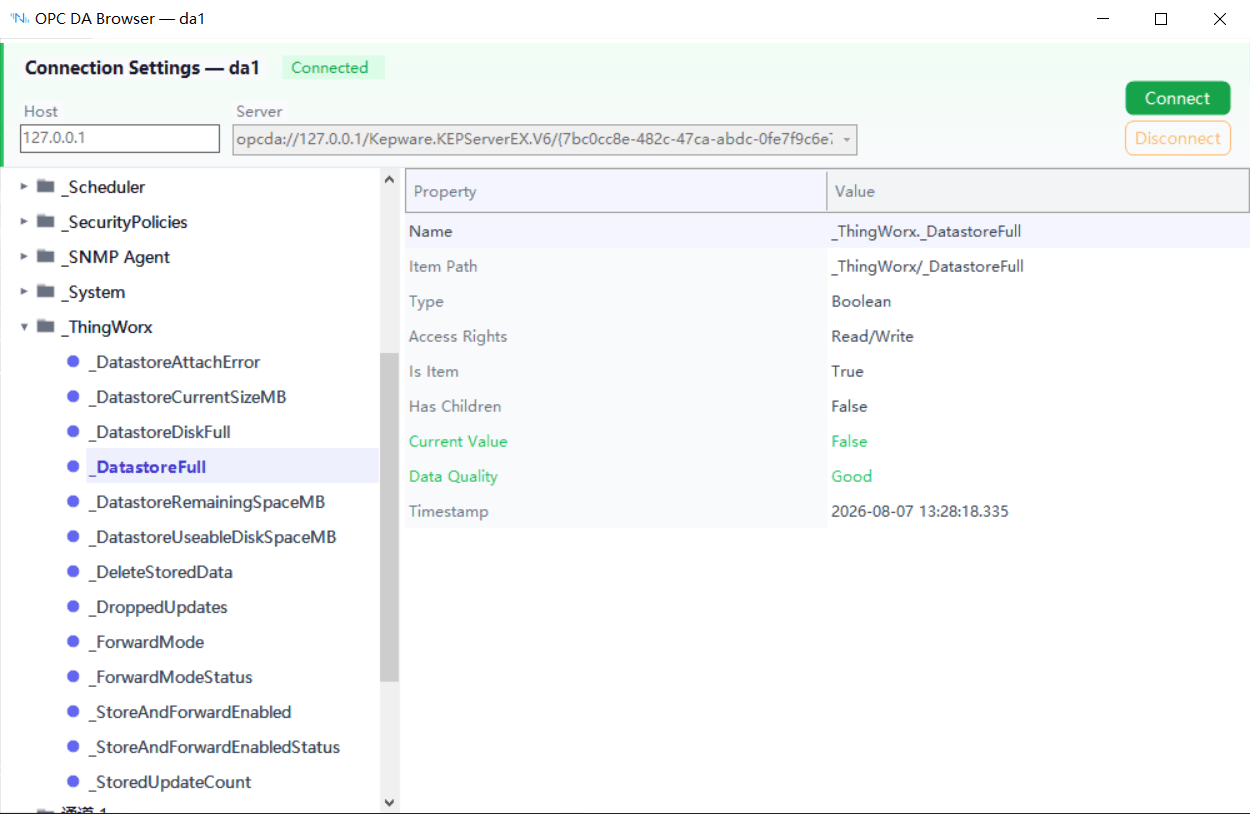
NEURON HUB Windows Program Parameters
| Parameter | Description |
|---|---|
| Node Name | Node name, must be unique to distinguish multiple nodes |
| Host | Target host identifier (IP or hostname) |
| UserName | user name |
| PassWrod | password |
| Domain | domain |
| Server | DA server name (e.g., opcda://192.168.10.133/Matrikon.OPC.Simulation). After filling in Host, click the dropdown to fetch server lists. |
Supported Data Types
- uint8
- int8
- uint16
- int16
- uint32
- int32
- uint64
- int64
- float
- double
- bool
- string
- ARRAY_INT8
- ARRAY_UINT8
- ARRAY_INT16
- ARRAY_UINT16
- ARRAY_INT32
- ARRAY_UINT32
- ARRAY_INT64
- ARRAY_UINT64
- ARRAY_FLOAT
- ARRAY_DOUBLE
- ARRAY_BOOL
- ARRAY_STRING
Address Format
When selecting the OPCDA node type in the Neuron HUB driver, the address format matches OPCDA. Alternatively, use the Export function to export all point information as a table and import it directly into NEURON.
Tag Browser
The OPCDA node supports browsing the OPC DA server. Click the Tag Browser button in the Actions column to open the browse interface, where nodes are organized in a tree structure. Right-click a branch node to add it to an acquisition group, and right-click a leaf node to add it as an acquisition point.