AWS Timestream for InfluxDB への MQTT データ取り込み
AWS Timestream for InfluxDB は、InfluxDB 2.x ワークロードを AWS 上で実行できるフルマネージドの時系列データベースサービスであり、データ取り込みの簡素化とリアルタイム分析を可能にします。EMQX 6.1 以降、EMQX は既存の InfluxDB Cloud、InfluxDB OSS、InfluxDB Enterprise のサポートに加え、Amazon Timestream for InfluxDB とのネイティブ統合をサポートしています。
本ページでは、EMQX と Amazon Timestream for InfluxDB 間のデータ統合について包括的に紹介し、設定およびデータフローの検証方法を実践的に解説します。
動作概要
Amazon Timestream for InfluxDB 統合は、EMQX のリアルタイムデータ処理およびルーティング機能と、Timestream のフルマネージドで高性能な InfluxDB エンジンを組み合わせています。
組み込みのルールエンジンと Timestream for InfluxDB Sink を通じて、EMQX は MQTT メッセージを変換し、カスタムアプリケーションコードなしで直接 Timestream for InfluxDB の DB インスタンスに書き込みます。
以下の図は、エネルギー貯蔵シナリオにおける EMQX と Amazon Timestream for InfluxDB 間の典型的なデータ統合アーキテクチャを示しています。
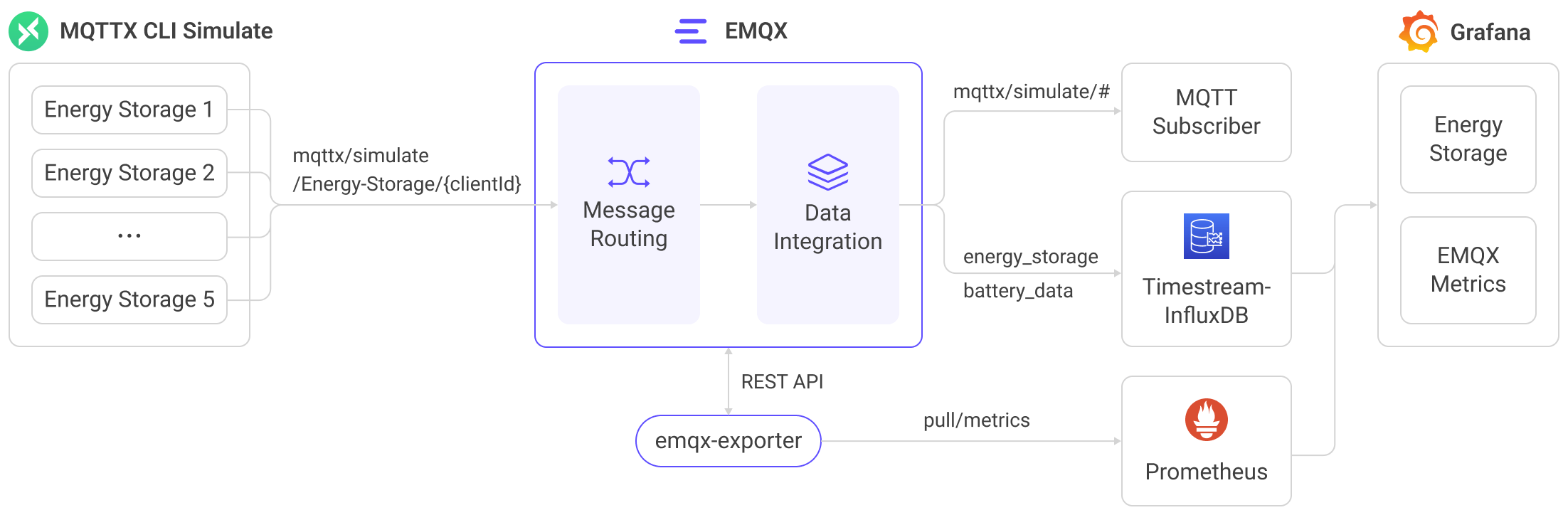
この統合は、リアルタイムのエネルギーモニタリングと分析のためのスケーラブルな IoT データパイプラインを提供します。EMQX は IoT メッセージング層としてデバイス接続とデータルーティングを担い、Timestream for InfluxDB はマネージドな時系列ストレージとクエリ機能を提供します。ワークフローは以下の通りです:
- メッセージのパブリッシュと受信:デバイスは MQTT 経由で EMQX に接続し、テレメトリ(例:電力使用量、充放電指標)をパブリッシュします。EMQX はこれらのメッセージを受信すると、ルールエンジン内でマッチング処理を開始します。
- メッセージ処理:ルールエンジンはトピックをマッチングし、フィルタリングやフィールド抽出、データ強化などの変換を適用し、ペイロードを Timestream for InfluxDB の対象バケットへの取り込み用に整形します。
- Timestream へのデータ取り込み:ルールが Amazon Timestream Sink をトリガーすると、EMQX は InfluxDB Line Protocol を用いてデータを書き込みます。テンプレートにより MQTT フィールドが計測値、タグ、フィールドにマッピングされます。
Timestream for InfluxDB に格納後は、Flux/InfluxQL クエリ、InfluxUI、Grafana などのツールを使って電力指標の可視化や業務システムとの連携による監視・アラートが可能です。
特長と利点
Amazon Timestream for InfluxDB 統合は以下の特長と利点を提供します:
- 効率的なデータ処理:EMQX は大規模な IoT 接続と高スループットの MQTT データを処理し、Timestream for InfluxDB は高速な取り込みとミリ秒単位のクエリ性能でリアルタイム分析を実現します。
- メッセージ変換:EMQX ルールは柔軟なフィルタリング、抽出、変換を提供し、MQTT メッセージを構造化 JSON マッピングまたはカスタム InfluxDB Line Protocol テンプレートとしてフォーマットしてから Timestream に書き込みます。
- マネージドスケーラビリティ:EMQX は大規模 IoT 展開向けの水平クラスタリングをサポートし、Timestream for InfluxDB はマネージドインスタンスのスケール、自動バックアップ、シームレスなバージョンアップデートを提供します。
- 豊富なクエリ機能:Timestream for InfluxDB は Flux と InfluxQL を含む InfluxDB 2.x のクエリエコシステムを完全サポートし、強力な時系列分析と下流ツールとの統合を可能にします。
- 最適化されたストレージ:Timestream for InfluxDB は AWS 管理のストレージを使用し、事前構成された IOPS とスループット階層により、時系列データワークロードに対して効率的かつコスト最適化されたパフォーマンスを提供します。
はじめる前に
このセクションでは、データ統合作成前の準備として、Amazon Timestream for InfluxDB 環境のセットアップと必要な接続パラメータの取得方法を説明します。
前提条件
統合設定前に以下を確認してください:
- EMQX が Timestream for InfluxDB への書き込みに使用する InfluxDB line protocol の理解。
- EMQX データ統合のルールとルールエンジンによる MQTT メッセージの変換・ルーティングの理解。
- EMQX のデータ統合の基本知識、特に Sink の設定とトリガー方法の理解。
Amazon Timestream for InfluxDB の準備
EMQX から Timestream for InfluxDB インスタンスへデータ送信を可能にするため、AWS 上で以下の準備を行います。
前提条件
Timestream for InfluxDB リソースの作成・管理権限を持つ AWS アカウントを用意してください。
Timestream for InfluxDB DB インスタンスの作成
AWS マネジメントコンソールにサインインし、Amazon Timestream for InfluxDB コンソールを開きます。
右上のリージョン選択で DB インスタンスを作成する AWS リージョンを選択します。
ナビゲーションペインで InfluxDB Databases を選択します。
Create InfluxDB database をクリックします。
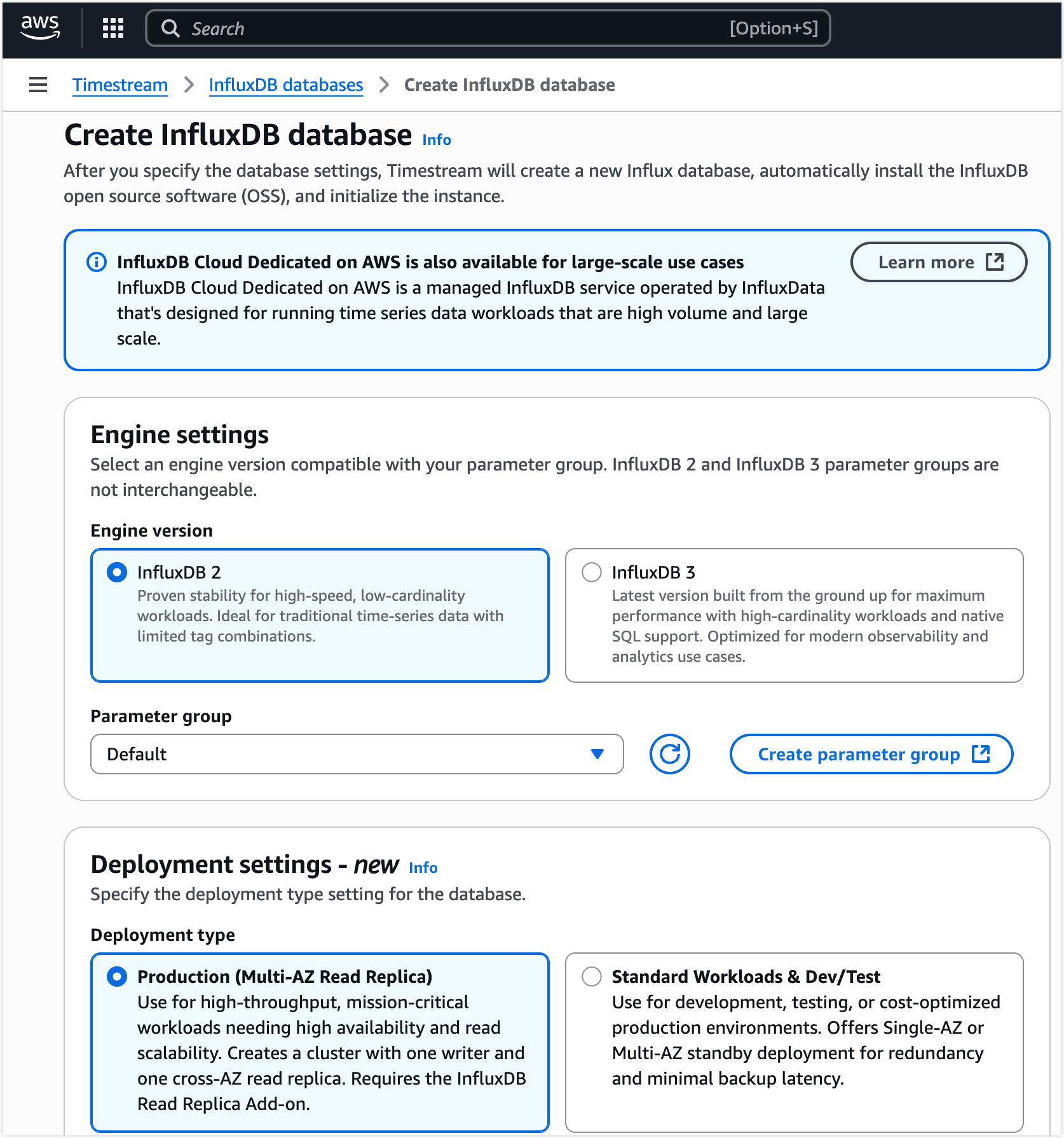
Engine settings でデプロイする InfluxDB エンジンのバージョンを選択します。
注意
エンジンバージョンは後述の EMQX コネクター用認証情報の取得方法に影響します。ワークロードと統合要件に合ったバージョンを選択してください。
残りの設定(デプロイ設定、ストレージオプション、ネットワーキング、ログ設定など)を要件に応じて完了します。各オプションの詳細は以下を参照してください:Create an InfluxDB DB Instance。
データベース作成後、インスタンス詳細ページを開き、AWS が生成したエンドポイント(例:
c5vasdqn0b-3ksj4dla5nfjhi.timestream-influxdb.us-east-1.on.aws)を取得します。EMQX コネクター設定時にこのエンドポイントが必要です。
ネットワークおよびセキュリティグループの設定
EMQX が Timestream for InfluxDB インスタンスに接続できるよう、インスタンスの VPC セキュリティグループで TCP ポート 8086 への着信を許可します。設定例は以下の通りです:
- プロトコル:TCP
- ポート:8086(Timestream for InfluxDB が使用する InfluxDB API ポート)
- 送信元:EMQX がデプロイされているネットワークの IP アドレス範囲またはセキュリティグループ
EMQX が Timestream for InfluxDB と同じ VPC 内にある場合は、VPC 内のプライベートネットワーク経路を通じて接続可能です。EMQX が AWS 外部で稼働する場合は、セキュリティグループが EMQX の外部ネットワークからの接続を許可していることを確認してください。また、EMQX から Timestream エンドポイントへの HTTPS/TCP 8086 トラフィックをブロックするアウトバウンドファイアウォールルールがないことも確認してください。
接続要件やセキュリティ考慮事項の詳細は AWS ドキュメントを参照してください:Connecting to an Amazon Timestream for InfluxDB DB instance。
InfluxDB トークン、Organization、Bucket の取得
トークンおよび認証情報の取得方法は、Timestream for InfluxDB インスタンス作成時に選択した InfluxDB エンジンバージョン によって異なります。
InfluxDB v2 DB インスタンスの Influx UI へのアクセス
DB インスタンスのエンドポイントを使って Influx UI にアクセスします:
https://<endpoint>:8086DB インスタンスがパブリックアクセス不可の場合、同一 VPC 内のホスト(バスチオンホストや SSM ポートフォワーディングなど)からアクセスする必要があります。詳細は AWS ドキュメント を参照してください。
DB インスタンス作成時に作成したマスターユーザーの認証情報でログインします。
対象バケットへの書き込み権限を持つパーソナルアクセストークンを生成または取得します。
これが EMQX が Timestream for InfluxDB に認証するために使用するトークンです。
注意
新規作成したトークンは一度しか表示されません。必ずコピーして保存してください。
インスタンスで設定された Organization と Bucket の値を確認します。これらは EMQX 設定時に正確に一致させる必要があります。
詳細は AWS 公式ドキュメントを参照してください:Access the InfluxDB UI。
InfluxDB v3 DB インスタンスの認証トークン取得
InfluxDB v3 は InfluxDB UI で API トークンを発行しません。代わりに、DB インスタンス作成時に認証パラメータ(API トークンを含む)が AWS Secrets Manager に保存されます。
Timestream コンソールの DB クラスター詳細ページを開き、Authentication properties Secret manager ARN フィールドを確認します。
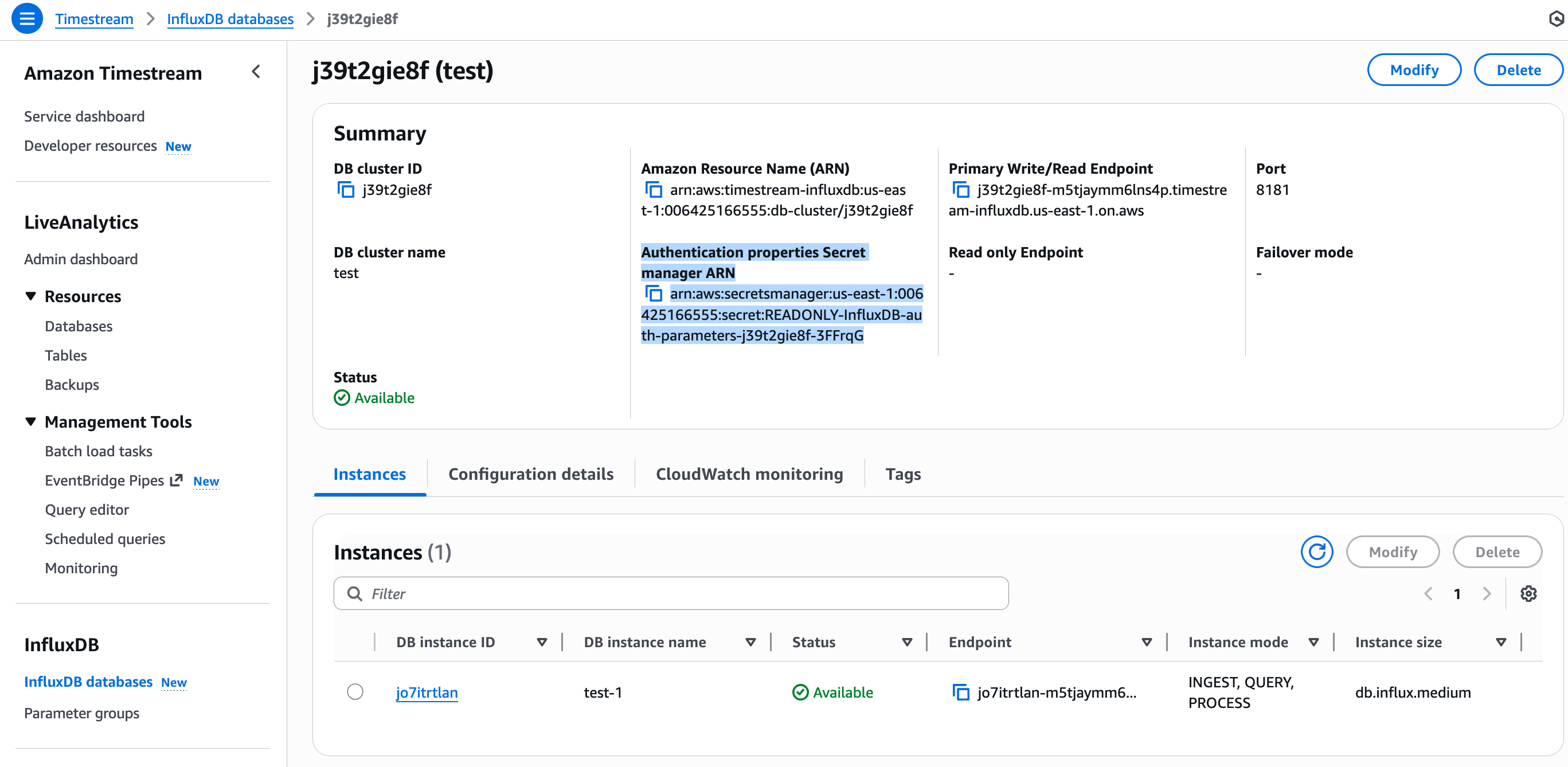
この ARN が EMQX が使用する認証情報を含む Secrets Manager エントリを指します。
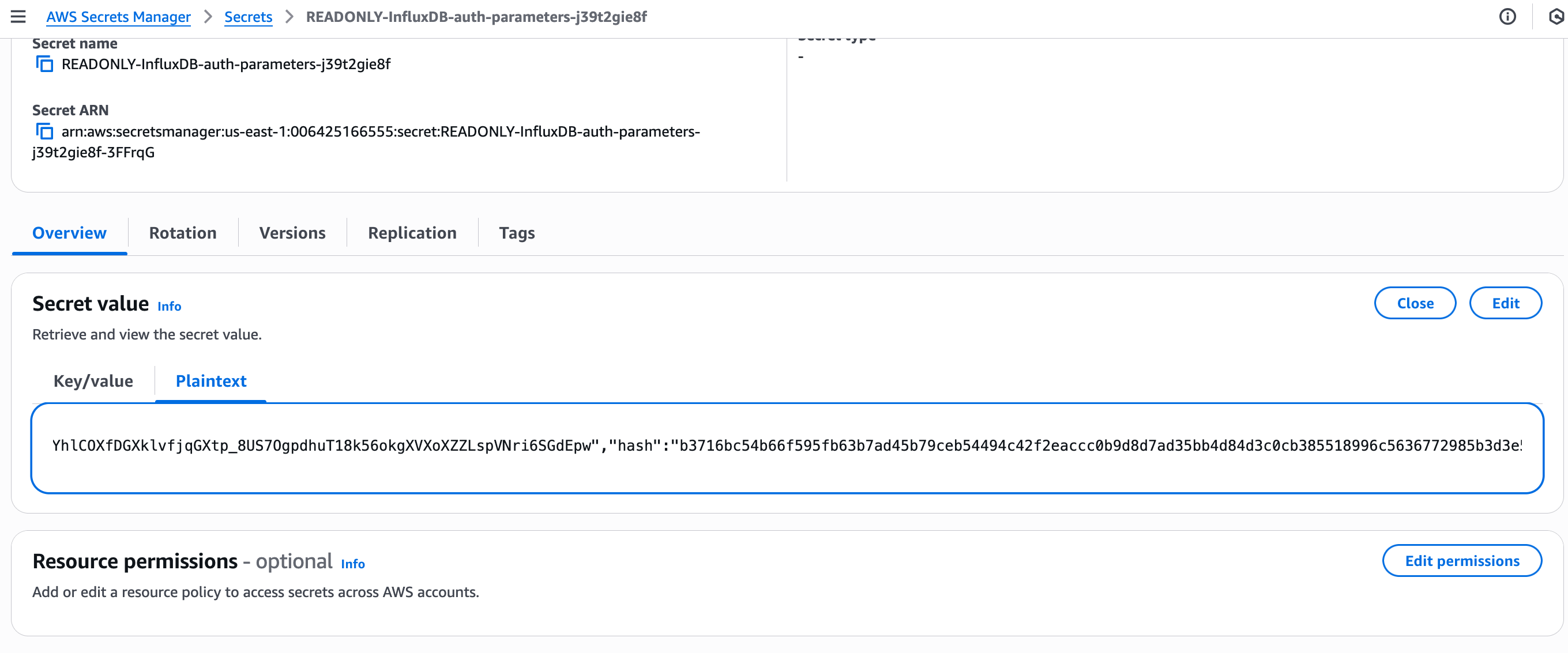
AWS Secrets Manager -> Secrets で該当のシークレット名(例:
READONLY-InfluxDB-auth-parameters-<cluster-id>)を検索します。シークレットを開き、Plaintext 表示に切り替えてシークレット内容を取得します。
必須接続パラメータ
EMQX の Amazon Timestream for InfluxDB コネクター設定時に、Timestream インスタンスの InfluxDB エンジンバージョンに応じて以下のパラメータを指定します:
| パラメータ | 説明 |
|---|---|
| Endpoint | InfluxDB インスタンスの AWS が生成したエンドポイント。例:xxxxxxx-yyyyyyyy.timestream-influxdb.<region>.on.aws |
| Port | 常に 8086。InfluxDB API エンドポイントのポート番号。 |
| Database Name | (InfluxDB v3)v3 DB インスタンス作成時に指定したデータベース名。 |
| Organization | (InfluxDB v2)InfluxDB UI で設定された Organization 名。 |
| Bucket | (InfluxDB v2)EMQX がテレメトリデータを書き込む Bucket 名。 |
| Token | EMQX が認証に使用するトークン: InfluxDB v2: InfluxDB UI で作成したパーソナルアクセストークン InfluxDB v3: AWS Secrets Manager から取得したトークン( token フィールド) |
コネクターの作成
このセクションでは、Sink を AWS Timestream for InfluxDB DB インスタンスに接続するコネクターの作成方法を説明します。
- EMQX ダッシュボードに入り、Integration -> Connectors をクリックします。
- ページ右上の Create をクリックします。
- Create Connector ページで、Data Persistence タイプから Amazon Timestream を選択し、Next をクリックします。
- Configuration ステップで以下の項目を設定します:
- Connector Name:英数字で始まる名前。英数字、ハイフン、アンダースコアが使用可能。例:
my_timestream - Server Host:Timestream for InfluxDB インスタンスのエンドポイントとポート。例:
<instance-endpoint>:8086 - Version of InfluxDB:Timestream インスタンスの設定に合致するバージョンを選択:
v2(デフォルト):InfluxDB トークン、Organization、Bucket の取得で収集したパーソナルアクセストークン、Organization 名、Bucket 名を入力。設定値は InfluxDB 側と完全に一致させる必要があります。v3:DB インスタンス作成時に指定したデータベース名と、InfluxDB v3 DB インスタンスのシークレット値取得で取得したシークレット値を入力。
- TLS(任意):Timestream for InfluxDB エンドポイントが HTTPS を要求する場合は TLS を有効化(推奨)。TLS 接続オプションの詳細は TLS for External Resource Access を参照してください。
- Connector Name:英数字で始まる名前。英数字、ハイフン、アンダースコアが使用可能。例:
- Create をクリックする前に、Test Connectivity を押してコネクターが Timestream InfluxDB DB インスタンスに接続可能かテストできます。
- ページ下部の Create ボタンを押してコネクター作成を完了します。ポップアップダイアログで Back to Connector List または Create Rule を選択し、ルールと Sink の作成に進めます。詳細は Amazon Timestream Sink を使ったルール作成 を参照してください。
Amazon Timestream Sink を使ったルール作成
このセクションでは、EMQX でソース MQTT トピック t/# のメッセージを処理し、設定済み Sink を通じて AWS Timestream for InfluxDB に送信するルールの作成方法を説明します。
ルール SQL の定義
EMQX ダッシュボードで左ナビゲーションメニューから Integration -> Rules をクリックします。
ページ右上の Create をクリックします。
Create Rule ページで、ルール ID に
my_ruleと入力します。SQL Editor にて、トピック
t/#以下のすべてのメッセージを転送するため、以下の SQL 文を設定します。sqlSELECT * FROM "t/#"TIP
カスタム SQL を記述する場合、
SELECT句に Sink のデータフォーマットで参照するすべての変数を含めるよう注意してください。初心者の方は SQL Examples と Enable Test をクリックして、SQL ルールの学習とテストを行うことができます。
ルールにアクション(Sink)を追加
ルール SQL 定義後、Amazon Timestream Sink アクションを作成し、ルールがトリガーした際に EMQX が処理済みデータを Timestream for InfluxDB に送信できるようにします。
基本設定の構成
Create Rule ページで + Add Action をクリックし、ルールの出力を定義します。
Type of Action ドロップダウンから
Amazon Timestreamを選択します。Action ドロップダウンはデフォルトの
Create Actionのままにします。既存の Sink を選択することも可能ですが、本例では新規作成します。
Name と任意で Description を入力します。
Connector ドロップダウンから、前に作成した
my_timestreamを選択します。必要に応じて新規コネクター作成も可能です。詳細は コネクターの作成 を参照してください。Time Precision を指定します(デフォルトは
millisecond)。
データフォーマットの設定
EMQX が Timestream for InfluxDB に書き込む前にデータをシリアライズする方法として、Data Format に JSON または Line Protocol を選択します。
JSON フォーマット
構造化された設定フィールドを好む場合は JSON フォーマットを使用します。EMQX が自動的に InfluxDB line protocol に変換します。
Measurement:計測名を指定します。例:
sensor_dataプレースホルダーもサポートします。例:
${topic}${payload.measurement}
Timestamp:(任意)数値またはプレースホルダー形式のタイムスタンプ。省略時は EMQX のサーバー時刻を使用します。
例:
${timestamp}${payload.ts}
Fields:各フィールドはキーと値のペアです。すべてのキー値は変数やプレースホルダーで指定可能で、InfluxDB line protocol に従って設定できます。
例:
キー 値 temp ${payload.temp}hum ${payload.hum}count ${payload.count}iバッチ設定: 数百のフィールドがある場合は CSV から一括インポート可能です。詳細は バッチ設定 を参照してください。
Tags:タグは常に文字列で、インデックス付けや高速クエリに使われます。
例:
キー 値 device ${clientid}region us-east
Line Protocol
最終的な書き込み構文を完全に制御したい場合は Line Protocol を使用します。Write Syntax ボックスに InfluxDB line protocol の構文でテンプレートを入力します:
<measurement>[,<tag-key>=<tag-value>...] <field-key>=<field-value>[,<field-key>=<field-value>...] <timestamp>例:
sensor_data,device=${clientid},region=us-east temp=${payload.temp},hum=${payload.hum},precip=${payload.precip}i ${timestamp}この例の説明:
sensor_dataは計測名deviceとregionはタグtemp、hum、precipはフィールド${timestamp}はタイムスタンプで、実行時に置換されます
TIP
- InfluxDB 1.x または 2.x に符号付き整数値を書き込む場合、プレースホルダーの後に
iを付けます(例:${payload.int}i)。詳細は InfluxDB 1.8 書き込み整数値 を参照してください。 - 符号なし整数値の場合は
uを付けます(例:${payload.int}u)。詳細は同上を参照してください。
バッチ設定
InfluxDB では通常、データエントリに数百のフィールドが含まれるため、データフォーマット設定が複雑になります。これを解決するため、EMQX はフィールドのバッチ設定機能を提供しています。
JSON フォーマット設定時に、CSV ファイルからフィールドのキー・値ペアを一括インポートできます。
Fields テーブルの Batch Setting ボタンをクリックし、Import Batch Setting ポップアップを開きます。
指示に従い、まずバッチ設定テンプレートファイルをダウンロードし、テンプレート内にフィールドのキー・値ペアを記入します。デフォルトテンプレートの内容例:
Field Value 備考(任意) temp ${payload.temp} hum ${payload.hum} precip ${payload.precip}i フィールド値に iを付けて整数として InfluxDB に保存する指定- Field:フィールドキー。定数または
${var}プレースホルダー形式をサポート。 - Value:フィールド値。定数またはプレースホルダーをサポートし、line protocol に従い型識別子を付加可能。
- 備考:CSV 内のメモ用で、EMQX へのインポートには含まれません。
CSV ファイルの行数は 2048 行を超えないようにしてください。
- Field:フィールドキー。定数または
記入済みテンプレートを保存し、Import Batch Setting ポップアップにアップロードして Import をクリックし、一括設定を完了します。
インポート後、Fields 設定テーブルでキー・値ペアをさらに調整可能です。
アクション作成の完了
- Fallback Actions と Advanced Settings(任意)を設定します:
- Fallback Actions:メッセージ配信失敗時の信頼性向上のため、1つ以上のフォールバックアクションを定義可能です。詳細は Fallback Actions を参照してください。
- Advanced settings:詳細は 高度な設定 を参照してください。
- Add Action ペイン下部の Test Connectivity をクリックし、Sink が Timestream for InfluxDB インスタンスに接続可能かテストします。
- Create をクリックしてアクション作成を完了します。保存後、ルールページの Action Outputs に Sink が表示されます。
ルール作成の完了
Create Rule ページで設定内容を確認し、Create ボタンをクリックしてルールを生成します。
これでルール作成が完了し、Rule ページに新規ルールが表示されます。Actions(Sink) タブをクリックすると、新規の Amazon Timestream Sink が確認できます。
また、Integration -> Flow Designer をクリックするとトポロジーを確認でき、トピック t/# のメッセージがルール my_rule によって解析され、Amazon Timestream に送信・保存されていることがわかります。
ルールのテスト
統合作成後、EMQX が MQTT メッセージを Timestream for InfluxDB インスタンスに正常に転送しているか検証できます。
テスト MQTT メッセージのパブリッシュ
MQTTX(または任意の MQTT クライアント)を使い、ルールにマッチするトピック t/1 にメッセージをパブリッシュします:
mqttx pub -i emqx_c -t t/1 -m '{ "temp": "36.5", "hum": "70", "precip": "12" }'このメッセージによりルールがトリガーされ、設定済みの Timestream for InfluxDB Sink に送信されます。
EMQX で Sink 配信状況の確認
EMQX ダッシュボードでルール名をクリックし、ルール詳細ページを開きます。受信メッセージ数が 1、正常に配信された送信メッセージ数が 1 であることを確認してください。
Timestream for InfluxDB でのデータ確認
InfluxDB v2 インスタンスの場合
InfluxDB UI を使用します:
https://<endpoint>:8086の InfluxDB UI を開きます。Data Explorer に移動します。
EMQX Sink で設定した Bucket を選択します。
最近のデータポイントをクエリまたは参照します。
選択した計測に以下のフィールドを含む新しいポイントが表示されるはずです。
temphumprecip
InfluxDB v3 インスタンスの場合
InfluxDB v3 は UI でのデータ閲覧を提供しません。InfluxDB v3 SQL Query API を使って取り込んだデータを検証します。
例:
curl -G -k "https://<endpoint>:8181/api/v3/query_sql" \
  --header "Authorization: Bearer <your-token>" \
  --data-urlencode "db=<your-database-name>" \
  --data-urlencode "q=SELECT * FROM sensor_data" \
  --data-urlencode "format=jsonl"
期待される出力例:
{"temp":36.5,"hum":70,"precip":12,"device":"myclient","region":"us-east", ... }正常な応答は挿入されたデータを JSONL 形式で返します。
詳細なクエリ例は InfluxDB の API ドキュメント を参照してください。
高度な設定
このセクションでは、Amazon Timestream コネクターおよび Sink の高度な設定オプションについて説明します。ダッシュボードでコネクターや Sink を設定する際、Advanced Settings にて以下のパラメータを調整し、要件に合わせた最適化が可能です。
| 項目 | 説明 | 推奨値 |
|---|---|---|
| Start Timeout | コネクター起動時にターゲットリソース(例:Timestream for InfluxDB インスタンス)が正常になるまで待機する最大時間(秒)。時間内に準備できない場合、作成リクエストは失敗します。 | 5 |
| Buffer Pool Size | Timestream for InfluxDB へ送信前にデータを処理するバッファワーカープロセス数。書き込み負荷が高い場合にスループット向上が期待できます。イングレス専用シナリオでは 0 に設定可能。 | 4 |
| Request TTL | 書き込みリクエストがバッファ内に留まる最大時間(秒)。この期間内に送信またはアックされないリクエストは期限切れとして破棄されます。 | 45 |
| Health Check Interval | Sink が Timestream for InfluxDB エンドポイントの接続性と正常性をチェックする間隔(秒)。 | 15 |
| Max Buffer Queue Size | バッファワーカーが送信待ちに保持可能な最大データ量(バイト)。データバーストによる一時的なバックプレッシャー対策に増加可能。 | 1 |
| Max Batch Size | 1 回の書き込みリクエストで送信する最大レコード数。大きいほどスループット向上が期待できますがレイテンシが増加する可能性があります。1 に設定するとバッチ処理を無効化し、個別送信になります。 | 100 |
| Query Mode | 書き込み処理を非同期または同期で行うか制御します。Async モードでは Timestream への書き込みが MQTT メッセージのパブリッシュ処理をブロックしませんが、クライアントが Timestream への到達前にメッセージを受信する可能性があります。 | Async |
| Inflight Window | 同時に進行可能な書き込みリクエストの最大数。Query Mode が Async の場合の並行度制御に使います。同一 MQTT クライアントからのメッセージの厳密な順序保証が必要な場合は 1 に設定してください。 | 100 |