KubernetesでEMQXログを収集する
目的
ELKを使用してEMQXクラスターのログを収集します。
ELKのデプロイ
ELKはElasticsearch、Logstash、Kibana(Elastic Stackとも呼ばれます)を指します:
- Elasticsearch:Luceneに基づく分散型のほぼリアルタイム検索および分析エンジンで、データ操作のためのREST APIを提供します。
- Logstash:さまざまなソースからログを収集、変換、転送するための主要なデータフローエンジンです。
- Kibana:Elasticsearchのデータをリアルタイムで可視化・分析するためのWebインターフェースです。
シングルノードElasticsearchのデプロイ
シングルノードのElasticsearchクラスターのデプロイは比較的簡単です。以下のYAML構成ファイルを使用して、迅速にElasticsearchクラスターをデプロイできます。
以下の内容をYAMLファイルとして保存し、
kubectl applyでデプロイします。yaml--- apiVersion: v1 kind: Service metadata: name: elasticsearch-logging namespace: kube-logging labels: k8s-app: elasticsearch kubernetes.io/cluster-service: "true" addonmanager.kubernetes.io/mode: Reconcile spec: ports: - port: 9200 protocol: TCP targetPort: db selector: k8s-app: elasticsearch --- apiVersion: v1 kind: ServiceAccount metadata: name: elasticsearch-logging namespace: kube-logging labels: k8s-app: elasticsearch kubernetes.io/cluster-service: "true" addonmanager.kubernetes.io/mode: Reconcile --- kind: ClusterRole apiVersion: rbac.authorization.k8s.io/v1 metadata: name: elasticsearch-logging labels: k8s-app: elasticsearch kubernetes.io/cluster-service: "true" addonmanager.kubernetes.io/mode: Reconcile rules: - apiGroups: - "" resources: - "services" - "namespaces" - "endpoints" verbs: - "get" --- kind: ClusterRoleBinding apiVersion: rbac.authorization.k8s.io/v1 metadata: namespace: kube-logging name: elasticsearch-logging labels: k8s-app: elasticsearch kubernetes.io/cluster-service: "true" addonmanager.kubernetes.io/mode: Reconcile subjects: - kind: ServiceAccount name: elasticsearch-logging namespace: kube-logging apiGroup: "" roleRef: kind: ClusterRole name: elasticsearch apiGroup: "" --- apiVersion: apps/v1 kind: StatefulSet metadata: name: elasticsearch-logging namespace: kube-logging labels: k8s-app: elasticsearch kubernetes.io/cluster-service: "true" addonmanager.kubernetes.io/mode: Reconcile spec: serviceName: elasticsearch-logging replicas: 1 selector: matchLabels: k8s-app: elasticsearch template: metadata: labels: k8s-app: elasticsearch spec: serviceAccountName: elasticsearch-logging containers: - image: docker.io/library/elasticsearch:7.9.3 name: elasticsearch-logging resources: limits: cpu: 1000m memory: 1Gi requests: cpu: 100m memory: 500Mi ports: - containerPort: 9200 name: db protocol: TCP - containerPort: 9300 name: transport protocol: TCP volumeMounts: - name: elasticsearch-logging mountPath: /usr/share/elasticsearch/data/ env: - name: "NAMESPACE" valueFrom: fieldRef: fieldPath: metadata.namespace - name: "discovery.type" value: "single-node" - name: ES_JAVA_OPTS value: "-Xms512m -Xmx2g" # Elasticsearchはvm.max_map_countを最低262144に設定する必要があります。 # OSで既により高い値に設定されている場合は、このinitコンテナを削除しても問題ありません。 initContainers: - name: elasticsearch-logging-init image: alpine:3.6 command: ["/sbin/sysctl", "-w", "vm.max_map_count=262144"] securityContext: privileged: true - name: increase-fd-ulimit image: busybox imagePullPolicy: IfNotPresent command: ["sh", "-c", "ulimit -n 65536"] securityContext: privileged: true - name: elasticsearch-volume-init image: alpine:3.6 command: -chmod - -R - "777" - /usr/share/elasticsearch/data/ volumeMounts: - name: elasticsearch-logging mountPath: /usr/share/elasticsearch/data/ volumeClaimTemplates: - metadata: name: elasticsearch-logging spec: storageClassName: ${storageClassName} accessModes: [ "ReadWriteOnce" ] resources: requests: storage: 10GiTIP
storageClassNameフィールドを使用して適切なStorageClassを選択してください。kubectl get storageclassコマンドでKubernetesクラスター内に存在するStorageClassを一覧表示できます。または、ニーズに応じてStorageClassを作成してください。Elasticsearchの準備が完了するまで待ちます。
kubectl getコマンドでElasticsearchのPodの状態を確認し、STATUSがRunningであることを確認してください。bash$ kubectl get pod -n kube-logging -l "k8s-app=elasticsearch" NAME READY STATUS RESTARTS AGE elasticsearch-0 1/1 Running 0 16m
Kibanaのデプロイ
この手順では、収集したログを可視化するためにDeploymentでKibanaをデプロイし、NodePortタイプのServiceでKibanaを外部に公開します。
以下の内容をYAMLファイルとして保存し、
kubectl applyでデプロイします。yaml--- apiVersion: v1 kind: Service metadata: name: kibana namespace: kube-logging labels: k8s-app: kibana spec: type: NodePort ports: - port: 5601 nodePort: 35601 protocol: TCP targetPort: ui selector: k8s-app: kibana --- apiVersion: apps/v1 kind: Deployment metadata: name: kibana namespace: kube-logging labels: k8s-app: kibana kubernetes.io/cluster-service: "true" addonmanager.kubernetes.io/mode: Reconcile spec: replicas: 1 selector: matchLabels: k8s-app: kibana template: metadata: labels: k8s-app: kibana annotations: seccomp.security.alpha.kubernetes.io/pod: 'docker/default' spec: containers: - name: kibana image: docker.io/kubeimages/kibana:7.9.3 resources: limits: cpu: 1000m requests: cpu: 100m env: # Elasticsearchのアクセス先 - name: ELASTICSEARCH_HOSTS value: http://elasticsearch-logging:9200 ports: - containerPort: 5601 name: ui protocol: TCPKibanaの準備が完了するまで待ちます。
kubectl getコマンドでKibanaのPodの状態を確認し、STATUSがRunningであることを確認してください。bash$ kubectl get pod -n kube-logging -l "k8s-app=kibana" NAME READY STATUS RESTARTS AGE kibana-b7d98644-48gtm 1/1 Running 0 17mブラウザで
http://{node_ip}:35601にアクセスし、KibanaのWebインターフェースを開きます。
Filebeatのデプロイ
FilebeatはElastic Stackの軽量ログ収集コンポーネントで、Logstash、Elasticsearch、Kibanaとシームレスに連携します。
以下の内容をYAMLファイルとして保存し、
kubectl applyでデプロイします。yaml--- apiVersion: v1 kind: ConfigMap metadata: name: filebeat-config namespace: kube-logging labels: k8s-app: filebeat data: filebeat.yml: |- filebeat.inputs: - type: container paths: # ホスト上のEMQXコンテナのログパス - /var/log/containers/^emqx.*.log processors: - add_kubernetes_metadata: host: ${NODE_NAME} matchers: - logs_path: logs_path: "/var/log/containers/" output.logstash: hosts: ["logstash:5044"] enabled: true --- apiVersion: v1 kind: ServiceAccount metadata: name: filebeat namespace: kube-logging labels: k8s-app: filebeat --- apiVersion: rbac.authorization.k8s.io/v1beta1 kind: ClusterRole metadata: name: filebeat labels: k8s-app: filebeat rules: - apiGroups: [""] resources: - namespaces - pods verbs: - get - watch - list --- apiVersion: rbac.authorization.k8s.io/v1beta1 kind: ClusterRoleBinding metadata: name: filebeat subjects: - kind: ServiceAccount name: filebeat namespace: kube-logging roleRef: kind: ClusterRole name: filebeat apiGroup: rbac.authorization.k8s.io --- apiVersion: apps/v1 kind: DaemonSet metadata: name: filebeat namespace: kube-logging labels: k8s-app: filebeat spec: selector: matchLabels: k8s-app: filebeat template: metadata: labels: k8s-app: filebeat spec: serviceAccountName: filebeat terminationGracePeriodSeconds: 30 containers: - name: filebeat image: docker.io/kubeimages/filebeat:7.9.3 args: [ "-c", "/etc/filebeat.yml", "-e","-httpprof","0.0.0.0:6060" ] env: - name: NODE_NAME valueFrom: fieldRef: fieldPath: spec.nodeName - name: ELASTICSEARCH_HOST value: elasticsearch - name: ELASTICSEARCH_PORT value: "9200" securityContext: runAsUser: 0 resources: limits: memory: 1000Mi cpu: 1000m requests: memory: 100Mi cpu: 100m volumeMounts: - name: config mountPath: /etc/filebeat.yml readOnly: true subPath: filebeat.yml - name: data mountPath: /usr/share/filebeat/data - name: varlibdockercontainers mountPath: /data/var/ readOnly: true - name: varlog mountPath: /var/log/ readOnly: true - name: timezone mountPath: /etc/localtime volumes: - name: config configMap: defaultMode: 0600 name: filebeat-config - name: varlibdockercontainers hostPath: path: /data/var/ - name: varlog hostPath: path: /var/log/ - name: inputs configMap: defaultMode: 0600 name: filebeat-inputs - name: data hostPath: path: /data/filebeat-data type: DirectoryOrCreate - name: timezone hostPath: path: /etc/localtimeFilebeatの準備が完了するまで待ちます。
kubectl getコマンドでFilebeatのPodの状態を確認し、STATUSがRunningであることを確認してください。bash$ kubectl get pod -n kube-logging -l "k8s-app=filebeat" NAME READY STATUS RESTARTS AGE filebeat-82d2b 1/1 Running 0 45m filebeat-vwrjn 1/1 Running 0 45m
Logstashのデプロイ
Logstashはログの処理とクレンジングに使用します。
この手順では、LogstashのBeats Inputプラグインを使用してログを収集し、Rubyフィルタープラグインでログをフィルタリングします。Logstashは他にも多くの入力およびフィルタリングプラグインを提供しており、ビジネスニーズに応じて設定可能です。
以下の内容をYAMLファイルとして保存し、
kubectl applyでデプロイします。yaml--- apiVersion: v1 kind: Service metadata: name: logstash namespace: kube-logging spec: ports: - port: 5044 targetPort: beats selector: k8s-app: logstash clusterIP: None --- apiVersion: apps/v1 kind: Deployment metadata: name: logstash namespace: kube-logging spec: selector: matchLabels: k8s-app: logstash template: metadata: labels: k8s-app: logstash spec: containers: - image: docker.io/kubeimages/logstash:7.9.3 name: logstash ports: - containerPort: 5044 name: beats command: - logstash - '-f' - '/etc/logstash_c/logstash.conf' env: - name: "XPACK_MONITORING_ELASTICSEARCH_HOSTS" value: "http://elasticsearch-logging:9200" volumeMounts: - name: config-volume mountPath: /etc/logstash_c/ - name: config-yml-volume mountPath: /usr/share/logstash/config/ - name: timezone mountPath: /etc/localtime resources: limits: cpu: 1000m memory: 2048Mi requests: cpu: 512m memory: 512Mi volumes: - name: config-volume configMap: name: logstash-conf items: - key: logstash.conf path: logstash.conf - name: timezone hostPath: path: /etc/localtime - name: config-yml-volume configMap: name: logstash-yml items: - key: logstash.yml path: logstash.yml --- apiVersion: v1 kind: ConfigMap metadata: name: logstash-conf namespace: kube-logging labels: k8s-app: logstash data: logstash.conf: |- input { beats { port => 5044 } } filter { ruby { code => " ss = event.get('message').split(' ') len = ss.length() level = '' index = '' msg = '' if len == 0 || len < 2 event.set('level','invalid') return end if ss[1][0] == '[' l = ss[1].length() level = ss[1][1..l-2] index = 2 else level = 'info' index = 0 end event.set('level',level) for i in ss[index..len] msg = msg + i msg = msg + ' ' end event.set('message',msg) " } if [level] == "invalid" { drop {} } } output { elasticsearch { hosts => ["http://elasticsearch-logging:9200"] codec => json index => "logstash-%{+YYYY.MM.dd}" } } --- apiVersion: v1 kind: ConfigMap metadata: name: logstash-yml namespace: kube-logging labels: k8s-app: logstash data: logstash.yml: |- http.host: "0.0.0.0" xpack.monitoring.elasticsearch.hosts: http://elasticsearch-logging:9200Logstashの準備が完了するまで待ちます。
kubectl getコマンドでLogstashのPodの状態を確認し、STATUSがRunningであることを確認してください。bash$ kubectl get pod -n kube-logging -l "k8s-app=logstash" NAME READY STATUS RESTARTS AGE filebeat-82d2b 1/1 Running 0 45m filebeat-vwrjn 1/1 Running 0 45m
EMQXクラスターのデプロイ
EMQXクラスターのデプロイについては、ドキュメントDeploy EMQXを参照してください。
ログ収集の検証
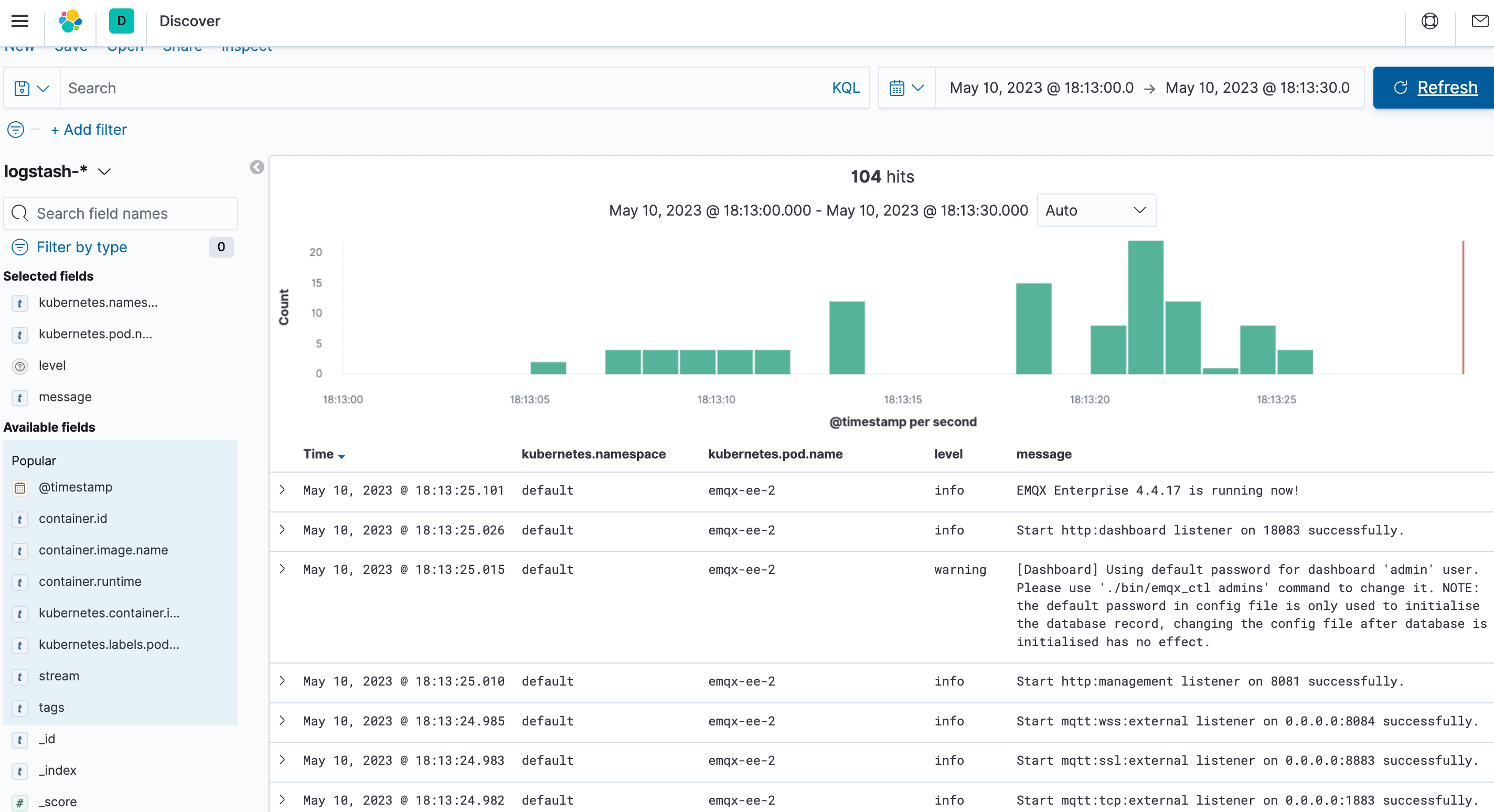
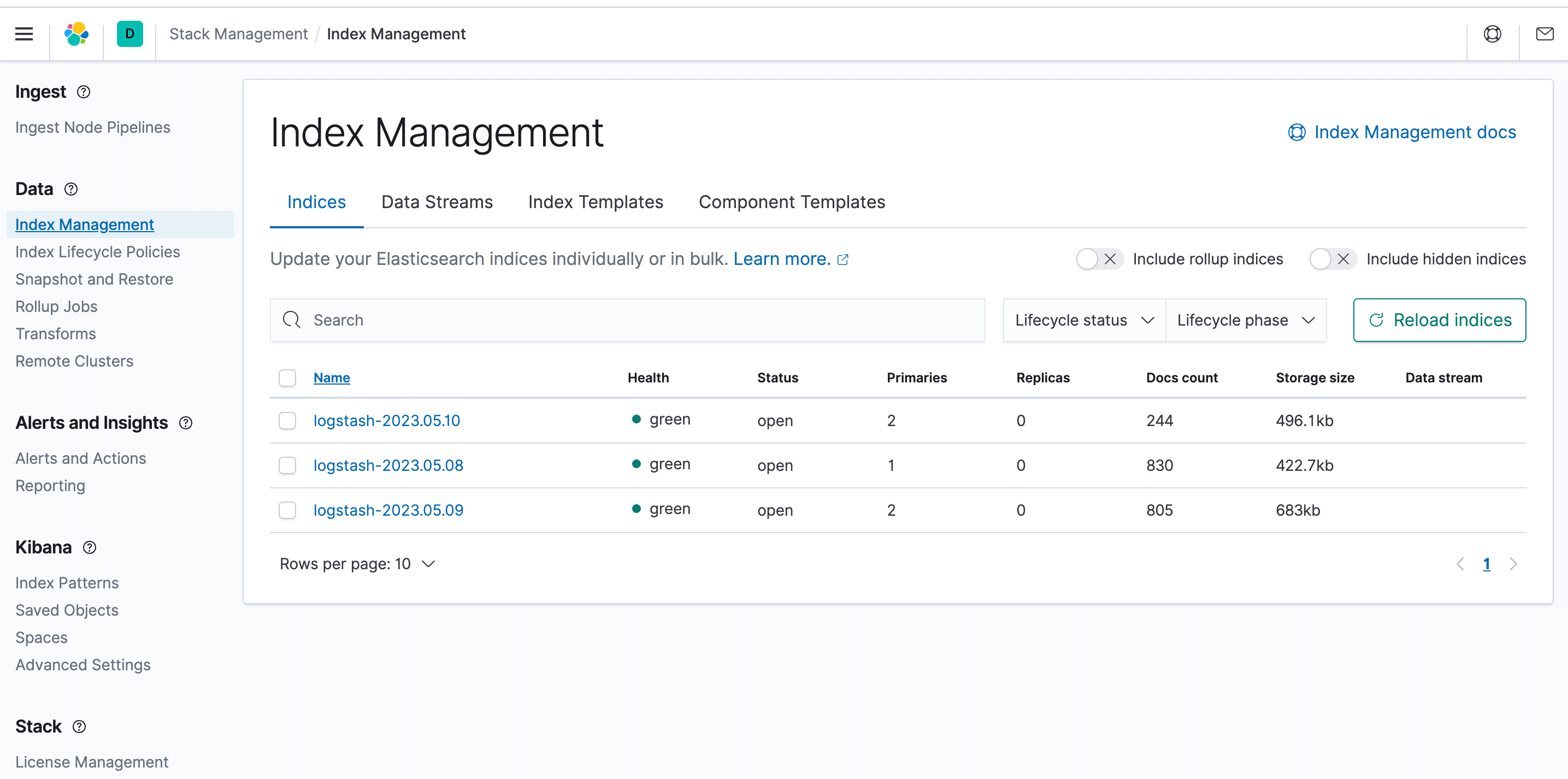
Kibanaインターフェースにログインし、メニューのスタック管理モジュールを開いて、_Index Management_をクリックします。ログのインデックスがすでに収集されていることが確認できます。
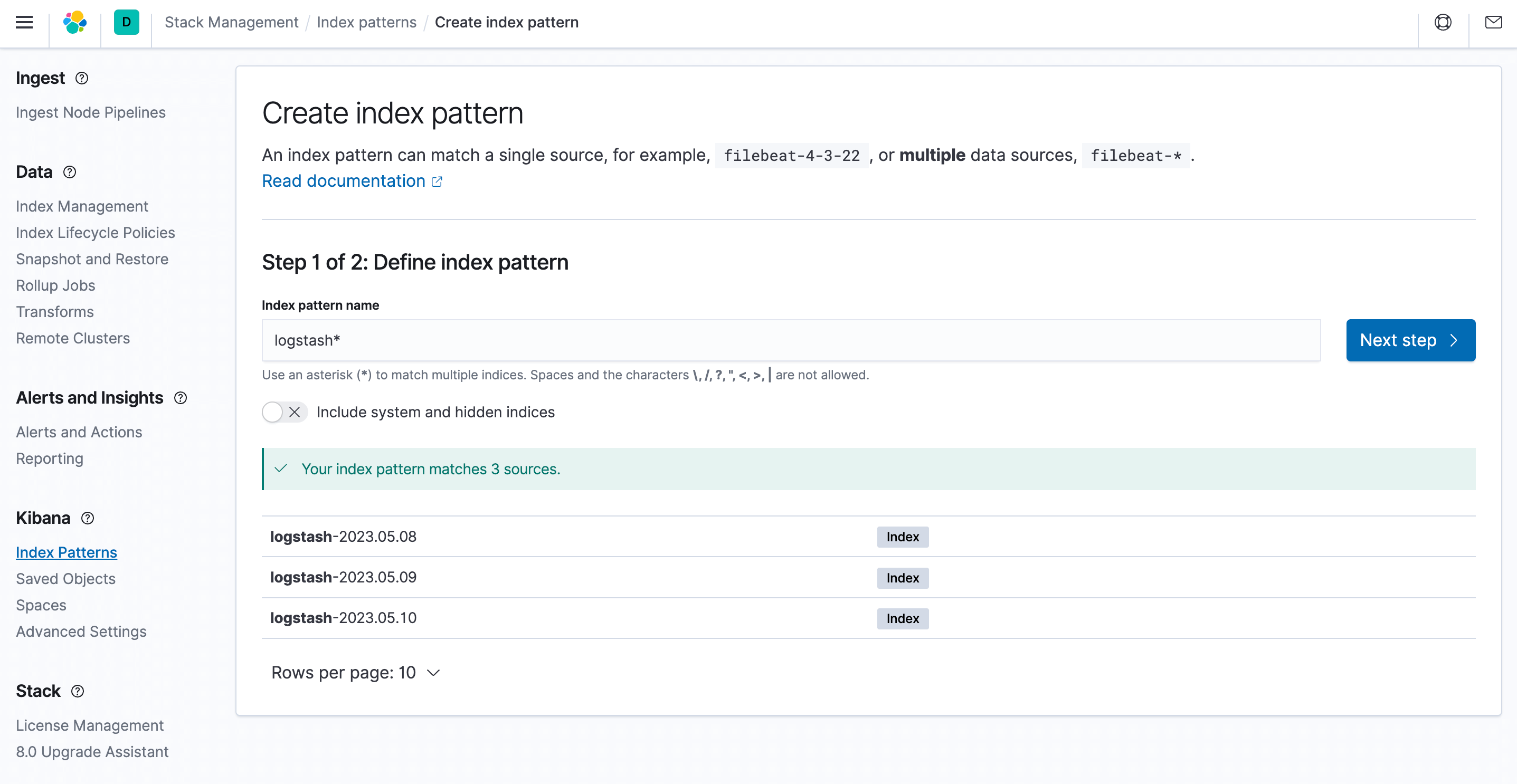
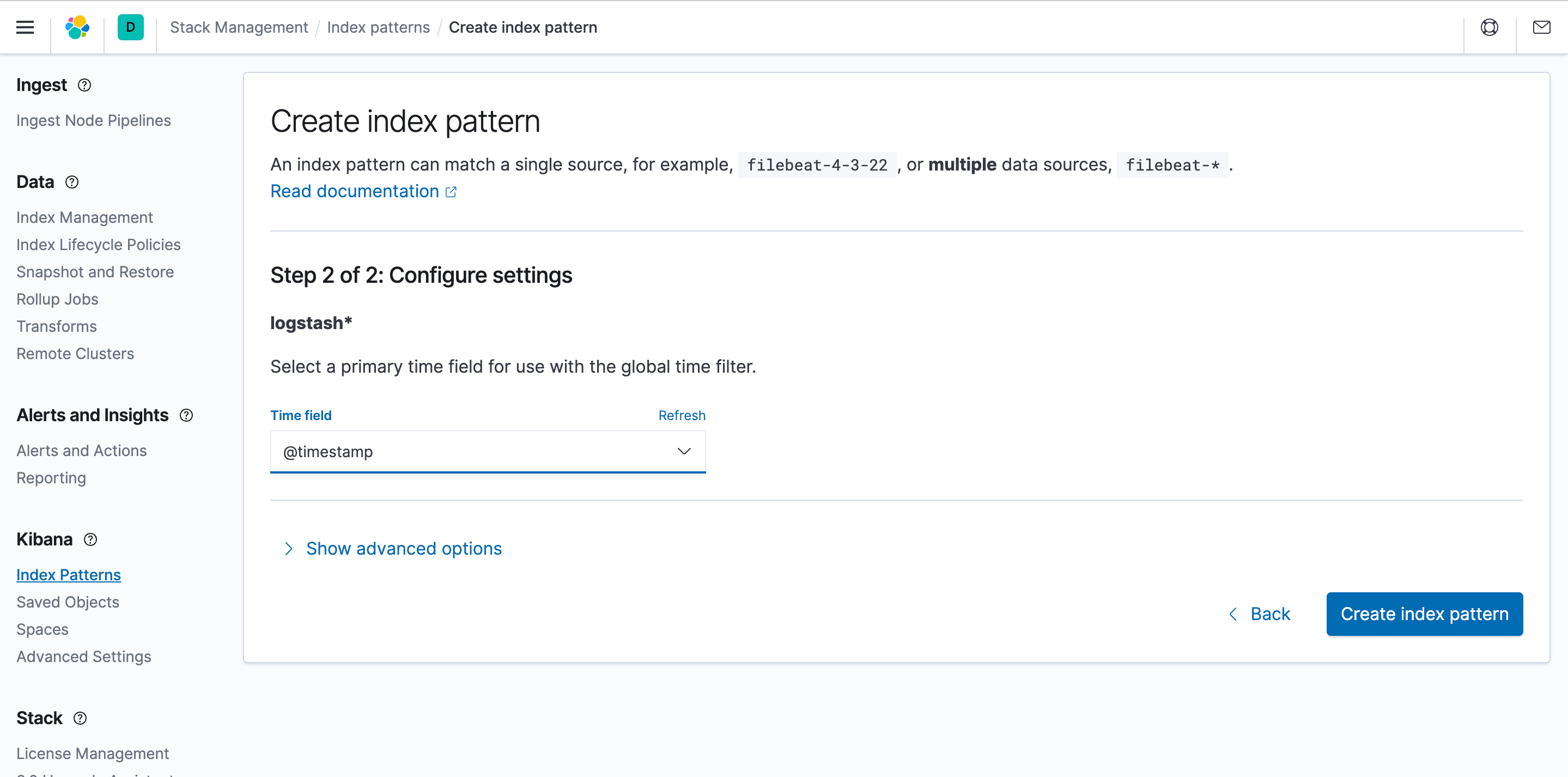
Kibanaでログを検索・閲覧するには、インデックスパターンを作成する必要があります。インデックスパターンを選択し、_Create_をクリックします。
EMQXクラスターのログが収集されていることを確認します。