インストールとテスト
本ドキュメントでは、Volcano Engineの音声サービスを統合し、基本的なテストを完了する方法を説明します。Volcano Engineは複数プラットフォーム向けのSDKを提供しており、本ガイドではWeb SDK(@volcengine/rtc)を例に統合手順を解説します。
前提条件
統合を開始する前に、必要なVolcano Engineサービスが有効化され、認証情報が設定されていることを確認してください。詳細な手順はクイックスタート – Volcano Engine認証情報を参照してください。
必要な認証情報:
| 認証情報 | 用途 |
|---|---|
AppId / AppKey | RTCルーム接続およびトークン生成 |
AccessKeyId / SecretKey | OpenAPIリクエスト署名 |
ASR AppId | 音声認識サービス |
TTS AppId / TTS Token / TTS ResourceId | 音声合成サービス |
認証プロキシサービス
クライアントはRTCルームに参加するためにトークンが必要であり、そのトークンはAppKeyを用いて生成されます。音声セッションの開始にはStartVoiceChat APIの呼び出しが必要で、こちらはAccessKeyで署名しなければなりません。これらの認証情報はクライアントに公開してはならないため、認証プロキシサービスを用意します。
プロキシサービスの役割:
AppKeyを用いたRTCトークンの生成AccessKeyを用いたVolcano Engine OpenAPIの呼び出し- クライアントへの
Tokenおよびルーム情報の返却
RTCトークンの生成
TokenはHMAC-SHA256アルゴリズムを用いてAppKeyから生成されます。
| 言語 | 参照実装 |
|---|---|
| Node.js / Bun | token.ts |
import { AccessToken, Privileges } from './rtctoken'

const token = new AccessToken(appId, appKey, roomId, userId)
token.addPrivilege(Privileges.PrivPublishStream, expireTime)
const tokenString = token.serialize()  // クライアントへ返却
Volcano Engine OpenAPIの呼び出し
StartVoiceChatやStopVoiceChatなどのAPIは、AccessKeyIdとSecretKeyを用いたV4署名が必要です。公式OpenAPI SDKには署名用のSignerクラスが提供されています。
# Node.js / Bun
npm install @volcengine/openapi

# Python
pip install volcengine-python-sdk

# Go
go get github.com/volcengine/volc-sdk-golang// Node.js例
import { Signer } from '@volcengine/openapi'
const body = { AppId: appId, RoomId: roomId, /* ... */ }
// リクエストデータの構築
const openApiRequestData = {
region: 'cn-north-1',
method: 'POST',
params: {
Action: 'StartVoiceChat',
Version: '2024-12-01',
},
headers: {
Host: 'rtc.volcengineapi.com',
'Content-Type': 'application/json',
},
body,
}
// Signerを作成し認証ヘッダーを追加
const signer = new Signer(openApiRequestData, 'rtc')
signer.addAuthorization({
accessKeyId: process.env.ACCESS_KEY_ID,
secretKey: process.env.SECRET_KEY,
})
// リクエスト送信(ヘッダーに署名が含まれる)
const response = await fetch(
'https://rtc.volcengineapi.com?Action=StartVoiceChat&Version=2024-12-01',
{
method: 'POST',
headers: openApiRequestData.headers,
body: JSON.stringify(body),
}
)署名ルールの詳細はVolcano Engine V4署名アルゴリズムを参照してください。
API設計例
プロキシサービスはクライアント用に以下のAPIを公開します。
// シーン設定取得 – Tokenとルーム情報を返す
GET /api/scenes
Response: {
  scenes: [{
    id: string,
    rtcConfig: { appId: string, roomId: string, userId: string, token: string }
  }]
}

// 音声セッション開始
POST /api/voice/start
Request:  { sceneId: string }
Response: { success: boolean }

// 音声セッション停止
POST /api/voice/stop
Request:  { sceneId: string }
Response: { success: boolean }
サーバー側実装のポイント:
- シーン設定:サーバーは初期化時に各シーンごとに
roomId(UUID)とuserIdを生成し、AppKeyで対応するRTCトークン(有効期限24時間)を生成します。クライアントは/api/scenes経由でこれらの情報を取得し、RTCルームに参加します。 - トークン利用:クライアントはRTC SDKの
joinRoomメソッドにトークンを渡して認証します。 - 音声セッションの開始/停止:サーバーは
sceneIdでシーン設定を検索し、roomIdなどのパラメータを取得後、Volcano Engine OpenAPIのStartVoiceChatやStopVoiceChatを呼び出します。
Web統合
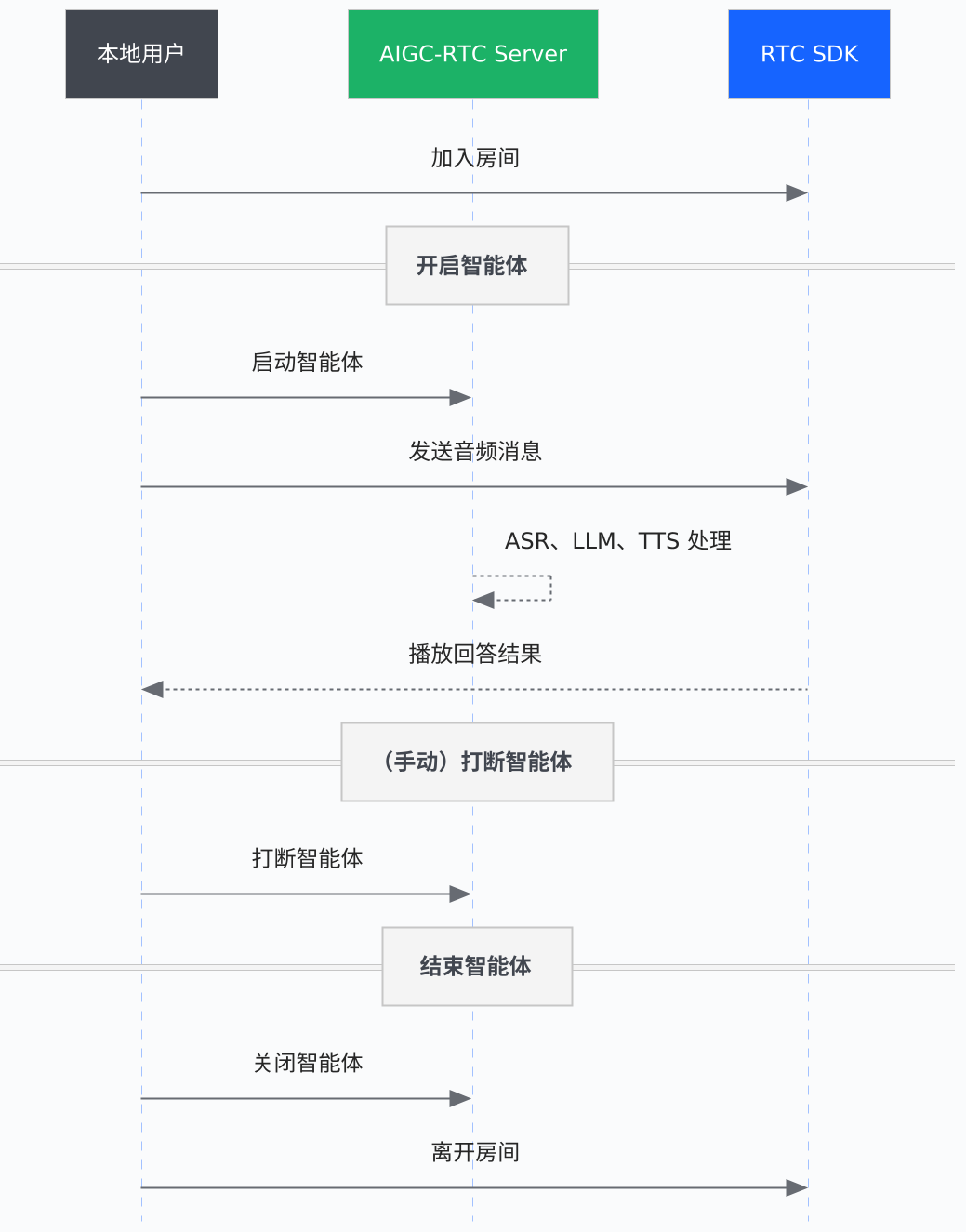
Volcano EngineはWeb統合用に@volcengine/rtc SDKを提供しています。クライアントとサーバー間のやり取りの流れは以下の通りです。
SDKのインストール
npm install @volcengine/rtcAIノイズリダクションには@volcengine/rtc/extension-ainr拡張機能が含まれています。
基本的な統合フロー
1. シーン設定の取得
RTC SDKを使用する前に、サーバーAPIを呼び出してシーン設定(Tokenやルーム情報)を取得します。
// サーバーAPIを呼び出してシーン設定を取得
const response = await fetch('/api/scenes')
const { scenes } = await response.json()

// 対象シーンを選択
const scene = scenes.find(s => s.id === 'your-scene-id') || scenes[0]
const { appId, roomId, token, userId } = scene.rtcConfig
2. RTCエンジンの作成
import VERTC, { RoomProfileType, MediaType } from '@volcengine/rtc'

// サーバーから取得したappIdを使ってエンジンを作成
const engine = VERTC.createEngine(appId)
3. イベントリスナーの登録
// エラーを監視
engine.on(VERTC.events.onError, (event) => {
  console.error('RTCエラー:', event.errorCode)
})

// リモートユーザーのストリーム公開を監視(AI音声応答)
engine.on(VERTC.events.onUserPublishStream, async (event) => {
  const { userId, mediaType } = event
  // リモートの音声ストリームをサブスクライブ
  await engine.subscribeStream(userId, mediaType)
})

// バイナリメッセージ(字幕、ステータスなど)を受信
engine.on(VERTC.events.onRoomBinaryMessageReceived, (event) => {
  const { message } = event
  // messageはTLV形式のArrayBuffer
  // ASR結果、TTSテキスト、エージェントステータスなどを含む
})
4. ルームに参加
// ステップ1で取得したtoken、roomId、userIdを使ってルームに参加
await engine.joinRoom(
  token,
  roomId,
  {
    userId: userId,
    extraInfo: JSON.stringify({
      call_scene: 'RTC-AIGC',
      user_name: userId,
    }),
  },
  {
    isAutoPublish: false,
    isAutoSubscribeAudio: false,
    roomProfileType: RoomProfileType.chat,
  }
)
5. マイクを開始し音声をパブリッシュ
// マイクキャプチャを開始
await engine.startAudioCapture()

// 音声ストリームをルームにパブリッシュ
await engine.publishStream(MediaType.AUDIO)
6. 音声セッションの開始
音声ストリームをパブリッシュした後、サーバーAPIを呼び出してAI音声セッションを開始します。
// 音声セッション開始
await fetch('/api/voice/start', {
  method: 'POST',
  headers: { 'Content-Type': 'application/json' },
  body: JSON.stringify({ sceneId: scene.id }),
})
ここで音声対話が開始されます。ユーザーの発話はASRで認識され、LLMで処理され、TTSで再生されます。
7. ルームから退出
// パブリッシュ停止
await engine.unpublishStream(MediaType.AUDIO)

// キャプチャ停止
await engine.stopAudioCapture()

// ルーム退出
await engine.leaveRoom()

// エンジン破棄
VERTC.destroyEngine(engine)

// サーバーAPIを呼び出して音声セッション停止
await fetch('/api/voice/stop', {
  method: 'POST',
  headers: { 'Content-Type': 'application/json' },
  body: JSON.stringify({ sceneId: scene.id }),
})
AIノイズリダクション(任意)
Volcano Engine RTC SDKには環境ノイズを効果的に除去するAIノイズリダクション拡張が含まれています。
import RTCAIAnsExtension, { AnsMode } from '@volcengine/rtc/extension-ainr'

// 拡張機能を作成して登録
const aiAnsExtension = new RTCAIAnsExtension()
engine.registerExtension(aiAnsExtension)

// サポート確認
const supported = await aiAnsExtension.isSupported()
if (supported) {
  // ノイズリダクションモード設定:LOW / MEDIUM / HIGH
  await aiAnsExtension.setAnsMode(AnsMode.MEDIUM)
  // ノイズリダクション有効化
  aiAnsExtension.enable()
}
リモート音声ストリームの受信
リモートストリームをサブスクライブした後、MediaStreamを取得して再生できます。
import { StreamIndex } from '@volcengine/rtc'

// リモートユーザーの音声トラックを取得
const audioTrack = engine.getRemoteStreamTrack(userId, StreamIndex.STREAM_INDEX_MAIN, 'audio')

// MediaStreamを作成し再生
const stream = new MediaStream()
if (audioTrack) {
  stream.addTrack(audioTrack)
}

// audio要素にバインドして再生
const audioElement = document.querySelector('audio')
audioElement.srcObject = stream
他プラットフォーム向けSDK
Volcano Engine RTC SDKはソフトウェアアプリケーションとハードウェアデバイスの両方をサポートしています。
ソフトウェアアプリケーション
参照:リアルタイム会話型AI統合(ソフトウェアアプリケーション)
| プラットフォーム | SDK | ドキュメント |
|---|---|---|
| Web | @volcengine/rtc | Web SDKドキュメント |
| iOS | VolcEngineRTC | iOS SDKドキュメント |
| Android | VolcEngineRTC | Android SDKドキュメント |
| Windows | VolcEngineRTC | Windows SDKドキュメント |
| macOS | VolcEngineRTC | macOS SDKドキュメント |
| Linux | VolcEngineRTC | Linux SDKドキュメント |
| Flutter | volc_engine_rtc | Flutter SDKドキュメント |
| Electron | @volcengine/rtc | Electron SDKドキュメント |
ハードウェアデバイス
Embedded Linux、RTOS、Androidなどのハードウェアプラットフォームに対応しています。ハードウェアSDKはVolcano Engineの技術サポートに問い合わせて入手してください。
テストと検証
RTC接続の確認
ルーム参加成功後、以下のイベントで確認できます。
engine.on(VERTC.events.onUserJoined, (event) => {
  console.log('ユーザーが参加しました:', event.userInfo.userId)
})
音声認識の確認
マイクに向かって話し、onRoomBinaryMessageReceivedでバイナリメッセージを受信します。メッセージはTLVエンコードされており、以下を含みます。
- 字幕メッセージ:ASR結果およびLLM応答テキスト
- ステータスメッセージ:エージェント状態(リスニング/思考中/発話中)
- 関数呼び出し:ツール呼び出しリクエスト
音声合成の確認
AI応答はリモート音声ストリームで再生されます。以下を確認してください。
onUserPublishStreamが処理されているsubscribeStreamが呼ばれている- 音声トラックが
<audio>要素にバインドされている
よくある問題
接続と認証
| 問題 | 考えられる原因 | 対処方法 |
|---|---|---|
無効なトークン(token_error) | トークンの有効期限切れまたはパラメータ不一致 | トークン生成時のUserIdとRoomIdが参加時と一致しているか確認、またはトークンを再生成 |
| ルームに参加できない | ネットワーク障害またはAppId誤り | ネットワーク接続を確認し、AppIdを正しく設定しているか確認 |
Invalid 'Authorization' header | AK/SK設定誤り | サーバーのAccessKeyIdとSecretKeyを検証 |
| クロスサービス呼び出し失敗 | クロスサービス認可未設定 | RTCコンソールでクロスサービス認可を完了させる |
エージェント起動
| 問題 | 考えられる原因 | 対処方法 |
|---|---|---|
| StartVoiceChat失敗 | 署名エラーまたはパラメータ不足 | API署名と必須パラメータを検証 |
The task has been startedエラー | 固定のRoomId/UserIdで繰り返し呼び出し | 先にStopVoiceChatを呼び出し、その後StartVoiceChatを再度呼び出す |
| 「AI準備中」で停止 | 権限不足/パラメータエラー/残高不足 | 1) コンソールの権限確認 2) パラメータの型・大文字小文字確認 3) サービス有効化と残高確認 |
| デジタルアバターが準備中のまま | 同時接続数制限または設定エラー | アバターのAppId/Tokenを検証し、同時接続数制限を超えていないか確認 |
デバイスとメディア
| 問題 | 考えられる原因 | 対処方法 |
|---|---|---|
| マイク/カメラが起動しない | セキュアでないコンテキスト | ページがlocalhostまたはhttpsでアクセスされているか確認 |
| デバイス権限拒否 | ブラウザの許可がない | Webデバイス権限トラブルシューティングを参照 |
| ASR結果がない | マイク許可なしまたはASR未有効 | ブラウザのマイク許可を確認し、ASRサービスが有効か確認 |
| TTS音声が出ない | リモート音声をサブスクライブしていない | リモート音声ストリームに対してsubscribeStreamを呼んでいるか確認 |
モデル設定
| 問題 | 対処方法 |
|---|---|
| サードパーティモデルやCoze Botを使用 | LLMConfigでモデルパラメータを設定し、ModeをCustomLLMにしてコールバックURLを指定 |
| 会話で応答がない | LLM設定を検証し、CustomLLMコールバックサービスが稼働しているか確認 |