Installation and Testing
This document explains how to integrate Volcano Engine speech services and complete basic testing. Volcano Engine provides SDKs for multiple platforms; this guide uses the Web SDK (@volcengine/rtc) as an example to illustrate the integration process.
Prerequisites
Before starting integration, make sure you have enabled the required Volcano Engine services and configured credentials. For detailed steps, see Quick Start – Volcano Engine Credentials.
Required credentials:
| Credential | Purpose |
|---|---|
AppId / AppKey | RTC room connection and token generation |
AccessKeyId / SecretKey | OpenAPI request signing |
ASR AppId | Speech recognition service |
TTS AppId / TTS Token / TTS ResourceId | Speech synthesis service |
Authentication Proxy Service
Clients need a token to join an RTC room, and the token is generated using the AppKey. Starting a voice session requires calling the StartVoiceChat API, which must be signed with the AccessKey. These credentials must not be exposed to clients, so an authentication proxy service is required.
The proxy service is responsible for:
- Generating RTC tokens using
AppKey - Calling Volcano Engine OpenAPI using
AccessKey - Returning
Tokenand room information to the client
Generating an RTC Token
Token is generated using AppKey with the HMAC-SHA256 algorithm:
| Language | Reference Implementation |
|---|---|
| Node.js / Bun | token.ts |
import { AccessToken, Privileges } from './rtctoken'

const token = new AccessToken(appId, appKey, roomId, userId)
token.addPrivilege(Privileges.PrivPublishStream, expireTime)
const tokenString = token.serialize()  // Return to the client
Calling Volcano Engine OpenAPI
APIs such as StartVoiceChat and StopVoiceChat require V4 signing using AccessKeyId and SecretKey. The official OpenAPI SDK provides a Signer class to generate the required headers:
# Node.js / Bun
npm install @volcengine/openapi

# Python
pip install volcengine-python-sdk

# Go
go get github.com/volcengine/volc-sdk-golang// Node.js example
import { Signer } from '@volcengine/openapi'
const body = { AppId: appId, RoomId: roomId, /* ... */ }
// Build the request data
const openApiRequestData = {
region: 'cn-north-1',
method: 'POST',
params: {
Action: 'StartVoiceChat',
Version: '2024-12-01',
},
headers: {
Host: 'rtc.volcengineapi.com',
'Content-Type': 'application/json',
},
body,
}
// Create Signer and add authorization headers
const signer = new Signer(openApiRequestData, 'rtc')
signer.addAuthorization({
accessKeyId: process.env.ACCESS_KEY_ID,
secretKey: process.env.SECRET_KEY,
})
// Send the request (headers now include the signature)
const response = await fetch(
'https://rtc.volcengineapi.com?Action=StartVoiceChat&Version=2024-12-01',
{
method: 'POST',
headers: openApiRequestData.headers,
body: JSON.stringify(body),
}
)For detailed signing rules, see Volcano Engine V4 Signature Algorithm.
Example API Design
The proxy service should expose APIs for client use:
// Get scene configuration – returns Token and room info
GET /api/scenes
Response: {
  scenes: [{
    id: string,
    rtcConfig: { appId: string, roomId: string, userId: string, token: string }
  }]
}

// Start a voice session
POST /api/voice/start
Request:  { sceneId: string }
Response: { success: boolean }

// Stop a voice session
POST /api/voice/stop
Request:  { sceneId: string }
Response: { success: boolean }
Server-side implementation notes:
- Scene configuration: The server generates a
roomId(UUID) anduserIdfor each scene at initialization, and usesAppKeyto generate the corresponding RTC Token (valid for 24 hours). Clients retrieve this information via/api/scenesto join the RTC room. - Token usage: Clients pass the Token to the RTC SDK's
joinRoommethod for authentication. - Starting/stopping voice sessions: The server looks up the scene configuration by
sceneId, retrievesroomIdand other parameters, then calls the Volcano Engine OpenAPI (StartVoiceChat,StopVoiceChat).
Web Integration
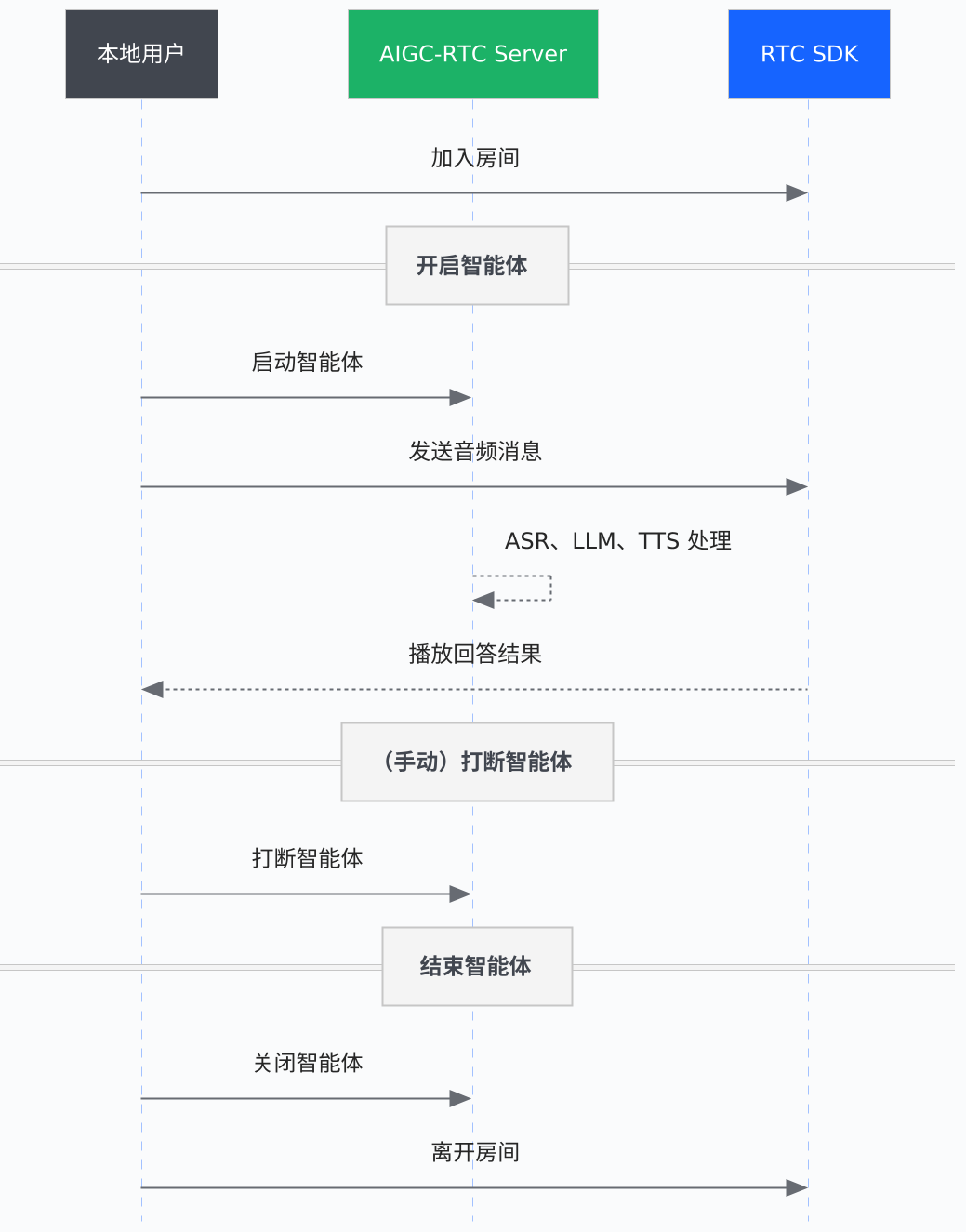
Volcano Engine provides the @volcengine/rtc SDK for Web integration. The interaction flow between client and server is shown below:
Install the SDK
npm install @volcengine/rtcFor AI noise reduction, the SDK includes the @volcengine/rtc/extension-ainr extension.
Basic Integration Flow
1. Get Scene Configuration
Before using the RTC SDK, call the server API to get the scene configuration, including the Token and room information:
// Call the server API to get scene configuration
const response = await fetch('/api/scenes')
const { scenes } = await response.json()

// Select the target scene
const scene = scenes.find(s => s.id === 'your-scene-id') || scenes[0]
const { appId, roomId, token, userId } = scene.rtcConfig
2. Create the RTC Engine
import VERTC, { RoomProfileType, MediaType } from '@volcengine/rtc'

// Create engine instance using the appId from the server
const engine = VERTC.createEngine(appId)
3. Register Event Listeners
// Listen for errors
engine.on(VERTC.events.onError, (event) => {
  console.error('RTC error:', event.errorCode)
})

// Listen for remote user publishing stream (AI voice response)
engine.on(VERTC.events.onUserPublishStream, async (event) => {
  const { userId, mediaType } = event
  // Subscribe to remote audio stream
  await engine.subscribeStream(userId, mediaType)
})

// Listen for binary messages (subtitles, status, etc.)
engine.on(VERTC.events.onRoomBinaryMessageReceived, (event) => {
  const { message } = event
  // message is an ArrayBuffer in TLV format
  // contains ASR results, TTS text, agent status, etc.
})
4. Join the Room
// Use token, roomId, userId from step 1 to join the room
await engine.joinRoom(
  token,
  roomId,
  {
    userId: userId,
    extraInfo: JSON.stringify({
      call_scene: 'RTC-AIGC',
      user_name: userId,
    }),
  },
  {
    isAutoPublish: false,
    isAutoSubscribeAudio: false,
    roomProfileType: RoomProfileType.chat,
  }
)
5. Start the Microphone and Publish Audio
// Start microphone capture
await engine.startAudioCapture()

// Publish audio stream to the room
await engine.publishStream(MediaType.AUDIO)
6. Start Voice Session
After publishing the audio stream, call the server API to start the AI voice session:
// Start voice session
await fetch('/api/voice/start', {
  method: 'POST',
  headers: { 'Content-Type': 'application/json' },
  body: JSON.stringify({ sceneId: scene.id }),
})
At this point, voice interaction begins. User speech is recognized by ASR, processed by the LLM, and played back via TTS.
7. Leave the Room
// Stop publishing
await engine.unpublishStream(MediaType.AUDIO)

// Stop capture
await engine.stopAudioCapture()

// Leave the room
await engine.leaveRoom()

// Destroy the engine
VERTC.destroyEngine(engine)

// Call server API to stop the voice session
await fetch('/api/voice/stop', {
  method: 'POST',
  headers: { 'Content-Type': 'application/json' },
  body: JSON.stringify({ sceneId: scene.id }),
})
AI Noise Reduction (Optional)
The Volcano Engine RTC SDK includes built-in AI noise reduction extension to effectively filter environmental noise:
import RTCAIAnsExtension, { AnsMode } from '@volcengine/rtc/extension-ainr'

// Create and register extension
const aiAnsExtension = new RTCAIAnsExtension()
engine.registerExtension(aiAnsExtension)

// Check if supported
const supported = await aiAnsExtension.isSupported()
if (supported) {
  // Set noise reduction mode: LOW / MEDIUM / HIGH
  await aiAnsExtension.setAnsMode(AnsMode.MEDIUM)
  // Enable noise reduction
  aiAnsExtension.enable()
}
Receiving Remote Audio Streams
After subscribing to a remote stream, you can obtain a MediaStream for playback:
import { StreamIndex } from '@volcengine/rtc'

// Get remote user's audio track
const audioTrack = engine.getRemoteStreamTrack(userId, StreamIndex.STREAM_INDEX_MAIN, 'audio')

// Create MediaStream and play
const stream = new MediaStream()
if (audioTrack) {
  stream.addTrack(audioTrack)
}

// Bind to audio element for playback
const audioElement = document.querySelector('audio')
audioElement.srcObject = stream
SDKs for Other Platforms
Volcano Engine RTC SDK supports both software applications and hardware devices.
Software Applications
See: Integrate Real-Time Conversational AI (Software Applications)
| Platform | SDK | Documentation |
|---|---|---|
| Web | @volcengine/rtc | Web SDK Docs |
| iOS | VolcEngineRTC | iOS SDK Docs |
| Android | VolcEngineRTC | Android SDK Docs |
| Windows | VolcEngineRTC | Windows SDK Docs |
| macOS | VolcEngineRTC | macOS SDK Docs |
| Linux | VolcEngineRTC | Linux SDK Docs |
| Flutter | volc_engine_rtc | Flutter SDK Docs |
| Electron | @volcengine/rtc | Electron SDK Docs |
Hardware Devices
See: Integrate Real-Time Conversational AI (Embedded Hardware)
Embedded Linux, RTOS, Android, and other hardware platforms are supported. Hardware SDKs must be obtained by contacting Volcano Engine technical support.
Testing and Validation
Verify RTC Connection
After successfully joining a room, you can confirm via events:
engine.on(VERTC.events.onUserJoined, (event) => {
  console.log('User joined:', event.userInfo.userId)
})
Verify Speech Recognition
Speak into the microphone and receive binary messages via onRoomBinaryMessageReceived. Messages use TLV encoding and include:
- Subtitle messages: ASR results and LLM response text
- Status messages: agent state (listening / thinking / speaking)
- Function calls: tool invocation requests
Verify Speech Synthesis
AI responses are played via the remote audio stream. Ensure that:
onUserPublishStreamis handledsubscribeStreamis called- The audio track is bound to an
<audio>element
Common Issues
Connection and Authentication
| Issue | Possible Cause | Solution |
|---|---|---|
Invalid token (token_error) | Token expired or parameter mismatch | Ensure UserId and RoomId used for token generation match those used to join the room, or regenerate the token |
| Cannot join room | Network issue or incorrect AppId | Check network connectivity and confirm AppId |
Invalid 'Authorization' header | Incorrect AK/SK configuration | Verify AccessKeyId and SecretKey on the server |
| Cross-service call failure | Cross-service authorization not configured | Complete cross-service authorization in the RTC console |
Agent Startup
| Issue | Possible Cause | Solution |
|---|---|---|
| StartVoiceChat fails | Signature error or missing parameters | Verify API signature and required parameters |
The task has been started error | Repeated calls with fixed RoomId/UserId | Call StopVoiceChat first, then StartVoiceChat again |
| Stuck at “AI preparing” | Permissions missing / parameter errors / insufficient balance | 1) Check console permissions 2) Verify parameter types and casing 3) Ensure services are enabled and account balance is sufficient |
| Digital avatar stuck in preparing state | Concurrency limit or configuration error | Verify avatar AppId/Token and ensure concurrency limits are not exceeded |
Devices and Media
| Issue | Possible Cause | Solution |
|---|---|---|
| Microphone/camera cannot start | Insecure context | Ensure the page is accessed via localhost or https |
| Device permission denied | Browser not authorized | See Web Device Permission Troubleshooting |
| No ASR result | Microphone not authorized or ASR not enabled | Check browser microphone permission and confirm ASR service is enabled |
| No TTS audio | Remote audio not subscribed | Ensure subscribeStream is called for the remote audio stream |
Model Configuration
| Issue | Solution |
|---|---|
| Using third-party models or Coze Bot | Configure model parameters in LLMConfig, set Mode to CustomLLM, and provide the callback URL |
| No response in conversation | Verify LLM configuration and ensure the CustomLLM callback service is running |