EMQXでNode-REDを使う
Node-REDは、ハードウェアデバイス、API、オンラインサービスをブラウザベースのエディターで接続するフローベースのプログラミングツールです。視覚的なノードベースのインターフェースを使い、あらかじめ用意されたノードをつなげてデータフローを作成します。Node-REDは組み込みのmqtt-in(サブスクライブ)およびmqtt-out(パブリッシュ)ノードを通じてMQTTをネイティブにサポートしており、EMQXからのIoTデータ処理に広く利用されています。
このページでは、Node-REDのインストール方法、EMQXへの接続方法、MQTTメッセージを解析・フィルタリング・変換するデータ処理パイプラインの構築方法を説明します。
前提条件
- Node.js 18 LTS または 20 LTS(NPMインストール用)
- EMQXのデプロイ環境、またはテスト用にEMQXパブリックブローカーを利用
- テストメッセージ送信用のMQTTXなどのMQTTクライアント
Node-REDのインストール
NPM経由の場合:
npm install -g --unsafe-perm node-red続いてNode-REDを起動します:
node-redDocker経由の場合:
docker run -it -p 1880:1880 --name mynodered nodered/node-red起動後、ブラウザでhttp://127.0.0.1:1880にアクセスするとNode-REDエディターが開きます。
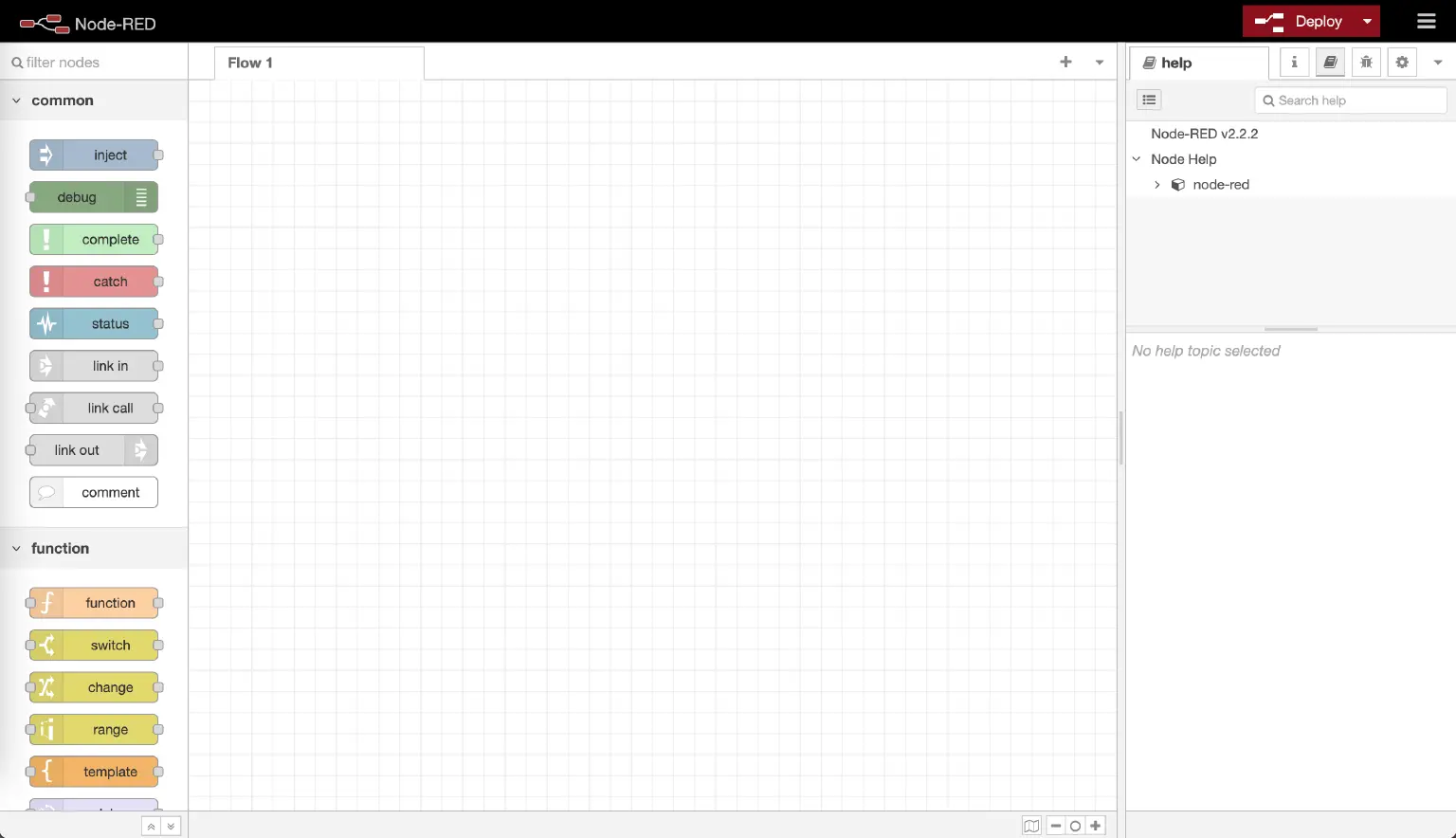
Raspberry Piやクラウドデプロイなど、その他のインストール方法についてはNode-REDドキュメントをご覧ください。
MQTTブローカーの設定
Node-REDを接続するためにMQTTブローカーが必要です。本ガイドではMQTT 3.1、3.1.1、5.0をサポートするEMQXを使用します。
EMQXパブリックブローカー(テスト用)
独自のブローカーをデプロイせずに手軽にテストしたい場合は、EMQXパブリックブローカーを利用できます。
| パラメーター | 値 |
|---|---|
| ブローカーアドレス | broker.emqx.io |
| TCPポート | 1883 |
| SSL/TLSポート | 8883 |
| WebSocketポート | 8083 |
| セキュアWebSocketポート | 8084 |
パブリックブローカーはテストおよびデモ目的のみでの利用を想定しています。
EMQX Enterpriseデプロイメント
本番環境では、自身のEMQX EnterpriseデプロイメントにNode-REDを接続します。ブローカーのアドレス、ポート、認証情報は環境に応じて設定してください。
一般的な構成例:
- カスタムのブローカーホスト名またはIPアドレス
- ユーザー名/パスワード認証または相互TLS認証
- トピックに適用されるアクセス制御ルール(ACL)
Node-REDのブローカー接続設定時には、EMQX Enterpriseのリスナーおよび認証設定を参照してください。
自己管理型EMQX Enterpriseのほか、完全マネージドMQTTサービスのEMQX Cloud(ServerlessまたはDedicated)にもNode-REDを接続可能です。EMQX Cloudから提供されるブローカーアドレス、ポート、認証情報を使用してください。
基本的なMQTTフローの構築
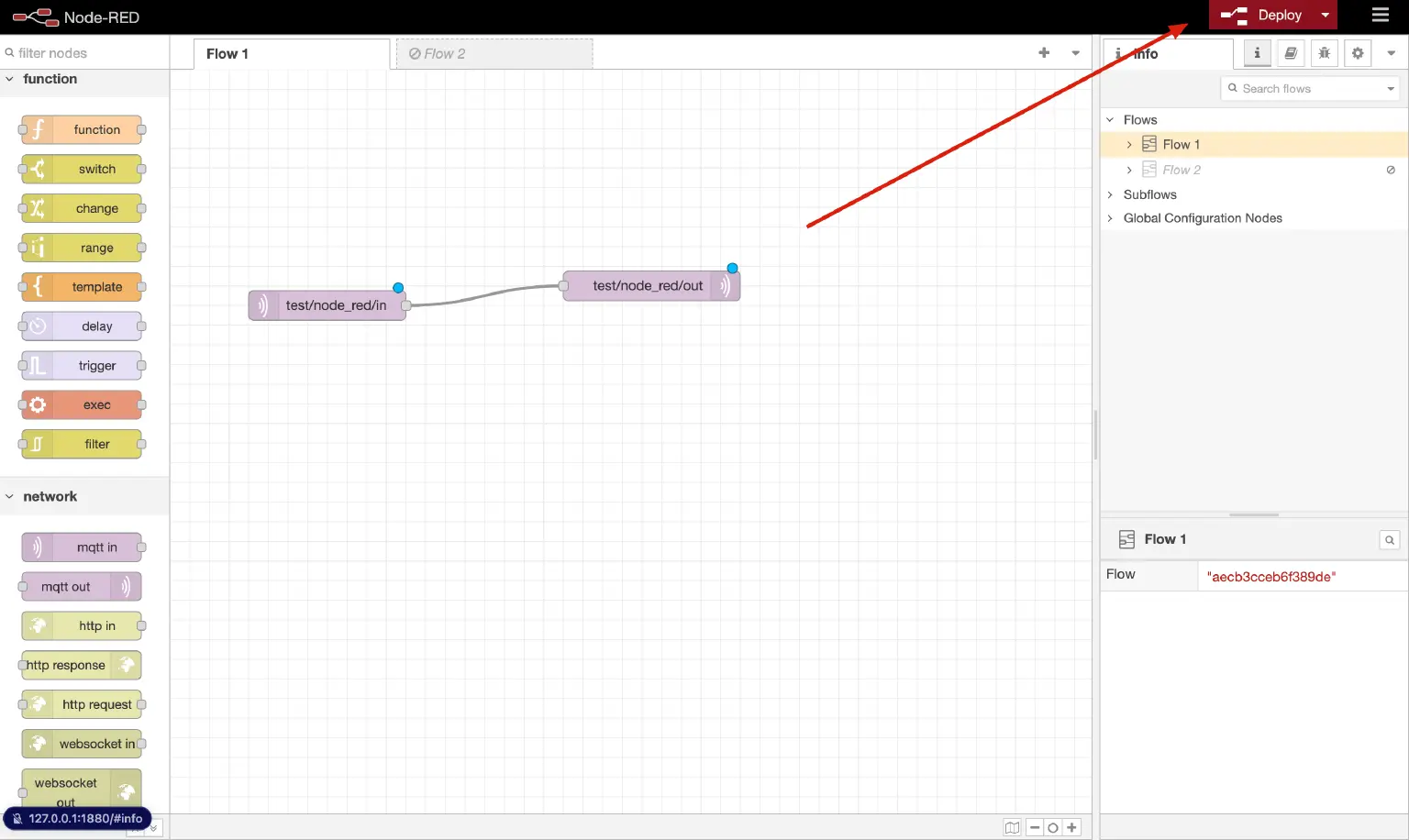
以下の手順で、1つのトピックをサブスクライブし、受信したメッセージを別のトピックに転送する最小限のフローを作成します。
ステップ1: MQTTサブスクライブノードの追加
Node-REDエディターで、左側パレットからmqtt-inノードをキャンバスにドラッグします。
ノードをダブルクリックしてプロパティを開きます。
Serverフィールド横の鉛筆アイコンをクリックし、新しいブローカー接続を作成します。
Serverアドレスに
broker.emqx.ioを入力し、Addをクリックします。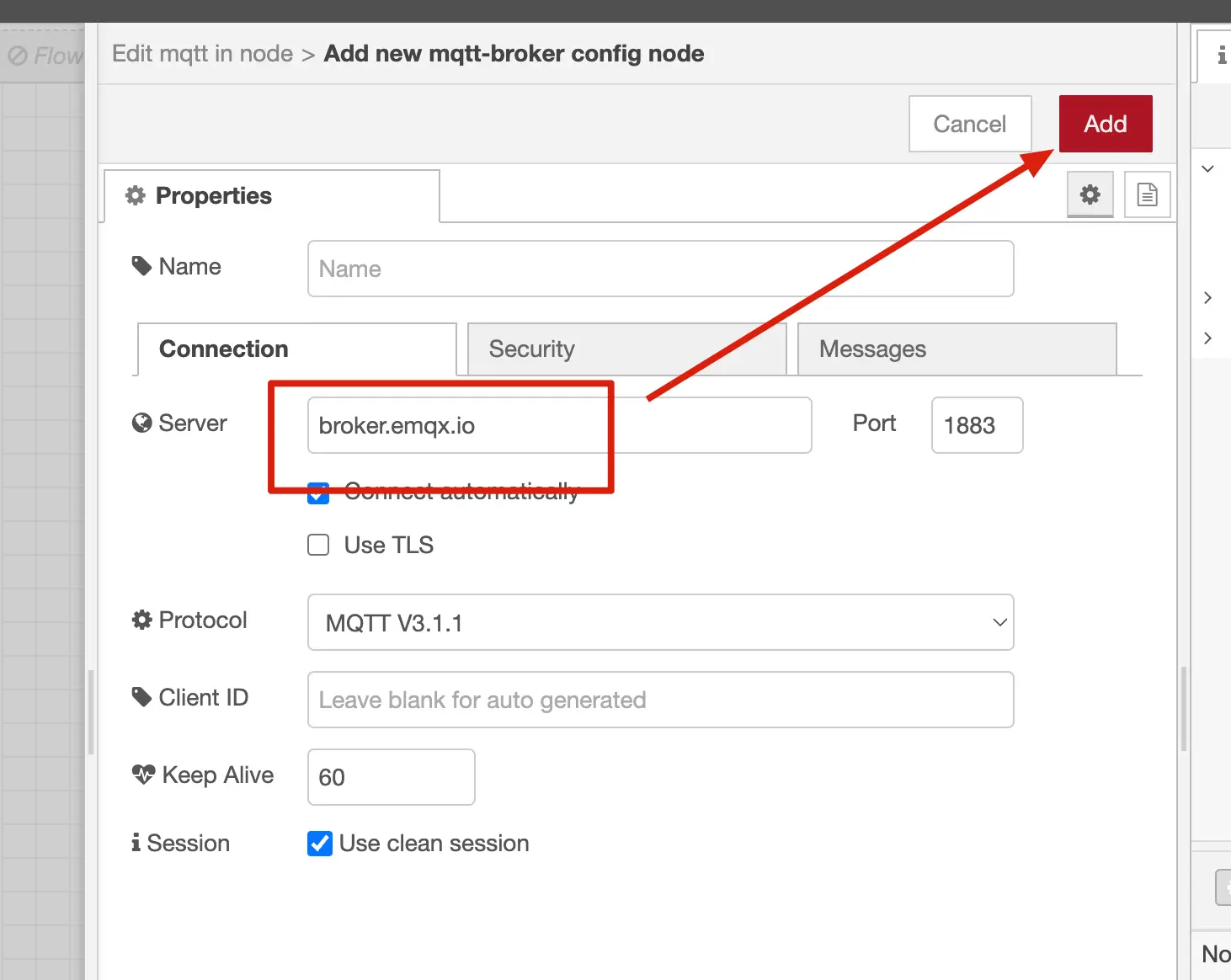
Topicに
test/node_red/inを設定します。必要に応じてQoSレベルを設定し、Doneをクリックします。
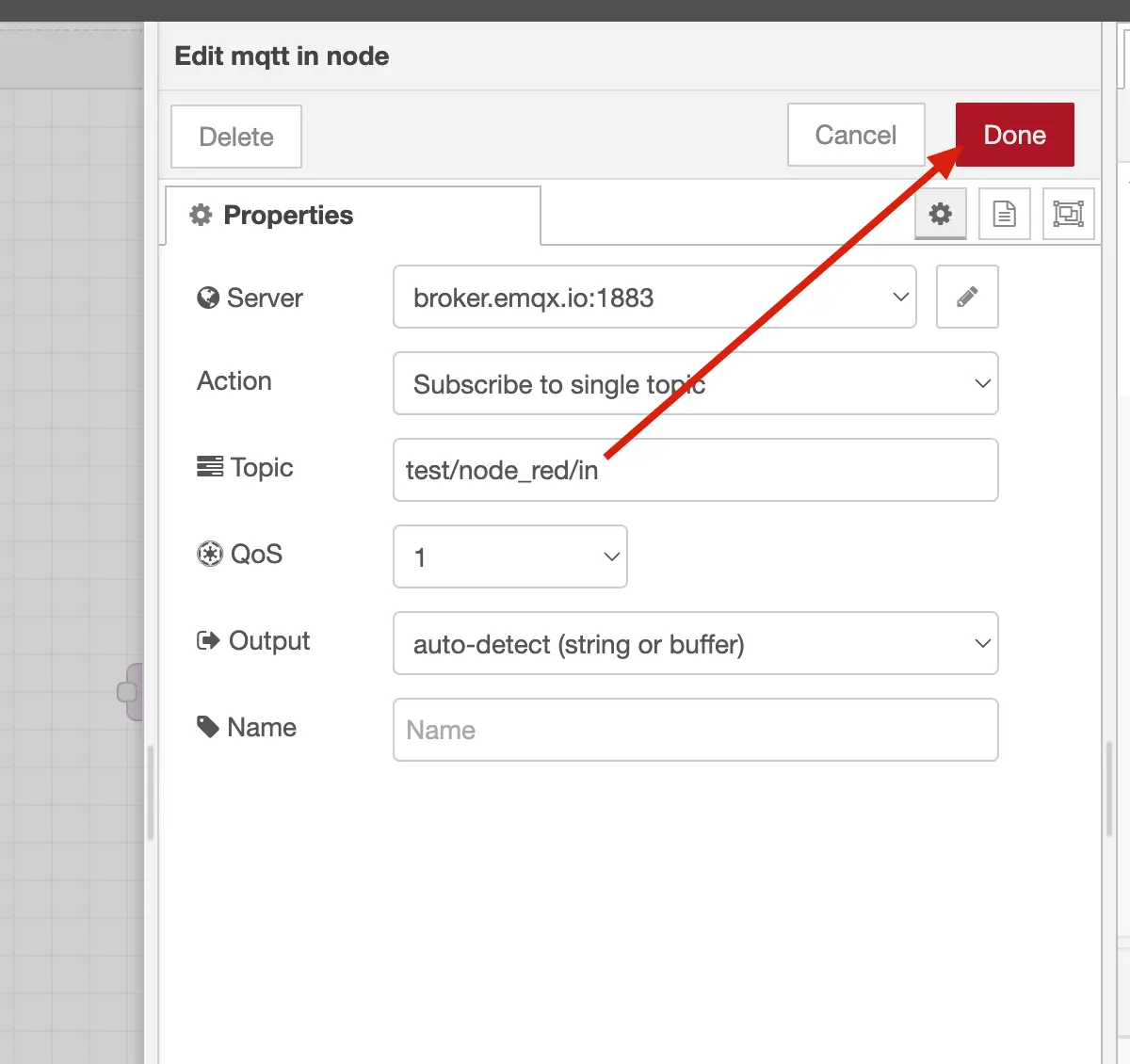
ステップ2: MQTTパブリッシュノードの追加
mqtt-outノードをキャンバスにドラッグします。
ノードをダブルクリックしてプロパティを開きます。
ステップ1で設定したブローカーをServerドロップダウンから選択します。
Topicに
test/node_red/outを設定します。必要に応じてQoSとRetainを設定し、Doneをクリックします。
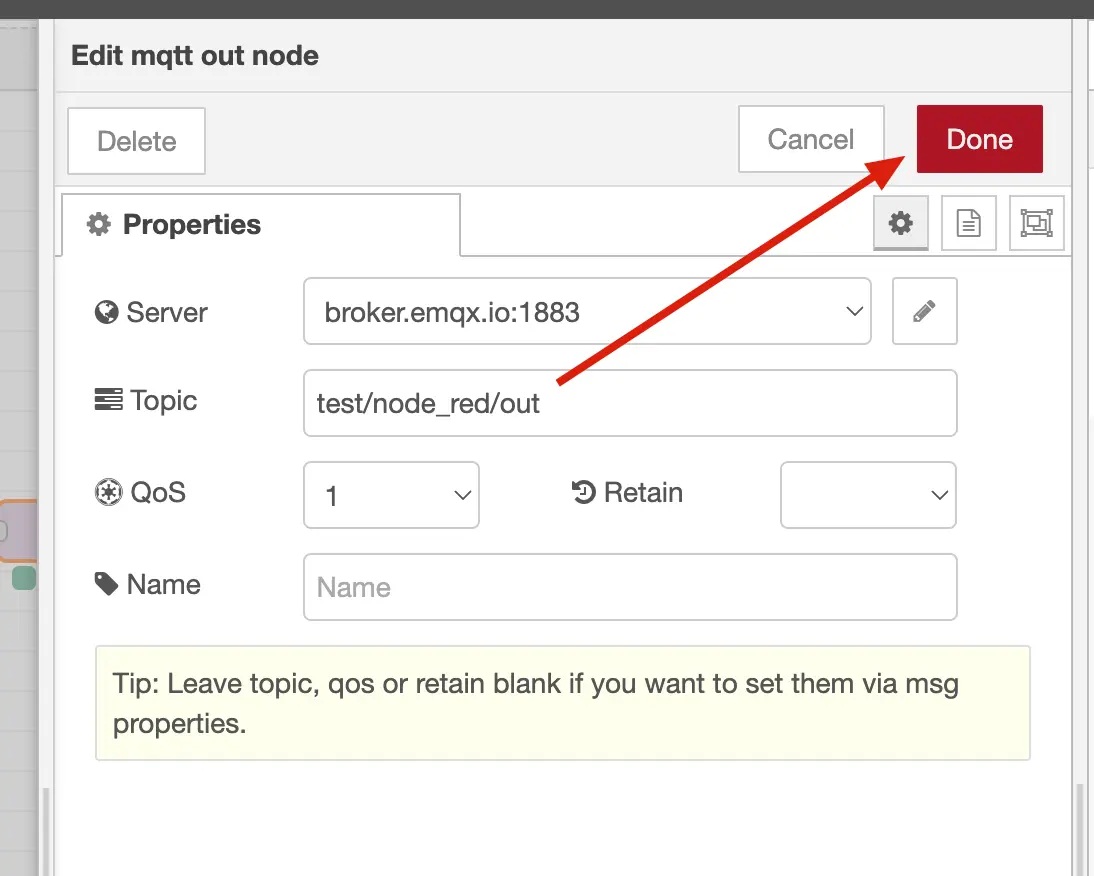
ステップ3: 接続とデプロイ
mqtt-inノードの出力ポートからmqtt-outノードの入力ポートへワイヤーを引きます。
右上のDeployボタンをクリックします。
両ノードが緑色のconnectedステータスを表示していることを確認します。
これで、test/node_red/inで受信したすべてのメッセージがtest/node_red/outに転送されるフローが完成しました。
高度なデータ処理パイプラインの構築
Node-REDの真価は複数ノードを連結してデータをフィルタリングや変換し、再パブリッシュできる点にあります。以下の例では、
- MQTT経由でJSON形式のセンサーデータを受信
- 生ペイロードをJavaScriptオブジェクトにパース
- 重複する温度データをフィルタリング
- 結果を整形して再パブリッシュ
というパイプラインを構築します。
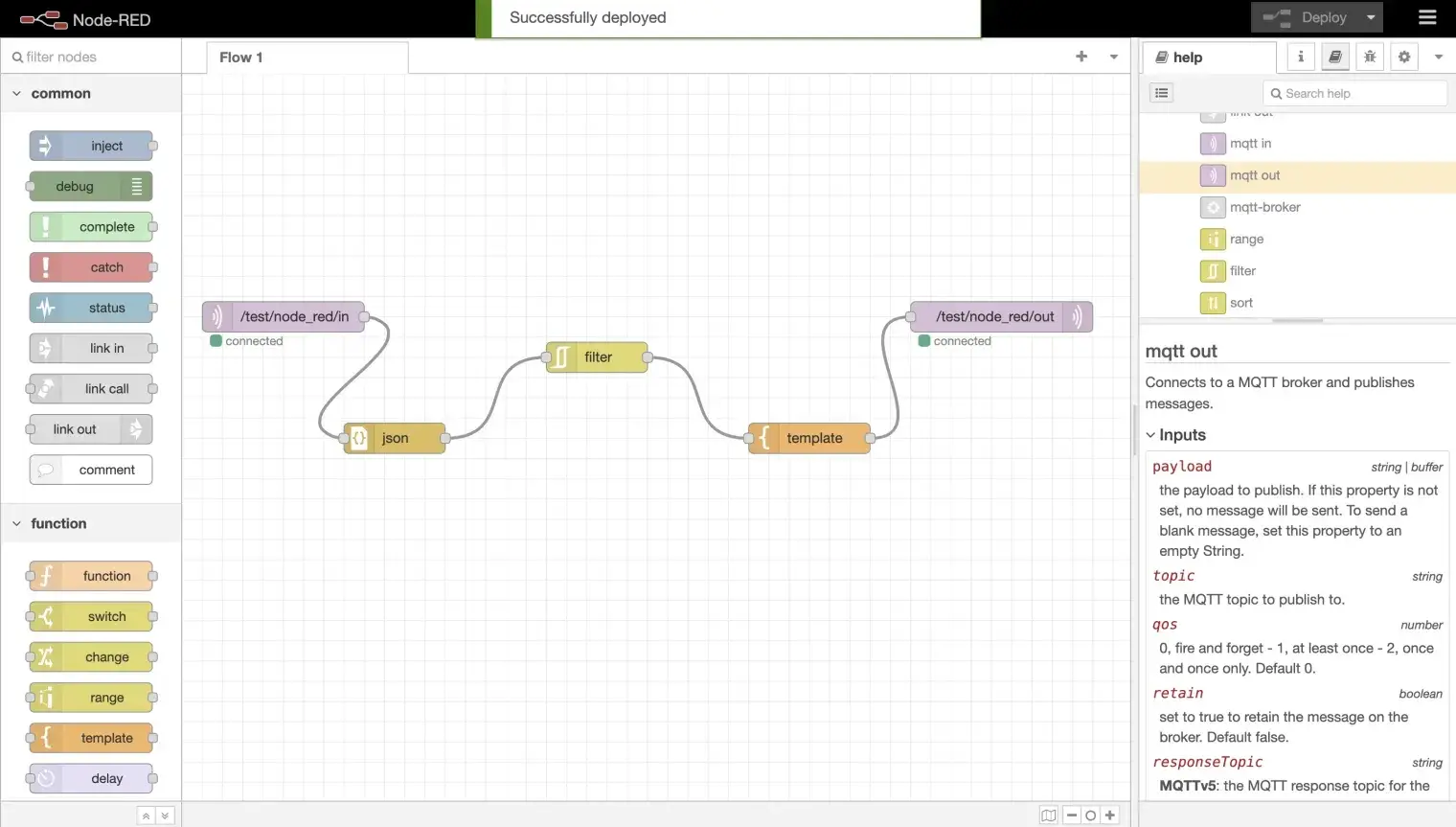
フロー全体は以下の通りです:mqtt-in -> json -> rbe -> template -> mqtt-out
ステップ1: JSONノードの追加
パレットからjsonノードをキャンバスにドラッグします。
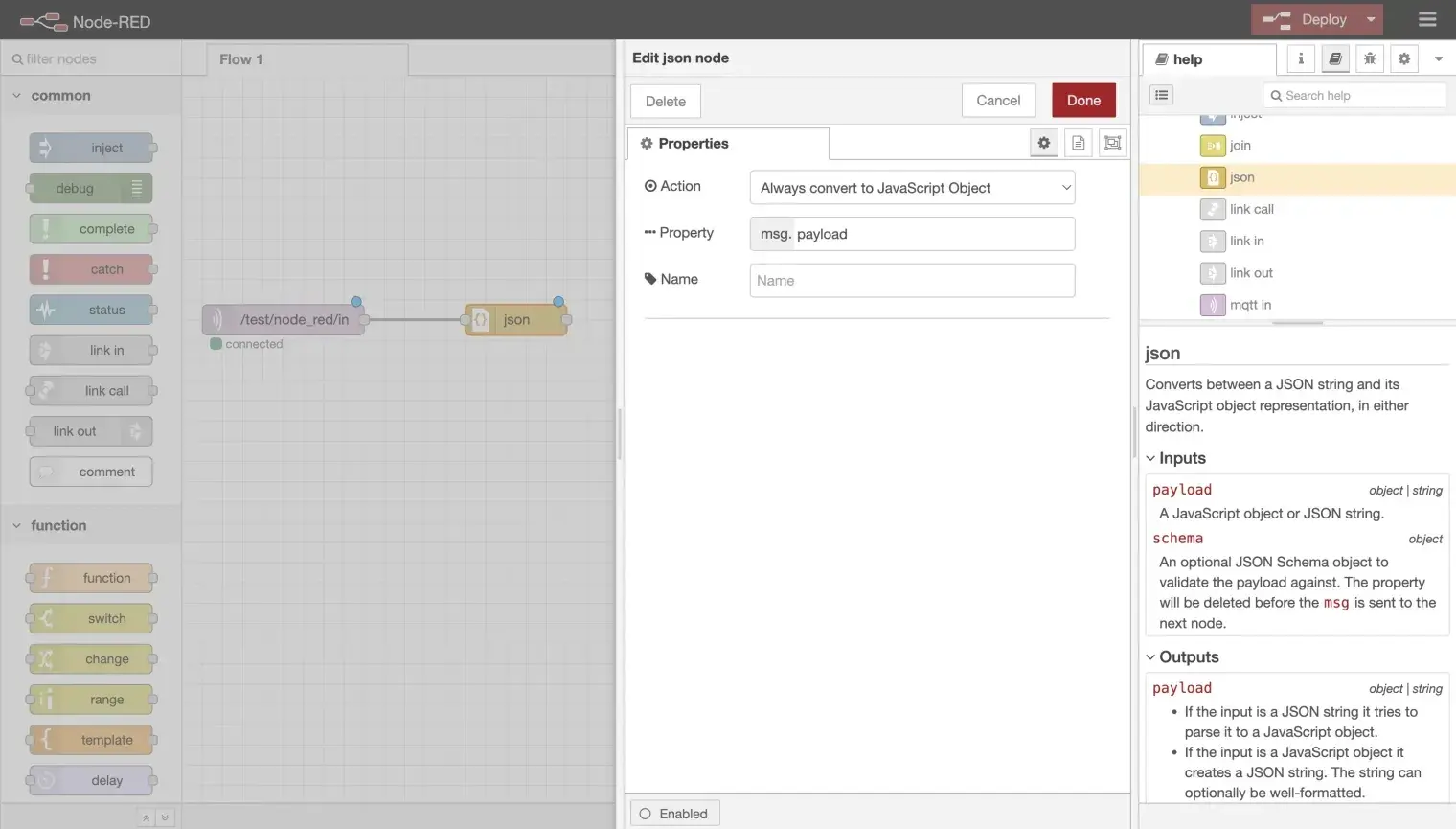
ダブルクリックして設定を開き、ActionをAlways Convert to JavaScript Objectに設定します。
Doneをクリックします。
mqtt-inノードの出力をjsonノードの入力に接続します。
これにより、受信したペイロードがJavaScriptオブジェクトにパースされ、下流のノードでmsg.payload.temperatureなどの個別フィールドにアクセス可能になります。
ステップ2: フィルターノードの追加
rbe(report by exception)ノードをキャンバスにドラッグします。
ダブルクリックして設定を開きます。
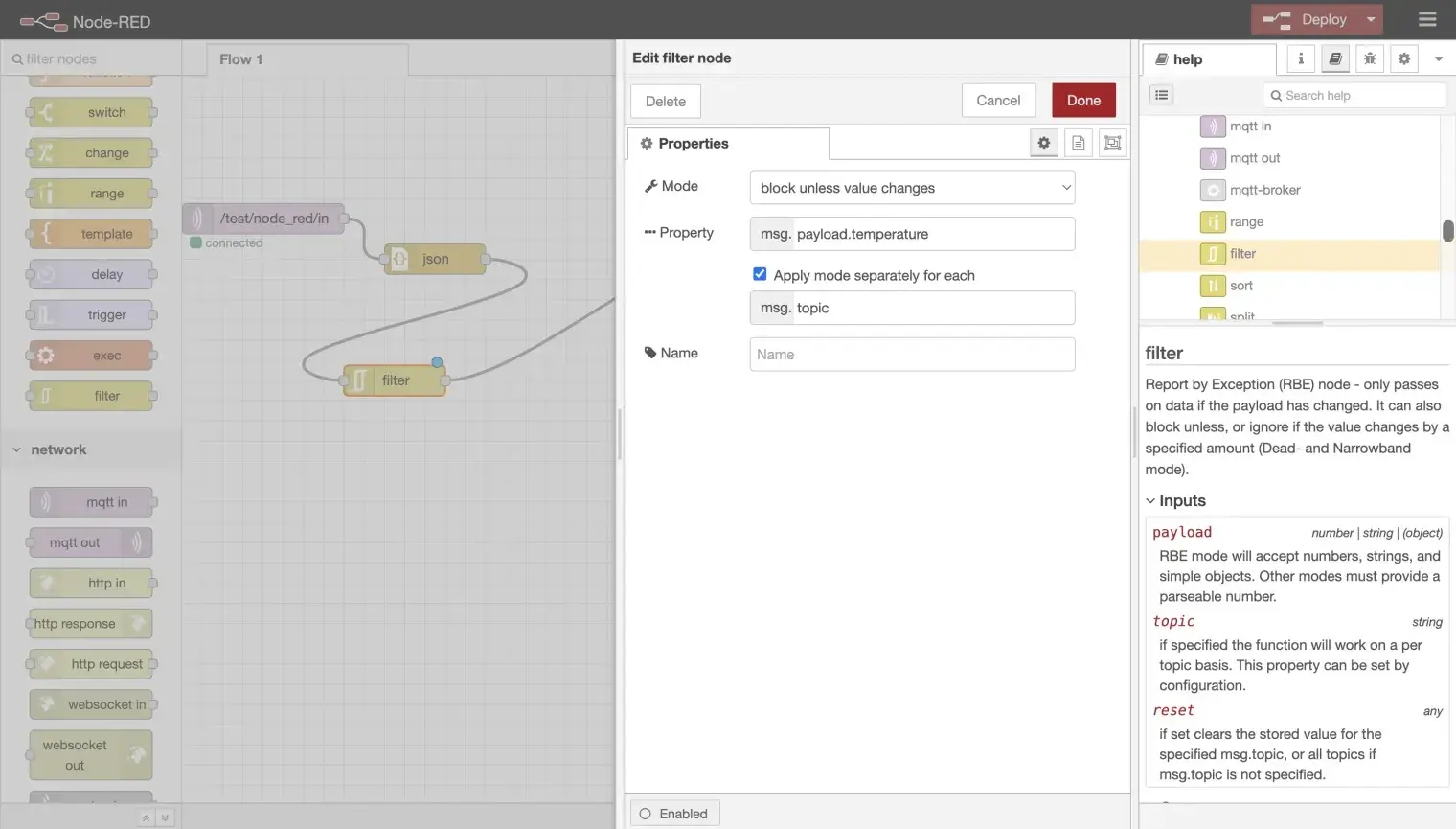
- Modeをblock unless value changesに設定
- Propertyを
msg.payload.temperatureに設定
Doneをクリックします。
jsonノードの出力をrbeノードの入力に接続します。
このフィルターノードは、前回と同じ温度値の場合にメッセージをブロックし、繰り返しの同一データによる不要なトラフィックを削減します。
ステップ3: テンプレートノードの追加
templateノードをキャンバスにドラッグします。
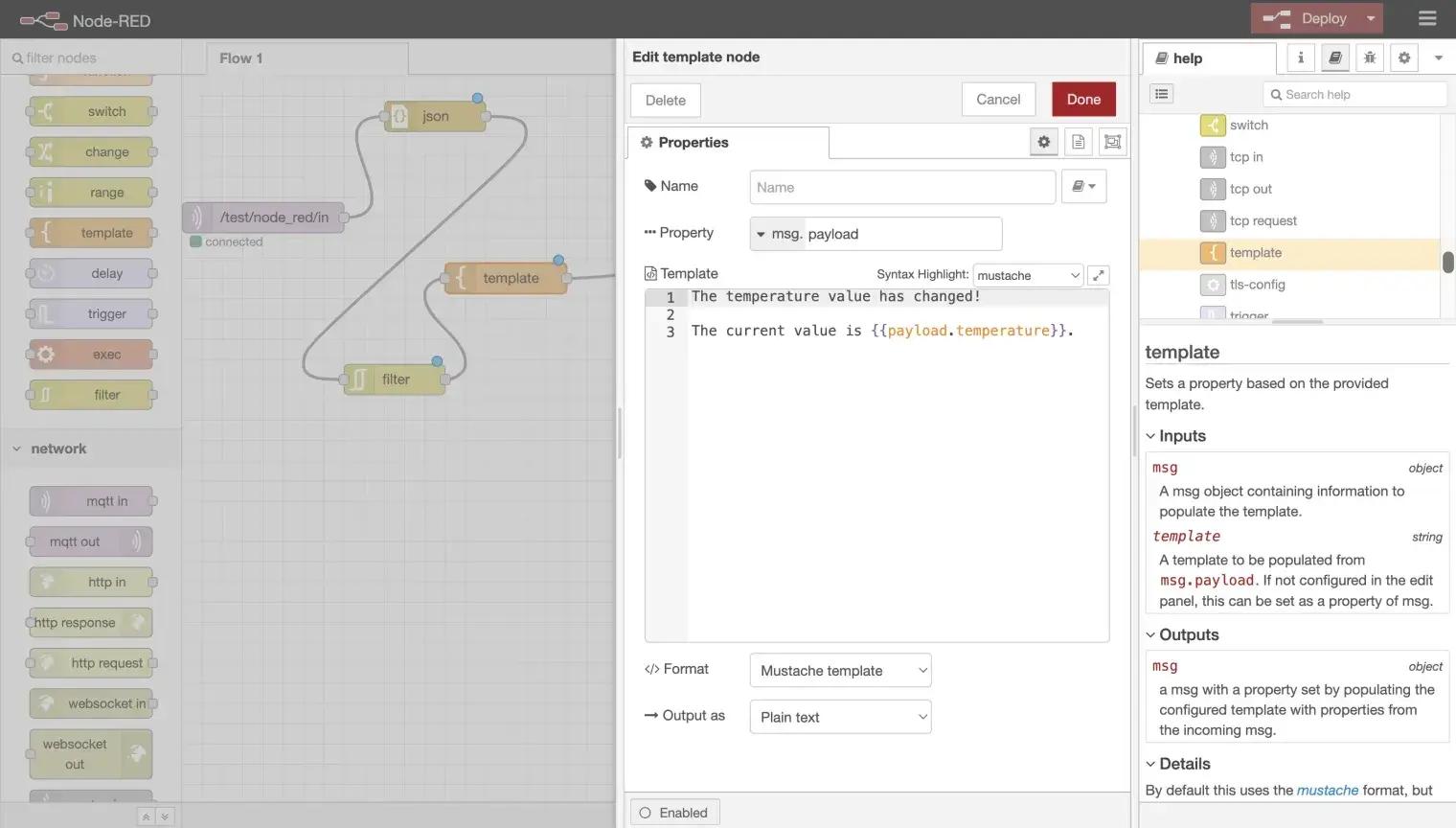
ダブルクリックして設定を開き、Mustache構文を使って出力フォーマットを入力します。例:
{"temperature": {{payload.temperature}}, "humidity": {{payload.humidity}}}Doneをクリックします。
rbeノードの出力をtemplateノードの入力に接続します。
ステップ4: 出力ノードの接続とデプロイ
templateノードの出力をmqtt-outノードの入力に接続します。
Deployをクリックします。
すべてのノードが緑色のconnectedステータスを表示していることを確認します。
フィルタリングしたデータを再整形せずにそのままパブリッシュしたい場合は、templateノードを省略し、rbeノードを直接mqtt-outに接続してください。
フローのテスト
MQTTXや任意のMQTTクライアントを使ってパイプラインをテストします:
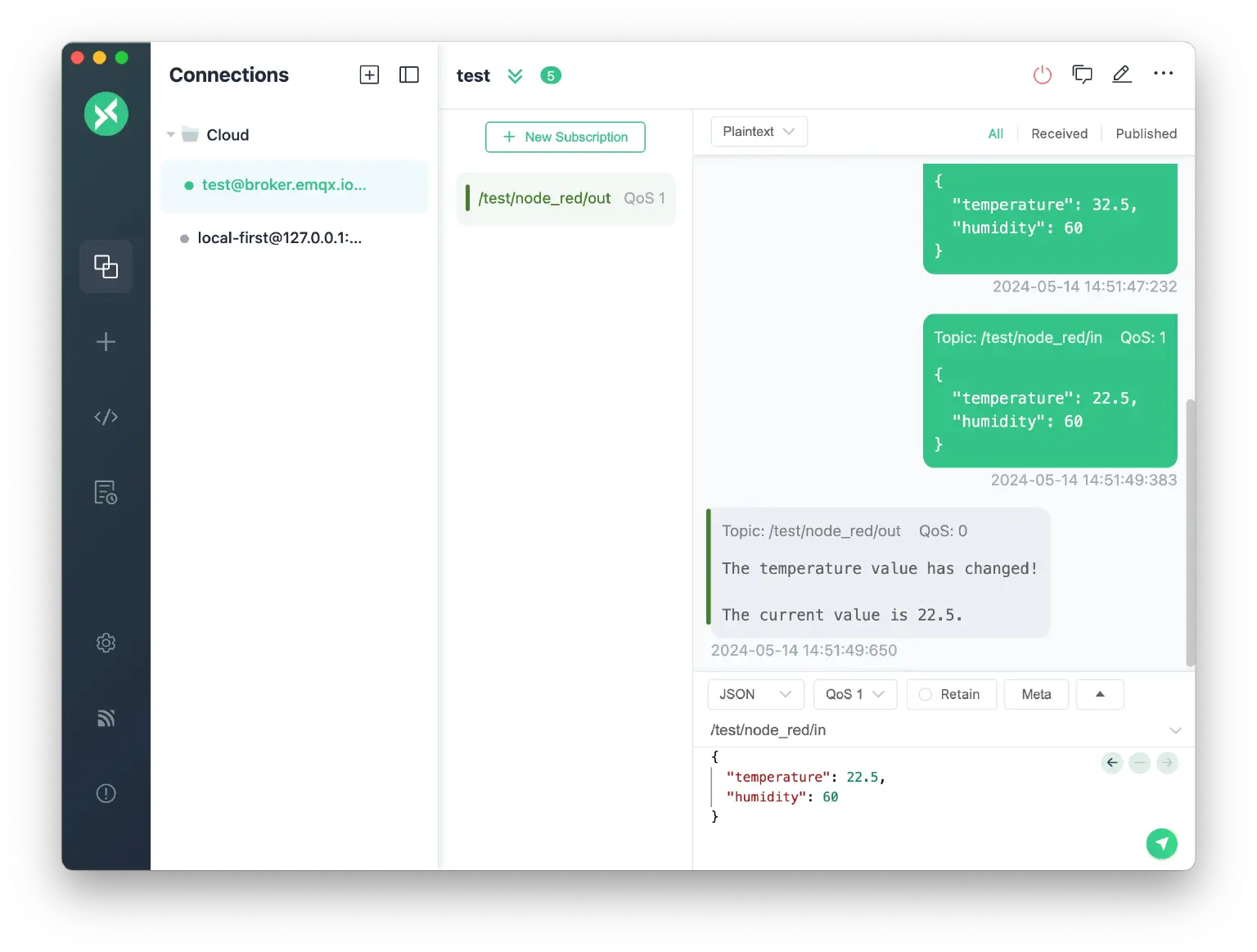
test/node_red/outをサブスクライブして処理結果を監視します。test/node_red/inに以下のようなJSONペイロードをパブリッシュします:json{"temperature": 25, "humidity": 60}出力トピックにメッセージが現れることを確認します。
同じメッセージを再度パブリッシュします。rbeフィルターにより重複が抑制され、出力は現れません。
温度値を変更してパブリッシュします:
json{"temperature": 26, "humidity": 60}このメッセージはフィルターを通過し、出力トピックに表示されることを確認します。
トラブルシューティング
ノードが「disconnected」ステータスを表示する
状況
- デプロイ後、mqtt-inまたはmqtt-outノードが赤いdisconnectedインジケーターを表示する。
考えられる原因
- ブローカーアドレスまたはポートの誤り
- ネットワークファイアウォールによるポート
1883または8883のブロック - ブローカーが起動していない
対処法
- ノードをダブルクリックし、Server横の鉛筆アイコンをクリックしてブローカーアドレスとポートを確認する。
- MQTTXなど別のMQTTクライアントでブローカーへの基本接続をテストする。
- TLSを使用している場合は、正しいポート(
8883)とCA証明書が設定されているか確認する。
入力トピックでメッセージが受信されない
状況
- mqtt-inノードは接続済みだがメッセージが届かない。
考えられる原因
- パブリッシャーとサブスクライバー間でトピック名が一致していない
- QoSレベルの不整合
- ブローカーのACLルールでサブスクライブがブロックされている
対処法
- パブリッシャーがmqtt-inノードで設定したトピック(
test/node_red/in)に正確に送信しているか確認する。 - Node-REDのデバッグノードを使い、フローの各段階でメッセージを検査する。
- ブローカーの認証およびACL設定を確認する。
フィルターノードがすべてのメッセージをブロックする
状況
- 温度値が変わっても出力トピックにメッセージが現れない。
考えられる原因
- rbeノードのプロパティパスが誤っている
- jsonノードがフィルター前にペイロードをパースしていない
対処法
- jsonノードがrbeノードの前に配置され、Always Convert to JavaScript Objectに設定されていることを確認する。
- rbeノードのプロパティが
msg.payload.temperature(payload.temperatureではない)に設定されているか確認する。 - jsonノードの後にdebugノードを追加し、
msg.payloadの構造を検査する。
認証に失敗する
状況
- デプロイ直後にノードがdisconnectedとなり、ブローカーのログに認証エラーが記録される。
考えられる原因
- ブローカー設定にユーザー名またはパスワードが未設定または誤っている
- トピックに対するACL制限
対処法
- ノードをダブルクリックし、ブローカー設定のSecurityタブで正しいユーザー名とパスワードを入力する。
- EMQXの認証設定を確認する。
さらに詳しく
詳細な解説や追加の例については、ブログ記事Using Node-RED to Process MQTT Dataをご覧ください。