AWS VPC Peering Connection
This video provides a brief walkthrough of how to create a VPC peering connection between EMQX Cloud and your AWS VPC. You can follow the video for a visual overview or refer to the step-by-step instructions below for detailed configuration.
Create a VPC Peering Connection
Log in to the EMQX Cloud Console and enter your deployment.
Click Network Management from the left menu. In the VPC Peering Connection area, click the + VPC Peering Connection button.
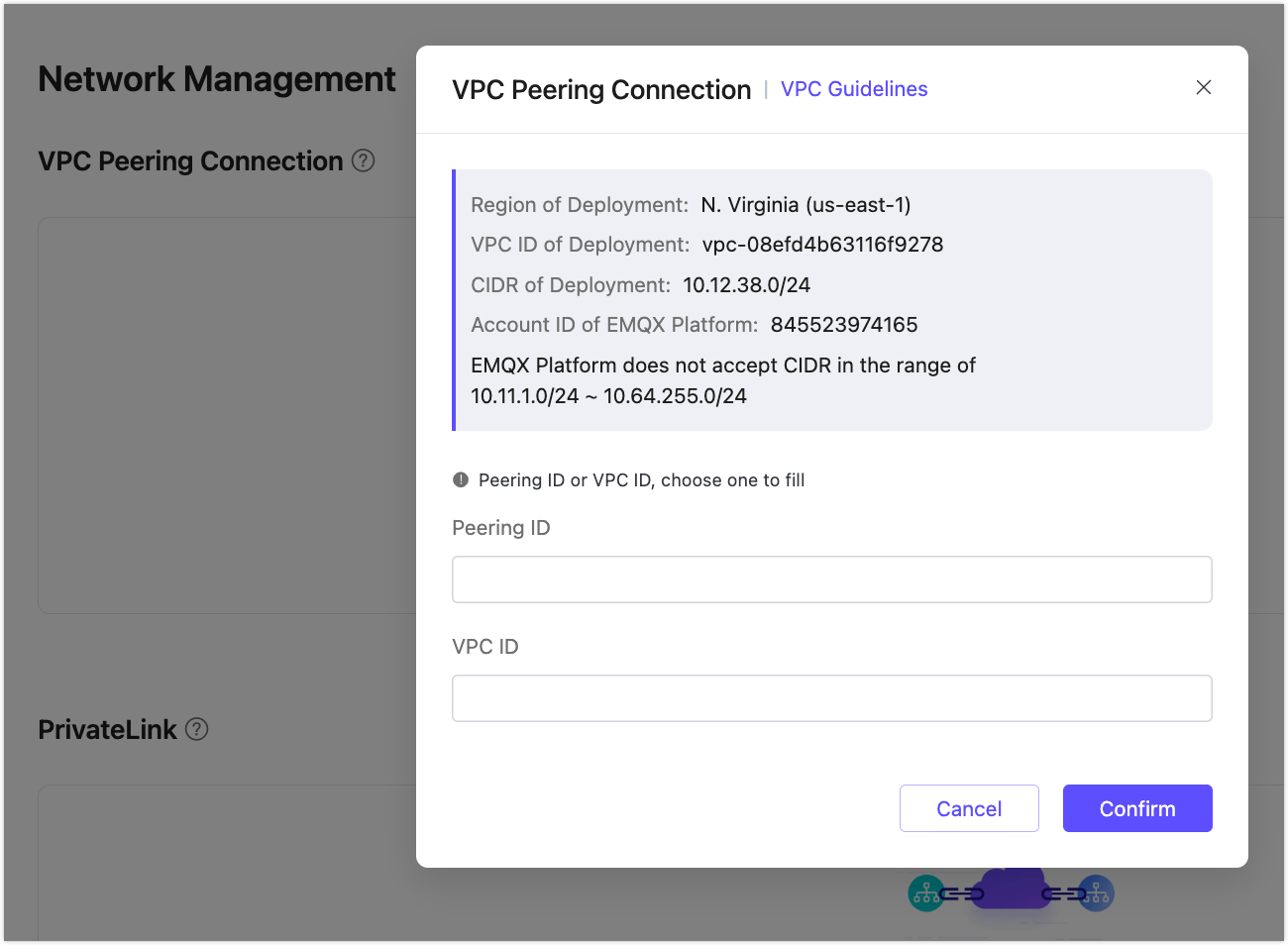
Record the following information on the pop-up dialog for future use, and leave the dialog box open.
- Region of Deployment
- VPC ID of Deployment
- CIDR of Deployment
- Account ID of EMQX Cloud
Log in to the Amazon Web Services console, and switch to the "Region of Deployment" that is recorded in the previous step.
Go to Networking & Content Delivery -> VPC -> Peering Connection, and click the Create Peering Connection button.
- Select
Another accountfor Account. - Enter the Account ID with the
Account ID of EMQX Cloudrecorded before. - Select
This region(us-east-1)for Region. - Enter the VPC (Accepter) with the
VPC ID of deploymentrecorded before.
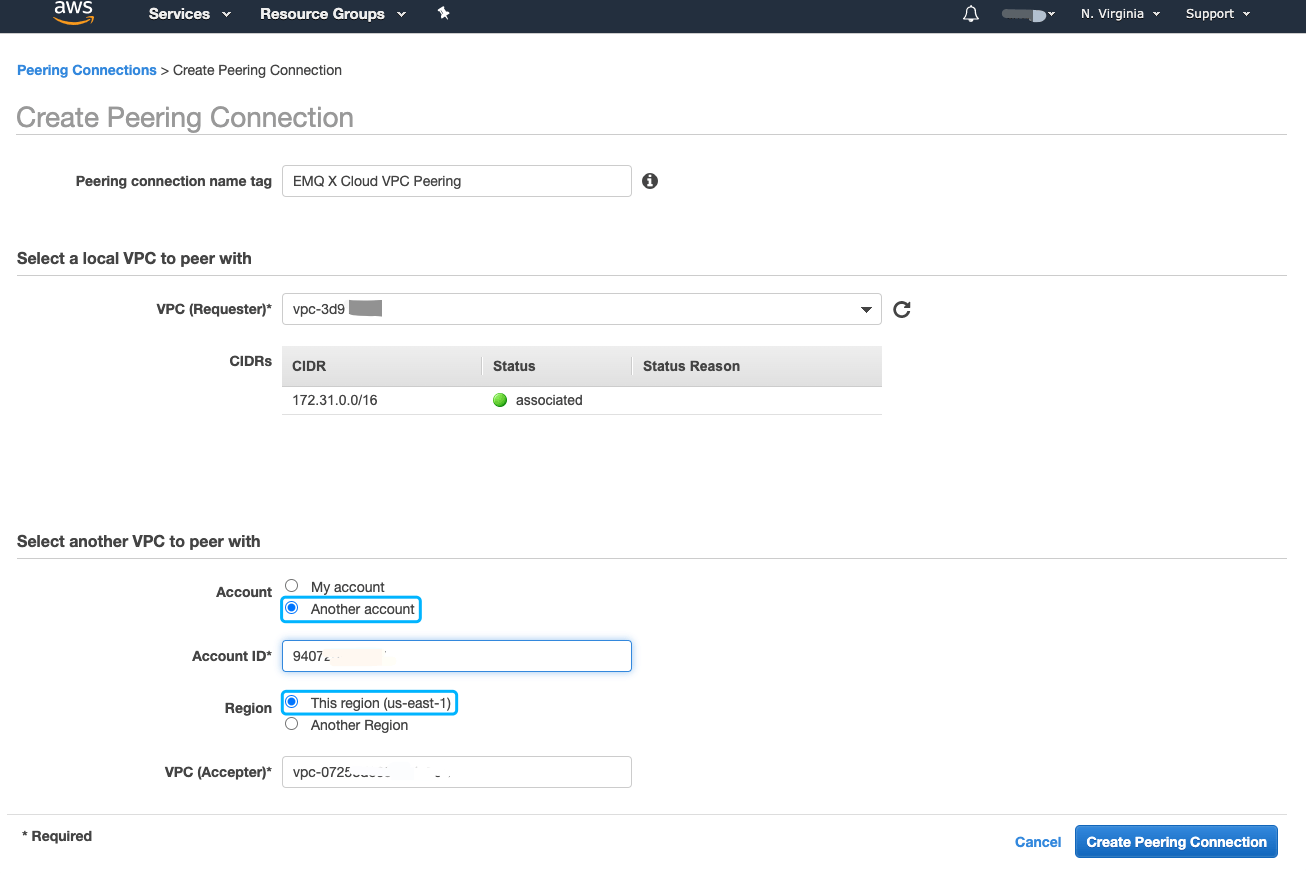
After you complete the settings, click Create Peering Connection.
- Select
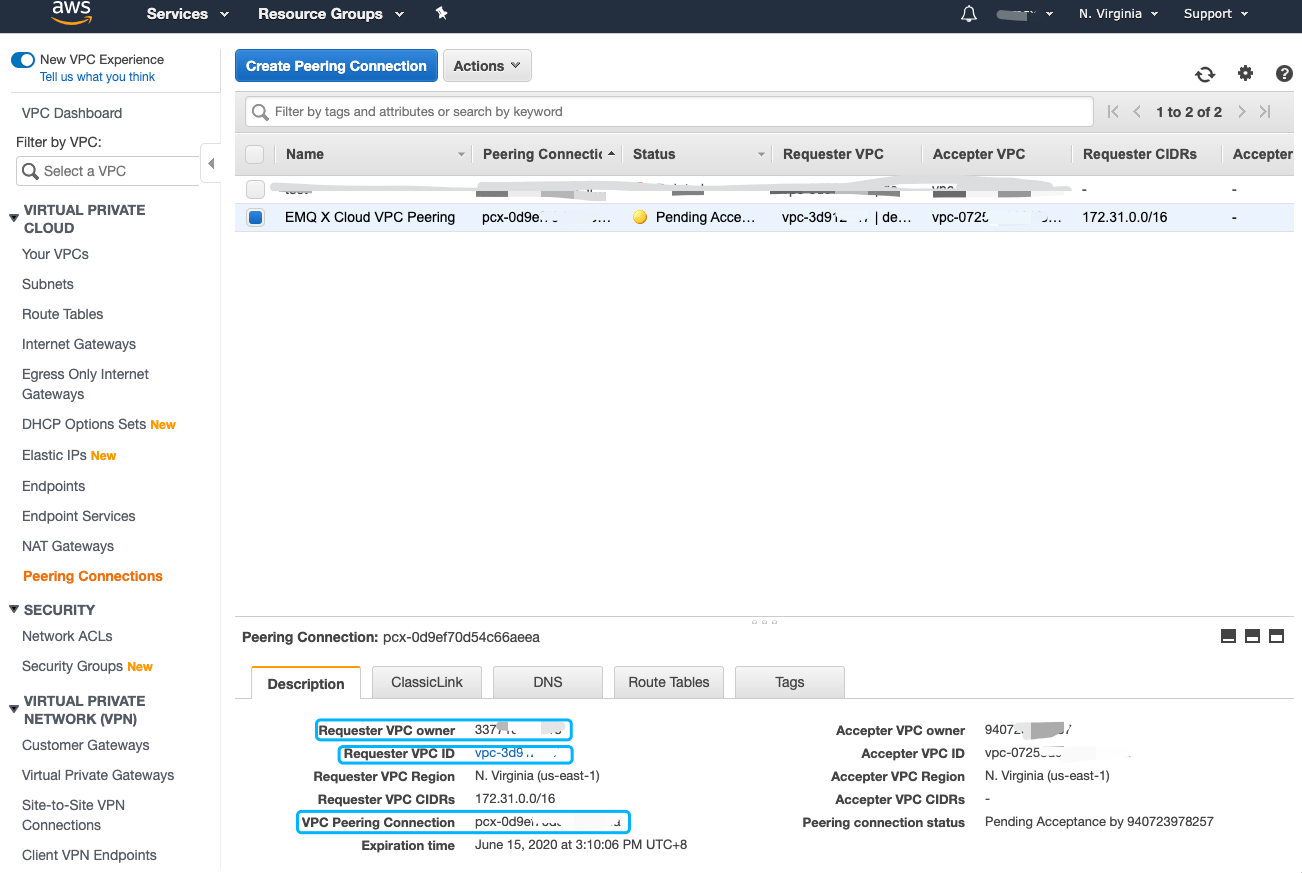
Once created, you will see a VPC peering entry listed. Record the information in Requester VPC owner, Requester VPC ID and VPC Peering Connection at the bottom of the page for future use.
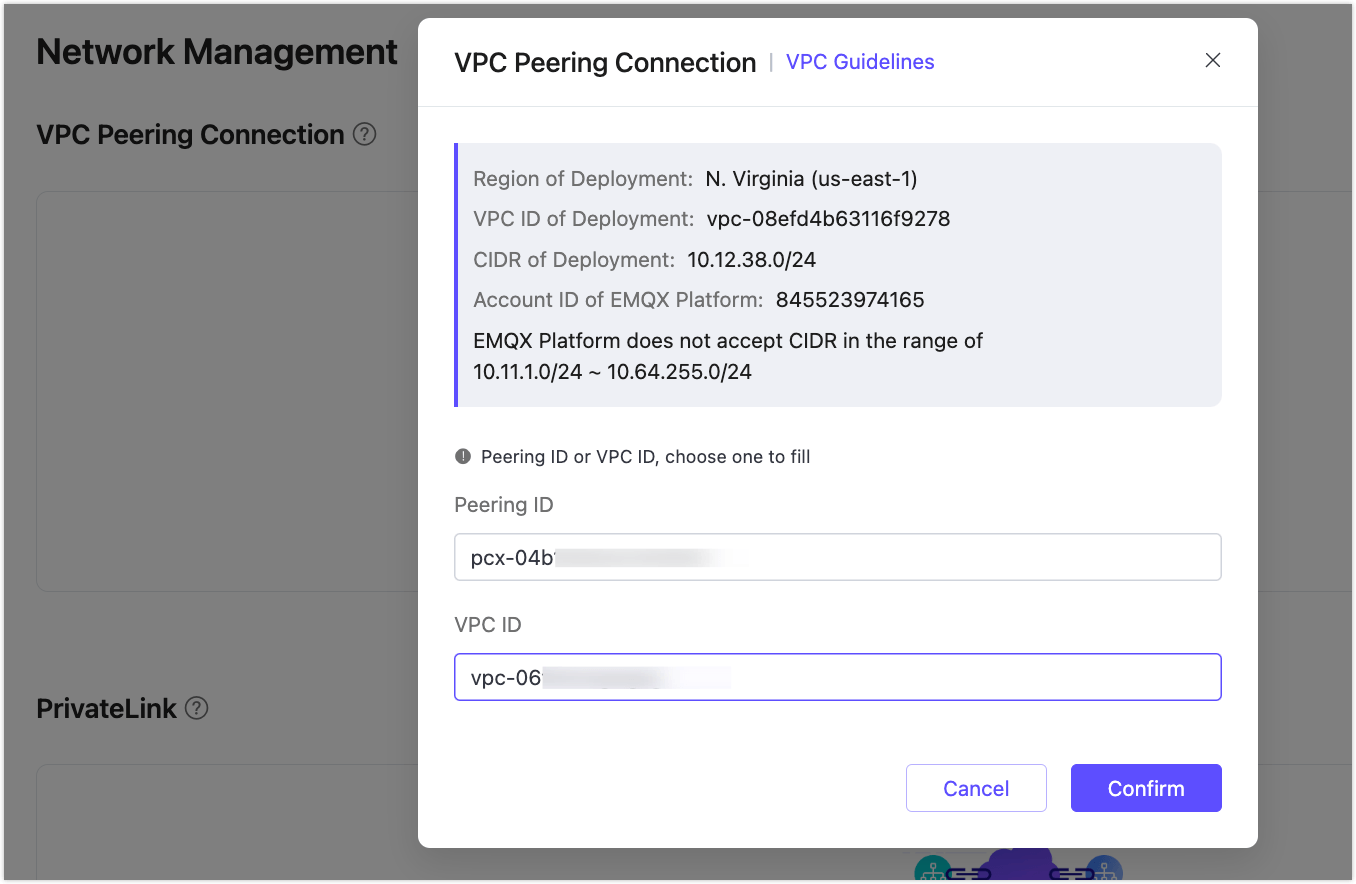
Return to the EMQX Cloud Console, complete the rest of the VPC Peering Connection settings with the information recorded from the AWS console, and click the Confirm button.
- Peering ID: Enter the information in the VPC Peering Connection in the AWS console.
- VPC ID: Enter the information in Requester VPC ID in the AWS console.
Return to the Amazon Web Services console, go to
Networking & Content Delivery->VPC->Route Tables, and add theCIDR of deploymentrecorded in step 1 to the route table of the corresponding VPC.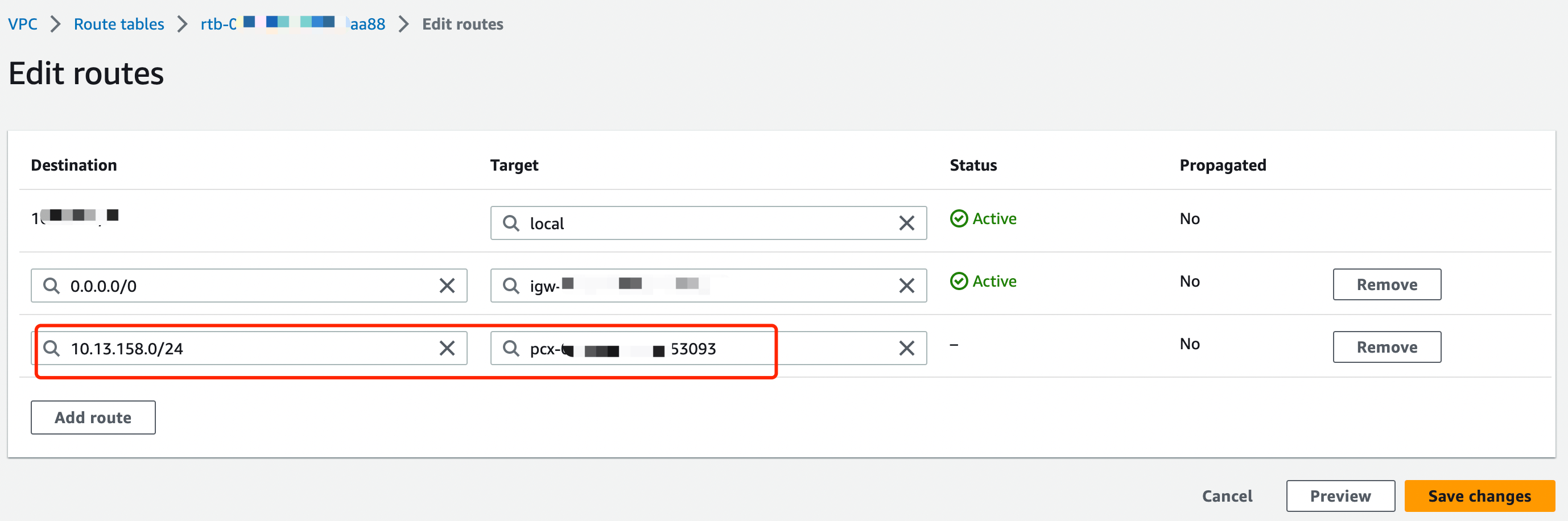
Go to
Networking & Content Delivery->VPC->Security Groups,configure the security group bound to the corresponding VPC, edit inbound rules and add a rule.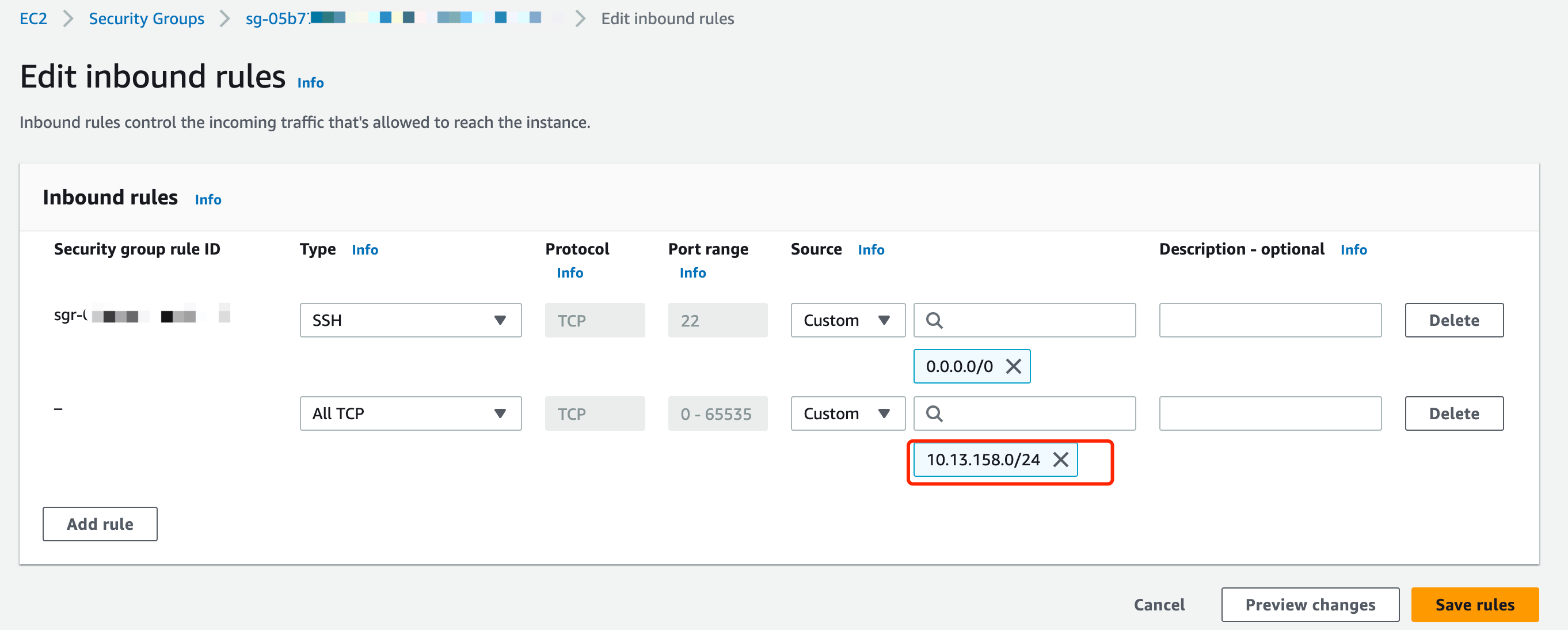
Delete a VPC Peering Connection
To delete a peering connection, you need to ensure that the status of the VPC peering connection is Running.
TIP
Before deleting the peering connection, make sure that there are no associated resources in the deployment; otherwise, there will be unpredictable risks.
Go to the VPC Peering Connection area on the Network Management page in your deployment.

Click the "delete" icon in the Actions column of the peering connection.
