Chats
A chat is a conversation with the built-in LLM where you describe what you want an agent to do. The LLM interprets your request, generates the agent's instructions and skills, and assembles a complete agent definition ready to deploy.
Chats serve two purposes:
- One-off tasks: Ask the LLM to query recent device data, summarize an incident, or analyze a set of MQTT events without creating a persistent agent.
- Agent authoring: Describe an automation goal, iterate on the behavior through follow-up messages, and deploy the result as a long-running agent.
You can start an agent-authoring chat from scratch or from a built-in template. A template-based chat starts with predefined instructions, a trigger, tools, and supporting workspace files.
View Chats
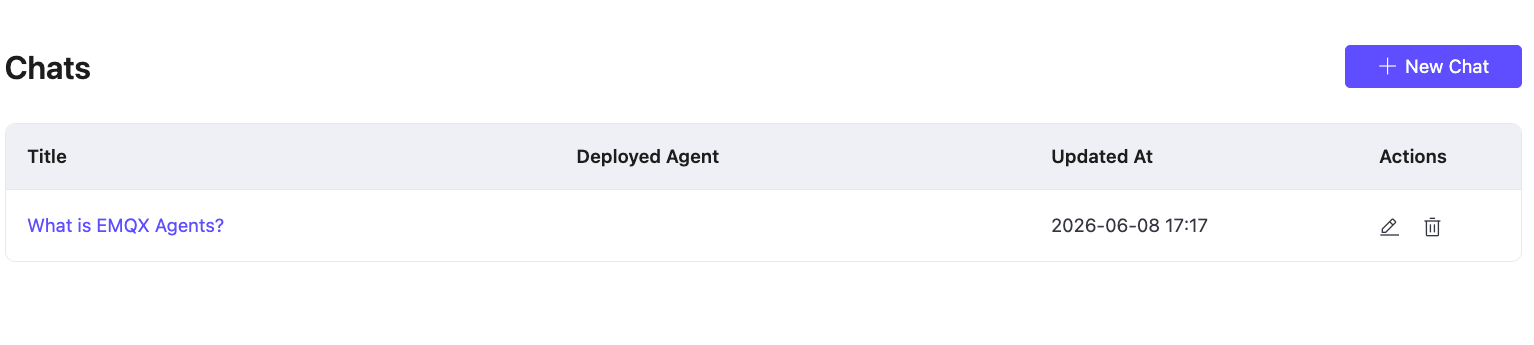
Click Chats in the left menu to open the Chats page. The list shows all chats in this deployment with the following columns:
| Column | Description |
|---|---|
| Title | The chat title, auto-generated from the first message. Click to open the chat. |
| Deployed Agent | The agent deployed from this chat, if any. |
| Updated At | When the chat was last active. |
| Actions | Rename or delete the chat. |
Start a New Chat
- Click Chats in the left menu.
- Click + New Chat.
- Optionally select connectors to make available for this session (see Select Connectors).
- [Optional] Click the Add File icon in the lower-left corner of the input area to attach images or text files that provide context for this chat (see Add Attachments).
- [Optional] Select how EMQX Agents requests approval before running tools (see Select a Tool Approval Mode).
- [Optional] Select the model and reasoning effort to use for this request (see Select a Model and Reasoning Effort).
- Type your request in the input field, then click the send button.
The input field placeholder shows example prompts to help you get started, such as:
- Query recent power draw from EMQX Tables and summarize line-3 motor usage
- Detect stalled robot arm telemetry from MQTT topics and page the on-call team
These are suggestions only. Describe your own use case in plain language.
Use Deployment-Level Skills
Deployment-level skills provide reusable instructions for creating similar agents. At the beginning of a message or after a space, enter / followed by part of a skill name, then select a skill from the candidate list. Describe the requirements for this agent, such as a different MQTT topic, threshold, or output format, and send the message.
EMQX Agents loads the selected skill for the chat run created from that message. The skill is not automatically applied to the next message and does not automatically change a deployed agent. Review the generated definition before deploying or redeploying the agent.
For information about preparing, uploading, selecting, and troubleshooting skills, see Manage EMQX Agents Skills.
Start a Chat from a Template
To start from a predefined agent scenario, click Templates in the left navigation menu, select a built-in template, and click Use Template. You can customize the instructions, enter template variables, and select connectors before clicking Start Chat.
The resulting chat has an independent workspace. Changes made in the chat do not modify the original template. For the complete workflow, see Use EMQX Agents Templates.
Select Connectors
Before or during a chat, you can select which connectors the LLM has access to. The LLM uses the selected connectors when generating an agent definition, for example to configure the MQTT trigger topic, the target of a mqtt.publish action, or tools exposed by an MCP connector such as Gmail or Slack.
To select connectors:
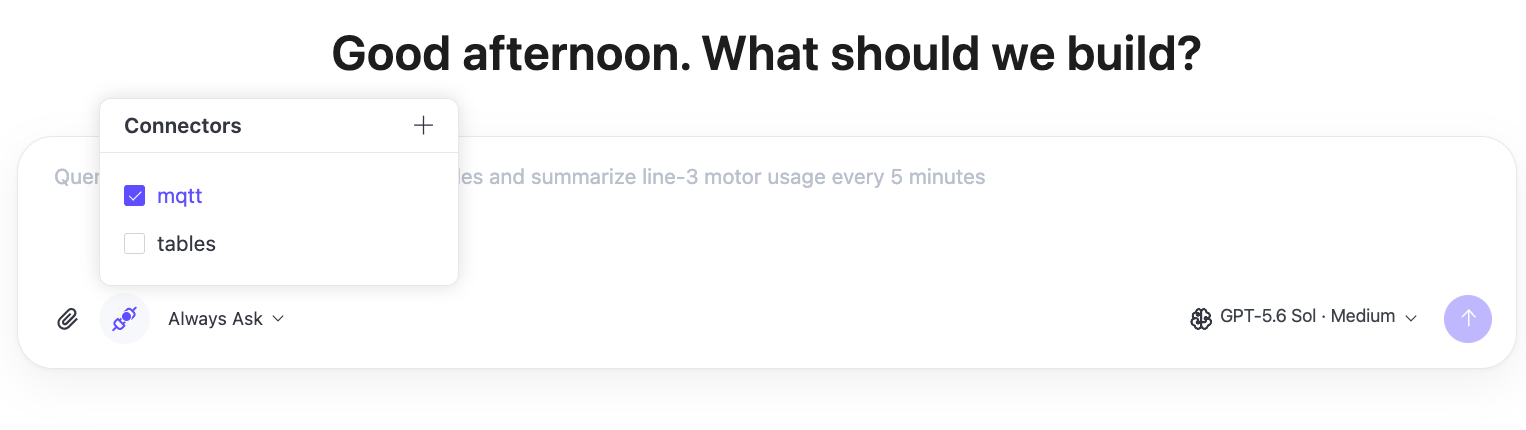
- Click the connector icon in the lower-left corner of the input area. A Connectors panel appears listing your configured connectors.
- Check the authorized connectors you want to make available for this session. MCP connectors in Unauthorized, Expired, or Error status may appear in the list but cannot be selected.
- To add a new connector, click + in the upper-right corner of the panel. This opens the Add Connector form without leaving the chat.
If no connectors are selected, the LLM can still respond to general questions but cannot generate an agent definition that references a specific broker, Tables instance, Fleets deployment, or MCP service.
Add Attachments
You can attach files to a chat message when the LLM needs extra context, such as a screenshot, a device log excerpt, a sample payload, or a short configuration file.
To add attachments:
- Click the Add File icon in the lower-left corner of the input area.
- Select up to three files for the current chat message.
- Send the message with your request.
Each chat message can include up to three attachments. Each attachment must be no larger than 2 MiB.
Supported attachment types are:
- JPEG, JPG, or PNG images.
- UTF-8 encoded text files.
Select a Tool Approval Mode
The tool approval mode controls when EMQX Agents asks for your approval before running a tool in the chat. Click the approval selector in the lower-left corner of the input area, then select one of the following modes:
| Mode | Behavior |
|---|---|
| Always ask | Runs low-risk actions freely. Asks you before actions that require approval. |
| Approve for me | Runs tools automatically when risk is low or medium. Asks when risk is high or unknown. |
| Full access | Runs approved actions without asking. Use this mode for chats that you trust to operate autonomously. |
The selected mode also determines whether an additional confirmation is required when you deploy or redeploy an agent:
- With Always ask, click Confirm in the Confirm deployment? dialog after clicking Deploy Agent or Redeploy Agent.
- With Approve for me or Full access, deployment starts when you click Deploy Agent or Redeploy Agent, without an additional confirmation.
Select a Model and Reasoning Effort
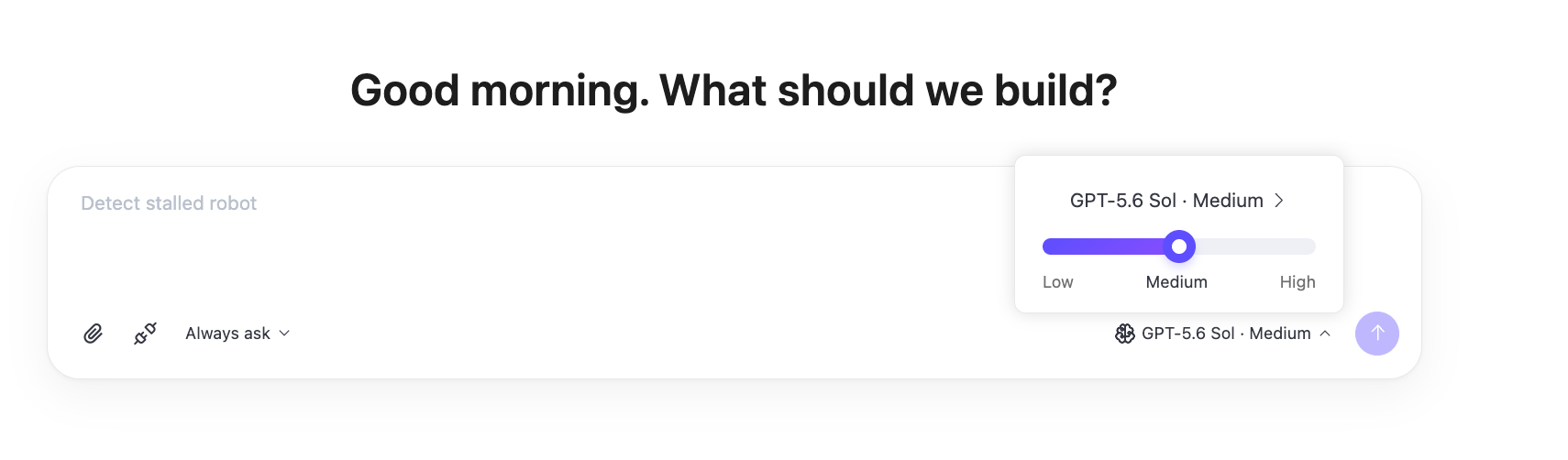
The input area shows the selected model and reasoning effort in the lower-right corner. The available models, default selection, and reasoning efforts are provided by the model catalog for the EMQX Agents deployment. Different models can support different reasoning efforts.
To adjust the reasoning effort for the selected model:
- Click the model and reasoning effort selector.
- Select one of the reasoning efforts shown on the scale. The request uses the updated selection when you send or regenerate a message.
To select a different model:
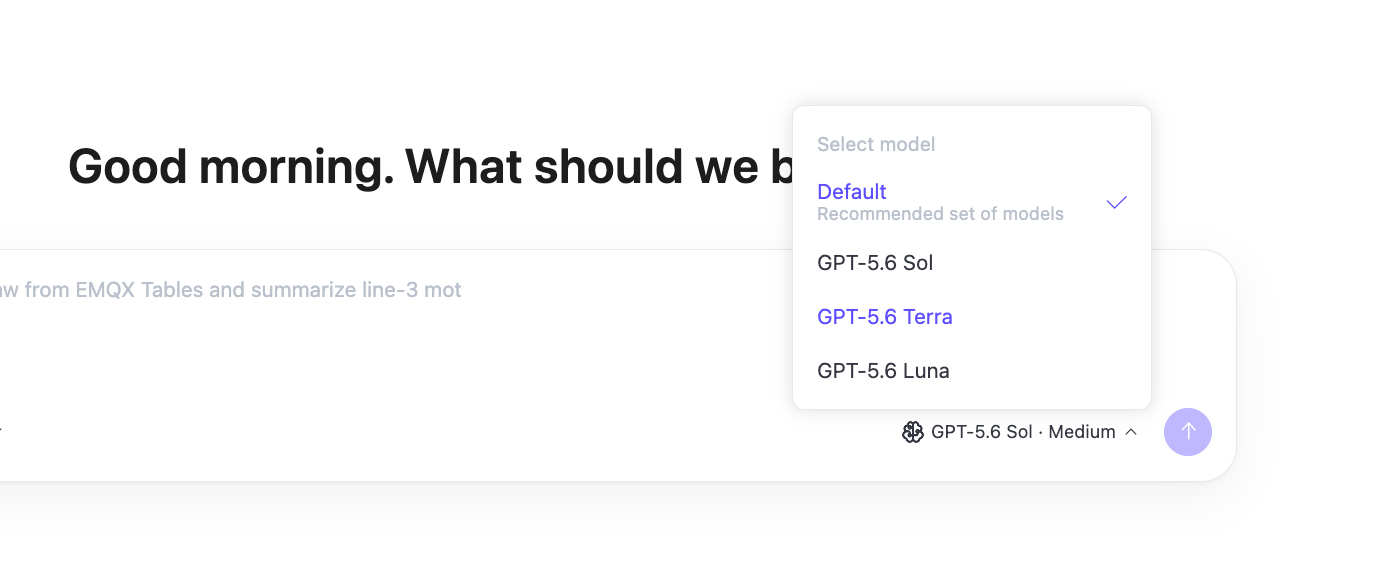
- Open the selector and click the model name at the top of the panel.
- Select a model from the Select model list. The panel returns to the reasoning effort scale for the selected model.
- To restore the deployment's recommended model and reasoning effort, select Default.
If the reasoning effort selected for the previous model is not supported by the new model, the Console selects a supported reasoning effort for the new model.
The selection has the following scope:
- Sending a message, editing or regenerating a message, and generating a template draft use the model and reasoning effort selected when you start the request.
- The selection is not saved as part of the chat session or message history. The current page can retain the selection, but refreshing the page or reopening the chat does not restore the selection used by a previous message.
- A deployed agent has its own model and reasoning effort. Review these settings in the agent preview before you deploy or redeploy the agent.
If the model catalog cannot be loaded, EMQX Agents does not create a fallback list. If a selected model or reasoning effort is no longer available, the request fails instead of switching silently to another model. Reload the page to retrieve the current catalog, then select an available option or Default before retrying the request.
Refine the Agent Definition
After the LLM responds, you can continue the conversation to refine the agent:
- Ask the LLM to adjust the trigger topic, change the threshold, or add a new tool.
- Request a different skill implementation or a more conservative alerting condition.
- Ask the LLM to explain what it generated before you deploy.
Each follow-up message updates the agent definition in the workspace. The LLM retains context across all messages in the same chat.
For a chat created from a template, the Builder also updates the related skills, scripts, and assets when those files implement behavior affected by your requested changes. If a required variable or connector is missing, the Builder asks you to provide it before validation.
Deploy an Agent from a Chat
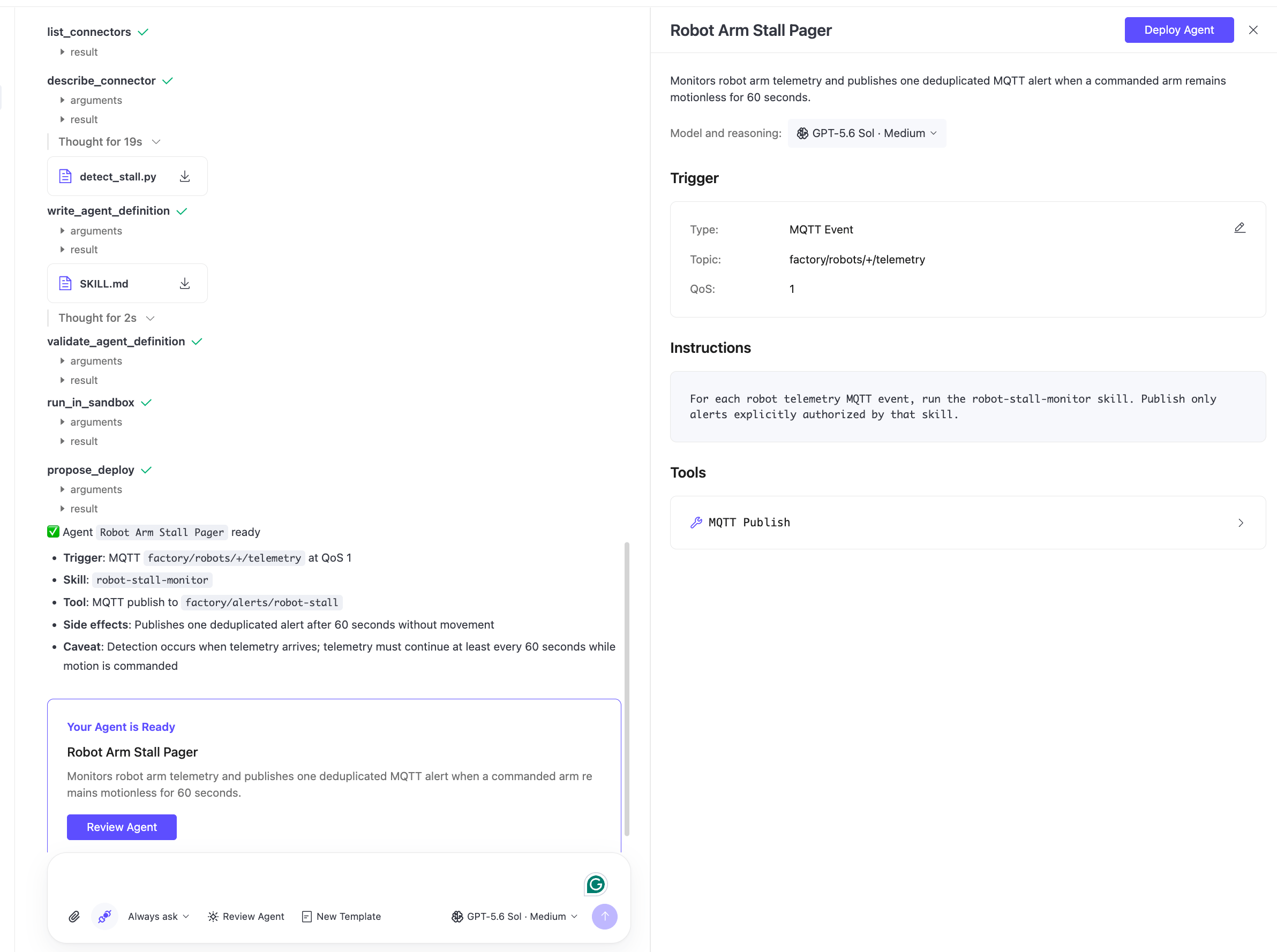
When the Builder has generated and validated an agent definition, Review Agent appears at the bottom of the chat.
- Review the generated definition. You can ask follow-up questions or request changes before deploying.
- Click Review Agent to open the review panel on the right. For a new agent, the panel initially uses the model and reasoning effort selected in the chat.
- Review the required Agent Name, optional Description, Model and reasoning, Trigger, Instructions, and Tools. The name is prefilled from the generated definition, and you can edit it before deployment.
- Click Deploy Agent.
- If the chat uses Always ask, click Confirm in the Confirm deployment? dialog. Other tool approval modes do not require this additional confirmation.
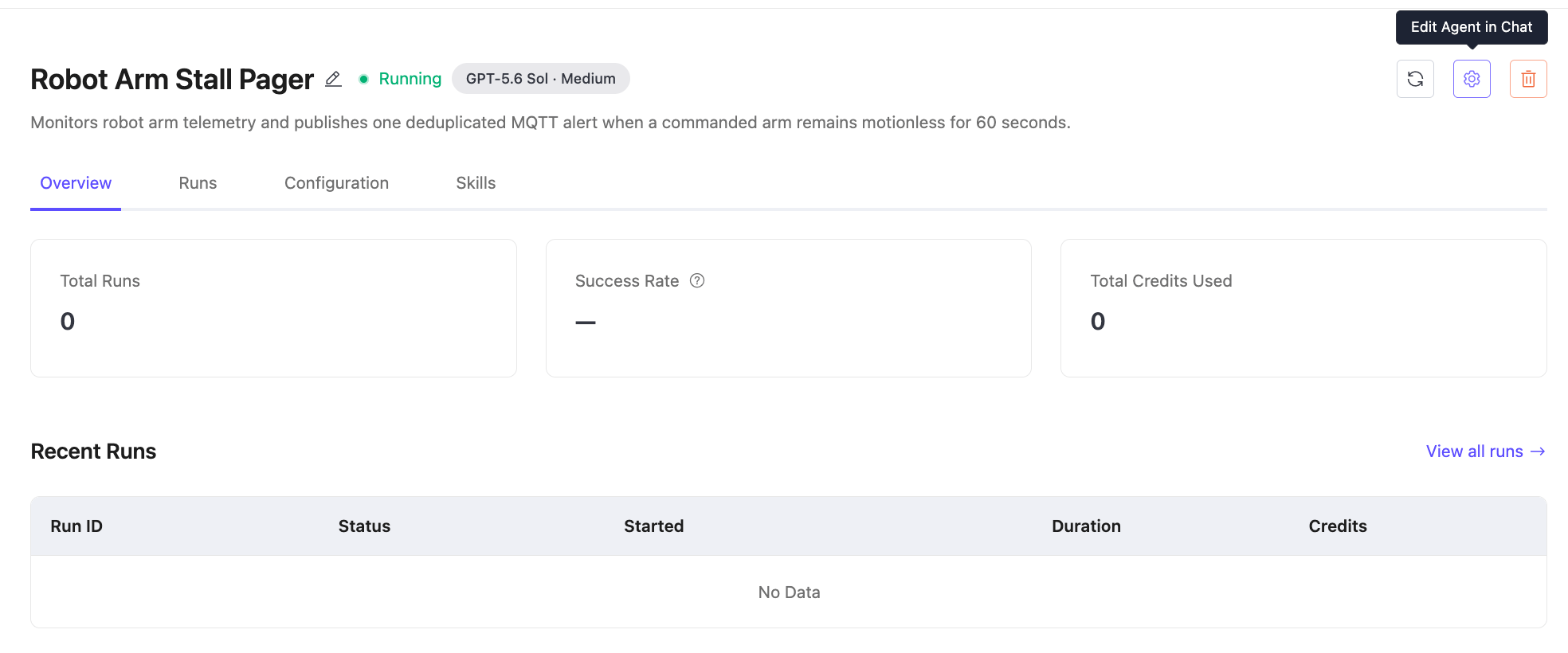
- The agent detail page opens. The agent may take a few minutes to reach Running status.
Changing the model or reasoning effort in the review panel does not change the selection in the chat. The review panel selection is used for the deployed agent.
TIP
Deploying an agent from a chat does not close or archive the chat. You can return to the same chat later or click Edit Agent in Chat on the agent detail page to update the agent's behavior and redeploy.
Redeploy from a Chat
To update or redeploy an agent from its chat:
Open the agent detail page and click Edit Agent in Chat in the upper-right corner. You can also open the originating chat from the Chats list if it still exists.
Review the chat that opens:
- If the originating chat still exists, its previous conversation history is available.
- If the chat was deleted, the editing page opens without the previous conversation history.
Enter a request describing how you want to change the agent. If the previous conversation history is available and you do not want to change the behavior, you can skip this step.
Wait for the Builder to update and validate the agent definition, if you requested changes.
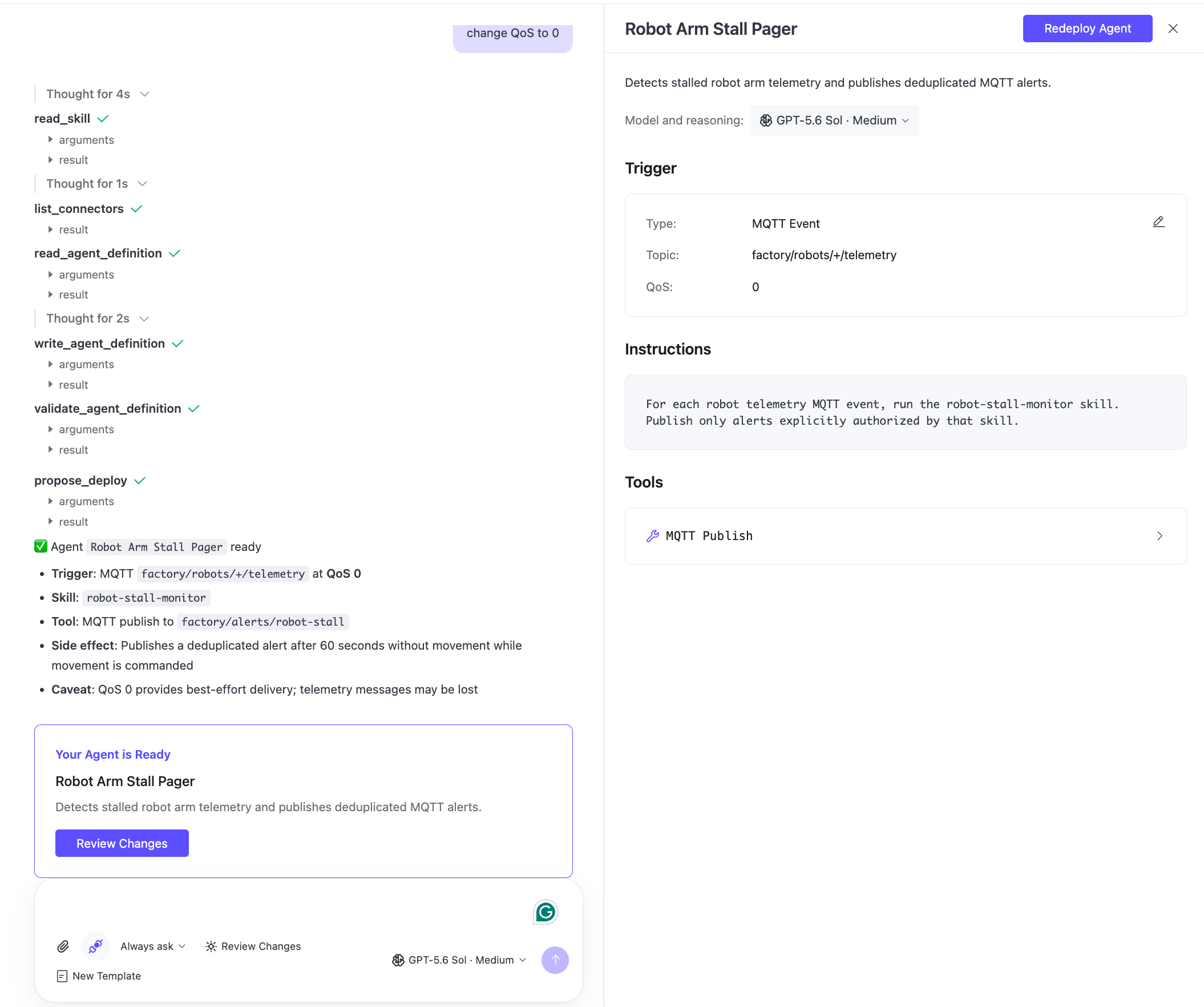
Click Review Changes to open the review panel. The panel shows the model and reasoning effort saved for the agent.
Review the name, description, model and reasoning effort, trigger, instructions, and tools. Update the available settings if needed.
Click Redeploy Agent.
If the chat uses Always ask, click Confirm in the Confirm deployment? dialog. Other tool approval modes do not require this additional confirmation.
Redeploying updates the running agent with the definition, model, and reasoning effort from the review panel. The updated model and reasoning effort take effect after the redeployment succeeds. The previous run history is preserved.
Rename a Chat
- On the Chats list page, click the edit icon in the Actions column.
- Enter a new title and confirm.
Delete a Chat
- On the Chats list page, click the delete icon in the Actions column.
- Confirm the deletion.
Deleting a chat does not affect any agents that were deployed from it. The agent continues running independently. If you later click Edit Agent in Chat for that agent, the editing page opens without the deleted conversation history. Enter a new request to update the agent, then click Review Changes to review and redeploy it.