Create an EMQX Agents Deployment
Use this page to create an EMQX Agents deployment in the EMQX Cloud Console.
Prerequisites
Before creating an EMQX Agents deployment, make sure you have an EMQX Cloud account with an active project.
An EMQX Broker or EMQX Tables deployment is not required. You can create the Agents deployment first and add the other services later.
Where to Start
You can start creating a deployment from two places:
- On the project Home page, click + New on the EMQX Agents card.
- On the New Deployment page, select the EMQX Agents plan.
Step 1: Choose a Plan
EMQX Agents is available to all users as a Public Beta. The Starter plan is the only available plan and is selected by default.
The Starter plan includes:
- MQTT & Time-Series Data
- AI-Powered Analysis
- Real-Time Event Monitoring
- Automated Actions
Step 2: Select a Region
Google Cloud is the only supported cloud provider. Select the Region where the deployment will run.
Step 3: Configure Network Association (Optional)
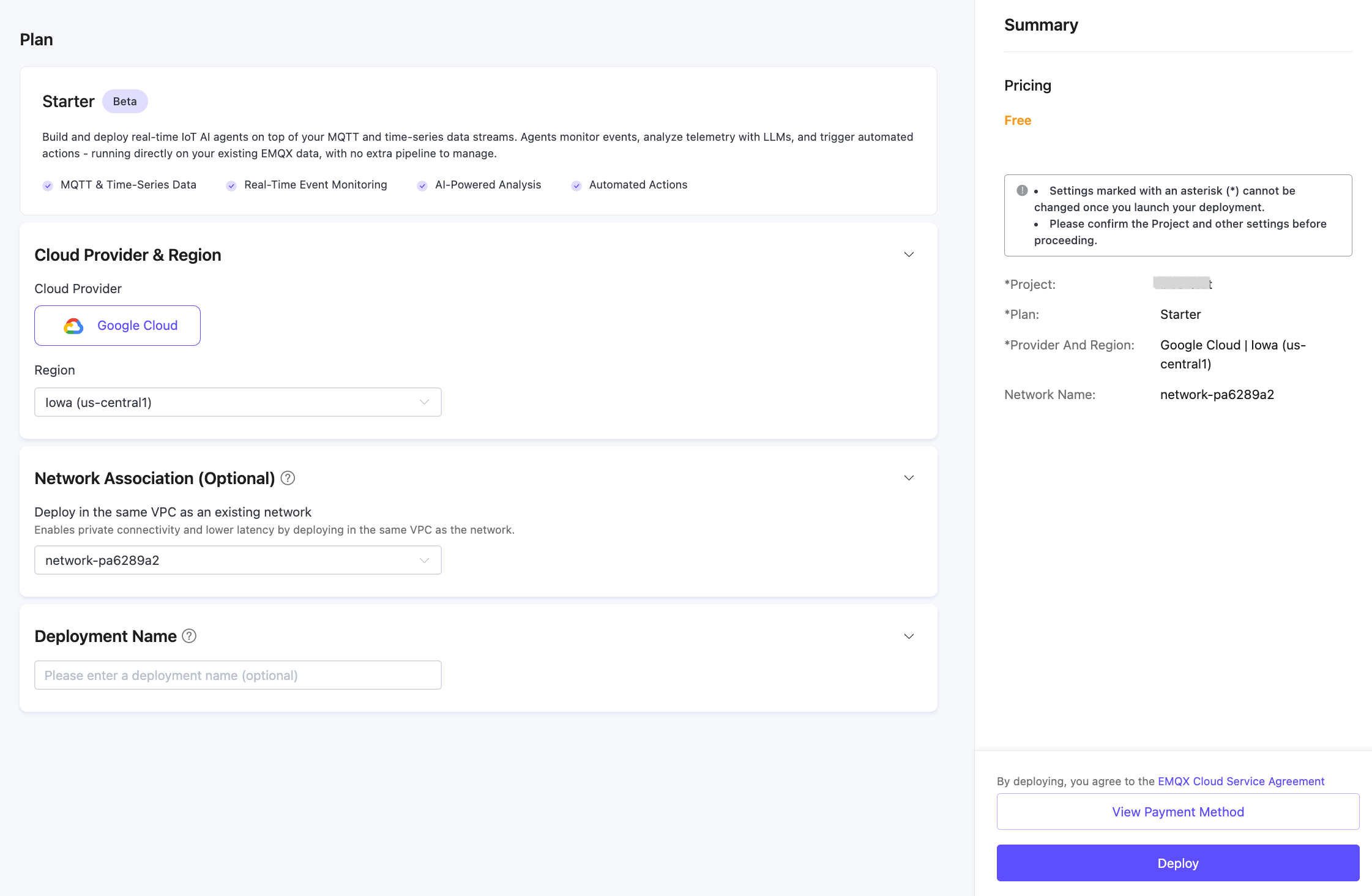
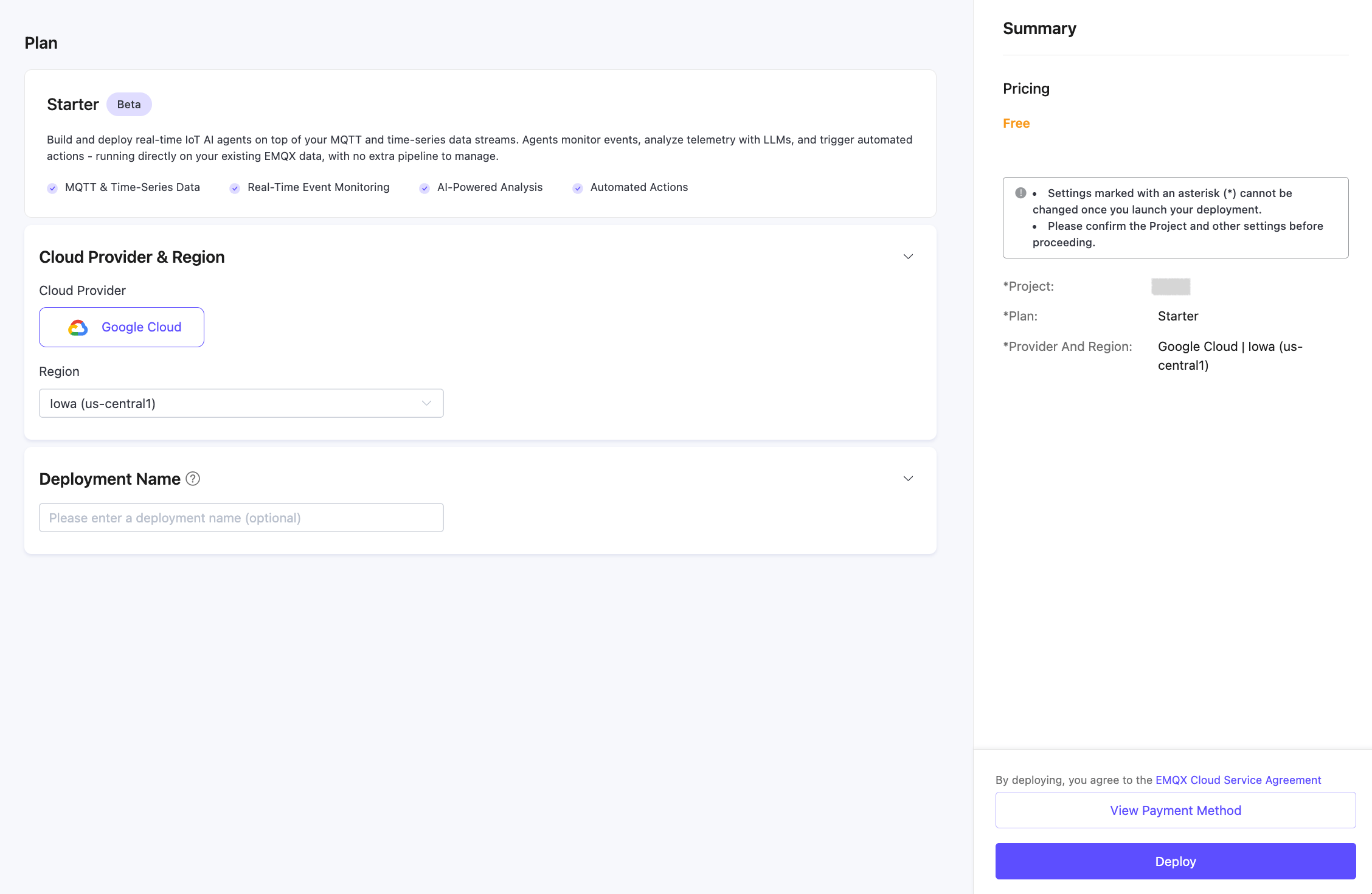
The Network Association (Optional) section appears when a compatible EMQX Broker, EMQX Tables, or EMQX Fleets network is available on Google Cloud in the selected region.
- If you select a network, EMQX Cloud deploys Agents in the same virtual private cloud (VPC) as the associated service. Services in the same network can communicate through private addresses by default.
- If you do not select a network, or if the section does not appear, EMQX Cloud creates a separate network for Agents. Services in different networks must communicate through public addresses. For example, to access Tables in another network, use the Tables public connection address and port
443, not the default port4000.
You can also create Agents first. When you later add other compatible services, select the Agents network to place them in the same VPC.
Important Notice
You cannot change the network of a deployment after the deployment is created. Confirm the network selection before you deploy.
Step 4: Set a Deployment Name (Optional)
Enter a name for the deployment. If left blank, a name is automatically generated, for example deployment-b8f11c8b.
The deployment name can be changed after creation from the Deployment Settings page.
Step 5: Review and Deploy
The Summary panel on the right shows the selected plan, cloud provider, and region. If you selected an existing network, the panel also shows the network name. Settings marked with an asterisk (*) cannot be changed after the deployment is created.
Click Deploy. A Tips dialog appears asking you to confirm. Click Confirm to start provisioning.
The following example associates the Agents deployment with an existing network:
If no compatible network is available, the creation page does not show the Network Association (Optional) section:
The deployment takes a moment to initialize. Once it is ready, it appears in your project's Deployments list with a Running status.
Next Steps
- Add a Connector to connect the deployment to your EMQX Broker or EMQX Tables.
- Start a Chat to build your first agent.
- Manage Your Deployment