Device Query
Device Query lets you search across your entire device fleet using a SQL-like query language. It combines device metadata, connection status, and the latest shadow state into a single queryable surface, so you do not need to join multiple data sources yourself.
Open Device Query
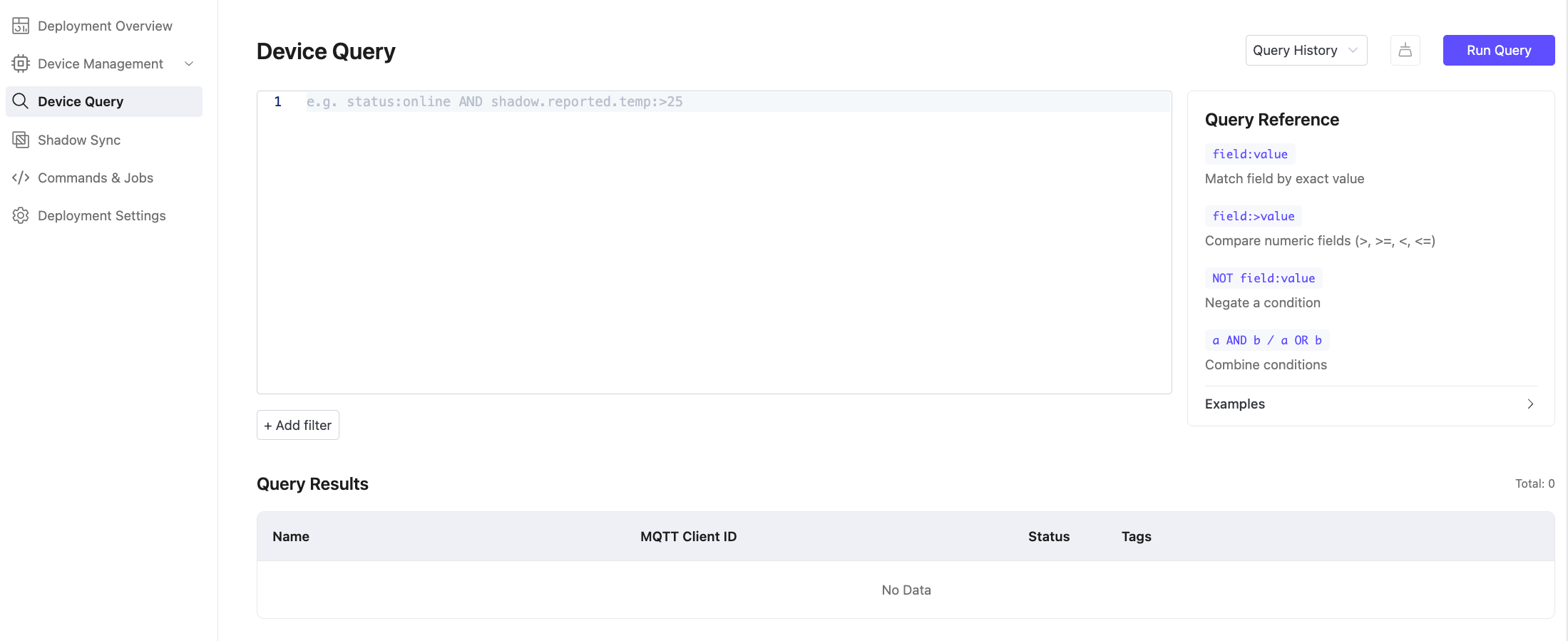
In your Fleets deployment, click Device Query in the left menu.
Write a Query
Enter a query in the text editor and click Run Query. The results appear in the Query Results table below.
Query results include each matching Thing's name, MQTT Client ID, and status.
Example Walkthrough
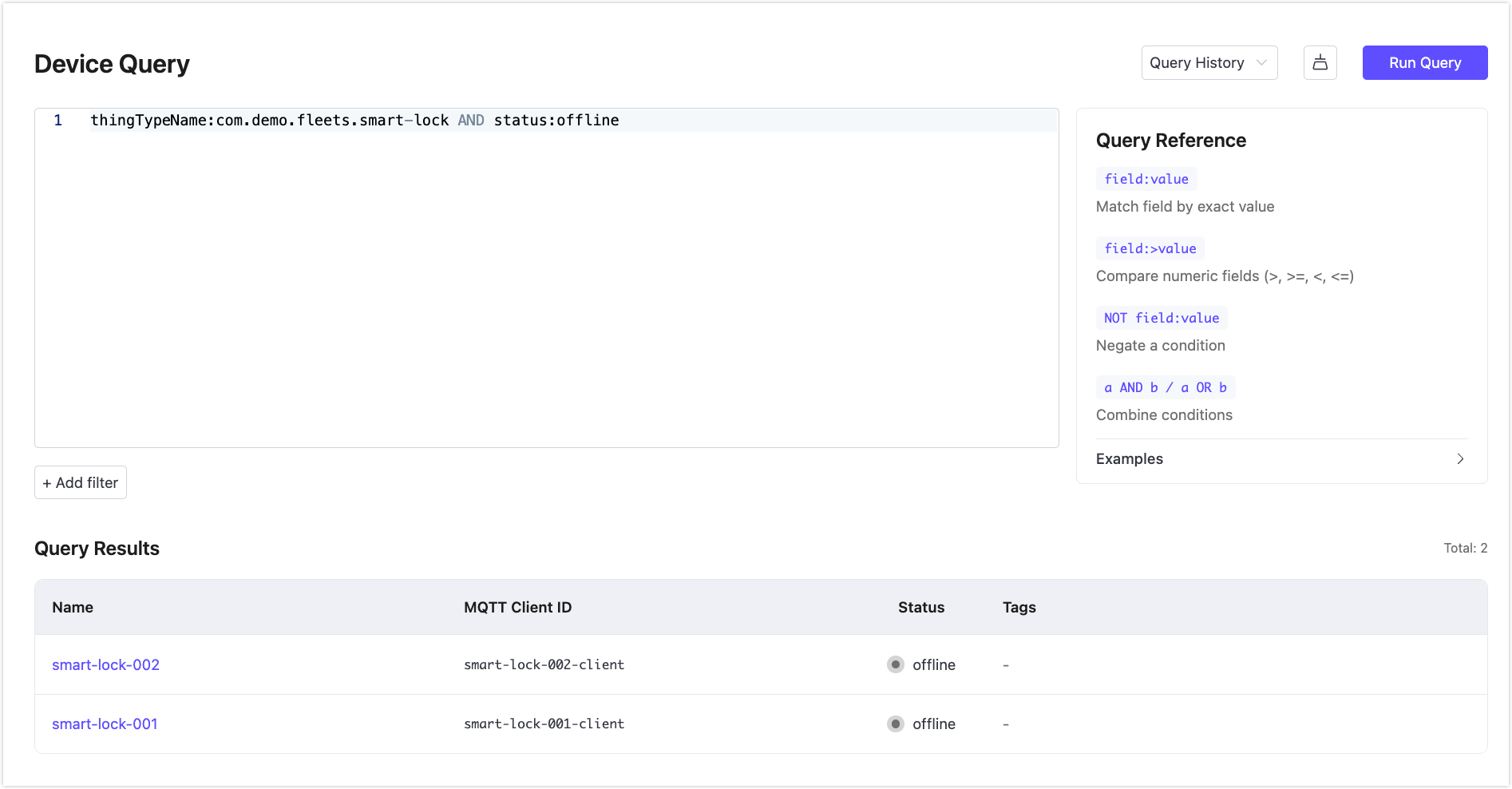
This example finds all offline smart locks.
In the query editor, enter:
thingTypeName:com.demo.fleets.smart-lock AND status:offlineClick Run Query.
The Query Results table lists every matching Thing with its name, MQTT Client ID, and status.
Click a Thing name to open its detail page and review its last offline time and shadow state.
Query Syntax
Queries use a field:value syntax with support for comparisons, negation, logical operators, and grouping.
| Pattern | Description | Example |
|---|---|---|
field:value | Exact match | status:online |
field:a,b | Match any of the listed values (IN) | operationMode:cool,heat |
field:* | Field exists in reported state | temperature:* |
field:>value | Greater than (numeric fields) | temperature:>25 |
field:>=value | Greater than or equal | battery:>=20 |
field:<value | Less than | humidity:<60 |
field:<=value | Less than or equal | voltage:<=3.3 |
NOT field:value | Negate a condition | NOT status:offline |
a AND b | Both conditions must match | status:online AND temperature:>30 |
a OR b | Either condition matches | status:online OR temperature:>40 |
(a OR b) AND c | Grouping to control precedence | (mode:cool OR mode:heat) AND connected:true |
AND and OR must be written explicitly. Implicit a:1 b:2 without an operator is invalid.
Queryable Fields
| Field | Description |
|---|---|
thingName | Thing name |
thingTypeName | Thing type name |
status | Connection status: online or offline |
connected | Boolean equivalent of status: true is online, false is offline |
hasDelta / shadow.hasDelta | true if desired and reported states differ |
shadow.version / shadowVersion | Current shadow version number |
lastConnectedAt | Timestamp of last connection (equality recommended) |
shadow.reported.<key> | Any key in the latest reported state |
shadow.desired.<key> | Any key in the latest desired state |
For reported state fields, you can omit the shadow.reported. prefix and use the property name directly. reported.<key> also works. For example, temperature:>25, reported.temperature:>25, and shadow.reported.temperature:>25 are all equivalent.
Any field name not in the managed list above is treated as a shadow reported key.
Query Examples
Find all online devices:
status:onlineFind disconnected devices:
connected:falseFind devices with a pending desired state (delta exists):
hasDelta:trueFind thermostats reporting temperature above 30°C:
thingTypeName:Thermostat AND temperature:>30Find devices with low battery that are still online:
status:online AND battery:<20Find devices in any of several modes:
operationMode:cool,heatFind devices where a field has been reported at least once:
temperature:*Add Filters
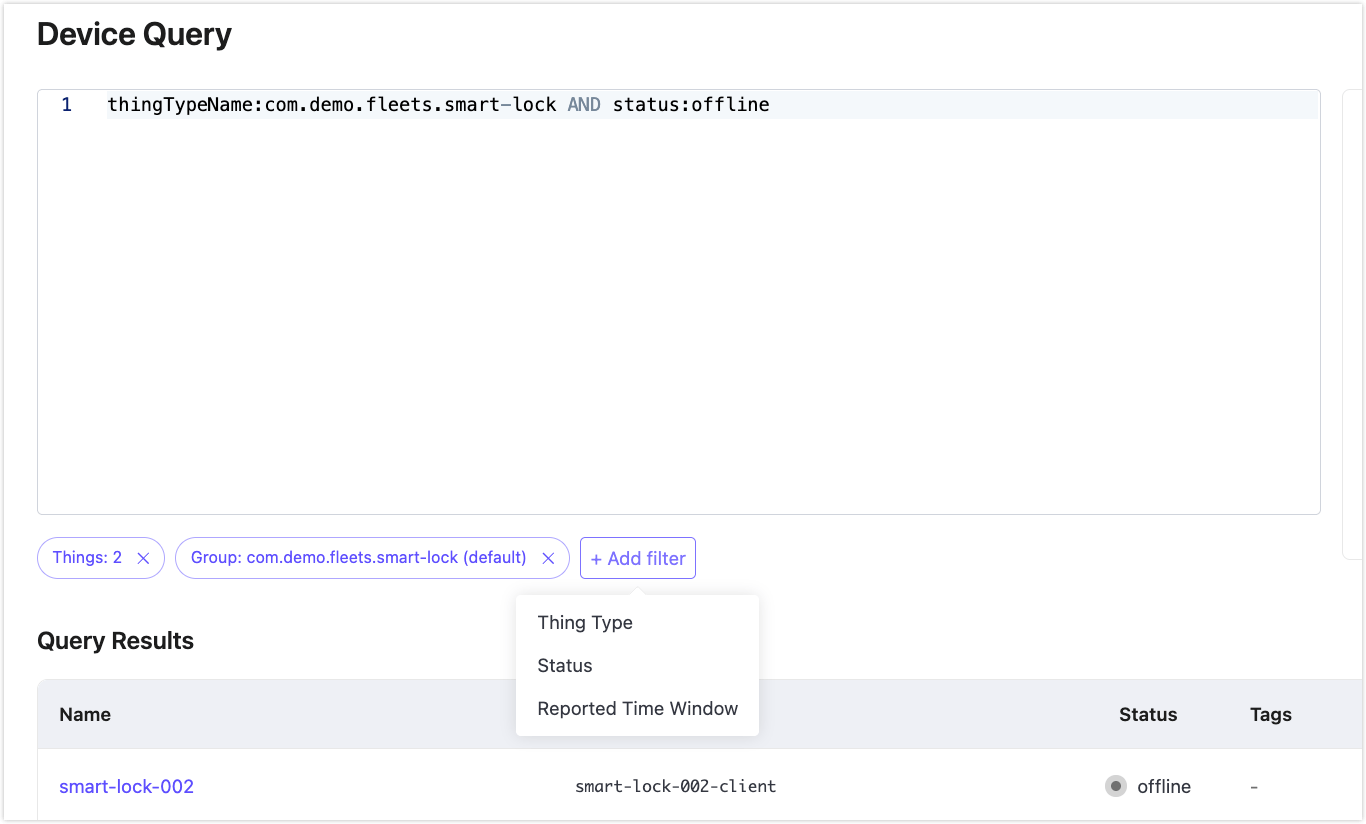
Click + Add filter to apply structured filters alongside the query string. Available filters:
- Things: Restrict results to specific Things by name
- Group: Restrict results to members of a specific Thing Group
- Thing Type: Restrict results to Things of a specific type
- Status: Filter by
onlineoroffline - Reported Time Window: Restrict results to Things that reported state within a specified time range
All active filters are combined with AND.
Query History
Click Query History to view and re-run previous queries in the current session.
Time-Series Filter
The Reported Time Window filter restricts results to Things that reported shadow state within a specified time range. It reads from the historical time-series data in GreptimeDB rather than only the latest snapshot.
In the console, add the Reported Time Window filter from + Add filter and set the start and end times.
For REST API use, pass the following parameters in the request body:
| Parameter | Description |
|---|---|
tsFrom | Time window start (RFC3339 UTC). Required together with tsTo. |
tsTo | Time window end (RFC3339 UTC). Required together with tsFrom. |
tsFieldName | Optional. Restrict to Things that reported this specific top-level key within the window. Omit to match any reported row in the window. |
tsLimit | Maximum number of candidate Things from the time-series pre-filter. Default 1000, max 10000. Not the same as the page limit. |
Example: find online devices that reported a temperature reading in a one-hour window:
{
  "query": "status:online",
  "tsFrom": "2026-05-27T00:00:00Z",
  "tsTo": "2026-05-27T01:00:00Z",
  "tsFieldName": "temperature",
  "page": 1,
  "limit": 20
}
Important Notice
The time-series filter reads from GreptimeDB. If GreptimeDB is unavailable, queries using tsFrom/tsTo return 503 Service Unavailable.
REST API
Device Query is also available via the REST API:
POST /api/v1/device-query/searchUse your deployment's API Endpoint as the base URL and authenticate with Basic Auth using a Deployment API Key. See Deployment API Keys for how to obtain the endpoint and create a key.