Message Drops Alert
The Message Drops alert indicates that EMQX Cloud dropped messages because a client session message queue became full during delivery.
This usually means that messages were routed to a subscriber session, but the client remained offline too long or could not process messages fast enough. Once the session queue reaches its limit, subsequent messages cannot be enqueued and are dropped.
Client Offline for an Extended Period (Clean Session = False)
Symptom
When a client is offline and Clean Session = False, EMQX Cloud continues to place messages for that client in its session message queue, whose default maximum length is 1,000 messages, until the client reconnects.
Messages are dropped if the client remains offline until the session expires and is removed (2 hours by default for MQTT v3, or as specified by session_expiry_interval for MQTT v5), or if the session queue fills before the client reconnects.
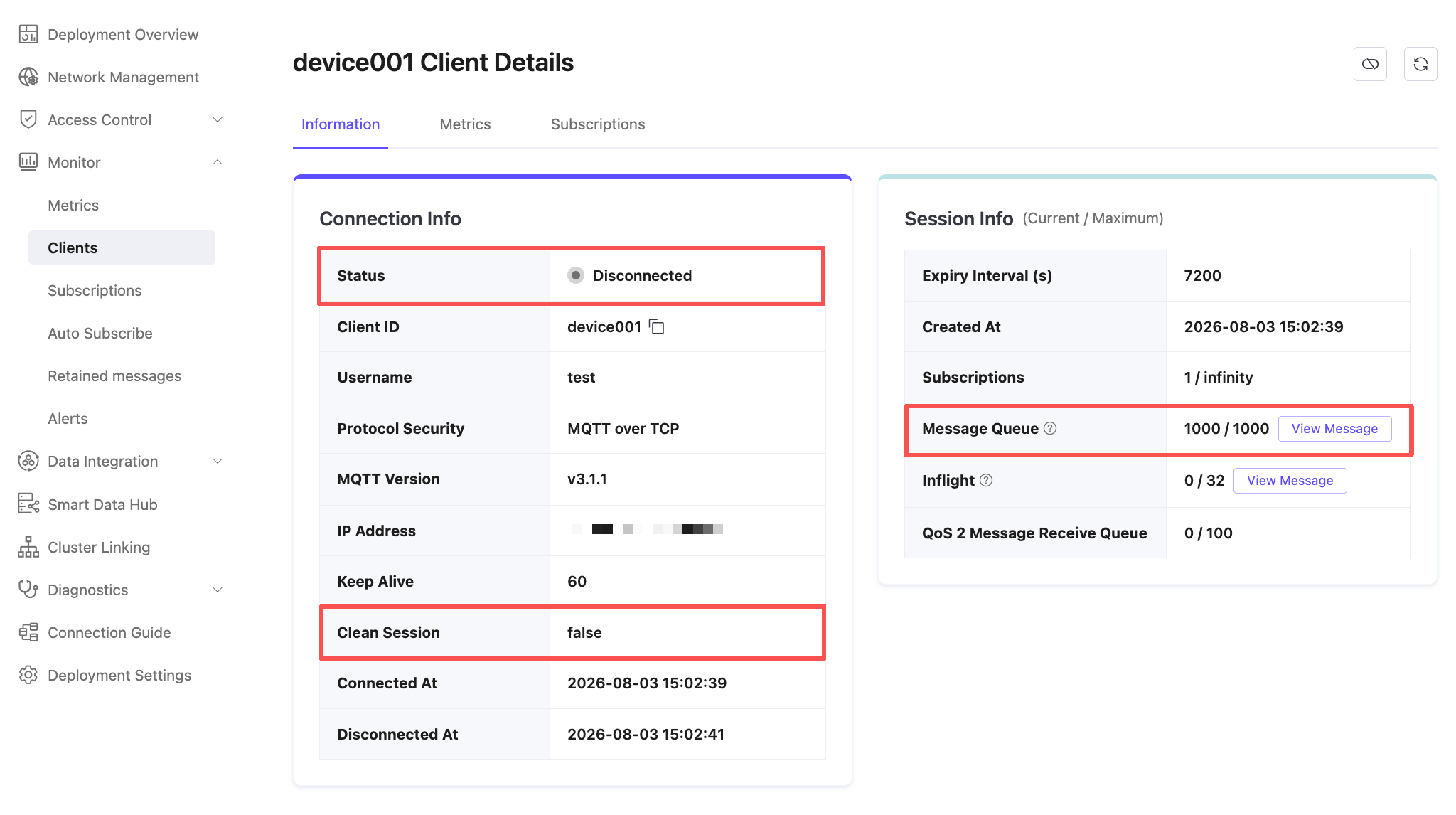
On the Monitor page, the client is offline but its session still exists, and the message queue has reached its limit.
Common Causes
- The client remains offline too long.
- Messages accumulate until the session queue reaches its maximum length.
- The client uses a random
clientidwithClean Session = False, so a reconnection creates a different session.
Resolution
- If the client does not need messages while offline, set Clean Session to
Trueto prevent offline message accumulation. - If Clean Session must be
False, implement automatic reconnection and reconnect promptly after a network interruption. - Do not combine a random
clientidwithClean Session = False, because a changed Client ID prevents the client from resuming its session.
Insufficient Client Message Processing Capacity
Symptom
All topics subscribed to by a client share one fixed-length session message queue, whose default maximum length is 1,000 messages. If high-volume topics produce messages faster than the client can consume them, the queue fills and subsequent messages are dropped.
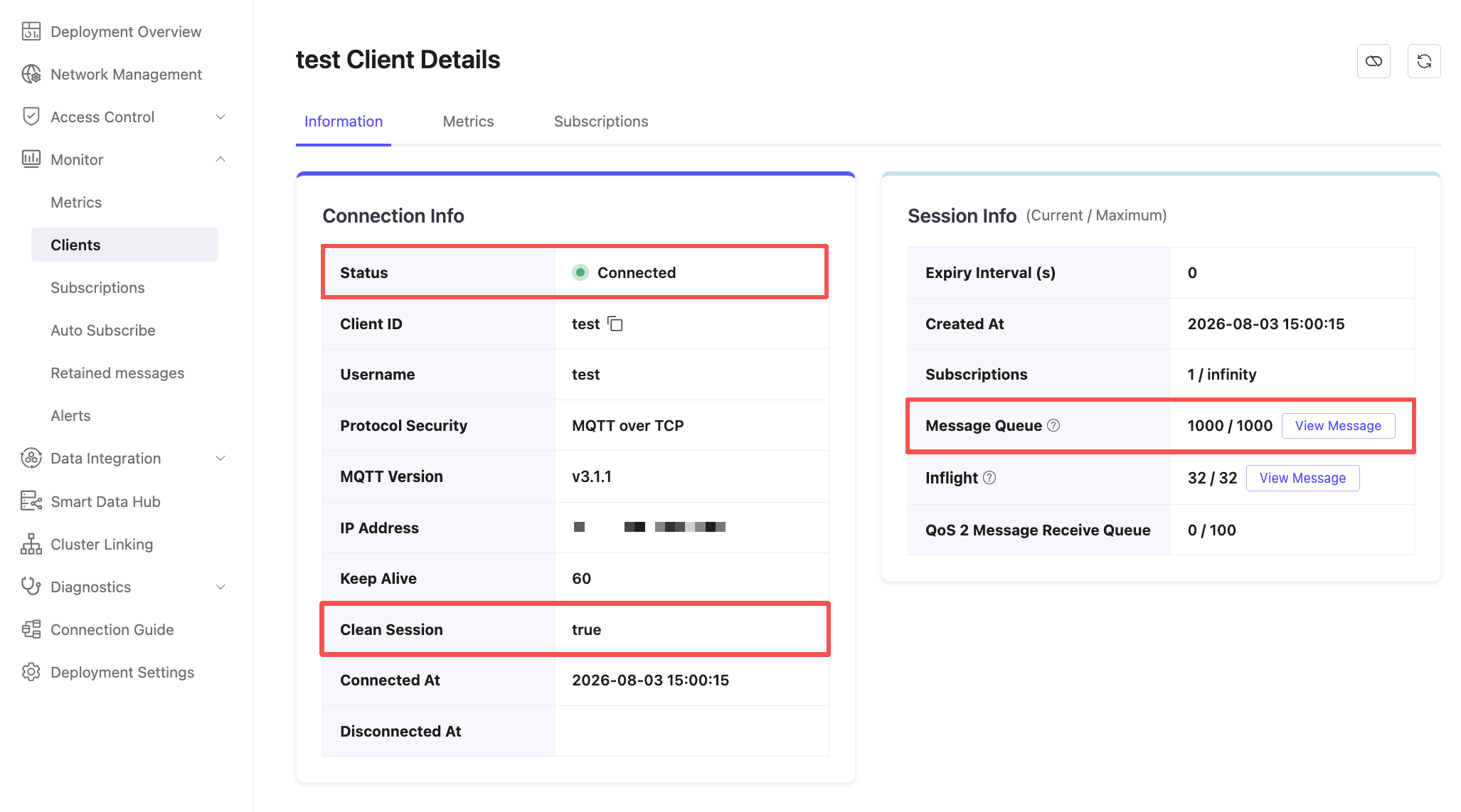
On the Monitor page, the client is online and the session details show Message Queue Full (1000 / 1000).
Common Causes
- The client consumes messages more slowly than they are produced.
- One client subscribes to too many high-volume topics.
Resolution
- Optimize the client to improve message processing and consumption throughput.
- Use shared subscriptions to distribute messages across multiple clients. For details, see Shared Subscription.
Troubleshooting
Log in to the EMQX Cloud Console.
Open Deployment Logs, set Error Type to Messages, and look for a message drop entry similar to the following:
textclientid: device001, peername: xx.xx.xx.xx:23853, username: test, topic: t/test, pid: <0.13552.0>, payload: 61616161616161616161, payload_encode: hex, queue: {"store_qos0":true,"max_len":1000,"len":1000,"dropped":91530}, msg: dropped_msg_due_to_mqueue_is_fullRecord the
clientidfrom the log entry.Go to Monitor -> Clients, search for the
clientid, and review the session state:If the client is offline but its session still exists, investigate the client offline for an extended period scenario.
If the client is online and its session message queue is full, investigate insufficient client message processing capacity.
If the session is not visible under Monitor -> Clients, check the client logs and its Clean Session (Clean Start) setting:
- If the setting is
True, message drops usually indicate insufficient client processing capacity. - If the setting is
False, compare the client disconnection logs to determine whether it remained offline too long.
- If the setting is
Monitoring and Statistics
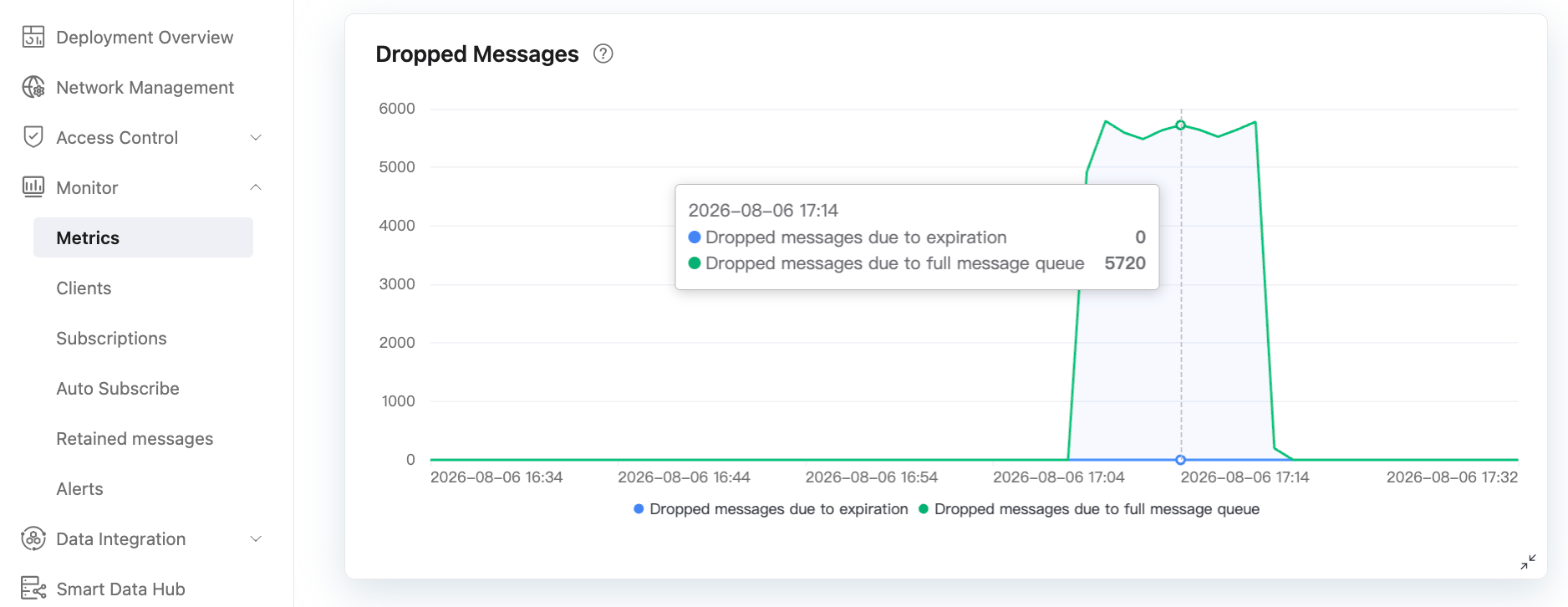
Go to Metrics -> Timeline -> Dropped Messages in the EMQX Cloud Console to monitor the overall number of dropped messages over time.
Track Message Drop Events
EMQX Cloud does not retain the complete contents of historical session queues or all data from dropped messages.
Logs contain only selected fields, and
payloadmay be truncated. Recorded fields includeclientid,peername,username,topic, andpayload.To track message drops over time, create a data integration rule for the
$events/delivery_droppedevent topic and forward or store the events. For example:sqlSELECT * FROM "$events/delivery_dropped"You can filter fields such as
clientidandtopic. For details, see SQL Data Sources and Fields.