Send Commands
A Command is a real-time request sent to a single connected device. The device executes the action and returns a response. Fleets records the execution outcome so you can see whether the command succeeded, failed, or timed out.
Prerequisites
- The target device must be registered as a Thing.
- The device should be online and subscribed to its command topic. Commands sent to an offline device will time out.
Send a Command from the Console
- In your Fleets deployment, go to Commands & Jobs.
- Click + Send Command.
- Fill in the fields:
- Thing: Select the target device.
- Action: Enter the action name as defined in the Thing Type schema (for example,
setTemperature,unlock,reboot). If no commands are defined in the schema, you can still send arbitrary action names. - Parameters: (Optional) A JSON object with input parameters for the action.
- TTL: (Optional) How long in seconds Fleets waits for a device response before marking the execution
TIMED_OUT.
- Click Send.
Fleets publishes the command to the device and creates an execution record. The execution appears in the Commands tab of the Commands & Jobs page.
Command Execution Flow
- Fleets publishes to
$emqx/commands/things/{thingName}/executions/{executionId}/request:json{ "commandId": "...", "action": "setTemperature", "params": { "value": 24 }, "timestamp": 1748390400, "ttl": 30 } - The device receives the request, executes the action, and publishes a response to
$emqx/commands/things/{thingName}/executions/{executionId}/response:json{ "status": "SUCCEEDED", "result": { "currentTemperature": 24 } } - EMQX routes the response to Fleets, which updates the execution status.
View Command Execution Results
- Go to Commands & Jobs > Commands tab.
- The table shows each execution with its Execution ID, Things, Action, Status, and Created At timestamp.
- Click an execution ID to view the full execution details, including parameters and response payload.
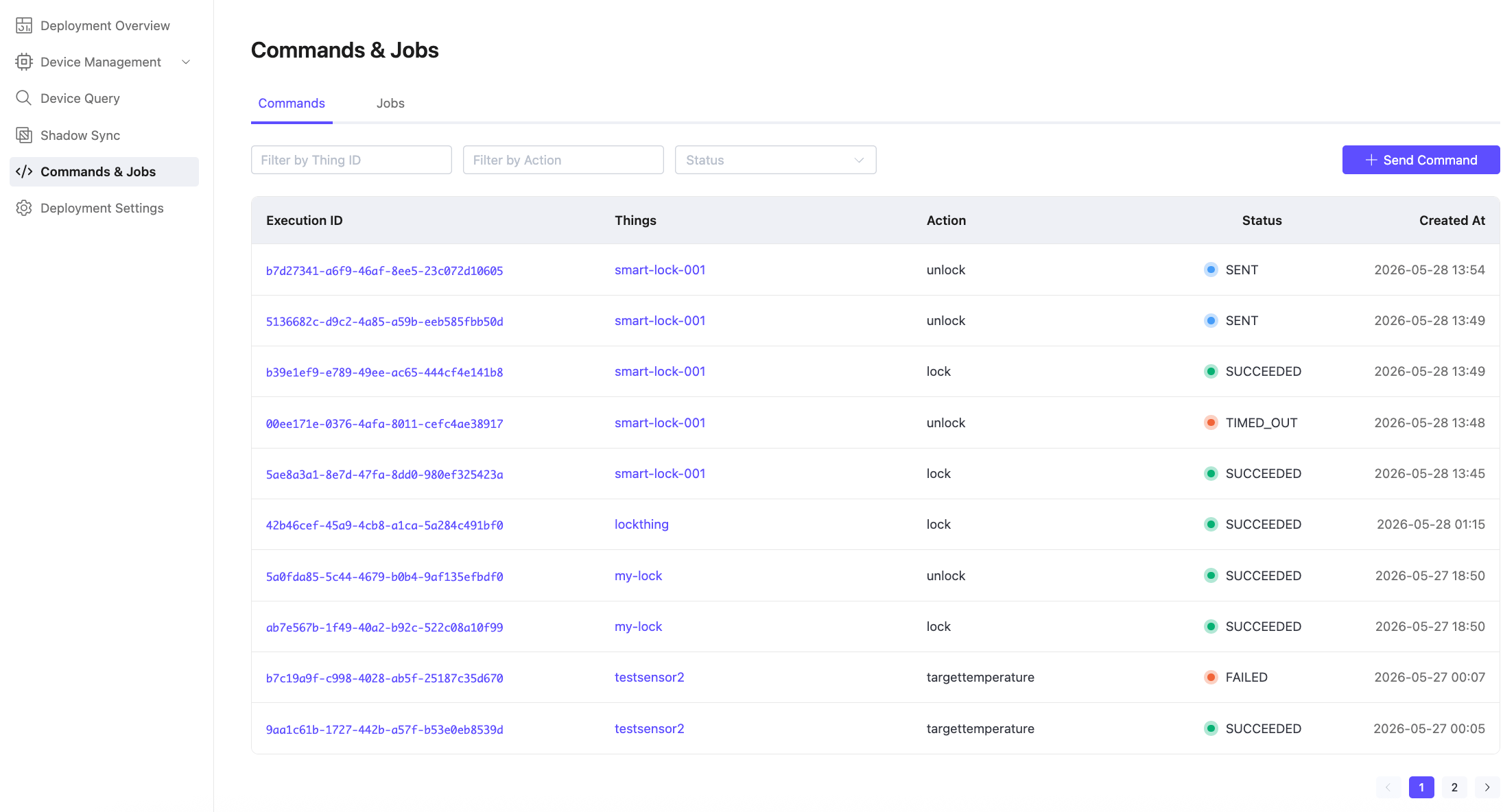
Filter the Command List
Use the filter controls at the top of the Commands tab to narrow the list:
- Filter by Thing ID: Show commands for a specific device
- Filter by Action: Show commands with a specific action name
- Status: Filter by execution status (
SENT,SUCCEEDED,FAILED,REJECTED,TIMED_OUT,CANCELED)
Send a Command via API
text
POST /api/v1/commandsRequest body:
json
{
  "thingId": "thermostat-001",
  "action": "setTemperature",
  "params": { "value": 24 },
  "ttl": 30
}params: Optional. A JSON object with input parameters passed to the device.ttl: Optional. Timeout in seconds. If the device does not respond within this window, the execution status becomesTIMED_OUT.
The response includes the executionId you can use to query status:
text
GET /api/v1/commands/{executionId}