User Management
EMQX Tables supports custom users for deployment-level access control. You can create users, assign database and table access, and use these users when connecting EMQX Broker or external clients to EMQX Tables.
User Management is available only for newer EMQX Tables deployments. Newer deployments do not return a default username or password in the deployment details, so you must create a user before connecting EMQX Broker or external clients. Older deployments do not support custom users or privilege configuration and may still use the default credentials shown in the deployment details.
Note
Each EMQX Tables deployment supports up to 10 users.
View Users
To view users:
- Log in to the EMQX Cloud Console and open your EMQX Tables deployment.
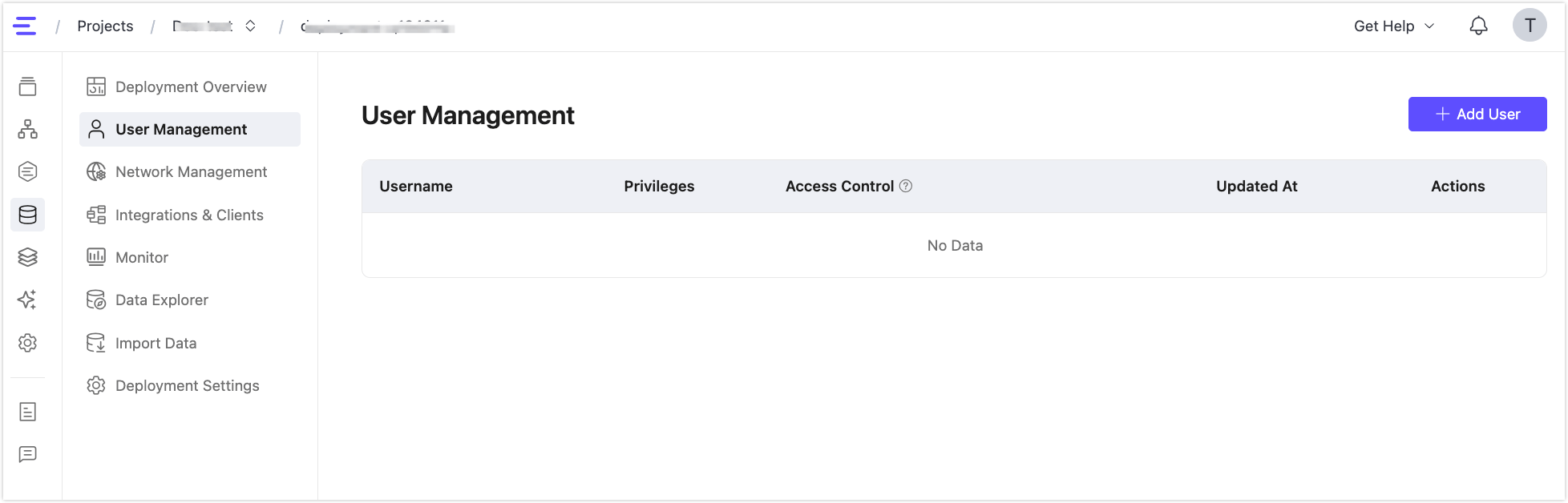
- Click User Management from the left menu.
- View existing users, their privileges, access control settings, and last update time.
Add a User
- On the User Management page, click + Add User.
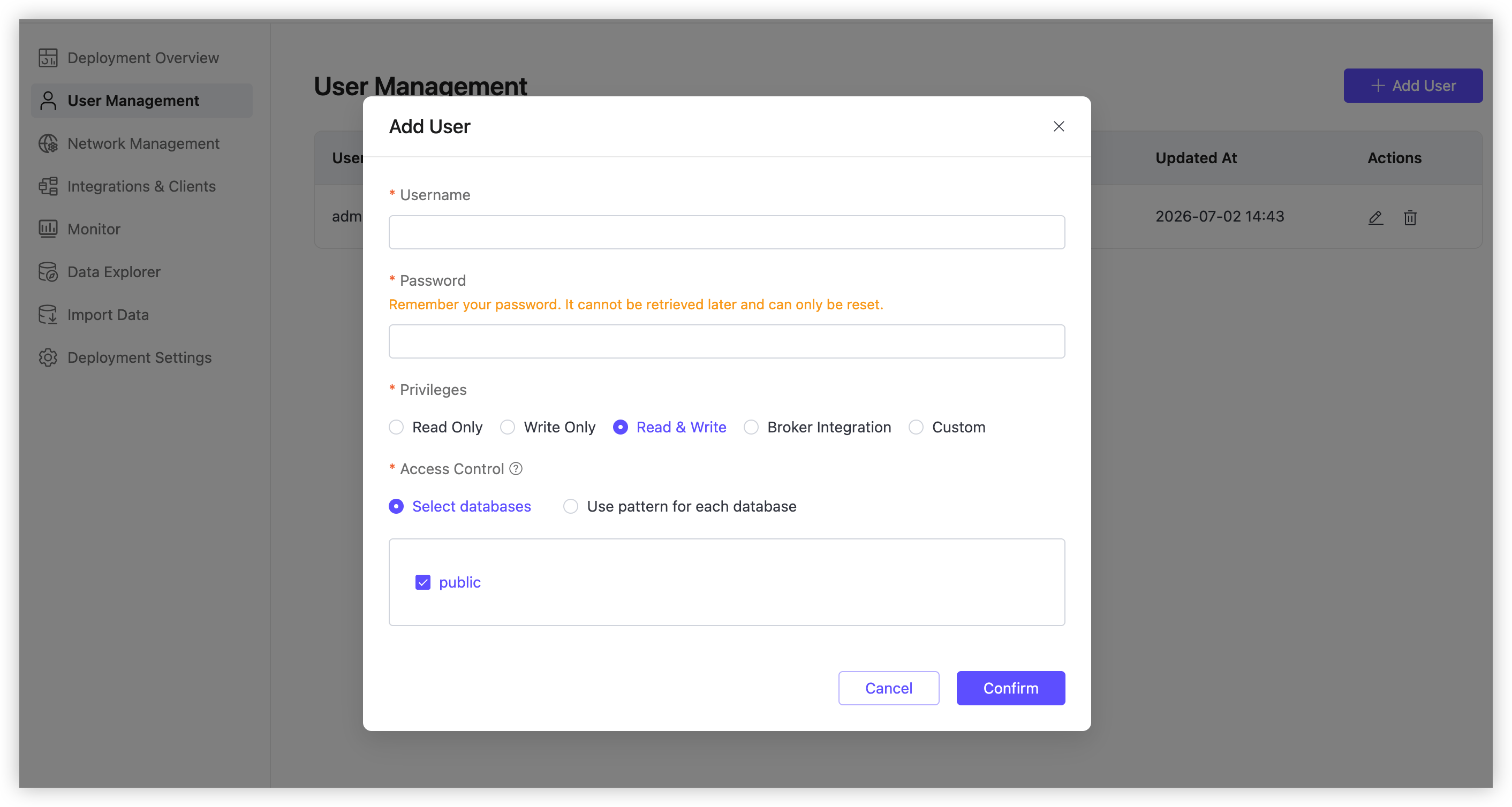
- Enter the following information:
- Username: Enter a custom username.
- Password: Enter the password for the user. Remember the password, because it cannot be retrieved later and can only be reset.
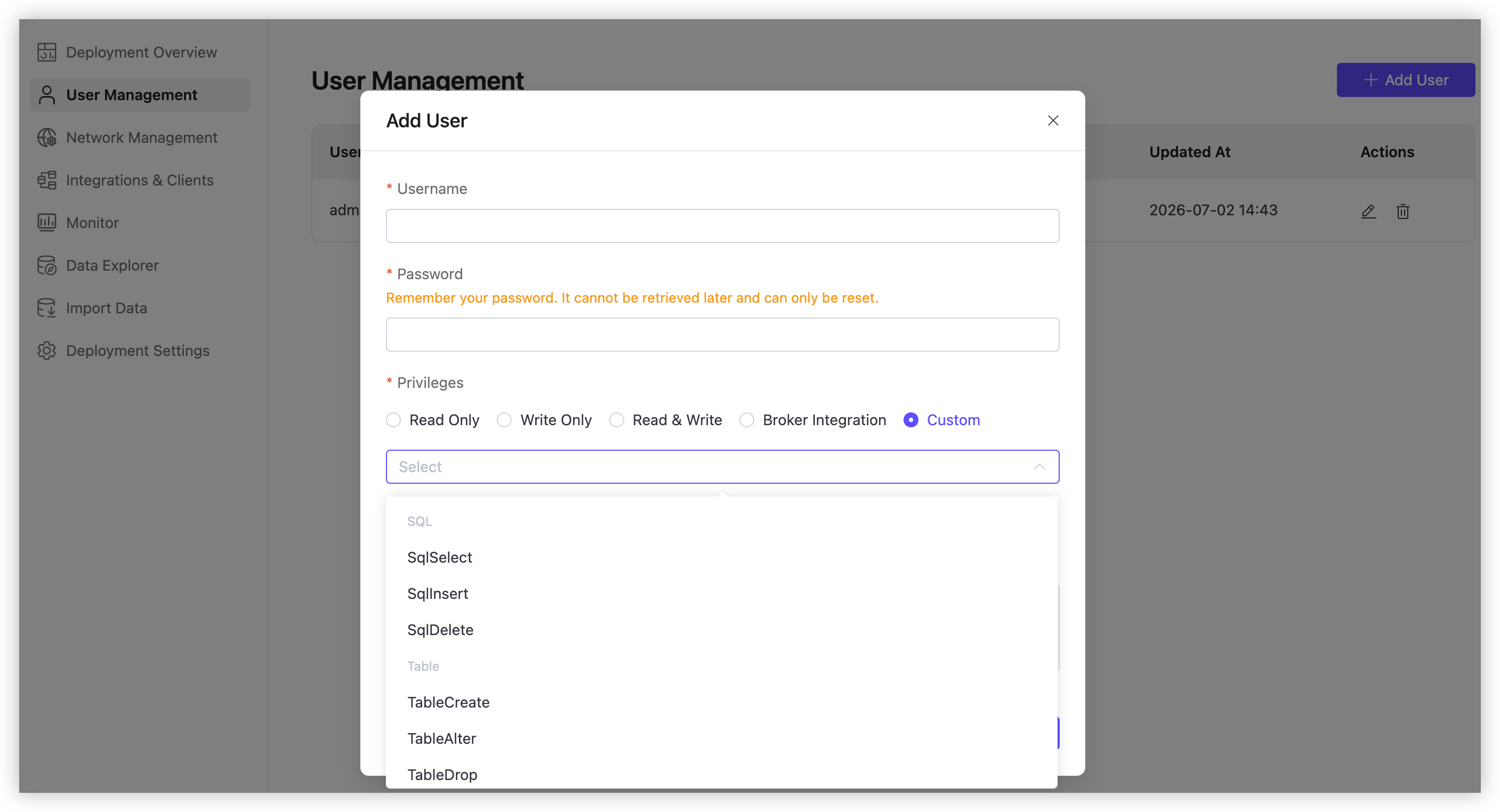
- Privileges: Select one of the preset privilege groups, or select Custom to choose privileges manually from the privileges select dropdown.
- Access Control: Grant database-level or table-pattern-level access.
- Click Confirm.
When the deployment already has 10 users, + Add User is disabled. Hover over the button to view the limit reminder.
Edit a User
- On the User Management page, click the edit icon in the Actions column.
- Update the password, privileges, or access control settings.
- Click Confirm.
The username cannot be changed when editing a user. To keep the current password, leave the Password field empty.
Delete a User
On the User Management page, click the delete icon in the Actions column and confirm the operation.
Before deleting a user, make sure no active connector or external client depends on that username. Connections using a deleted user will fail authentication.
Privileges
Privileges define which operations the user can perform in EMQX Tables.
| Privilege | Description |
|---|---|
SqlSelect | Allows the user to query data with SQL. |
SqlInsert | Allows the user to write data with SQL or Line Protocol. |
SqlDelete | Allows the user to delete data with SQL. |
DatabaseCreate | Allows the user to create databases. |
DatabaseAlter | Allows the user to alter databases. |
DatabaseDrop | Allows the user to delete databases. |
TableCreate | Allows the user to create tables. |
TableDrop | Allows the user to delete tables. |
TableAlter | Allows the user to change table definitions. |
TriggerCreate | Allows the user to create triggers. |
TriggerDrop | Allows the user to drop triggers. |
TriggerAlter | Allows the user to alter triggers. |
EMQX Cloud does not support the Admin, FlowCreate, or FlowDrop privileges for EMQX Tables users.
The preset privilege groups are:
| Preset | Included privileges |
|---|---|
| Read Only | SqlSelect |
| Write Only | SqlInsert, SqlDelete, TableCreate, TableAlter, TableDrop, TriggerCreate, TriggerDrop, TriggerAlter, DatabaseCreate, DatabaseAlter, DatabaseDrop |
| Read & Write | Read Only + Write Only privileges |
| Broker Integration | SqlSelect, SqlInsert |
| Custom | Select one or more privileges manually from the SQL, Table, Database, and Trigger groups. |
TIP
To use an EMQX Tables user in an EMQX Broker data integration connector, the user must have both SqlSelect and SqlInsert privileges. You can select the Broker Integration preset to grant these required privileges.
Access Control
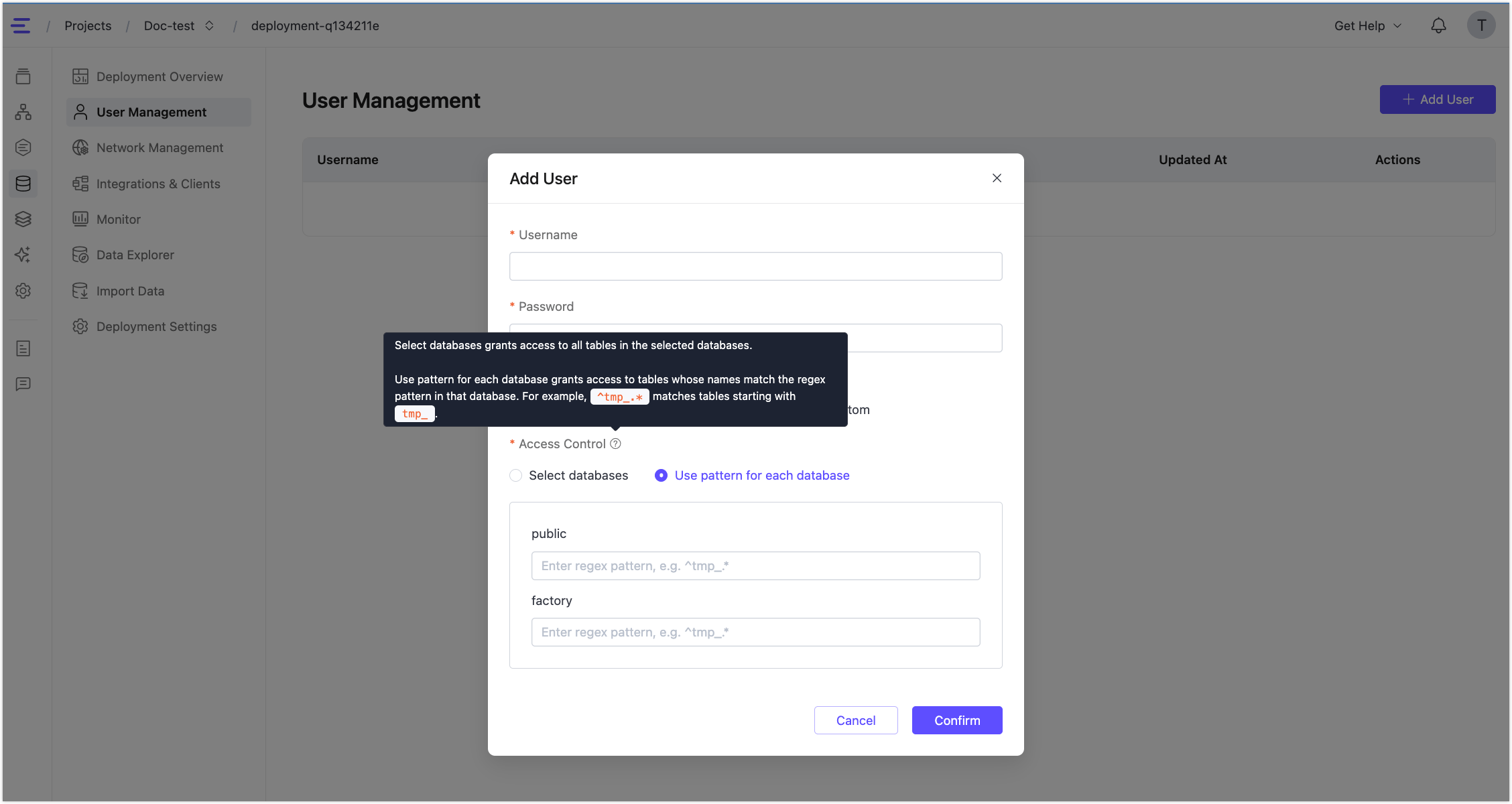
Access control defines which databases and tables the user can access. EMQX Tables supports two access control modes:
- Select databases: Grants access to all tables in the selected databases.
- Use pattern for each database: Grants access only to tables whose names match the regular expression pattern configured for each database. For example,
^tmp_.*matches tables whose names start withtmp_.
ACL entries do not support mixed modes for the same user. Configure either database-level access or pattern-based access consistently.
When you use a user in an EMQX Broker data integration connector, the selected username must have access to the target Database Name. When you enter or change Database Name, EMQX Cloud validates it against the selected username and shows an error if the user does not have access to that database.
Use Users in Data Integration
When creating an EMQX Tables connector from an EMQX Broker deployment, select a username from the Username dropdown. The dropdown lists all users under the selected EMQX Tables deployment. The Console does not filter usernames by privilege or database access.
After selecting a user, enter the user's password and target database name. The connector validates whether:
- The selected user has both
SqlSelectandSqlInsertprivileges. - The selected user has access to the target database.
For detailed connector configuration steps, see Ingest MQTT Data into EMQX Tables.