Manage Jobs
A Job is an asynchronous operation dispatched to one or more devices. Fleets tracks the execution status independently for each target device, from the initial queued state through to success, failure, or timeout.
When to Use Jobs
Use Jobs instead of Commands when:
- You need to target multiple devices at once (for example, push a firmware update to a group)
- Devices may be intermittently offline (jobs are queued and delivered on reconnect)
- You need a persistent record of which devices completed the operation and which did not
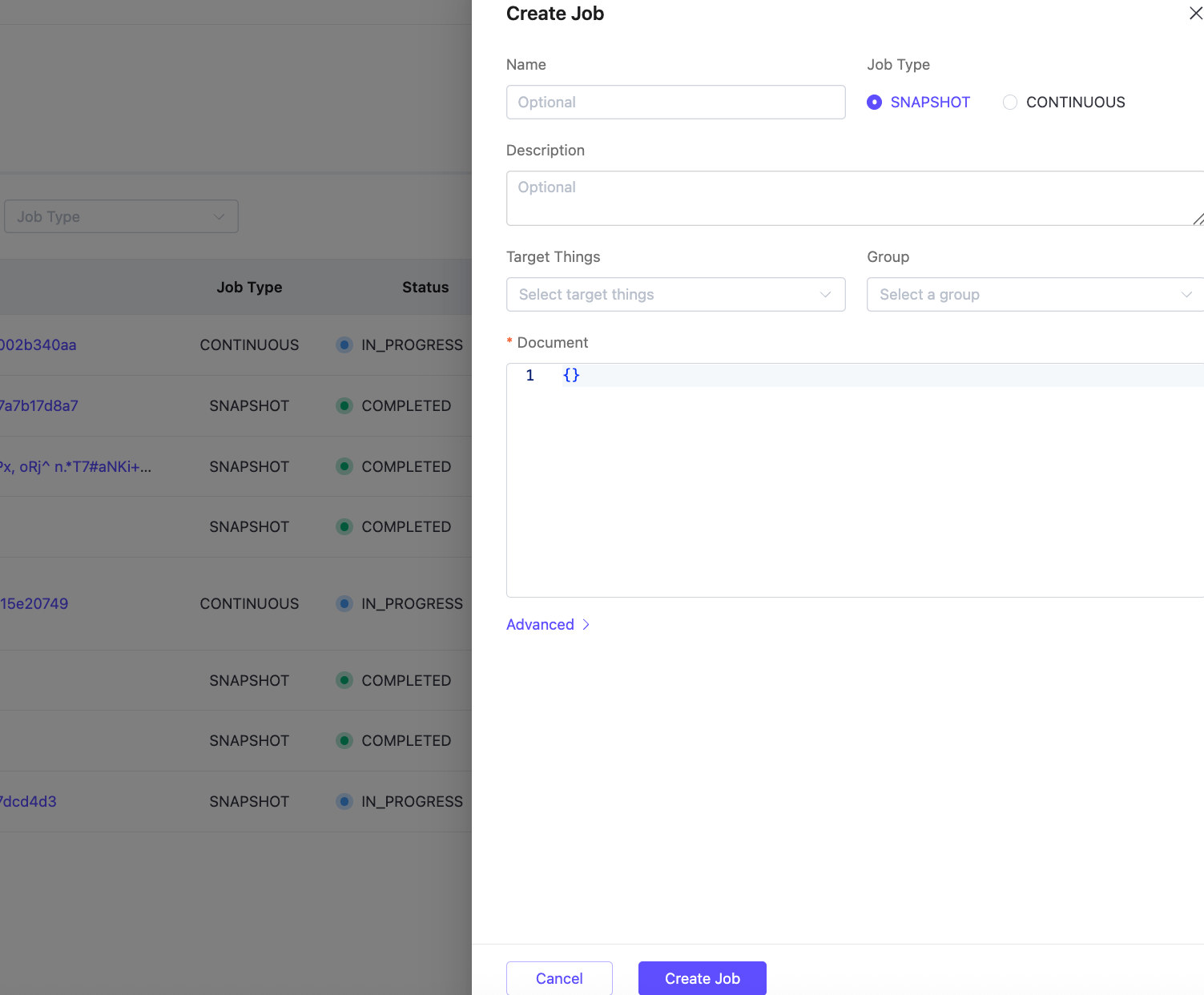
Create a Job from the Console
- In your Fleets deployment, go to Commands & Jobs > Jobs tab.
- Click + Create Job.
- Fill in the fields:
- Name: (Optional) A human-readable name for the job. If omitted, the job is identified by its ID.
- Job Type: Select SNAPSHOT (runs once against current targets) or CONTINUOUS (applies to new devices that join the target group over time).
- Description: (Optional) A description of the job's purpose.
- Target Things: Select one or more individual devices.
- Group: Select a Thing Group to target all its current members.
- Document: (Required) A JSON object that defines the operation. The device receives this as its job document.
- Click Create Job.
Create a Job via API
POST /api/v1/jobsRequest body:
{
  "description": "Firmware update to v2.1.5",
  "targets": {
    "thingGroupNames": ["com.example.thermostat (default)"]
  },
  "document": {
    "action": "updateFirmware",
    "params": {
      "version": "2.1.5",
      "url": "https://firmware.example.com/thermostat-v2.1.5.bin"
    }
  }
}
The targets field accepts:
thingNames: a list of individual Thing namesthingGroupNames: a list of Thing Group names (all current members are targeted)
The response includes the jobId (UUID).
View Jobs and Execution Status
- Go to Commands & Jobs > Jobs tab.
- Use the Status and Job Type filters to narrow the list.
- The list shows each job's Name, Job Type, Status, Targets (number of things and group names), and Created At timestamp.
- Click a job name to open the job detail, which includes a per-device execution breakdown.
Job Statuses
| Status | Meaning |
|---|---|
IN_PROGRESS | At least one device execution is active |
COMPLETED | All device executions have reached a terminal state |
CANCELED | The job was canceled |
DELETION_IN_PROGRESS | The job is being deleted |
Execution Statuses per Device
| Status | Meaning |
|---|---|
QUEUED | Waiting for the device to pick up the job |
IN_PROGRESS | Device has started executing |
SUCCEEDED | Device reported success |
FAILED | Device reported failure |
REJECTED | Device rejected the job |
TIMED_OUT | No update received within the timeout window |
CANCELED | This device's execution was canceled |
REMOVED | Execution record was deleted |
Cancel a Job
To stop dispatching a job to remaining devices:
- Open the job detail.
- Click Cancel Job.
- Confirm the operation.
Or via API:
POST /api/v1/jobs/{jobId}/cancelRequest body (all fields optional):
{
  "reasonCode": "USER_CANCEL",
  "comment": "Pausing rollout for investigation"
}
Canceling a job does not stop executions that are already IN_PROGRESS on devices. To force-cancel active executions, use the "force": true parameter.
Cancel a Single Device Execution
To cancel the job for a specific device without affecting others:
POST /api/v1/jobs/{jobId}/executions/{thingName}/cancelDelete a Job
Jobs in a terminal state (COMPLETED, CANCELED) can be deleted:
DELETE /api/v1/jobs/{jobId}To delete an active job:
DELETE /api/v1/jobs/{jobId}?force=trueImportant Notice
Deleting a job removes all execution records for that job. This cannot be undone.
Job Device Protocol
On the device side, Jobs follow a pull-based protocol. When a new job is queued for a device, Fleets publishes a notification to:
$emqx/things/{thingName}/jobs/notifyThe device then pulls the job document, executes it, and reports status. See Device Integration: Jobs for the full device-side protocol.