Agents
An agent is a deployed, long-running process that reacts to MQTT events and acts on your infrastructure. Each agent runs in an isolated sandbox, listens on a configured MQTT topic, and executes a run for every incoming message that matches the trigger.
Agents are created by deploying an agent definition generated in a chat. You can start the chat from scratch or from a built-in template. Once deployed, an agent runs independently with no ongoing human input required.
View Agents
Click Agents in the left menu to open the Agents page. The page shows all agents in this deployment. Each agent card shows:
- Name and Description
- Status:
StartingorRunning - Created At
- Total Runs
Click an agent card to open its detail page.
Create an Agent
Agents are created from a chat session, not from this page directly. Use one of the following authoring paths:
- Open a chat and describe the automation you want to build.
- Open Templates, select a built-in template, and click Use Template to start a template-based chat.
In the chat, review or refine the generated workspace. After the agent definition passes validation, click Review Agent, review the deployment settings in the panel on the right, and click Deploy Agent.
The agent appears in the Agents page with a Starting status and transitions to Running in a few minutes. See Chats for the full workflow.
To create an additional agent from scratch, click + New Agent in the upper-right corner of the Agents page. This opens a new chat session.
Deployment-Level Skills
Deployment-level skills provide reusable Markdown instructions for creating similar agents. Reference a skill in a chat in the current EMQX Agents deployment, describe the requirements for this agent, then review and deploy the generated definition. Deployment-level skills are managed independently from the skills bundled with a deployed agent and do not automatically change deployed agents. For information about preparing, uploading, and using them, see Manage EMQX Agents Skills.
Agent Detail Page
The agent detail page shows the deployed configuration, workspace files, and run history for an agent. It has four tabs: Overview, Runs, Configuration, and Skills.
The page header shows the model and reasoning effort used by the deployed agent. These settings are separate from the model and reasoning effort selected for chat requests. To change them, edit the agent in its chat, review the updated settings, and redeploy the agent.
Overview Tab
The Overview tab shows aggregate statistics and recent run history.
Statistics:
| Metric | Description |
|---|---|
| Total Runs | The total number of runs executed by this agent. |
| Success Rate | The percentage of completed runs that succeeded. |
| Total Cost | The cumulative LLM usage cost for all runs. |
The success rate is calculated as follows:
Success Rate = Succeeded runs / (Succeeded runs + Failed runs + Timeout runs) x 100%Runs with the Timeout status are counted as failed runs. Dropped runs are excluded because they did not start execution. Runs in the Queued or Running status are not included until they reach a terminal status.
Recent Runs shows the last few runs with the following columns:
| Column | Description |
|---|---|
| Run ID | The unique identifier for the run. Click to open the run detail page. |
| Status | The current run status: Queued, Running, Succeeded, Dropped, Failed, or Timeout. |
| Started | The timestamp when the run started. |
| Duration | How long the run took to complete. |
| Tokens | The total number of LLM tokens consumed by the run. |
Run Status
| Status | Description |
|---|---|
| Queued | The run is waiting in the execution queue. |
| Running | The run is being executed. |
| Succeeded | The run completed successfully. |
| Dropped | The run did not start because the execution queue was full. |
| Failed | The run ended because of an execution error. |
| Timeout | The run exceeded its execution time limit. This status is counted as a failed run when calculating the success rate. |
Click View all runs → to go to the Runs tab.
Runs Tab
The Runs tab lists all historical runs for this agent, with the same columns as the Recent Runs table on the Overview tab.
Click a Run ID to open the run detail page.
Run Detail Page
The run detail page shows the complete record of a single execution.
Header:
| Field | Description |
|---|---|
| Run ID | The unique identifier for this run. |
| Status | The current run status: Queued, Running, Succeeded, Dropped, Failed, or Timeout. |
| Started / Completed | Start and end timestamps. |
| Duration | Total execution time. |
Token Usage:
| Field | Description |
|---|---|
| Input Token | Tokens in the LLM input context for this run. |
| Output Token | Tokens generated by the LLM. |
| Cached Token | Tokens served from the LLM prompt cache. |
| Cost | The LLM usage cost for this run. |
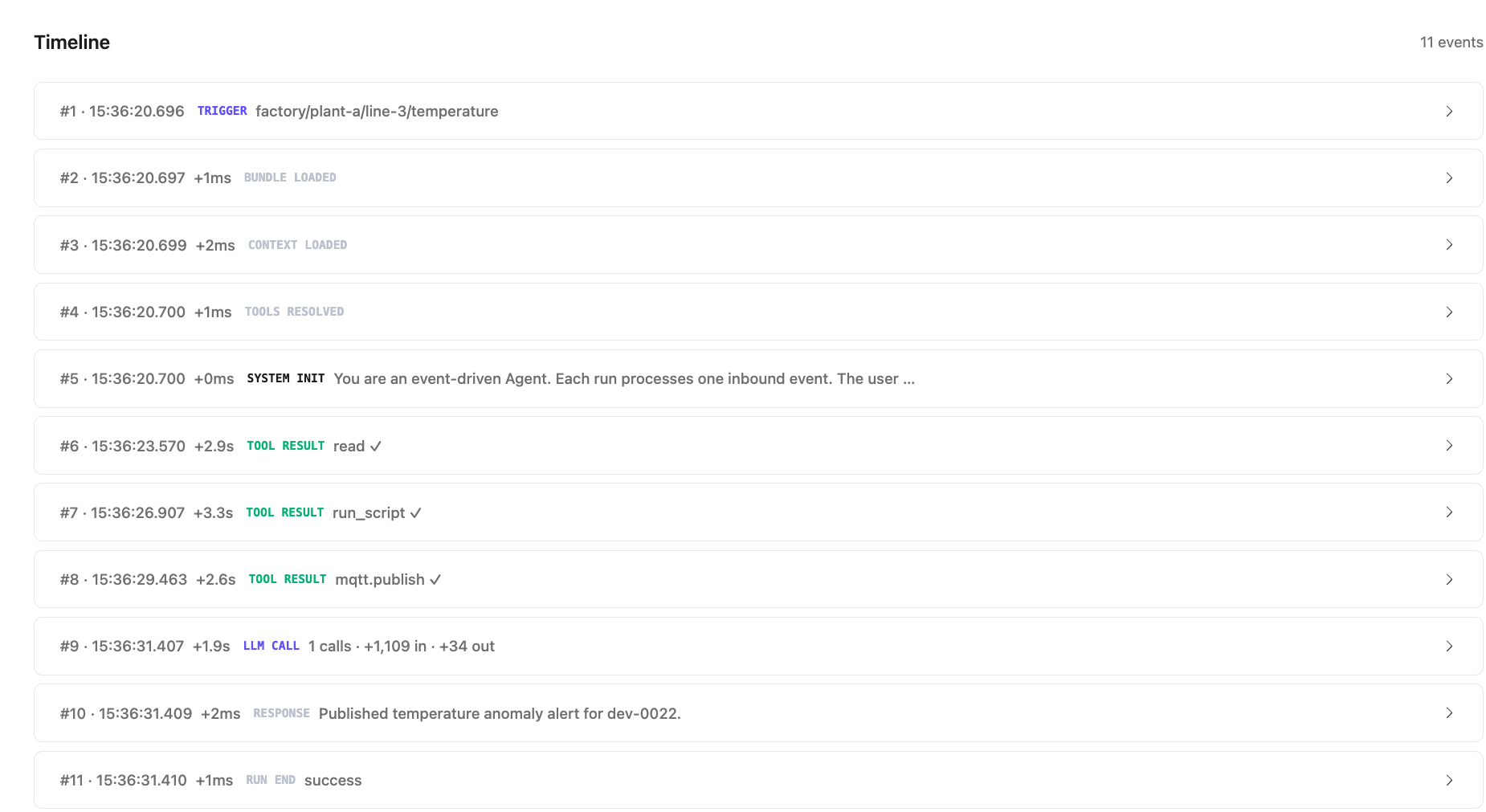
Timeline shows every event in the run in chronological order:
| Event type | Description |
|---|---|
TRIGGER | The MQTT message that started the run, including the topic it arrived on. |
BUNDLE LOADED | The agent's skills and configuration were loaded successfully. |
CONTEXT LOADED | The conversation context was prepared. |
TOOLS RESOLVED | The tools available for this run were resolved and bound. |
SYSTEM INIT | The agent's instructions were applied as the system instruction. |
TOOL RESULT | The result of a tool call made by the agent, for example read, run_script, mqtt.publish, or a tool exposed by an MCP connector. A checkmark indicates the call succeeded. |
LLM CALL | An LLM invocation, with the number of calls and input and output token counts. |
RESPONSE | The agent's final response text for this run. |
RUN END | The terminal event, with the final status. |
Click any timeline event to expand it and see the full event details.
Configuration Tab
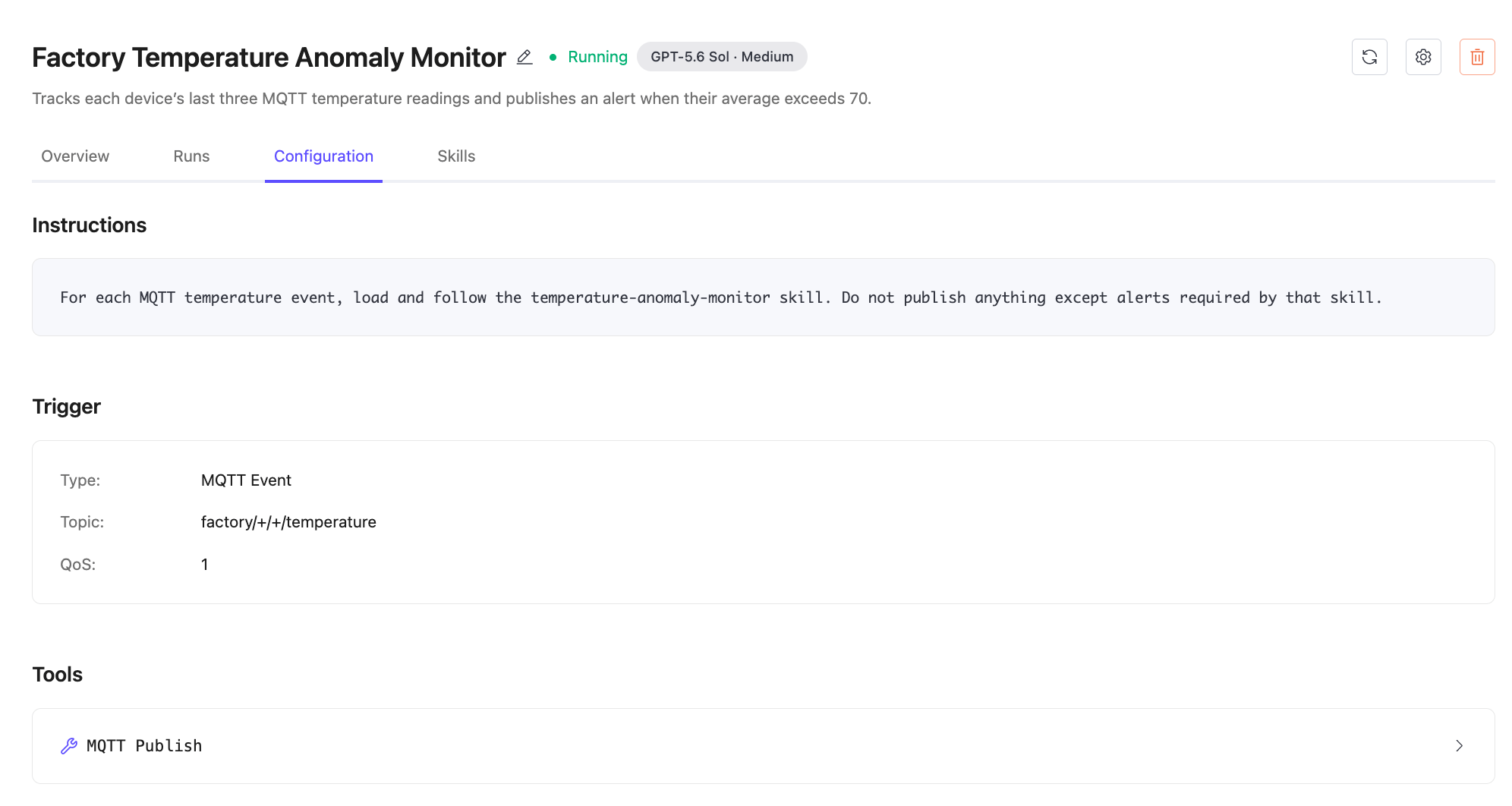
The Configuration tab shows the deployed agent definition, including the instructions, trigger, and tools that determine the agent's behavior.
| Field | Description |
|---|---|
| Instructions | The instructions applied to each agent run. |
| Trigger | The event source that activates the agent, including the MQTT topic filter and QoS level. |
| Tools | The tools available during a run and their restrictions, such as the topics allowed for mqtt.publish. |
For an MQTT trigger, the configuration includes:
| Field | Description |
|---|---|
| Type | The trigger type, such as MQTT Event. |
| Topic | The MQTT topic filter the agent subscribes to. Supports wildcards (+ and #). |
| QoS | The MQTT QoS level for the subscription. |
Expand a tool to review its configuration. Depending on the tool, the configuration can include the tool provider, connector ID, allowed topics, and other restrictions.
Available tools depend on the connectors selected when the agent definition is generated. Common tools include:
| Tool | Description |
|---|---|
mqtt.publish | Publishes a message to an MQTT topic. Restricted to the topics listed in allowed_topics. |
tables.sql | Executes a SQL query against an EMQX Tables connector. Limited to max_rows results per query. |
| MCP connector tools | Tools exposed by MCP connector services such as Gmail and Slack. The available actions depend on the authorized service. |
The deployed configuration is read-only. To change the agent's behavior, use Edit Agent in Chat as described in Edit the Agent Behavior in a Chat.
Skills Tab
The Skills tab shows the skills and supporting files bundled with this deployed agent. These files are different from the reusable deployment-level skills managed from Skills in the left navigation menu. Select a file in the workspace tree to review its content. A bundled skill can include a SKILL.md file and scripts used to implement the agent behavior.
For Markdown files, you can switch between the rendered view and source view. You can also download the selected file.
These files are read-only on the agent detail page. To change a skill, use Edit Agent in Chat, ask the Builder to update the behavior, and redeploy the agent.
Edit an Agent
Edit the Agent Name and Description
You can update an agent's name and description from the agent detail page.
- On the agent detail page, click the edit icon next to the agent name.
- In the Edit Agent dialog, update the Agent Name or Description.
- Click Save.
Edit the Agent Behavior in a Chat
Use the agent's chat to update its instructions, trigger, tools, skills, scripts, or assets:
- On the agent detail page, click Edit Agent in Chat in the upper-right corner.
- Review the chat that opens:
- If the chat that generated the agent still exists, its previous conversation history is available.
- If the chat was deleted, the editing page opens without the previous conversation history.
- Enter a request describing how you want to change the agent. If the previous conversation history is available and you do not want to change the behavior, you can skip this step.
- Wait for the Builder to update and validate the agent definition, if you requested changes.
- Click Review Changes to open the review panel.
- Review the name, description, model and reasoning effort, trigger, instructions, and tools. Update the available settings if needed.
- Click Redeploy Agent.
- If the chat uses Always ask, click Confirm in the Confirm deployment? dialog. Other tool approval modes do not require this additional confirmation.
The updated model and reasoning effort take effect after the redeployment succeeds. Changing them in the review panel does not change the model and reasoning effort selected for chat requests.
For more information, see Redeploy from a Chat.
Restart an Agent
If an agent enters a stopped or failed state, you can restart it from the agent detail page.
- On the agent detail page, click the restart icon in the upper-right corner.
- The agent returns to a Running state and resumes listening for trigger events.
Delete an Agent
Important Notice
Deleting an agent stops it immediately and removes all associated run history. This action cannot be undone.
- On the agent detail page, click the delete icon in the upper-right corner.
- Confirm the deletion.