Manage EMQX Agents Skills
A deployment-level skill is a reusable package that guides EMQX Agents through a task or workflow. The package contains a root-level SKILL.md file that describes the skill and can also include scripts, references, assets, and other supporting files. Reference a skill in a chat to create a similar agent with different topics, configuration, or output requirements.
For example, a skill can describe how to create an agent that:
- Monitors device offline events and generates alert summaries.
- Queries telemetry data from EMQX Tables and generates daily reports.
- Listens to MQTT topics, detects anomalies, and performs standard actions.
- Produces root cause analysis reports in a team-defined format.
A skill guides the current chat run. Referencing a skill does not directly create or deploy an agent. You must review the generated agent definition and deploy it after validation. A skill does not add connectors, tools, or permissions, and it does not replace agent instructions.
Deployment-level skills are different from the skills bundled with a deployed agent. During a run, EMQX Agents loads the selected SKILL.md content and makes the selected package files available to the Builder as read-only files. The package is not copied into the Builder workspace or added to the deployed agent bundle. You manage deployment-level skills from Skills in the left navigation menu. Bundled agent skills remain read-only on the agent detail page.
Prerequisites
Before managing or using deployment-level skills:
- Create an EMQX Agents deployment and verify that it is Running.
- Make sure that you have permission to view the deployment's skills.
Skills use the same role permissions as deployment management:
| Member Role | Skills Permissions |
|---|---|
| Administrator | View, upload, delete, and replace skills. |
| Project Administrator and Project User | View, upload, delete, and replace skills in authorized projects. |
| Other member roles with access to the deployment | Read-only access. |
To update a skill in the Console, replace it with a same-named skill package. Read-only users can reference skills only in chats that they are allowed to use. For details about project access, see Roles and Permissions.
Reuse an Agent Creation Workflow
You can reuse a skill generated during agent authoring or write your own skill to define how a type of agent should be created.
Reuse a Generated Skill
- Start a chat and describe the agent you want to create.
- Review the generated agent definition and refine it through follow-up messages until it meets your requirements.
- After validation, deploy the agent.
- On the agent detail page, open the Skills tab, select the generated
SKILL.mdfile, and download it. - Put the downloaded file in a skill package and create a
.tar.gzor.ziparchive as described in Prepare a Skill Package. - Upload the archive to the deployment's Skills page.
- When creating a similar agent, reference the skill in a chat and describe the differences, such as the agent name, MQTT topic, threshold, or output requirements.
Write Your Own Skill
If the generated agent does not meet your requirements, you can write a SKILL.md file that specifies the agent's goal, triggers, data sources, tools, behavior, and output format. Package and upload the file, then reference the skill in subsequent chats to reuse those creation requirements. For a complete example, see Prepare a Skill Package.
Prepare a Skill Package
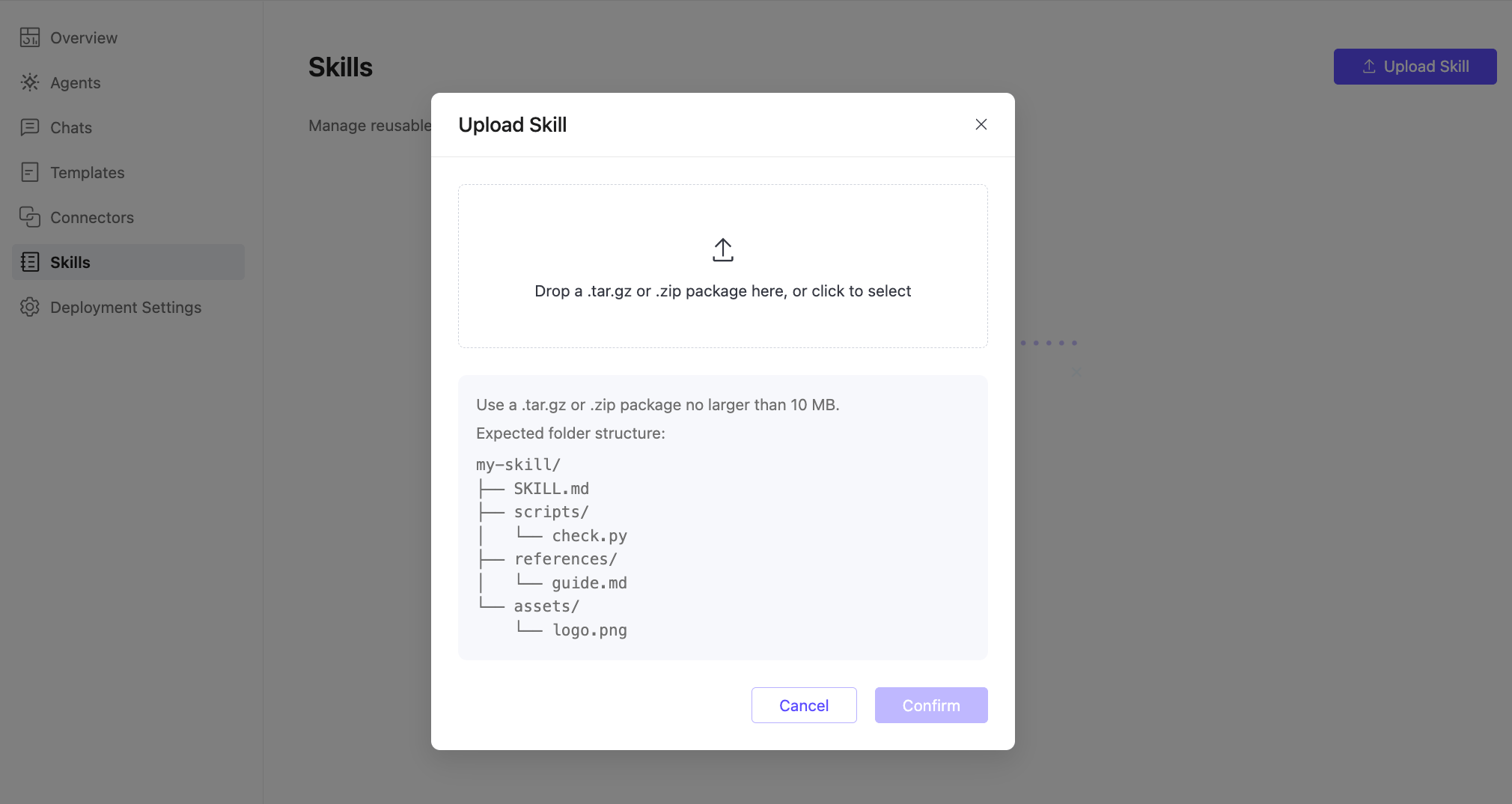
Upload one .tar.gz or .zip archive that contains one skill package. The archive must contain exactly one top-level <skill-name>/ directory with one non-empty, UTF-8 encoded SKILL.md file at its root.
<skill-name>/SKILL.md
<skill-name>/scripts/process.py
<skill-name>/references/guide.md
<skill-name>/assets/example.json
The top-level directory name must match the name field in the SKILL.md frontmatter. The package can contain scripts, references, assets, and other regular files required by the skill. The archive cannot contain multiple skill packages, symbolic links, hard links, or other special files.
Common operating system metadata files are ignored and do not count toward the package size.
The following example describes how to create an agent that detects spikes in device offline events. It specifies the data and configuration to request before finalizing the agent. Save the contents as <skill-name>/SKILL.md, adapt the guidance to your workflow, and package the directory as a .tar.gz or .zip archive.
---
name: device-offline-monitor
description: Create an agent that detects spikes in device offline events and produces an MQTT operations alert.
---

# Device Offline Monitor Agent

## Goal

Create an agent that monitors device status messages, detects an unusual increase in offline events, and produces a concise operations alert.

## Trigger and Data

1. Use an MQTT event trigger for `factory/+/device/+/status`.
2. Treat a message with `status = offline` as an offline event.
3. Query the latest 15 minutes of device status history from EMQX Tables for historical comparison.

## Agent Behavior

1. Group offline events by factory and production line using the data mappings provided by the user.
2. Compare the number of offline events in the current five-minute window with the recent baseline.
3. Report only when the event count exceeds the configured threshold.
4. Include the affected devices, time range, likely cause, and recommended next action.

## Configuration to Request

- MQTT topic filter and required connectors.
- EMQX Tables table and data mappings for factory, production line, device, status, and timestamp.
- Offline-event count threshold.
- Comparison window and baseline window.
- Output language and alert destination.

## Output Format

Return a short alert with these sections: Summary, Evidence, Affected Devices, Likely Cause, and Recommended Action.

## Guardrails

Do not claim that a device is offline without an MQTT event or matching historical data. Ask for missing connectors, topic, data mappings, threshold, or alert-destination details before finalizing the agent.
The Console accepts .tar.gz and .zip archives. Direct directory uploads are not supported. Creating a skill with the same name as an uploaded skill returns an error. To update an uploaded skill, replace its complete package.
View Deployment-Level Skills
Click Skills in the left navigation menu to view and manage the skill packages uploaded to the deployment. Each skill summary includes the skill name, description, total package size, and update time.
Click a skill name to open its details and review its SKILL.md content and package file list. The file list shows each relative path and file size. You can preview UTF-8 text files in the Console. Binary files cannot be previewed. Archive download and export are not supported.
Upload a Skill
- On the Skills page, click Upload Skill.
- Drag one
.tar.gzor.ziparchive into the upload area, or click the upload area and select the archive. - Verify that the archive contains one skill package that meets the requirements in Prepare a Skill Package.
- Click Confirm.
- Verify that the skill appears in the Skills tree.
The uploaded skill package is immediately available for selection in chats in the same deployment. When you upload a new skill, the Console rejects the archive if its skill name already exists. To update a skill, use Replace to upload a same-named replacement package. EMQX Agents validates the replacement before changing the uploaded skill. If validation fails, the previous package remains unchanged. If replacement succeeds, files omitted from the replacement package are removed.
Delete a Skill
- On the Skills page, find the skill and click its delete icon in the Actions column.
- Confirm the deletion in the dialog.
After deletion, the skill no longer appears in the candidate list and cannot be loaded by new runs in the current deployment. Historical messages retain their skill references, but regenerating a response that references the deleted skill fails until you remove or replace the reference. Deleting a skill does not affect skills or chats in other EMQX Agents deployments.
Create an Agent with a Skill
You can reference a deployment-level skill in the first chat on the Overview page, in a new message on the Chats page, or when you edit a historical user message and regenerate the response.
To reference a skill:
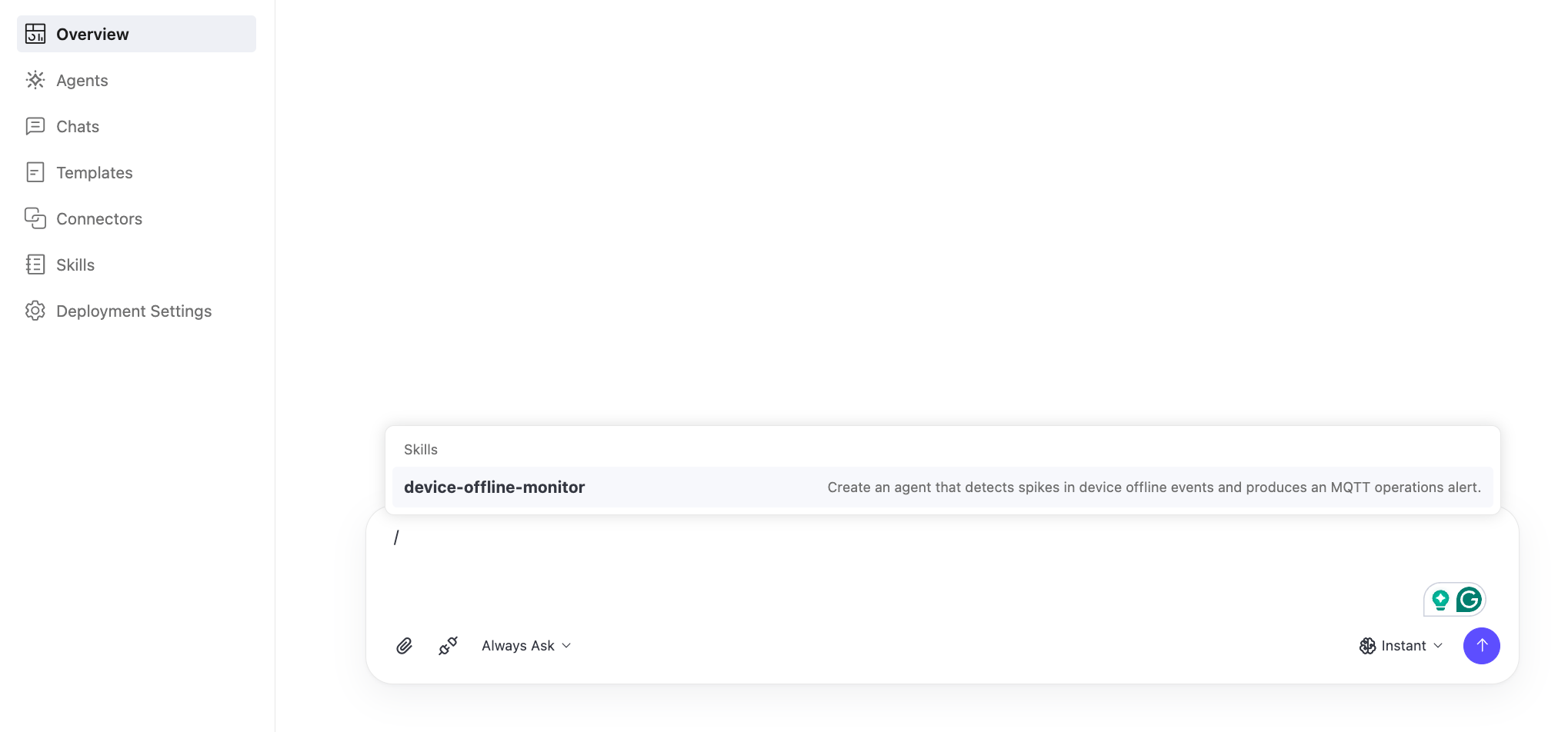
- At the beginning of the message or after a space, enter
/followed by part of the skill name, such as/device. - Select the skill from the candidate list. Each candidate displays the skill name and description.
- Describe the requirements for this agent, including any differences from the skill's example, and send the message.
You can also use the keyboard to select a candidate:
- Press the Up Arrow or Down Arrow key to move through the list.
- Press Enter or Tab to select a skill.
- Press Escape to close the list.
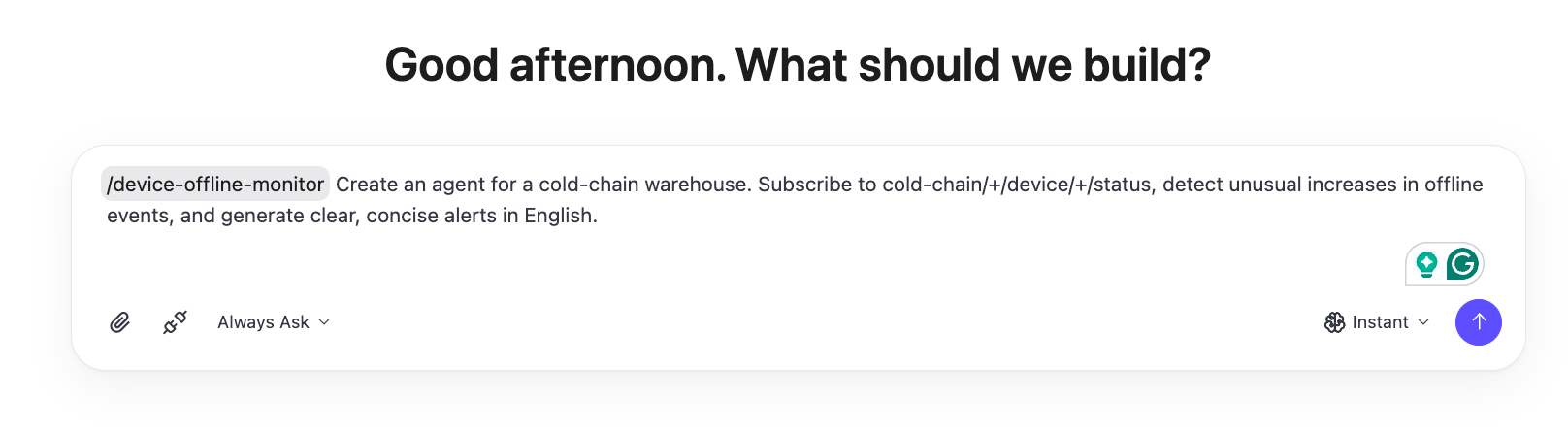
The selected reference remains in the message and is highlighted. For example, adapt the offline-monitoring skill to a cold-chain warehouse with a different status topic and English alerts:
A message can reference multiple skills. If the same skill is referenced more than once, EMQX Agents selects it once for the run and loads selected skills in the order of their first appearance.
Review the generated agent definition and provide any missing information requested in the chat. When the definition meets your requirements and passes validation, deploy the agent.
Understand When a Skill Applies
A skill reference applies only to the chat run created or regenerated from the current message. It guides agent creation or modification in that conversation and does not automatically change a deployed agent. To update a running agent, review the changes and redeploy it from the chat.
Skill references follow these rules:
- EMQX Agents loads a skill only if it exists in the current deployment and is recognized when the message is sent.
- A selected skill is not automatically applied to the next message.
- During the run, EMQX Agents can read supporting files from the selected skill package and can execute scripts with an available interpreter. A skill's
allowed-toolsfield does not grant tools or change tool approval requirements. - If you manually enter
/skill-namewhile the skill list is still loading, EMQX Agents sends it as plain message text. The input does not wait for the list to load or select the skill automatically. - An unknown skill name or an ordinary path such as
/pathremains plain message text. A slash in the middle of a word does not start a skill reference. - When editing a previous message, review and adjust its skill references before regenerating the response. The new run uses the skills selected for the edited message.
- When you regenerate a response, EMQX Agents reads the current package for each selected skill. Skill versions and content snapshots are not stored with messages, so a replacement package can change the regenerated response.
If no skill in the current deployment matches the text after /, the menu displays No matching skills.
Compatibility with Existing Skills and Chats
A skill that contains only a root-level SKILL.md file remains a valid package after the upgrade. You do not need to migrate or repackage these skills unless you want to add supporting files.
Historical messages keep their structured skill references. A historical reference resolves to the current package with the same skill name when you regenerate the response. Messages created before structured skill references were recorded have no selected skills; EMQX Agents does not infer a reference from plain /skill-name text in those messages.
Resolve Skill Problems
| Condition | Behavior and Action |
|---|---|
The uploaded file is neither a .tar.gz nor a .zip archive. | Package the skill as a .tar.gz or .zip archive and try again. |
| More than one archive is selected. | Upload one archive at a time. |
| The compressed archive exceeds 10 MiB. | Reduce the archive size to 10 MiB or less. |
| The regular files in the package exceed 50 MiB in total. | Remove or reduce package files so that all regular files total 50 MiB or less. |
The archive structure or SKILL.md is invalid. | Correct the package based on the displayed error message, rebuild the archive, and try again. |
| A skill with the same name already exists. | Use Replace to upload a same-named replacement package. |
| Your role has read-only access to skills. | Ask an Administrator, Project Administrator, or Project User with access to the deployment to upload, delete, or replace the skill. |
| A skill operation fails because the service is unavailable. | Verify that the deployment is running, then try again. |
| Regeneration fails because a referenced skill has been deleted or is invalid. | Edit the message to remove the reference or select an available skill, then try again. |
Deployment-Level Skill Limits
| Item | Limit |
|---|---|
| Upload format | One .tar.gz or .zip archive containing one skill package. |
| Package structure | Exactly one top-level <skill-name>/ directory containing a UTF-8 encoded, non-empty SKILL.md. The directory name must match the name field in SKILL.md. |
| Compressed archive size | 10 MiB or less, displayed as 10 MB in the Console. |
| Unpacked package size | 50 MiB or less across all regular files. |
| Skill name | A kebab-case name with no more than 64 characters. |
| Frontmatter | description must contain 1 to 1,024 characters. If present, compatibility must contain 1 to 500 characters, allowed-tools must be a string, and metadata must contain only string keys and values. |
| Additional files | Scripts, references, assets, and other regular files are supported. Symbolic links, hard links, special files, duplicate paths, and unsafe paths are rejected. |
| Unsupported operations | Directory uploads, archive download, and archive export are not supported. |
| Duplicate names | Creating a skill with an uploaded skill's name is rejected. Use Replace to upload a complete same-named replacement package. |
| Scope | A skill is available only in the EMQX Agents deployment where it was uploaded. Upload the skill separately in each deployment that needs it. |
| Permissions | Skills use deployment management permissions. See Prerequisites for the roles that can manage skills. |