Connector Status Abnormal Alert
The Connector Status Abnormal alert indicates that one or more data integration connectors in an EMQX Cloud deployment have remained outside the normal state for a period of time.
This usually means that the connection between EMQX Cloud and the target external system is unstable or unavailable. As a result, messages may not be delivered to the target service.
External Service Unreachable or Network Failure
Symptom
EMQX Cloud cannot establish or maintain a stable connection to the target external system.
Errors such as connection refused, timeout, unreachable, or econnrefused appear in Deployment Logs, and the connector status is Disconnected, Error, or inconsistent across cluster nodes.
Common Causes
- The target system is unavailable or not running normally.
- The network is interrupted or unstable.
- The target service port is closed.
- Network policies restrict access between EMQX Cloud and the target service.
Resolution
- Verify that the target system is running and its listening port is open.
- Work with EMQX Cloud Technical Support to use tools such as
ping,telnet, orcurlto test connectivity from EMQX Cloud to the target service. - Verify that VPC, allowlist, firewall, or security group rules permit EMQX to access the target service.
Authentication Failure or Insufficient Permissions
Symptom
The connector connects briefly and then disconnects because its account, credentials, or authentication configuration is invalid, or because the account lacks the required permissions.
Errors such as authentication failed, unauthorized, or permission denied appear in Deployment Logs.
Common Causes
- The username, password, API key, or certificate is incorrect.
- The credential has expired or been revoked.
- The target system has not granted the connector the required access or write permissions.
Resolution
- Verify the username, password, API key, or certificate in the connector configuration.
- Verify that the target system grants the account all required permissions, such as database write access, Kafka producer permissions, or cloud IAM permissions.
Target System Overloaded or Out of Resources
Symptom
An overloaded or resource-constrained target system cannot respond to connection or write requests in time, causing an unstable connector state.
The target system logs errors such as timeout or server busy, while the connector repeatedly changes between Connected and Disconnected or appears inconsistent across cluster nodes.
Common Causes
- The target system has exhausted its CPU, memory, or connection capacity.
- Request concurrency exceeds the target system's processing capacity.
Resolution
- Check CPU, memory, and connection usage on the target system.
- Configure appropriate connection pool sizes, timeouts, buffering, and retry policies in EMQX.
- Scale the target system to support the required throughput.
Incorrect Connector Configuration
Symptom
EMQX cannot access the target resource because one or more connector parameters are incorrect. The connector never establishes a stable connection.
Errors such as invalid config, unknown topic, or table not found appear in Deployment Logs.
Common Causes
- The database address, port, or instance information is incorrect.
- The Kafka topic does not exist or its name is misspelled.
- The database table does not exist or has an incompatible schema.
Resolution
- Verify that the target address, port, topic, and table name match the target environment.
- Correct the configuration and save the connector again.
Troubleshooting
Log in to the EMQX Cloud Console and enter the affected deployment.
Go to Data Integration -> Connectors and check the status of the connector that triggered the alert.
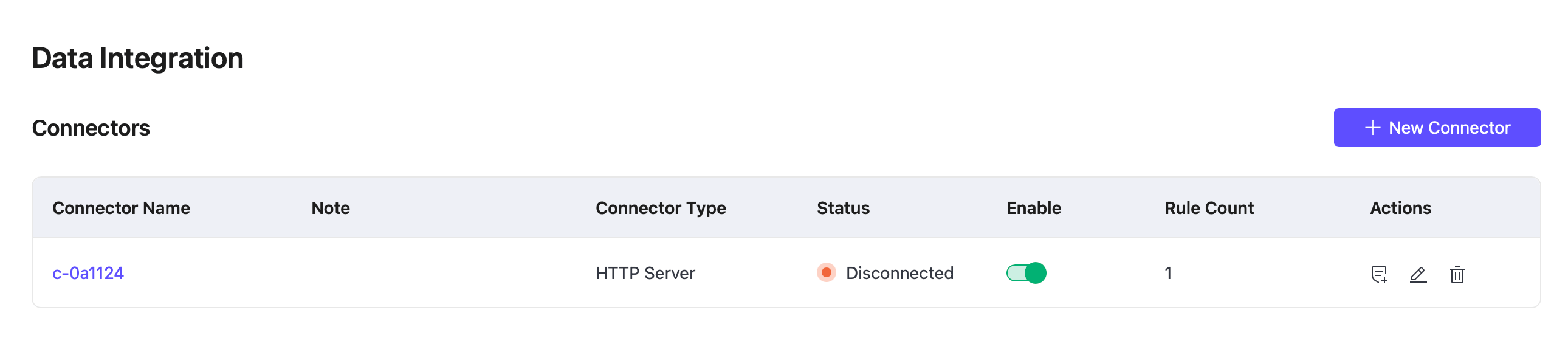
Open Deployment Logs and set Error Type to Data Integration to locate the relevant error.

Use the log details to identify whether the cause is a network failure, authentication failure, overloaded target system, or incorrect configuration.
Open the connector configuration, click Edit, and correct the parameters or update the credentials.
Save the configuration, restart the connector, and verify that its status changes to
Connected.