Ports Management
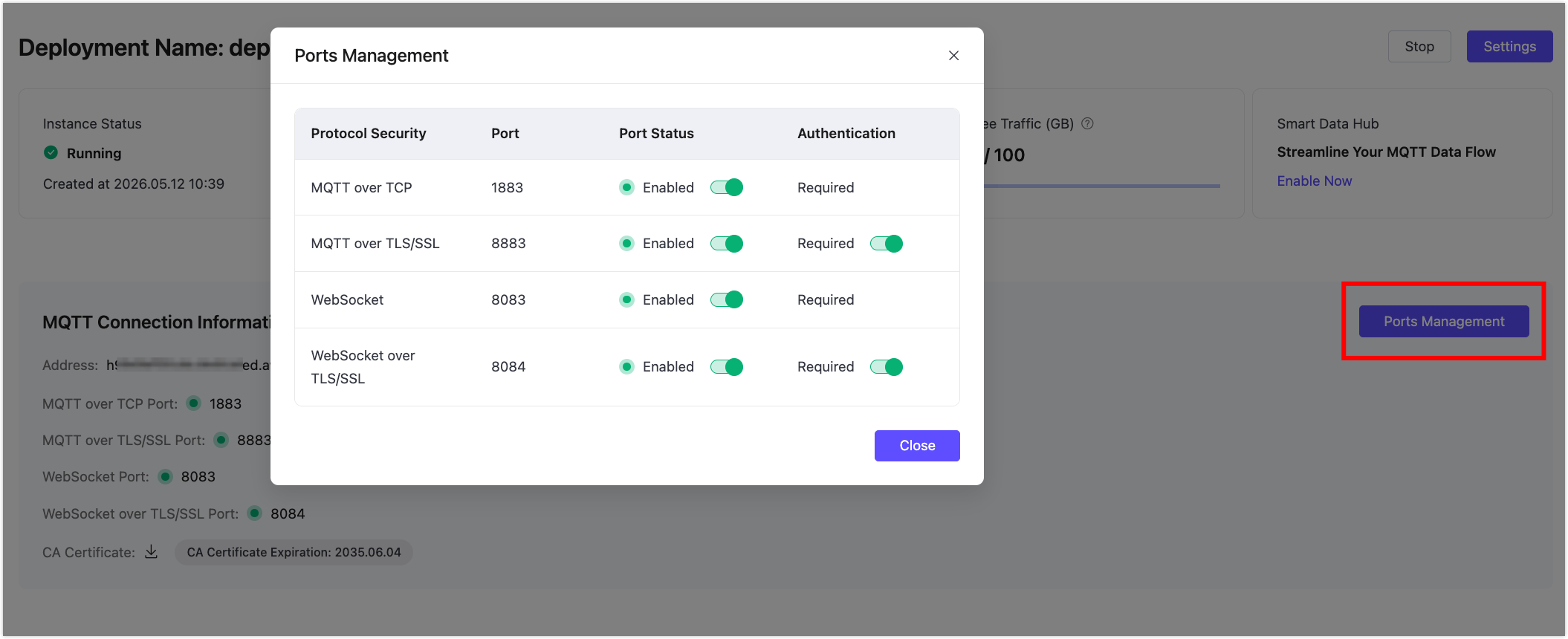
Ports Management lets you view and control the MQTT access ports exposed by a deployment. You can disable unused ports to reduce unnecessary public exposure.
Note
Ports Management is currently supported for Dedicated and Dedicated Flex deployments.
View Port Status
- In your EMQX Cloud Console, go to the target deployment from the Overview page or from your project.
- On the Deployment Overview page, find the Ports Management button in the MQTT Connection Information section.
- Click Ports Management to open the dialog.
The dialog displays the supported protocols, port numbers, port status, and authentication status of the current deployment.
TIP
Available ports may vary by deployment type, version, or TLS/SSL configuration. Always use the information shown in the Console as the source of truth.
Disable a Port
To disable a port, find the corresponding protocol in the Ports Management dialog and toggle the switch.
After a port is disabled:
- New clients cannot connect to the deployment through that protocol and port.
- Existing connections through the disabled port will be dropped; clients must reconnect through an enabled port.
Re-enable a Port
To re-enable a port, open Ports Management and toggle the switch for the corresponding protocol.
Once re-enabled, clients can reconnect through that port.
Manage Client Authentication for Encrypted Ports
For v5 Dedicated and Dedicated Flex deployments with two-way TLS enabled, the Ports Management dialog displays a Client Authentication column. You can disable client authentication on encrypted ports so that clients connecting through that port bypass EMQX client authentication.
TIP
After client authentication is disabled for an encrypted port, the port still uses TLS/SSL encrypted communication, but EMQX no longer performs authentication checks for clients connecting through that port.
Best Practices
- Before disabling a port, verify that no clients, applications, or third-party systems are still using it to connect to the deployment.
- Enable only the ports required by your applications or integrations. For production environments, encrypted ports such as
8883or8084are recommended. - If you use WebSocket access, make sure the client connection address, port, and path are configured consistently. For more connection instructions, see Client Connection Guidelines.