VPC Peering Connection with Oracle Cloud
This document describes how to create a VPC peering connection between EMQX Cloud and Oracle Cloud Infrastructure (OCI) by using Local Peering Gateways (LPGs).
In this setup:
- The Virtual Cloud Network (VCN), where your Oracle Cloud resources reside, acts as the requesting side.
- The VCN where the EMQX Cloud deployment resides acts as the accepting side of the peering connection.
Prerequisites
Before you begin, ensure that:
- Your Oracle Cloud VCN and the EMQX Cloud deployment are located in the same region.
- The CIDR block of your Oracle Cloud VCN does not overlap with the CIDR block of the EMQX Cloud VCN.
- You have sufficient permissions to manage VCNs, Local Peering Gateways, route tables, and security rules in Oracle Cloud.
Create a VPC Peering Connection
Step 1: Collect Required OCIDs from Oracle Cloud
Before initiating the peering connection, collect the following OCIDs from your Oracle Cloud account. These are required when submitting the connection request in the EMQX Cloud console.
Get the Group OCID
In the Oracle Cloud Console, go to Identity & Security -> Identity -> Domains.
Open an existing domain (for example,
Default) or create a new one.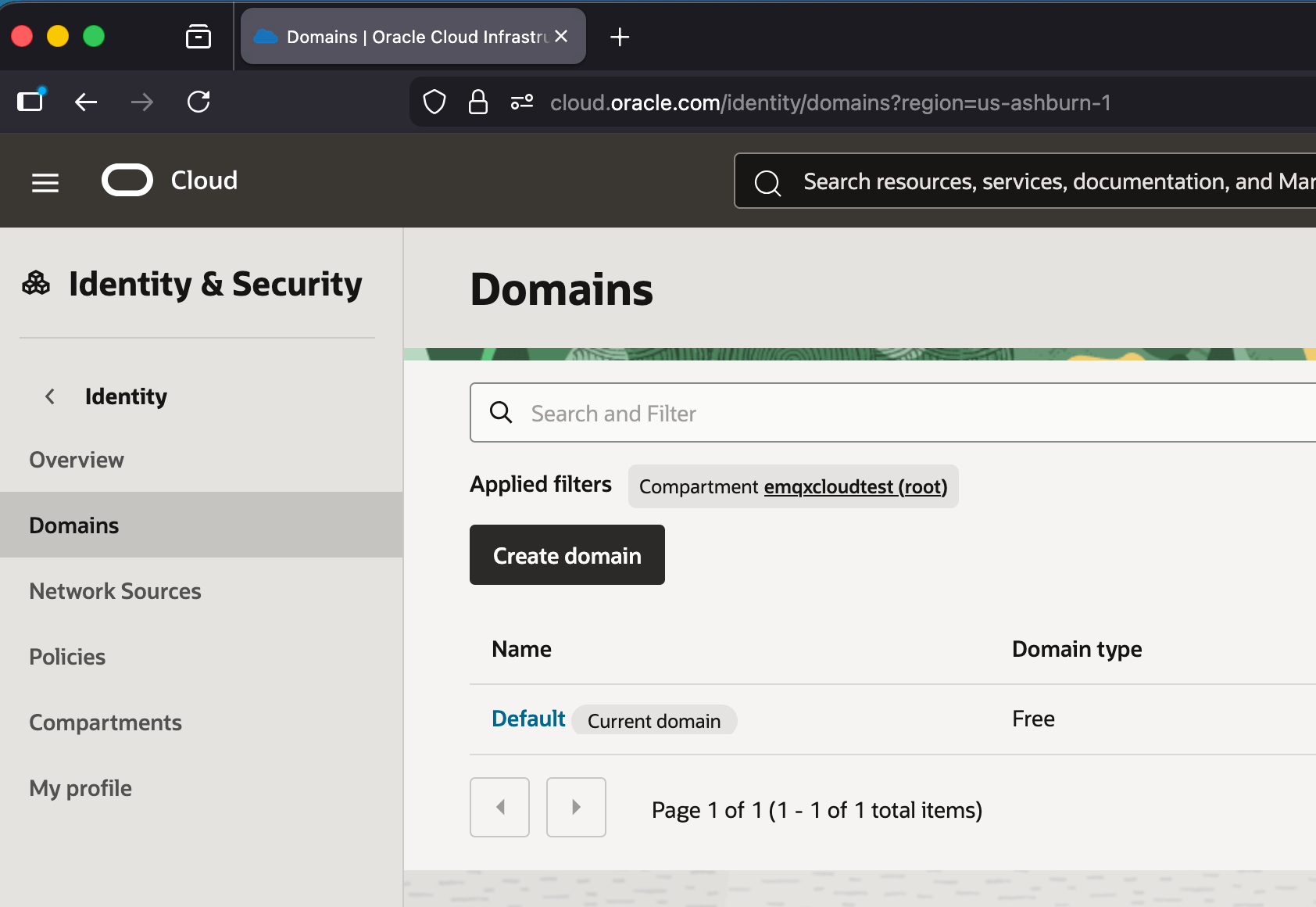
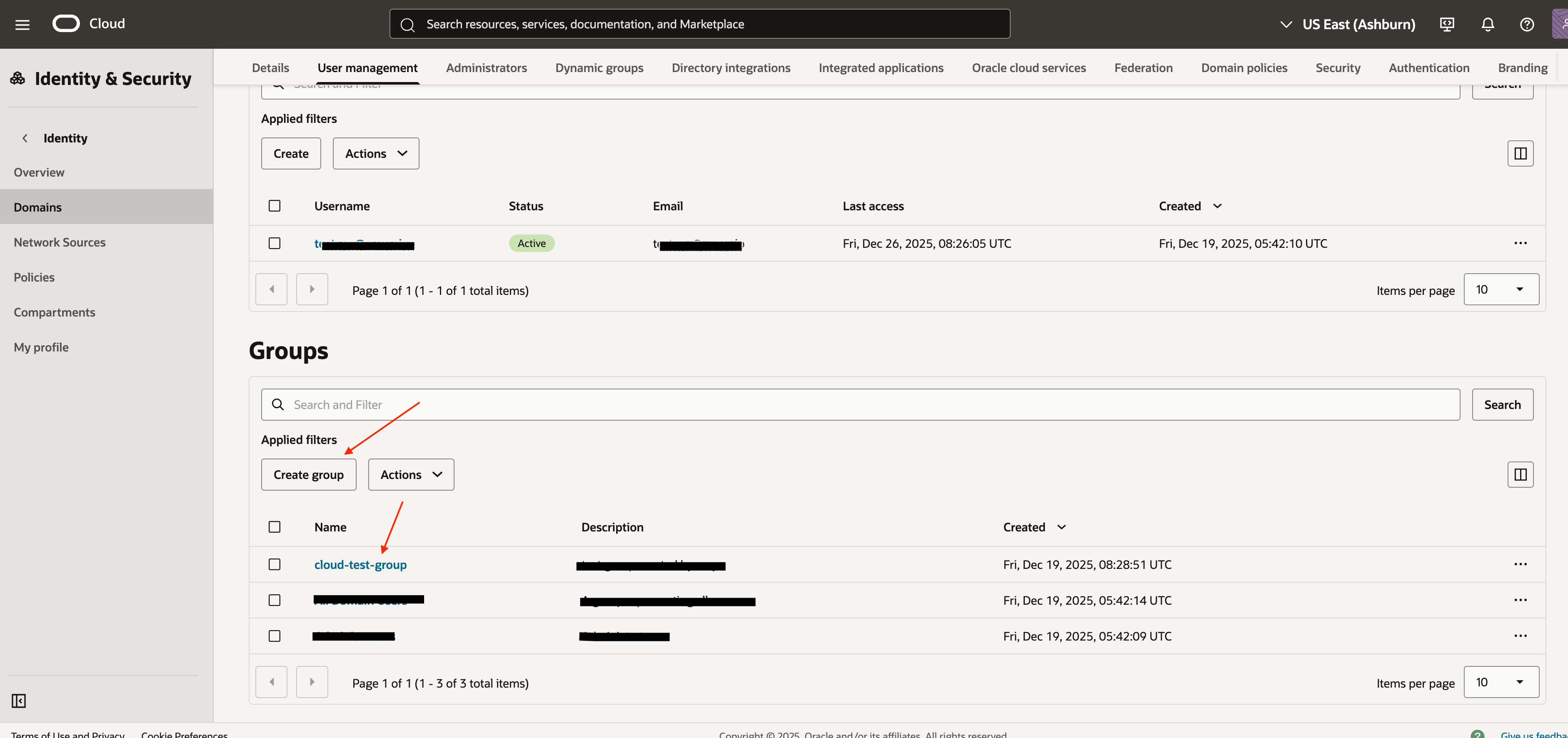
In the domain, go to User Management -> Groups. Select an existing group or click Create group to create a new one.
Make sure the group includes the user who will establish the peering connection.
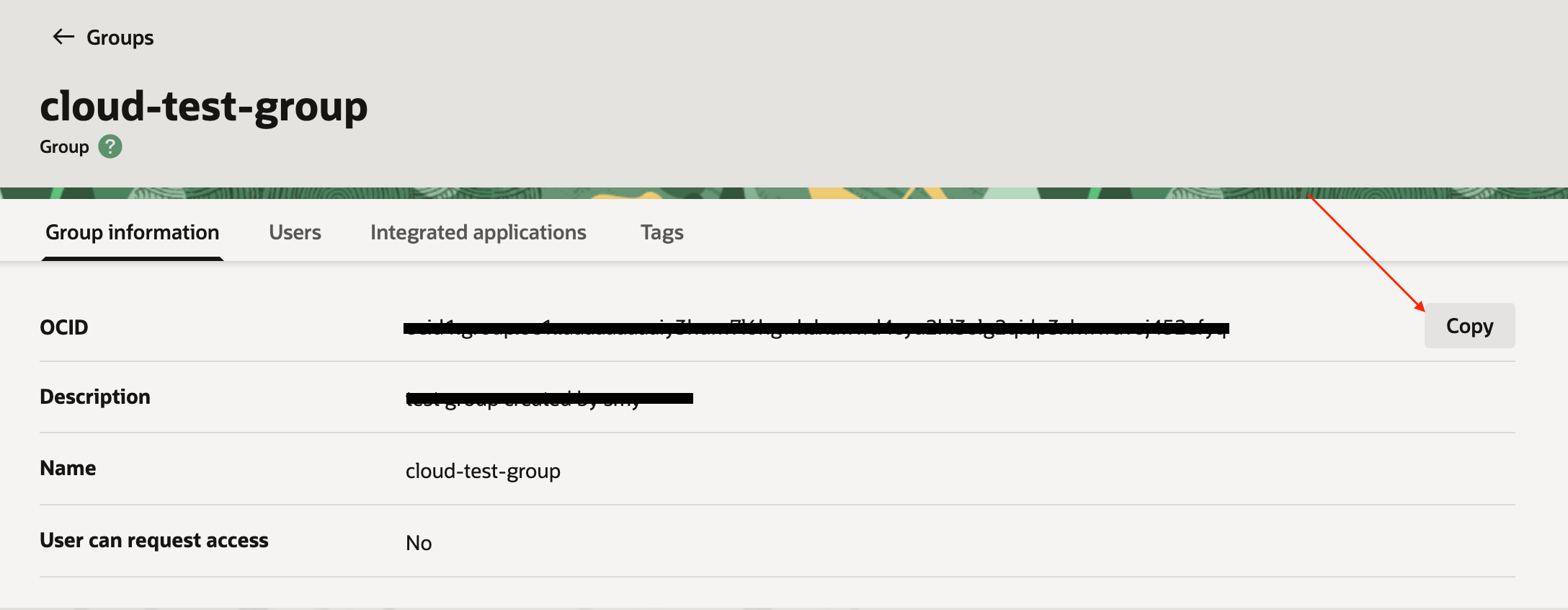
Open the group and copy the OCID shown in the group details.
Get the Compartment OCID
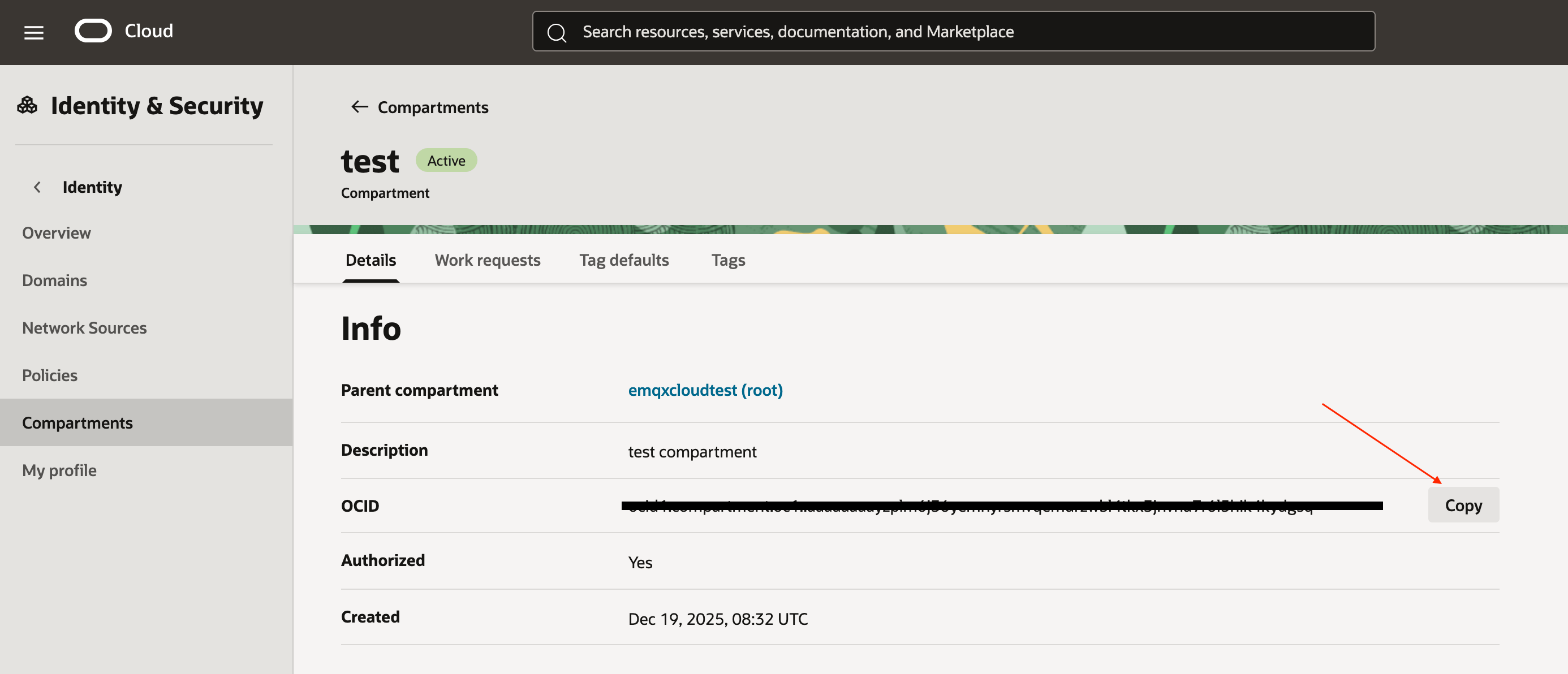
Go to Identity & Security -> Identity -> Compartments.
Select the compartment that contains the VCN you want to peer with EMQX Cloud.
Copy the OCID from the compartment details page.
Get the Tenancy OCID
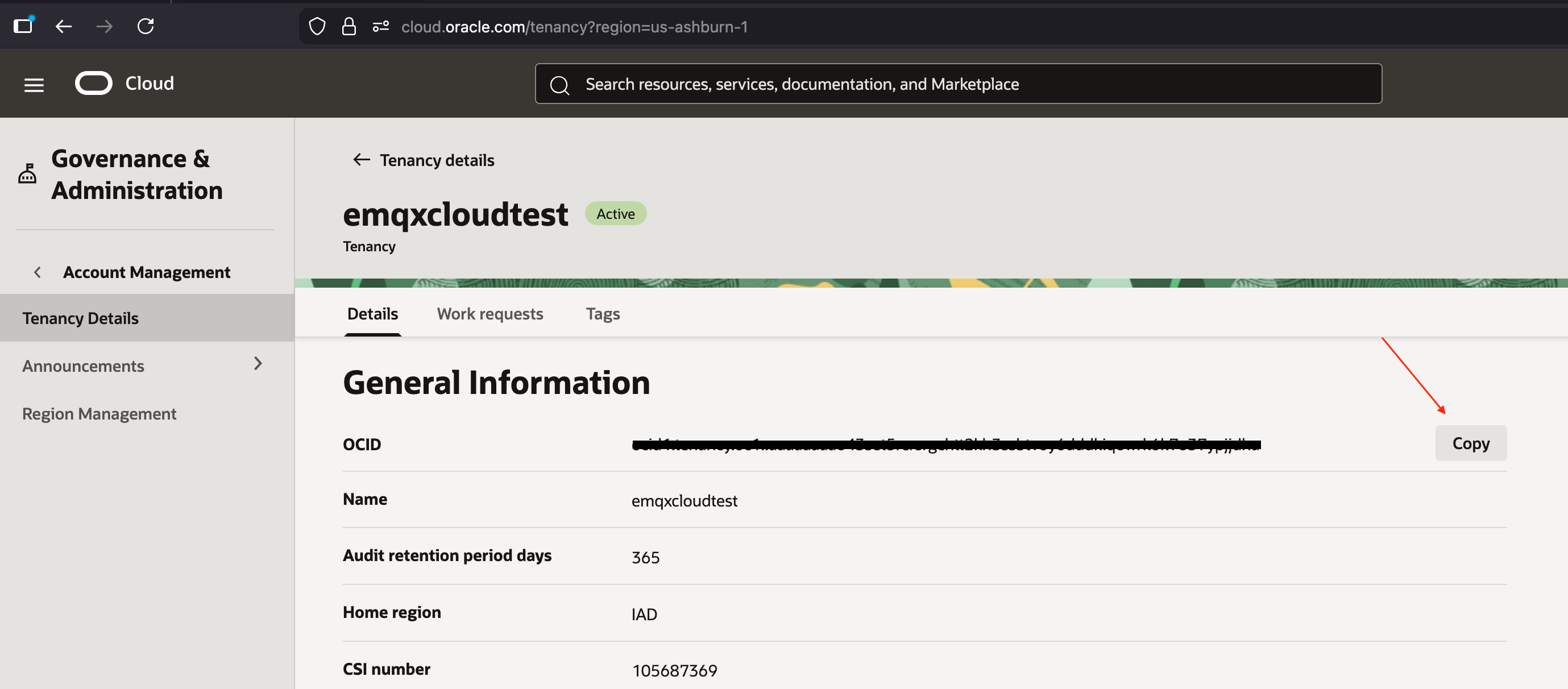
Go to Governance & Administration -> Account Management -> Tenancy Details.
Copy the OCID from the General Information section.
Verify OCI Identifiers
Before you continue, verify that each OCI identifier is used for the correct purpose:
| Purpose | Required Value | Example Format |
|---|---|---|
| Requestor Group | Group OCID | ocid1.group.oc1... |
| Requestor Compartment | Compartment OCID | ocid1.compartment.oc1... |
| Requestor Tenancy | Tenancy OCID | ocid1.tenancy.oc1... |
Do not use a Group OCID or Tenancy OCID as the Requestor Compartment ID. The Requestor Compartment ID must be the OCID of the compartment that contains the Oracle Cloud VCN and Local Peering Gateway.
Step 2: Initiate the Peering Connection in EMQX Cloud
Log in to the EMQX Cloud Console and go to the Deployment Overview page of the target deployment.
From the left navigation menu, click Network Management.
In the VPC Peering Connection section, click + VPC Peering Connection.
On the dialog page, confirm the Region of Deployment and make sure it matches the region of your Oracle Cloud VCN.
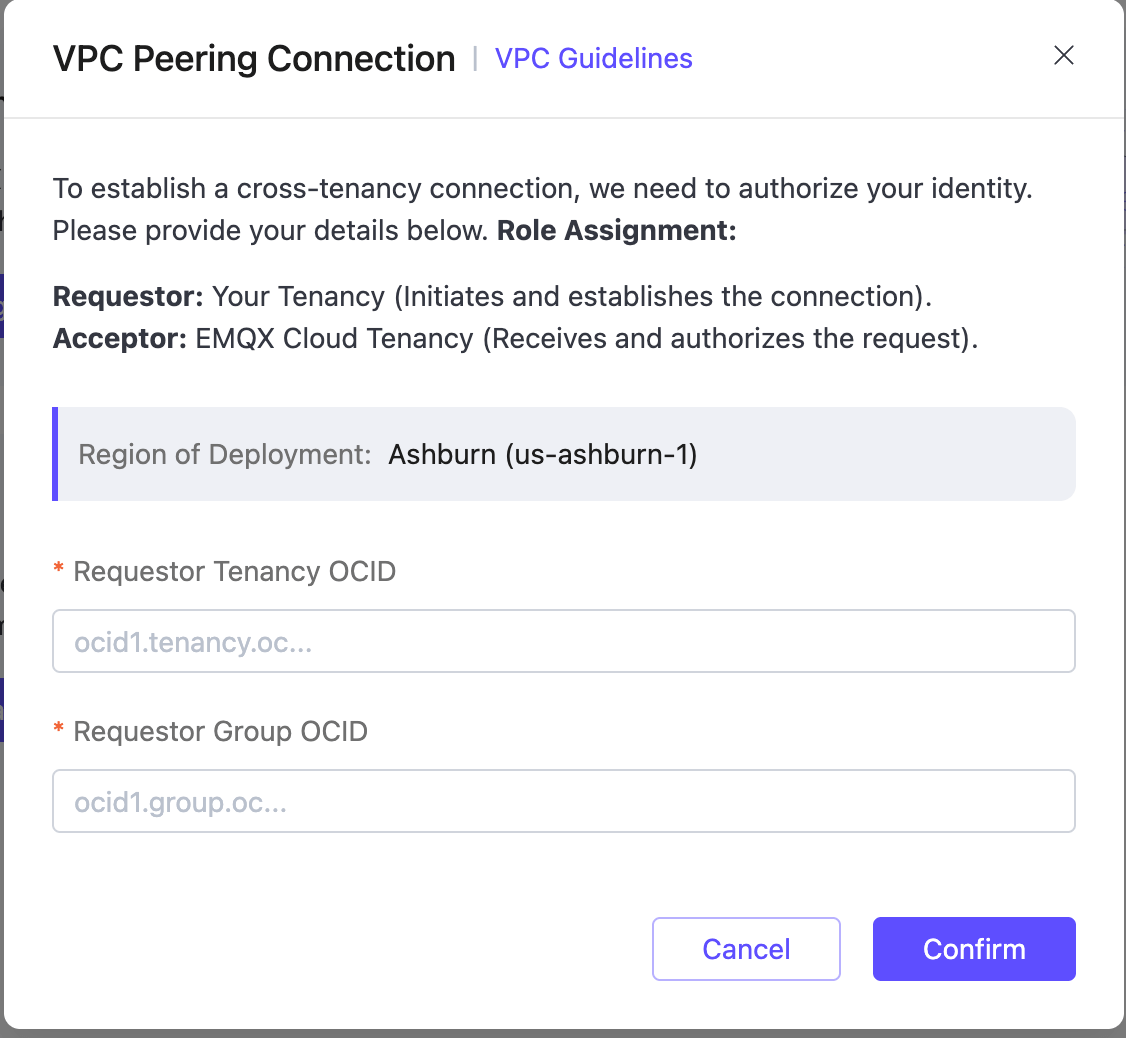
Enter the Requestor Tenancy OCID and Requestor Group OCID collected in Step 1, then click Confirm.
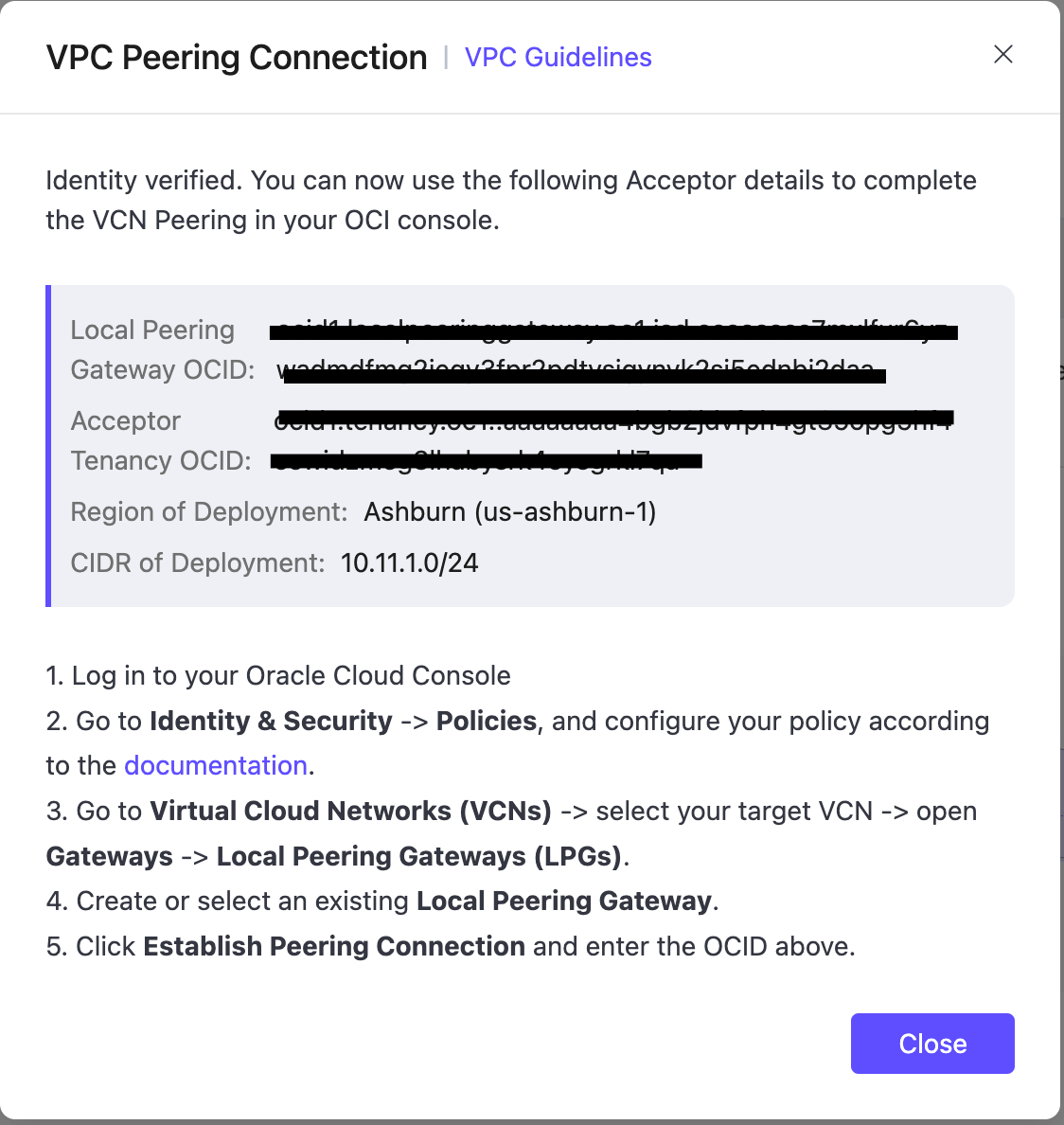
After identity verification, click Create Local Peering Gateway.
EMQX Cloud automatically creates a Local Peering Gateway in its VCN and displays the following information:
- Local Peering Gateway OCID
- Acceptor Tenancy OCID
- Region of Deployment
- CIDR of the EMQX Cloud VCN
Keep this dialog open, as these values will be used in the next steps.
Step 3: Configure an IAM Policy in Oracle Cloud
You must create an IAM policy in Oracle Cloud to authorize the cross-tenancy peering connection. The policy must be created at the root compartment (tenancy) level.
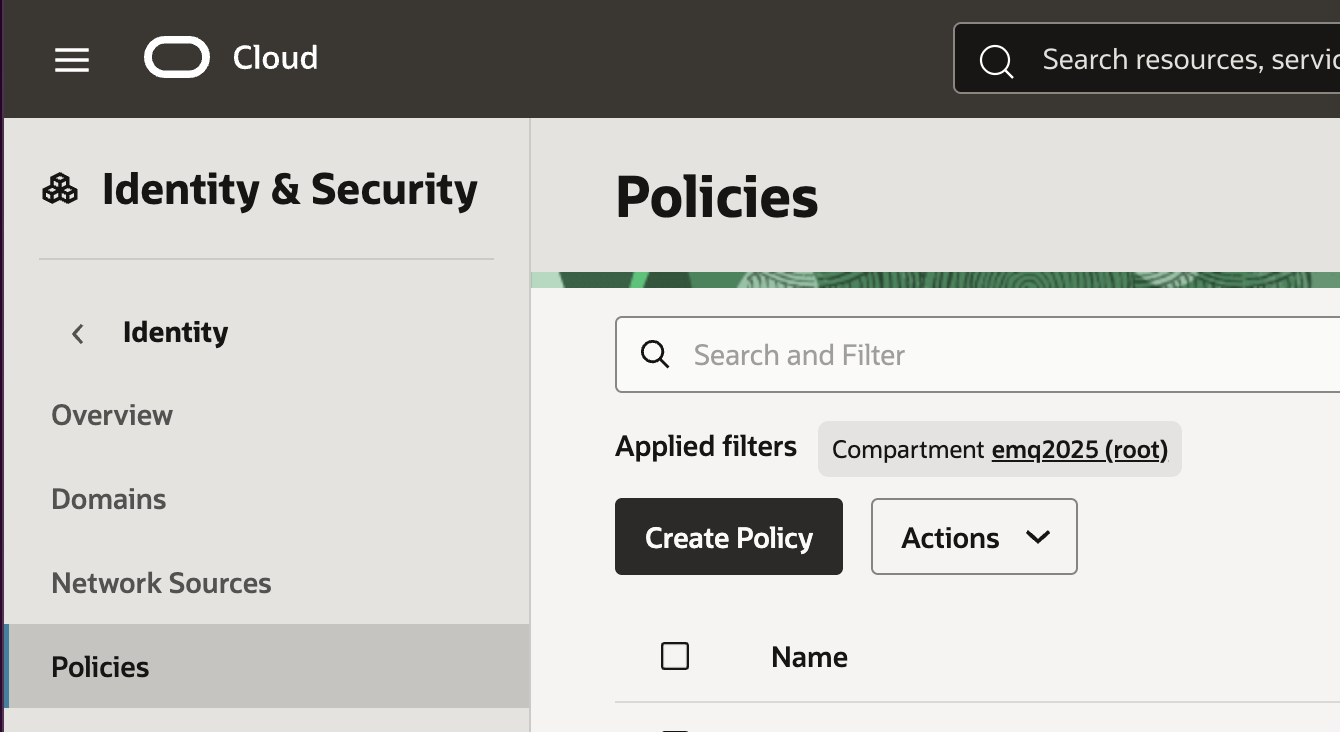
In the Oracle Cloud Console, go to Identity & Security -> Policies.
Click Create Policy.
In the Policy Builder section, click Show manual editor.
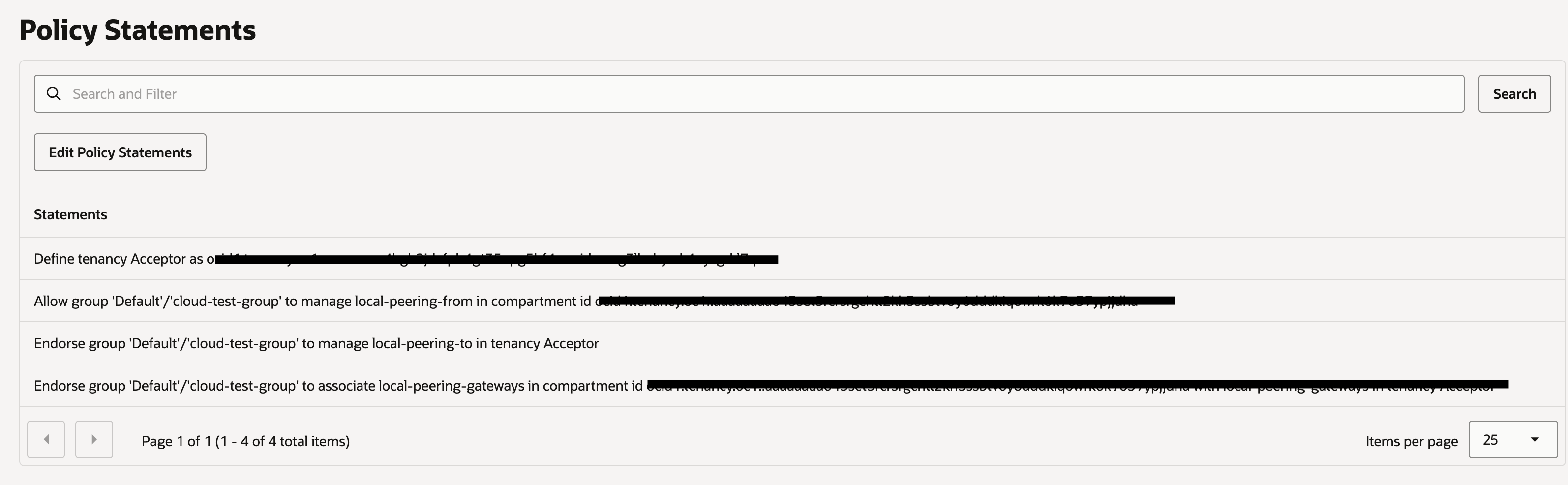
Enter the following policy statements, replacing the placeholders with your actual values:
Define tenancy Acceptor as <Acceptor Tenancy OCID>
Define group RequestorGroup as <Requestor Group OCID>
Define compartment RequestorCompartment as id <Requestor Compartment OCID>

Allow group RequestorGroup to manage local-peering-from in compartment RequestorCompartment
Endorse group RequestorGroup to manage local-peering-to in tenancy Acceptor
Endorse group RequestorGroup to associate local-peering-gateways in compartment RequestorCompartment with local-peering-gateways in tenancy Acceptor
<Acceptor Tenancy OCID>: the Acceptor Tenancy OCID from the EMQX Cloud dialog in Step 2.<Requestor Group OCID>: the Group OCID collected in Step 1.<Requestor Compartment OCID>: the Compartment OCID collected in Step 1.
The
RequestorGroupandRequestorCompartmentlabels are local aliases in the IAM policy. You can keep these labels unchanged and replace only the OCID placeholders.Save the policy.
Troubleshoot IAM Policy Errors
If OCI reports that Compartment (ocid1.group.oc1...) does not exist, the Group OCID was used as the Requestor Compartment OCID. Replace it with the Compartment OCID in ocid1.compartment.oc1... format.
If OCI reports Authorization failed or requested resource not found, check the following items before retrying:
- The user who establishes the peering connection is a member of the requestor group.
- The IAM policy is created at the root compartment (tenancy) level.
- The Requestor Compartment OCID is correct and uses
ocid1.compartment.oc1...format. - The Oracle Cloud LPG is created in the same compartment as
RequestorCompartment. - The IAM policy has had enough time to take effect.
Step 4: Create a Local Peering Gateway in Oracle Cloud
Log in to the Oracle Cloud Console.
In the top search bar, search for Virtual Cloud Networks, and open the VCN where your Oracle Cloud resources are deployed.
In the VCN details page, select Gateways from the left navigation.
In the Local Peering Gateways section, click Create Local Peering Gateway.
Enter a name (for example,
vpc-peering-lpg) and select the appropriate compartment.The selected compartment must match the compartment specified by
<Requestor Compartment OCID>in the IAM policy.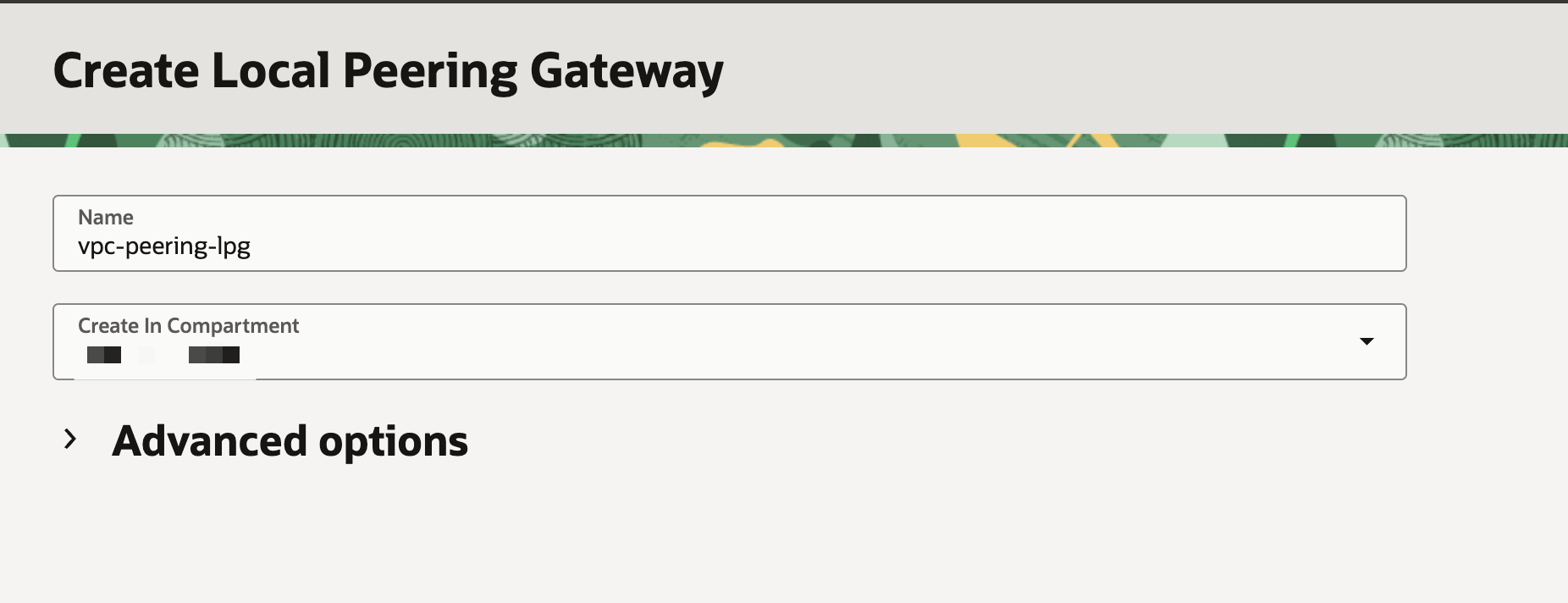
Click Create.
Step 5: Establish the Peering Connection
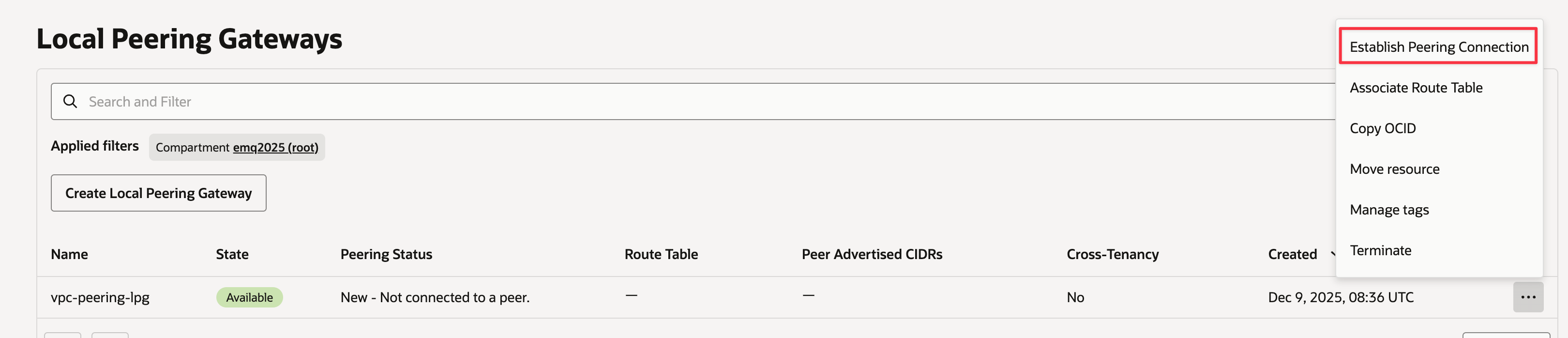
In the Local Peering Gateways list, locate the newly created LPG.
Click the Actions menu (⋯) and select Establish Peering Connection.
On the Establish Peering Connection page:
- Select Enter Local Peering Gateway OCID.
- Paste the Local Peering Gateway OCID obtained from the EMQX Cloud console.
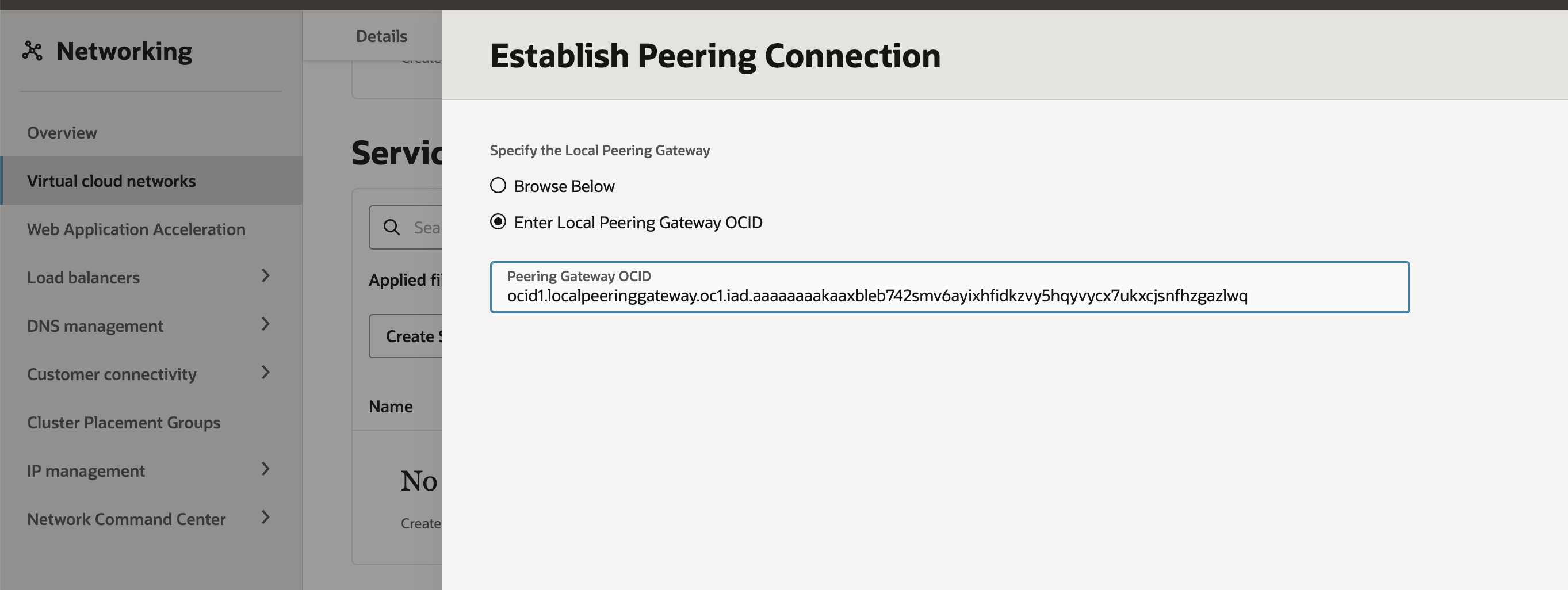
Click Establish Peering Connection.
Wait until the Peering Status changes to Peered.
If OCI reports Authorization failed or requested resource not found, verify the IAM policy configuration and the LPG compartment before retrying.
Step 6: Configure Route Tables
After the peering connection is established, you must update the route table to allow traffic to flow to the EMQX Cloud VCN.
In the Oracle Cloud Console, go back to the VCN details page.
Select the Routing tab.
Locate the route table associated with the subnet where your Oracle Cloud resources reside.
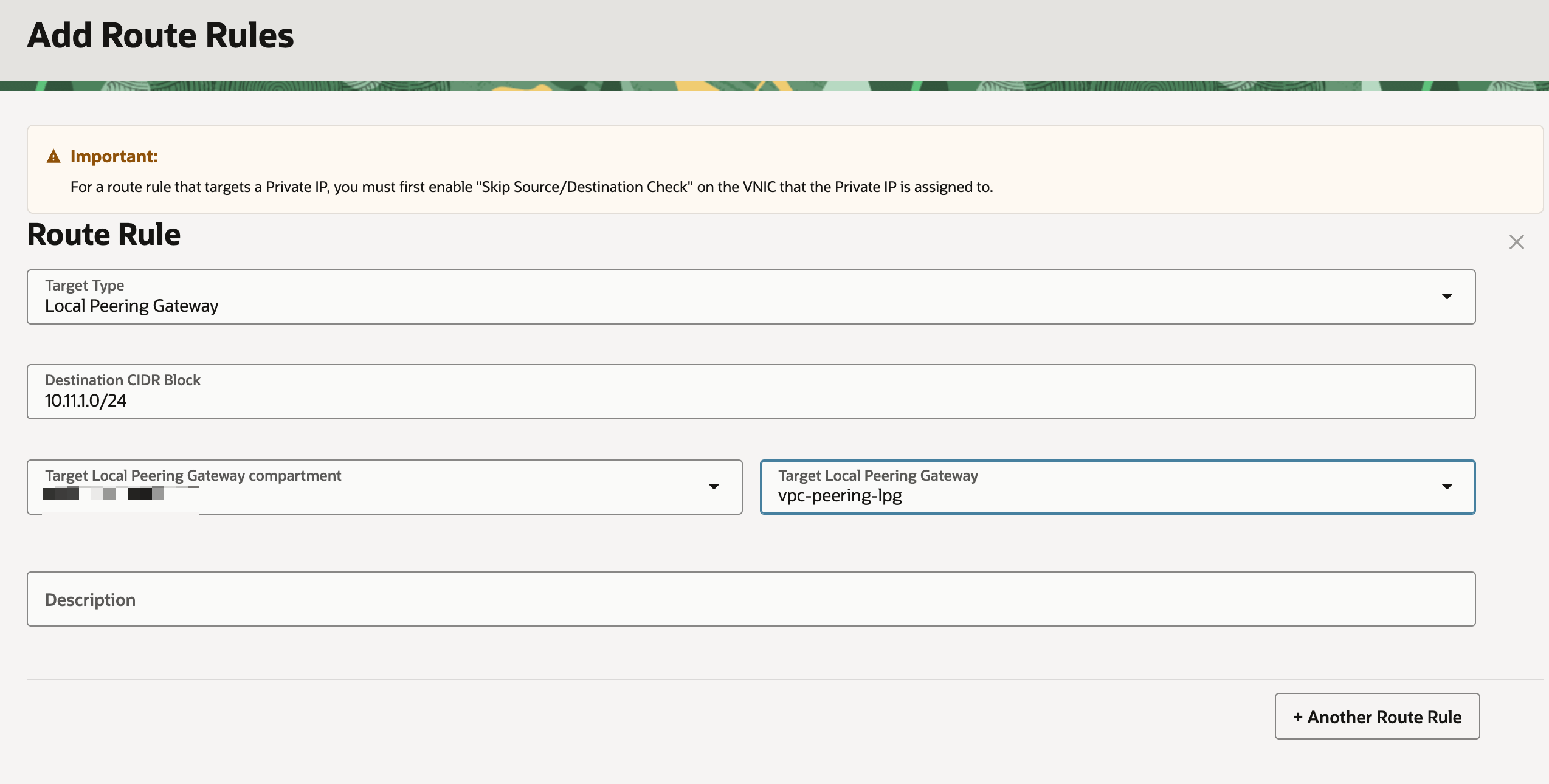
Click Add Route Rules and configure the following:
- Target Type:
Local Peering Gateway - Destination CIDR Block: CIDR of the EMQX Cloud VCN
- Target Local Peering Gateway compartment: Select the compartment where the Local Peering Gateway was created.
- Target Local Peering Gateway: Select the Local Peering Gateway you created for this peering connection.
- Target Type:
Save the route rule.
Step 7: Configure Security Rules
Finally, update the security rules to allow traffic from the EMQX Cloud VCN.
In the VCN details page, open the Security tab.
Locate the Security Lists or Network Security Groups (NSGs) associated with your Oracle Cloud resources.
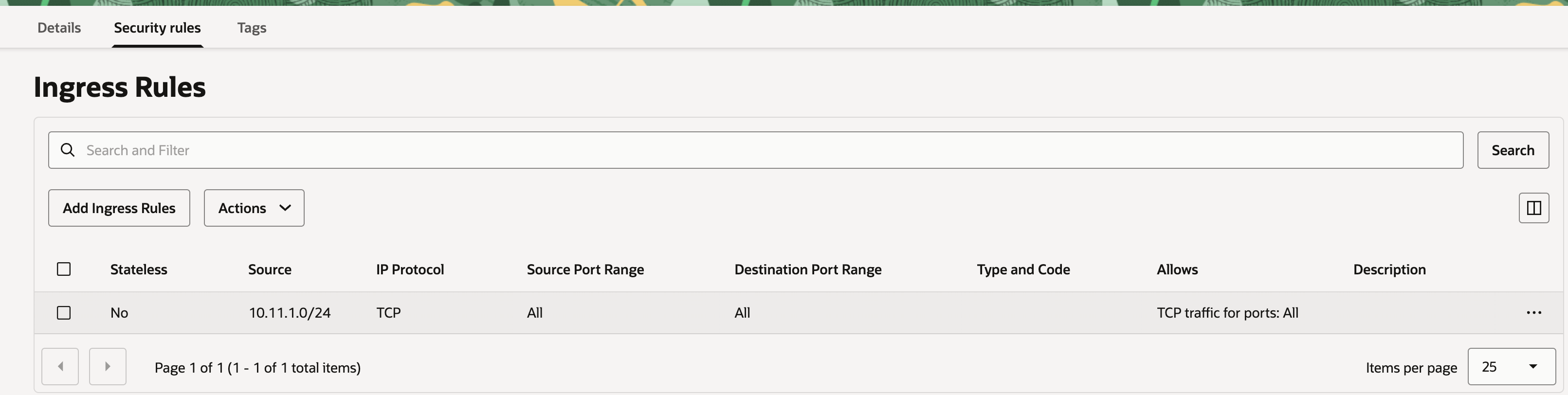
Add Ingress Rules to allow traffic from the EMQX Cloud CIDR block.
- Source: EMQX Cloud VCN CIDR
- IP Protocol: TCP (or as required)
- Destination Port Range: As required by your application
Save the changes.
Delete a VPC Peering Connection
To delete a peering connection, you need to ensure that the status of the VPC peering connection is Running.
TIP
Before deleting the peering connection, make sure that there are no associated resources in the deployment; otherwise, there will be unpredictable risks.
Go to the VPC Peering Connection area on the Network Management page in your deployment.
Click the "delete" icon in the Actions column of the peering connection.