Thing Groups
Thing Groups organize devices into named sets. Groups are used to target batch operations (Jobs) at multiple devices and to filter the device list in the console.
Default Groups
When a Thing Type is created, Fleets automatically creates a default group for it. The default group contains all Things of that Thing Type. Default groups cannot be deleted manually; they are removed when the parent Thing Type is deleted.
Default group names follow the pattern: {thingTypeName} (default).
Create a Thing Group
- In your Fleets deployment, go to Device Management > Thing Groups.
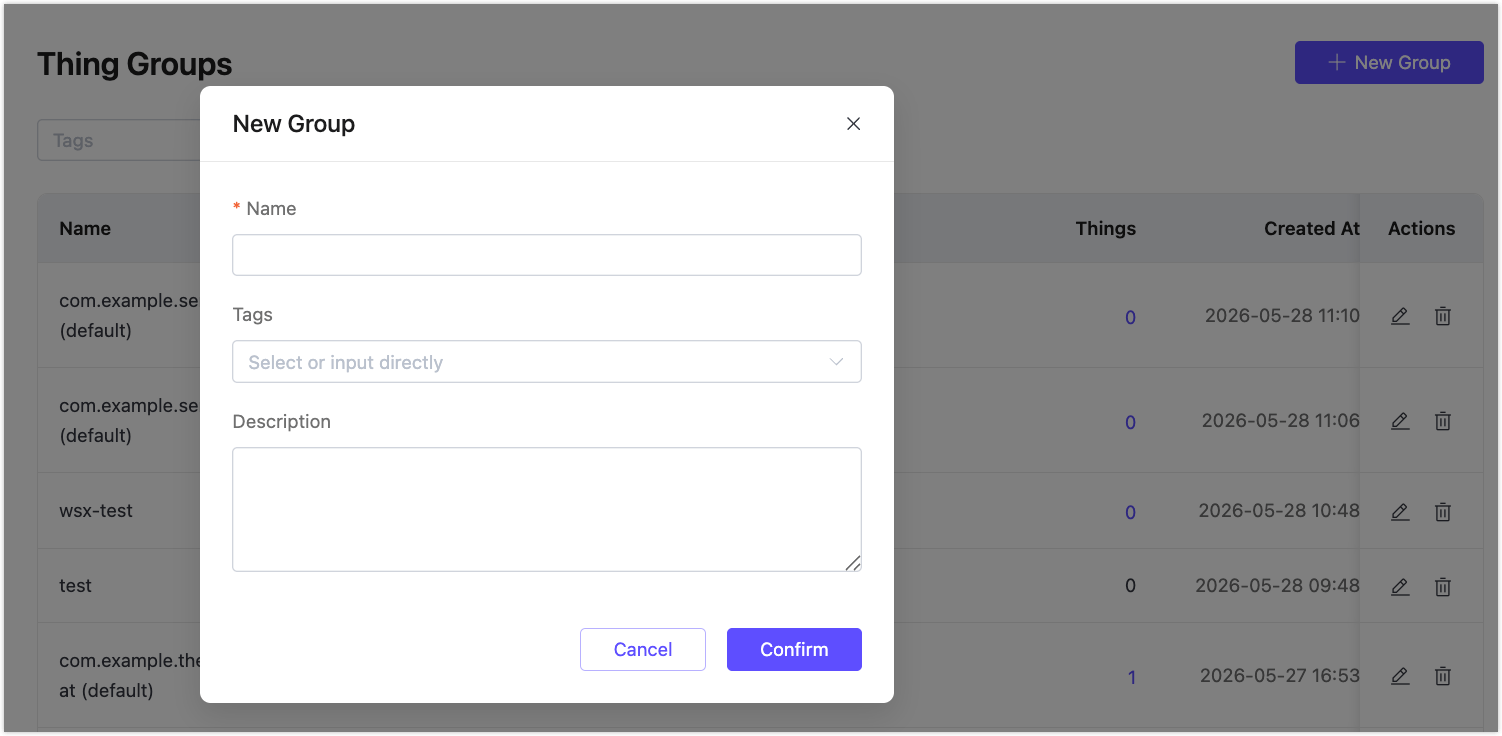
- Click + New Group.
- Fill in the fields:
- Name (required): A unique name for the group.
- Tags (optional): Tags to associate with this group. You can select existing tags or type a new one directly.
- Description (optional): A description of the group's purpose.
- Click Confirm.
View Group Members
In the Thing Groups list, click the number in the Things column to view the devices currently in that group.
The group list shows the following columns: Name, Description, Tags, Things, Created At, and Actions. Use the Tags filter at the top of the list to filter groups by tag.
Edit a Thing Group
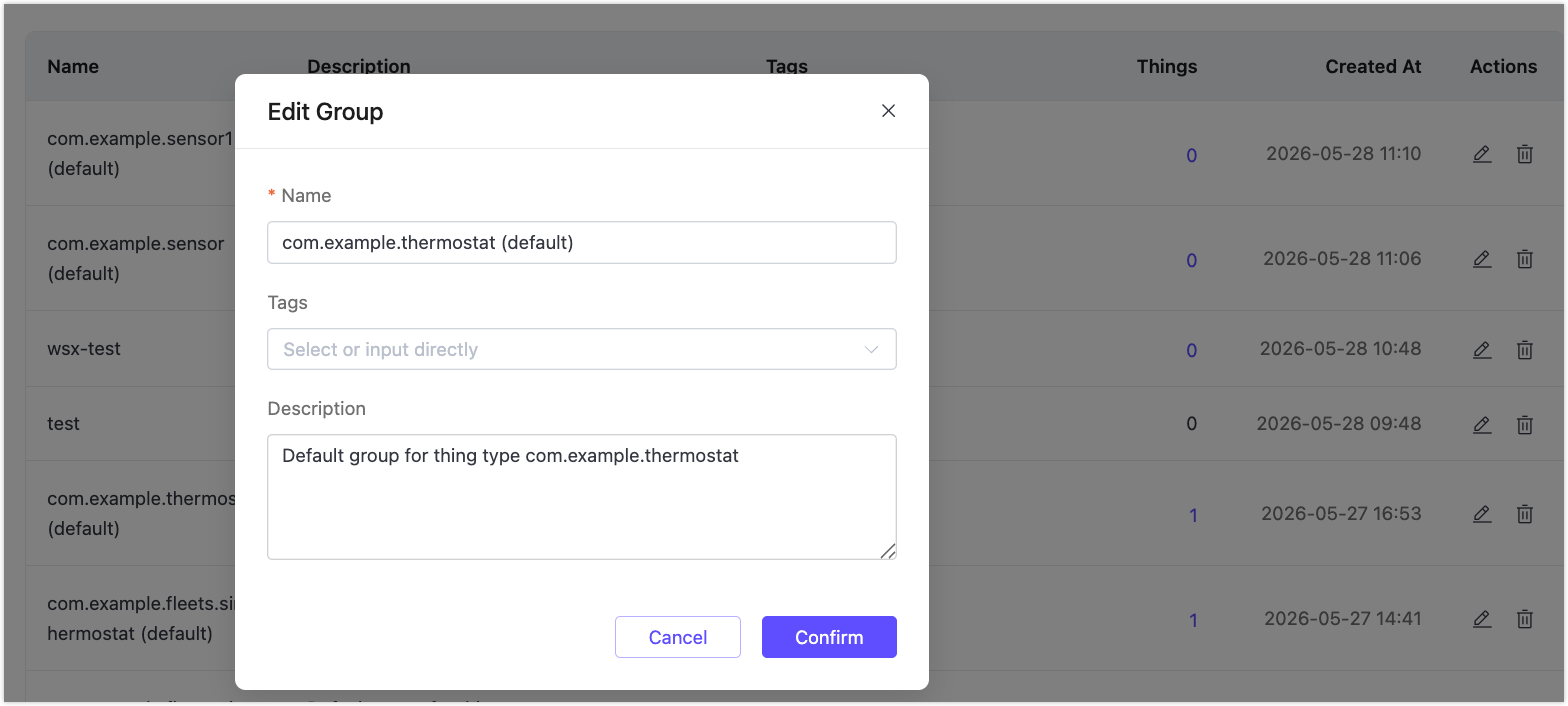
- In the Thing Groups list, click the edit icon in the Actions column.
- Update the name, tags, or description.
- Click Confirm.
Delete a Thing Group
- In the Thing Groups list, click the delete icon in the Actions column.
- Click Confirm in the confirmation dialog.
The delete icon is disabled for default groups. Default groups are removed automatically when their parent Thing Type is deleted.
Use Groups with Jobs
Thing Groups are the primary targeting mechanism for Jobs. When creating a Job, select a group as the target. Fleets dispatches the job to all Things in that group.
See Manage Jobs for details.